TABLE OF CONTENTS
- 1. Introduction
- 2. Populating the table with data
- 3. Source of data
- 4. Sensitivity
- 5. Specificity
- 6. Prevalence
- 7. Number of studies and number of patients
- 8. Inconclusive studies and complications
- 9. Exemplary calculations
- 10. GRADE certainty assessment

1. Introduction
Here we'll show how to complete and manage an evidence table in diagnostic questions step by step. Please note that this article is focused on the practical approach in GRADEpro. If you are seeking tips on how to frame your healthcare question and how to manage data within, please refer to GRADEbook or the GRADE Guidelines.
1.1 What is a diagnostic question?
The structure of a diagnostic question is:
Should [index test] be used to diagnose/screen for [target condition] in [health problem and/or population]?
or
Should [index test] vs [comparator test] be used to diagnose [target condition] in [health problem and/or population]?
- The index test is the test that is the object of your research.
- The comparator test is optional and is an alternative method of diagnosis.
- The target condition is the condition diagnosed by the index test.
- Health problem or population are the patients or populations to whom the recommendations are meant to apply.
As opposed to management questions, the diagnostic question can be used to decide on the best way of detecting a health state and not curing it.
1.2 How to create a diagnostic question?
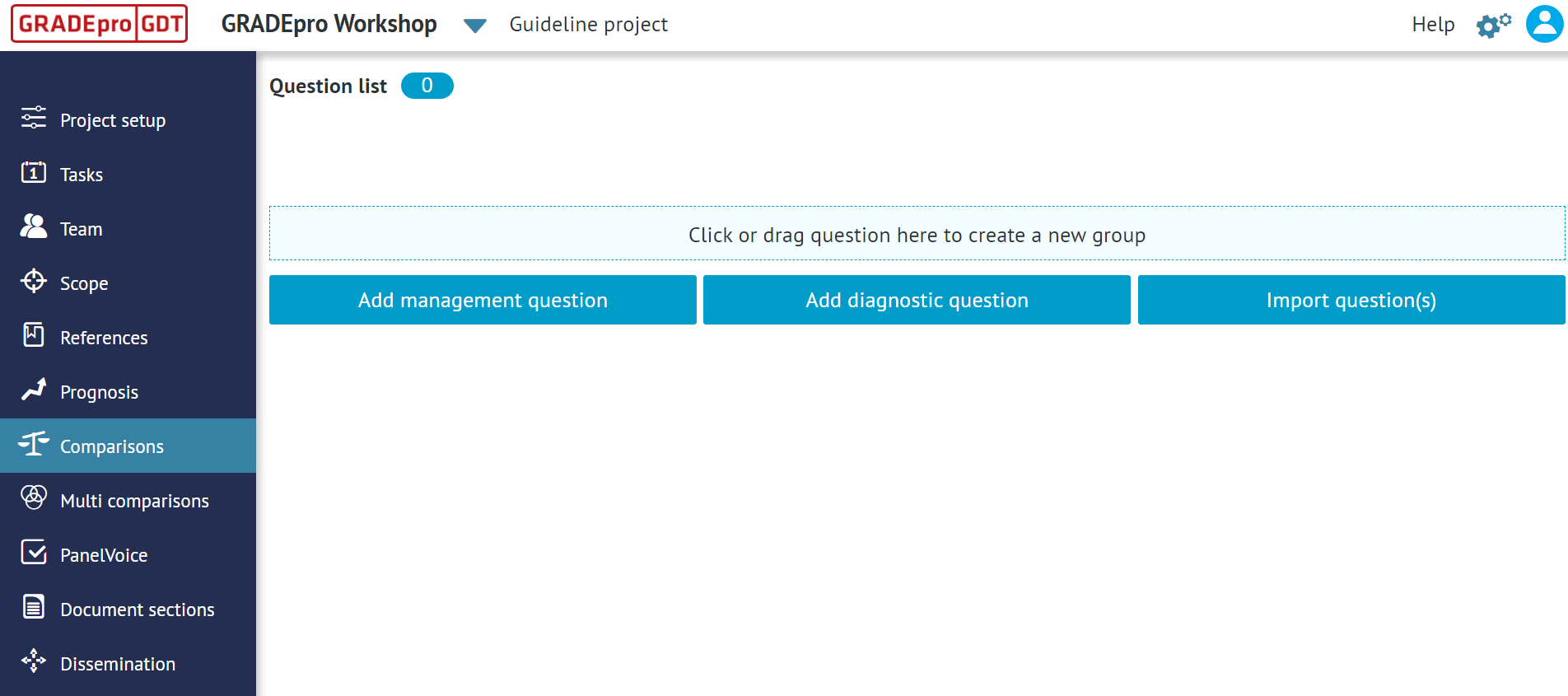
To add a new diagnostic question, go to the Comparisons section and click on the Add diagnostic question button.
A new question will be created, open for editing:
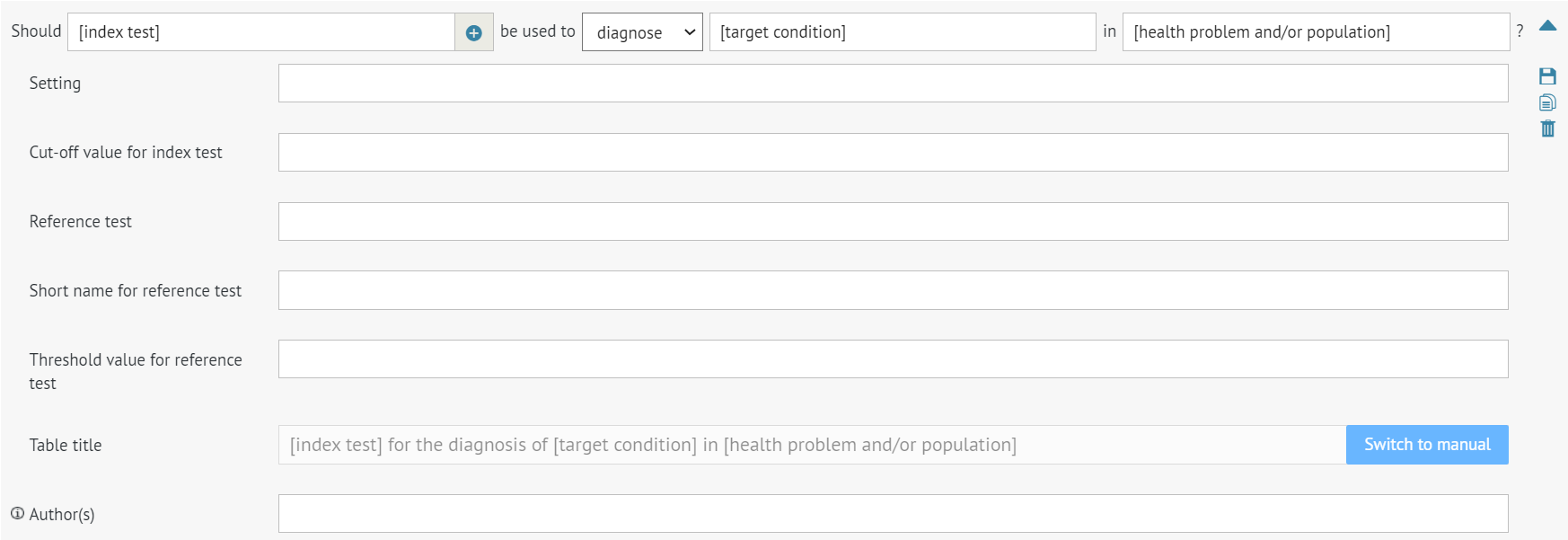
You will be able to enter the following:
Index test - the test that is the subject of your question
Target condition - the condition for which the test will be used
Health problem/population - a defined population or a health problem
The cut-off value for the index test
Reference test
Short name for reference test
The threshold value for the reference test
Authors (usually yourself and your collaborators)
If you click on the green plus button next to the index test, you will be able to add a comparator test.


Once you finish entering the details, please click on the saving icon (floppy disc) on the right-hand side.
The question will be added to the list. You can enter it by clicking on it.
2. Populating the table with data
Once you have created a new diagnostic question and entered it, you will see the empty evidence table.
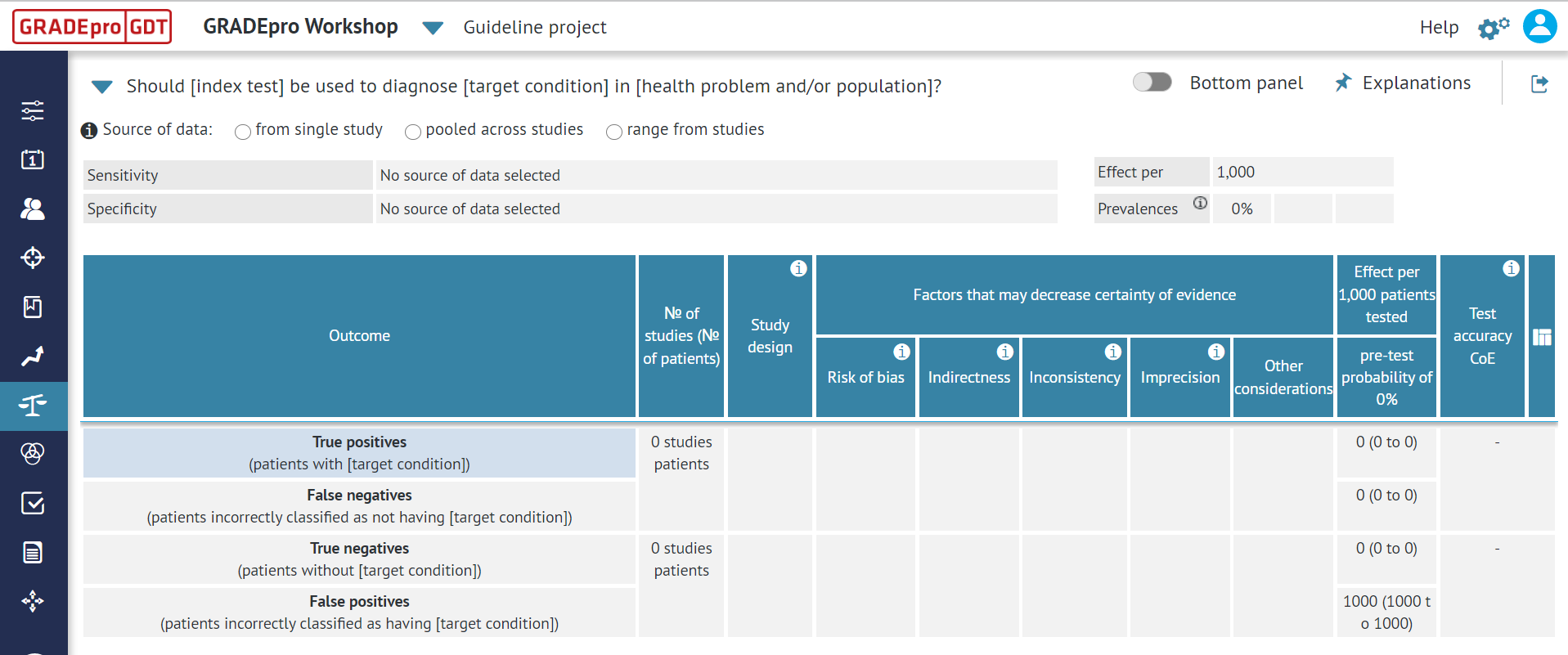
As opposed to management questions, in a diagnostic question, you do not add outcomes and rows to the table. The only details you provide, apart from the quality of evidence assessment, are:
- source of data
- sensitivity of the test
- specificity of the test
- prevalence of the target condition
With these data, GRADEpro automatically calculates the number of true and false negatives and positives.
3. Source of data
The calculations in the diagnostic tables differ depending on the source of data. You can select from three options:

- From a single study - only one study is available
- Pooled across studies - multiple studies are available, and sensitivities and specificities were combined in a meta-analysis
- Range from studies - multiple studies are available, and it was not possible to combine them in a meta-analysis (e.g. fewer than 5 studies and/or inconsistency of results was serious enough so that results could not be combined)
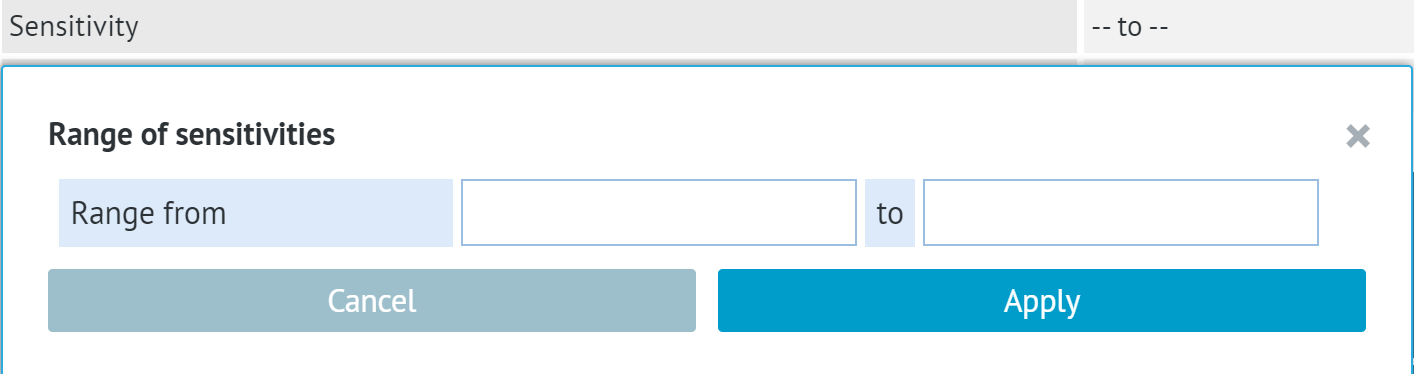
If Range from studies is selected, only minimum and maximum values of sensitivity and specificity can be entered, with no confidence intervals.
4. Sensitivity
The sensitivity of a test is its ability to identify people with the target condition correctly. A test with high sensitivity will be positive for most of the people who have the condition and will have few false-negative results.
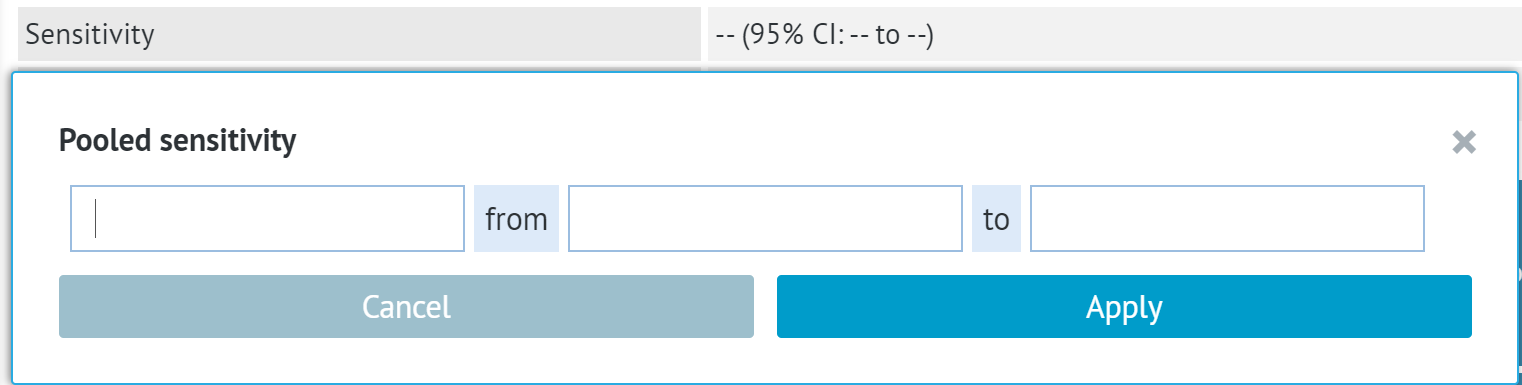
When entering the sensitivity, you can provide the value as well as the Confidence Intervals.
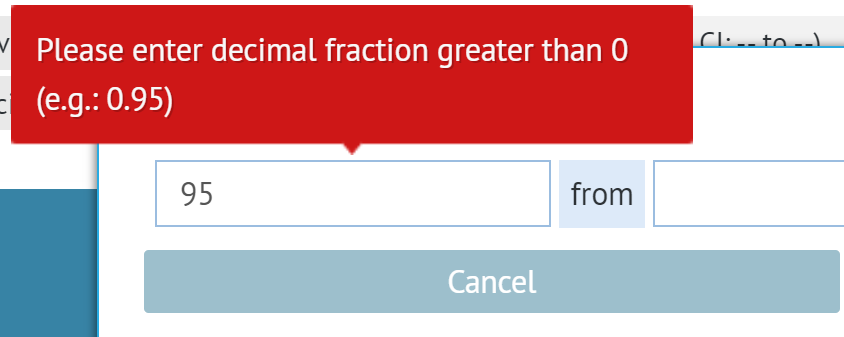
The values should be entered as decimal fractions, e.g., if 95% was measured, you should enter 0.95. Otherwise, you will receive an error message.
 If Range from studies is selected, only minimum and maximum values of sensitivity can be entered, with no confidence intervals.
5. Specificity
The specificity of a test is its ability to identify people without the target condition correctly. A test with high specificity will be negative for most of the people who do not have the condition and have few false positive results.
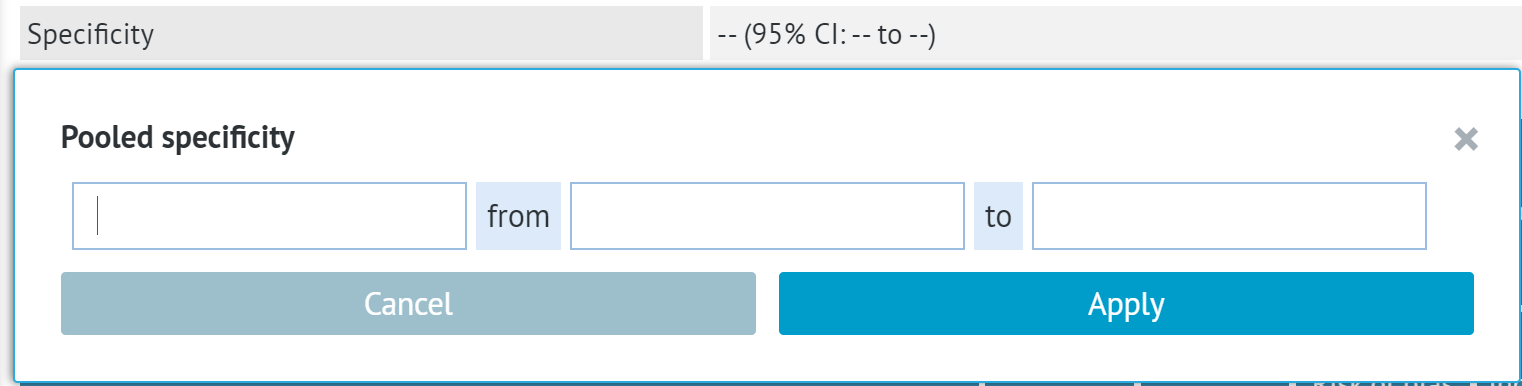
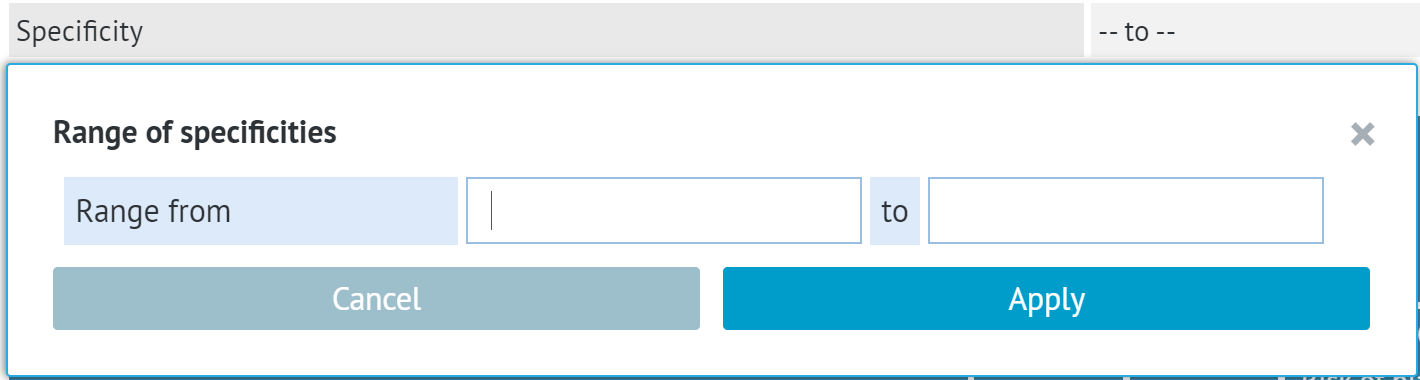
When entering the specificity, you can provide the value as well as the Confidence Intervals.
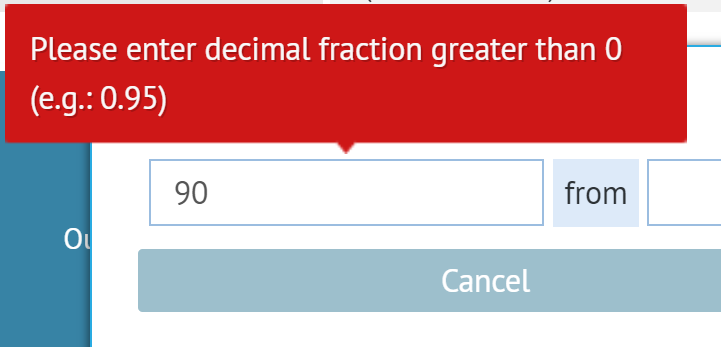
The values should be entered as decimal fractions. E.g. if 90% was measured, you should enter 0.90. Otherwise, you will receive an error message.
If Range from studies is selected, only minimum and maximum values of specificity can be entered, with no confidence intervals.
6. Prevalence
The prevalence of a health condition or characteristic is the proportion of people in a specified population who have the specified characteristic (e.g. people with HIV or people who smoke) at some time. Prevalence obtained from high-certainty studies can inform pretest probabilities.
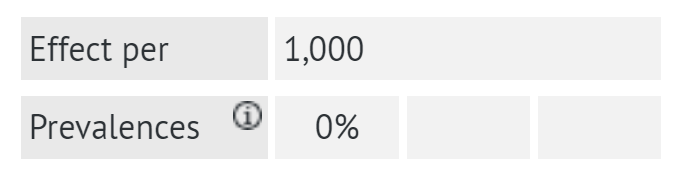 You can enter up to 3 different values of prevalence and describe which groups they refer to.
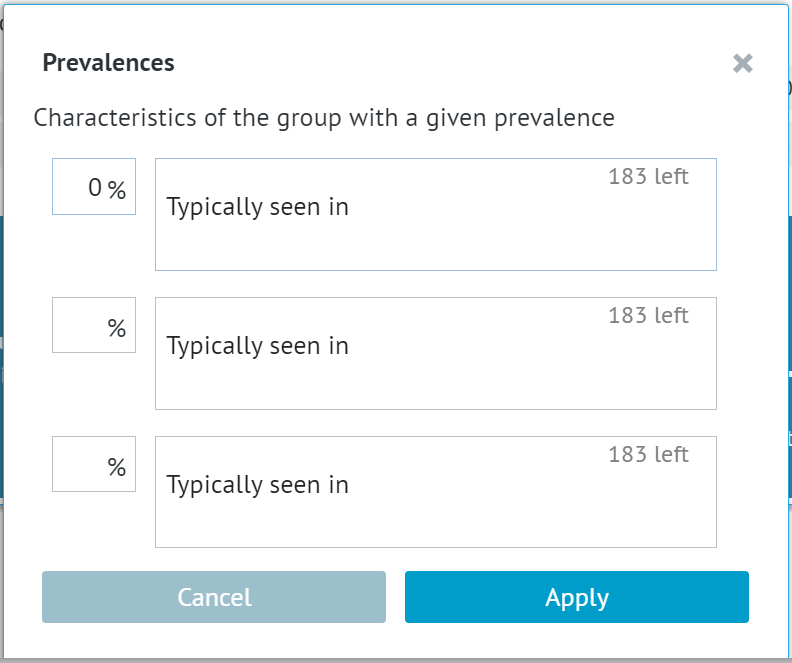
This value is automatically stated in per cent, so you can enter the per cent number you have obtained, e.g. 5 or 20.
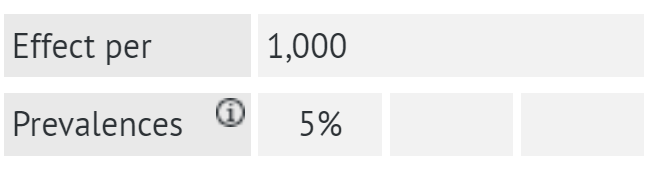
You can select the denominator of the value as well.
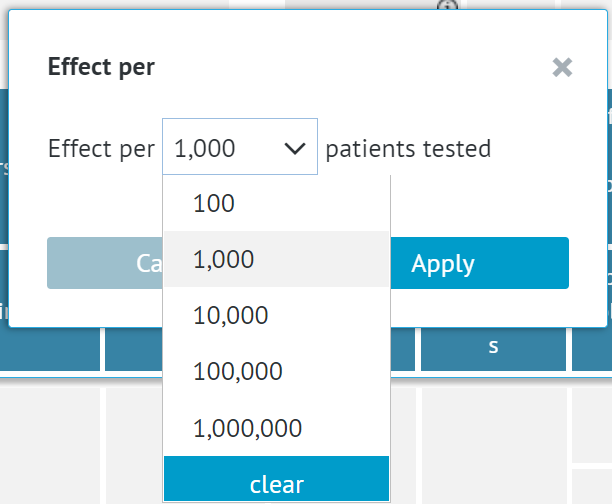
While the prevalence value itself is a percentage, the denominator will define the order of magnitude when it comes to the numbers of false and true negatives and positives calculated in the table later on.
7. Number of studies and number of patients
To enter the number of studies and the number of patients, you need to click on the corresponding cells and enter the values. 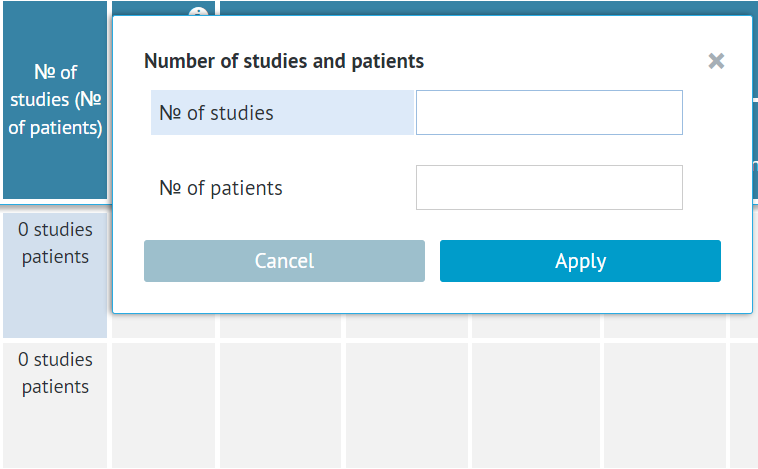
8. Inconclusive studies and complications
In Layer two and Layer two-SoF table displays, you can additionally provide the number of studies and patients indicating inconclusive test results or complications resulting from the test. These entries are not subject to quality assessment.

9. Exemplary calculations
Here you can learn how the table calculations are being performed.
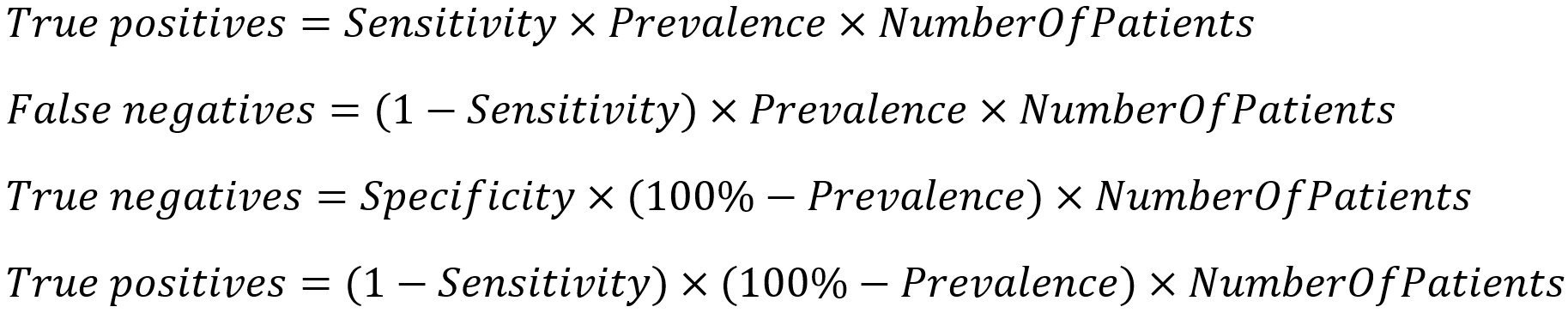
Below are the calculations solved for mock data:
Sensitivity: 0.80 | Specificity: 0.90 | Prevalence: 5% | Effect per: 1,000
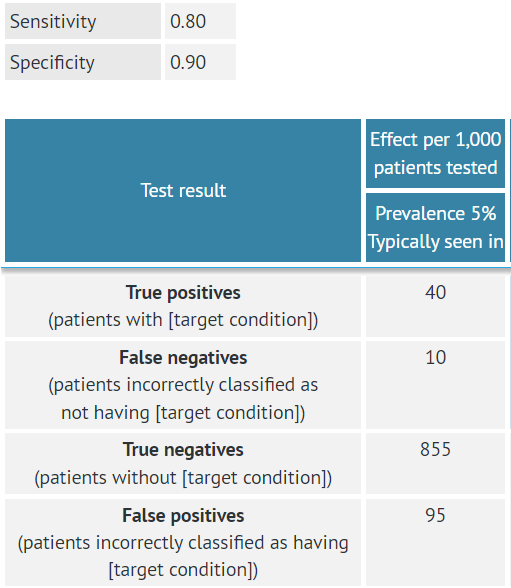
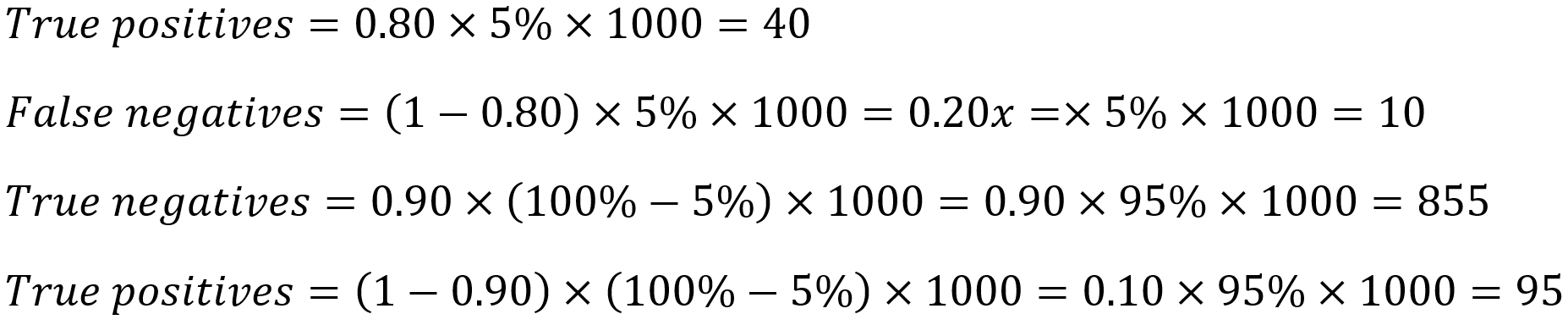
So for these mock data, out of 1,000 patients:
- 40 will be correctly diagnosed with the target condition
- 10 will be incorrectly diagnosed as healthy when in fact, they have the target condition
- 855 will be correctly diagnosed as healthy
- 95 will be incorrectly diagnosed with the target condition when in fact, they are healthy
10. GRADE certainty assessment
Once the table is filled in, you can proceed with assessing the GRADE certainty of the results. This is described in a separate article.
RELATED ARTICLES
Was this article helpful?
That’s Great!
Thank you for your feedback
Sorry! We couldn't be helpful
Thank you for your feedback
Feedback sent
We appreciate your effort and will try to fix the article