TABLE OF CONTENTS
- 1. Introduction
- 2. Populating the table with data
- 3. Adding a new outcome
- 4. Types of outcomes
- 5. Data categories
- 6. Follow-up
- 7. Relative effect
- 8. Absolute effect
- 9. GRADE certainty assessment

1. Introduction
Here we'll show how to complete and manage an evidence table in management questions step by step. Please note that this article is focused on the practical approach in GRADEpro. If you are seeking methodological tips on how to frame your healthcare question and how to manage data within, please refer to GRADEbook or the GRADE Guidelines.
1.1 What is a management question?
This is the most common type of PICO question in GRADEpro. The structure is:
Should [intervention] vs [comparison] be used in/for [health problem or population]
- Intervention: the therapeutic, diagnostic, or other intervention under investigation (e.g. the experimental intervention, or in observational studies, the exposure factor)
- Comparison: the alternative intervention; intervention in the control group
- Health problem or population: the patients or population to whom the recommendations are meant to apply
Example Questions:
1. Should manual toothbrushes vs powered toothbrushes be used for dental health?
2. Should topical nasal steroids be used in children with persistent allergic rhinitis?
3. Should oseltamivir versus no antiviral treatment be used to treat influenza?
4. Should troponin I followed by appropriate management strategies or troponin T followed by appropriate management strategies be used to manage acute myocardial infarction?
1.2 How to create a management question?
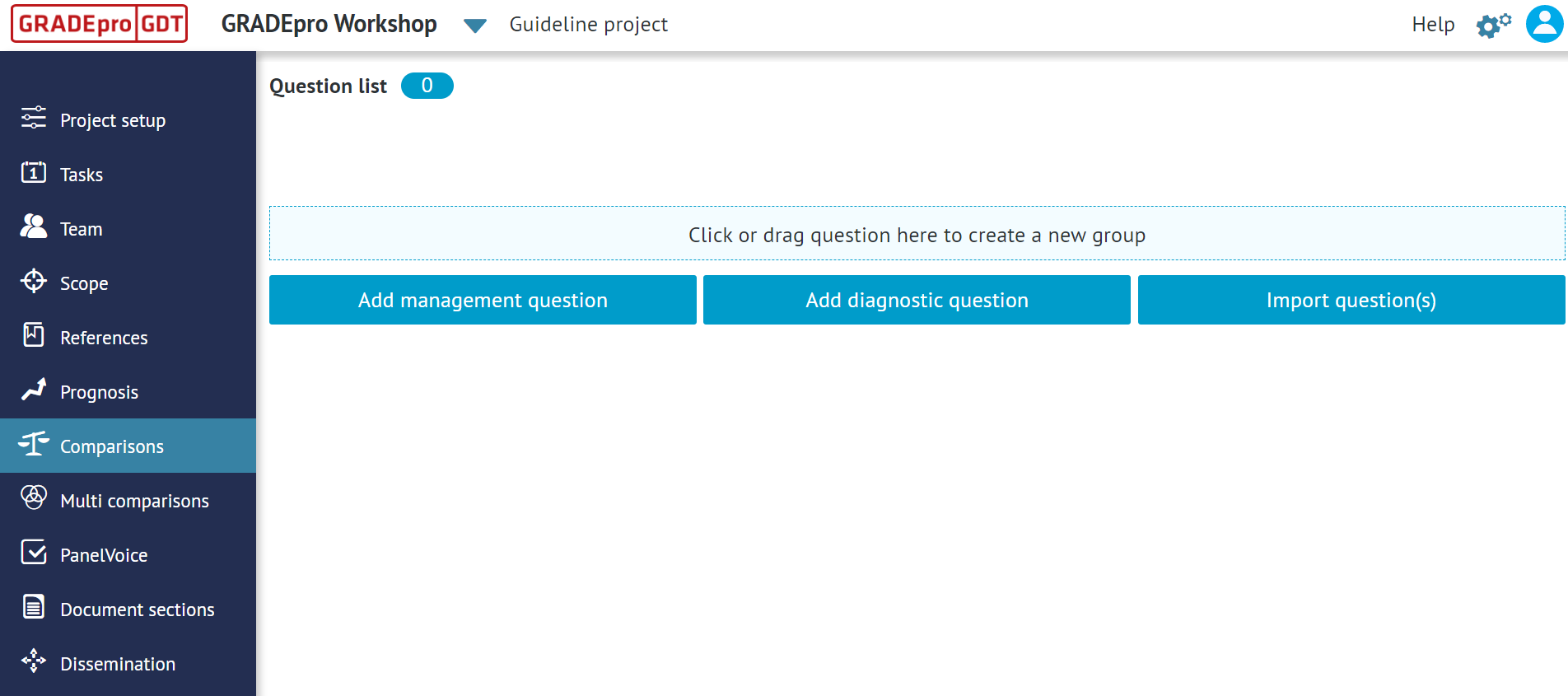
Tip: You can import the questions and outcome data from files if you are using Cochrane's RevMan5 or RevMan Web, or if you have files from legacy desktop version of GRADEpro (in which case they can be imported same as RevMan5 files). Cochrane authors can additionally create evidence tables directly from within RevMan web using online integration.To add a new management question, go to the Comparisons section of a created project and click on the Add management question button.
A new question will be created, open for editing:
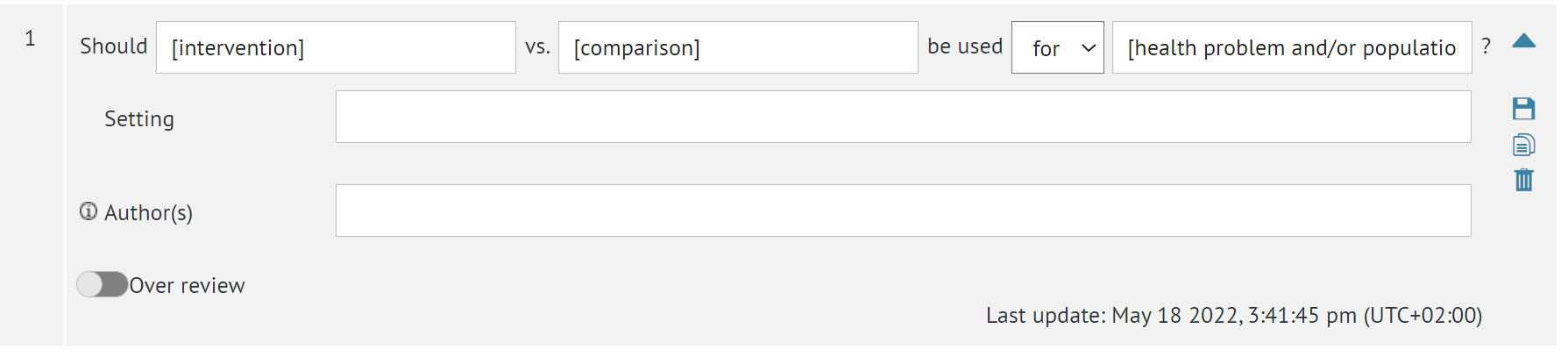
You will be able to enter the following:
Intervention - the object of the studies; this could be, e.g. a drug, a procedure, et cetera
Comparison - what you compare the intervention to. Comparison can be, e.g. placebo/no intervention or an alternative to the intervention.
Health problem or population - the target of the study. In the case of the health problem this could be, e.g. a particular disease. In the case of the population, e.g. a group of people described with the age, sex or other criteria.
You can also add the setting and authors of the question (usually yourself and your collaborators).
Once you finish entering the details, please click on the saving icon (floppy disc) on the right-hand side.
The question will be added to the list. You can enter it by clicking on it.
2. Populating the table with data
Once you have created a new management question, you will see the header of the evidence table.
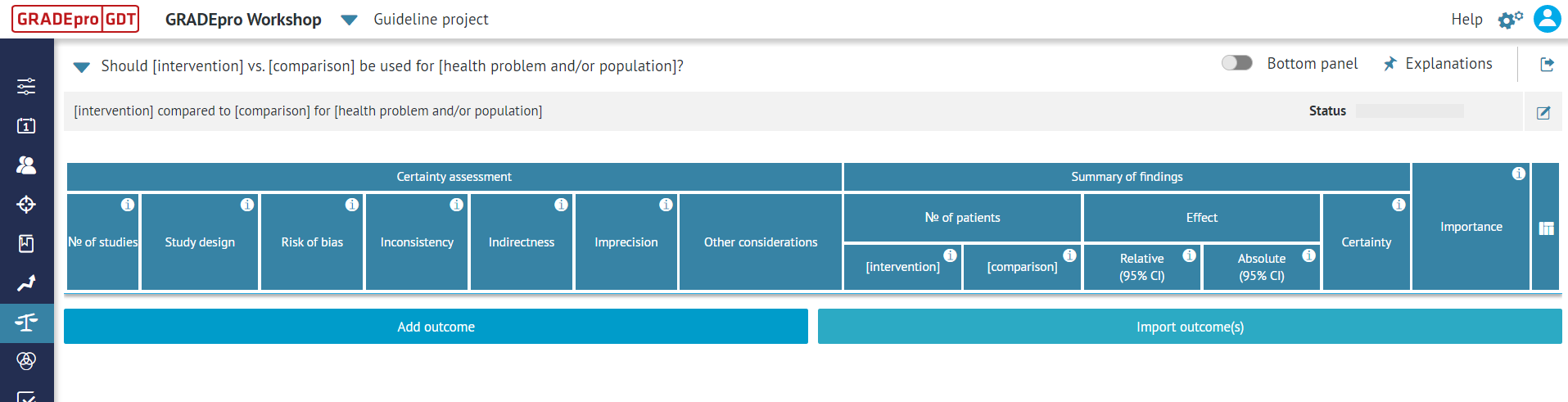
In order to populate the table with your data you need to create new outcomes.
In the GRADE method, an outcome is a component of a participant's clinical and functional status after an intervention has been applied that is used to assess the effectiveness of an intervention.
In studies of treatment effects, outcomes are measures of health or disease (e.g. survival, having a stroke, pain or quality of life), behaviours (e.g. smoking), or other potential benefits or harms of treatments (e.g. resource use) that affect the natural progress of the health condition that is being treated.
They are measured in studies of treatment effects to find out what effect a treatment has on them; i.e. whether they are increased or decreased.
In GRADEpro, outcomes are presented as rows in the evidence tables (Summary of Findings tables).
3. Adding a new outcome
To add a new outcome to your PICO question, you can use the “Add outcome” button

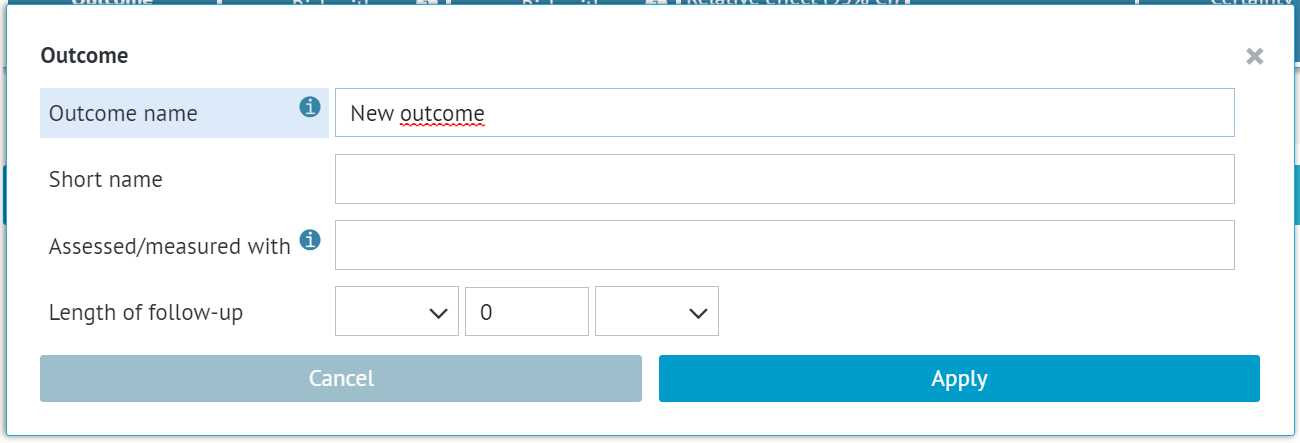
You will see a new set of fields, where you can enter the outcome’s details:
- Its name
- Short name (in case the actual name is too long)
- What it was assessed/measured with

You can determine the type of outcome as well as the follow-up period (both have been described below).
Once you have entered all the details, you can save the outcome by clicking on the floppy disc icon.
When adding a new outcome in the Summary of Findings view, you will only be able to select the type of outcome and data.
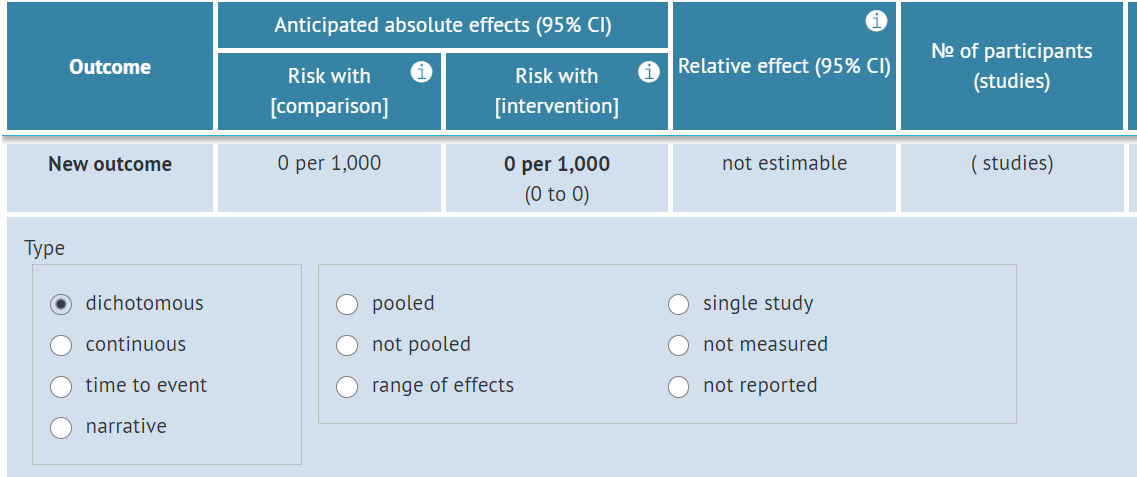
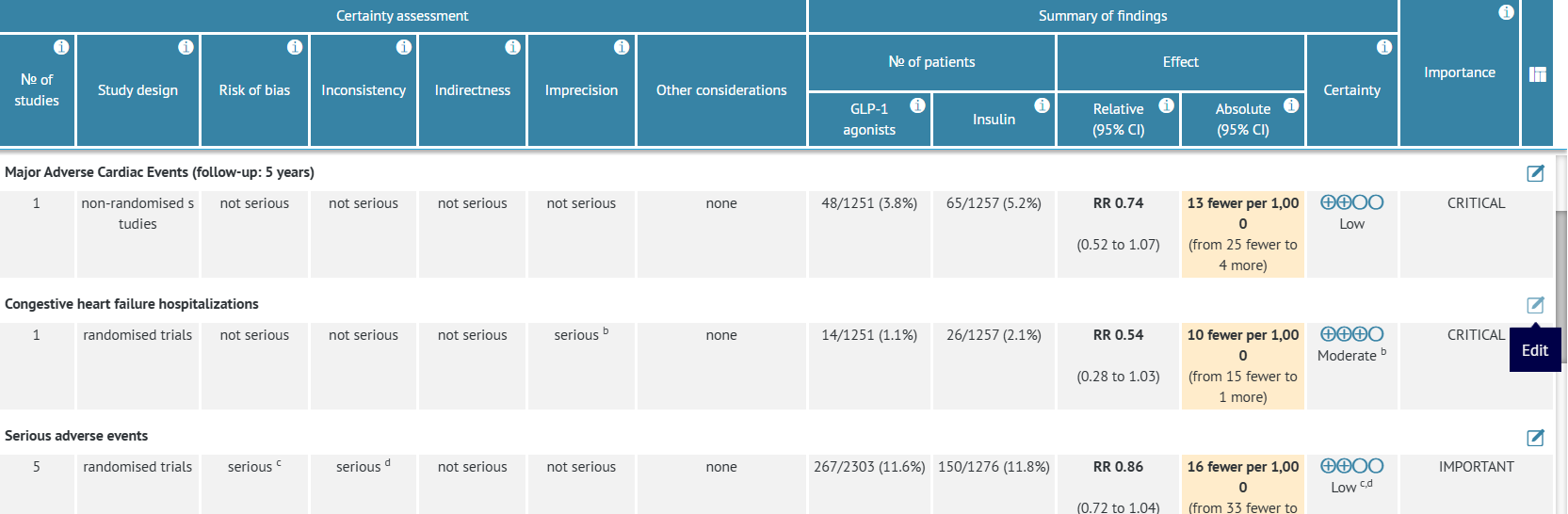
To edit the name of the outcome and other details, you will need to click on the cell in the Outcome column to open the edit options.
3.1 Reordering outcomes
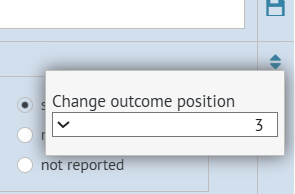
If, after adding outcomes, you want to reorder them, you need to edit the outcome
Then use the "Change position" option (two arrows).

And then select the desired outcome position from the dropdown.
4. Types of outcomes
There are four types of outcomes available in evidence tables for management questions.

Depending on the type of data your outcome represents, you can choose from:
4.1 Dichotomous outcomes
As per the Cochrane Handbook, dichotomous (binary) outcome data arise when the outcome for every participant is one of two possibilities, for example, dead or alive, or clinical improvement or no clinical improvement.
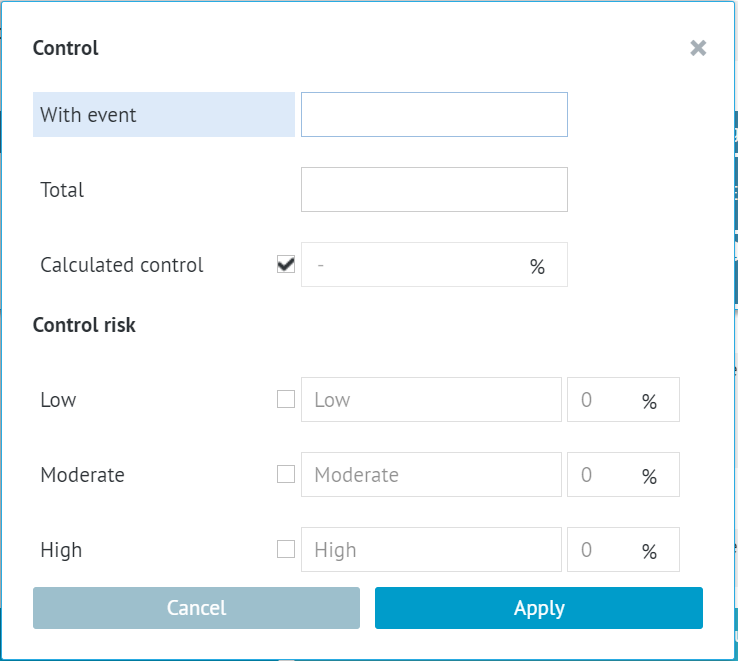
For this reason, when entering the data for dichotomous outcomes, you only enter the total number of patients and the number of patients with the event (the event being the particular outcome measured).
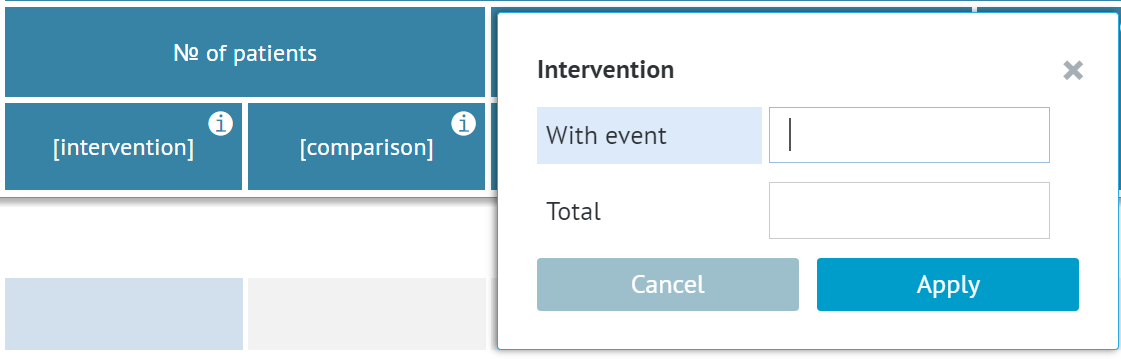 For the comparison data, you can additionally choose whether the control risk will be calculated from the data you enter or if, additionally/instead, you want to enter preset risk values for the group(s) of low, moderate, and/or high risk.
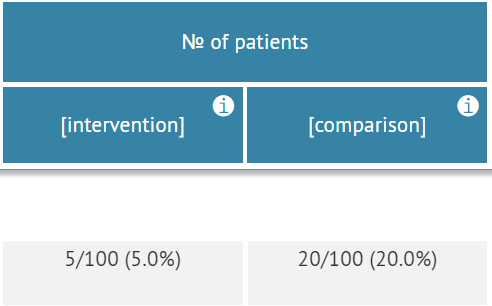
The data is then presented as follows (here with exemplary values)
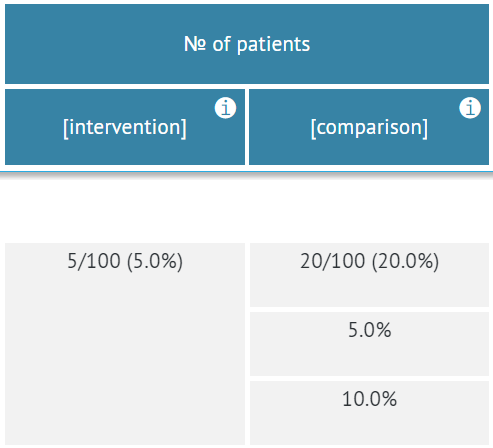
If additional risk levels are selected for the comparison, they are shown as additional rows. In this example, the Low control risk of 5% and the Moderate control risk of 10% were entered.
4.2 Continuous outcomes
As per the Cochrane Handbook, the term ‘continuous’ in statistics conventionally refers to a variable that can take any value in a specified range. When dealing with numerical data, this means that a number may be measured and reported to an arbitrary number of decimal places. Examples of truly continuous data are weight, area, and volume.
In the case of continuous outcomes, only the number of patients is entered in terms of patient data. The measured values of the outcome can be added in the Effect section.
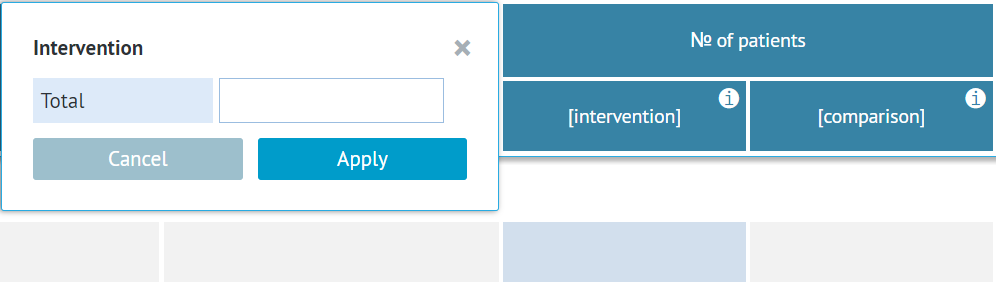
When you select continuous outcome, apart from the outcome name and other details, you will also be able to select measurement scale and enter the range of possible scores (although this is not required)
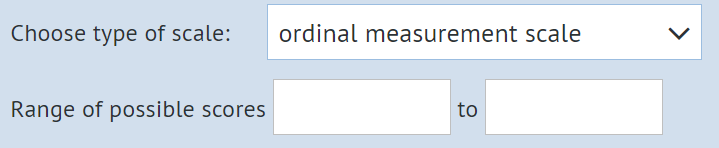
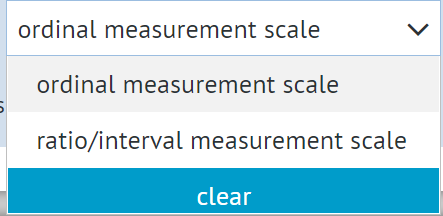
You can choose between an ordinal measurement scale and a ratio/interval measurement scale.
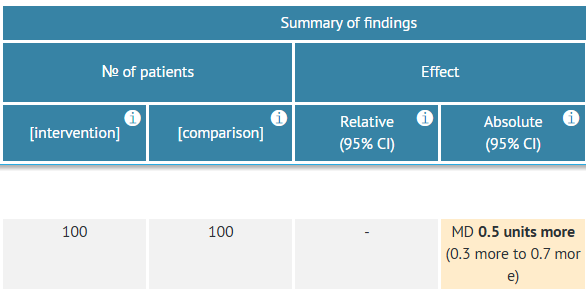
The data is then presented as follows (here with exemplary values)
Additionally, in the Summary of Findings view, you will be able to add the base value in the Risk with comparison/control column.
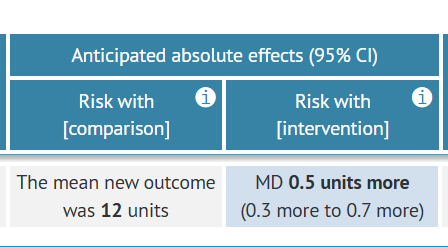
To do this, you need to click on the cell. A new window will open.
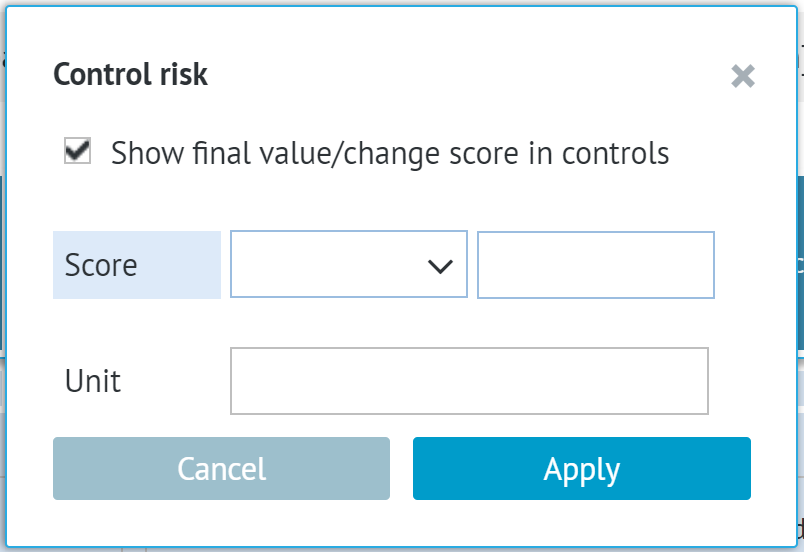
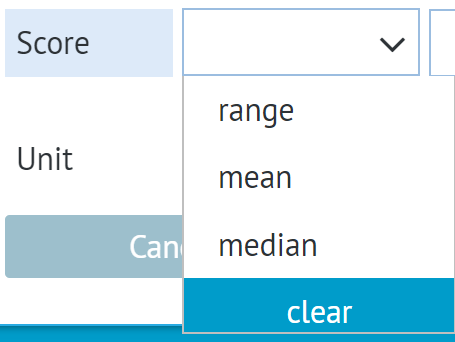
You'll be able to enter the value of the base score, its unit and data type (range, mean or median).
4.3 Time to event outcomes
As per the Cochrane Handbook, time-to-event data arise when interest is focused on the time elapsing before an event is experienced. They are known generically as survival data in the medical statistics literature since death is often the event of interest, particularly in cancer and heart disease. Time-to-event data consist of pairs of observations for each individual: first, a length of time during which no event was observed, and second, an indicator of whether the end of that time period corresponds to an event or just the end of observation. Time-to-event data can sometimes be analysed as dichotomous data. This requires the status of all patients in a study to be known at a fixed time point. For example, if all patients have been followed for at least 12 months, and the proportion who have incurred the event before 12 months is known for both groups, then a 2✕2 table can be constructed and intervention effects expressed as risk ratios, odds ratios or risk differences.
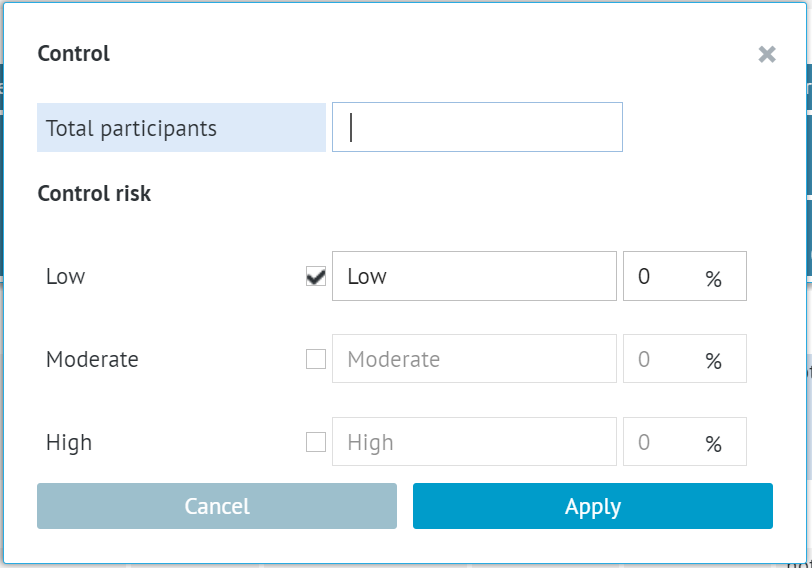
Upon selecting this type of outcome, you will be presented with a choice between an event outcome or a non-event outcome.
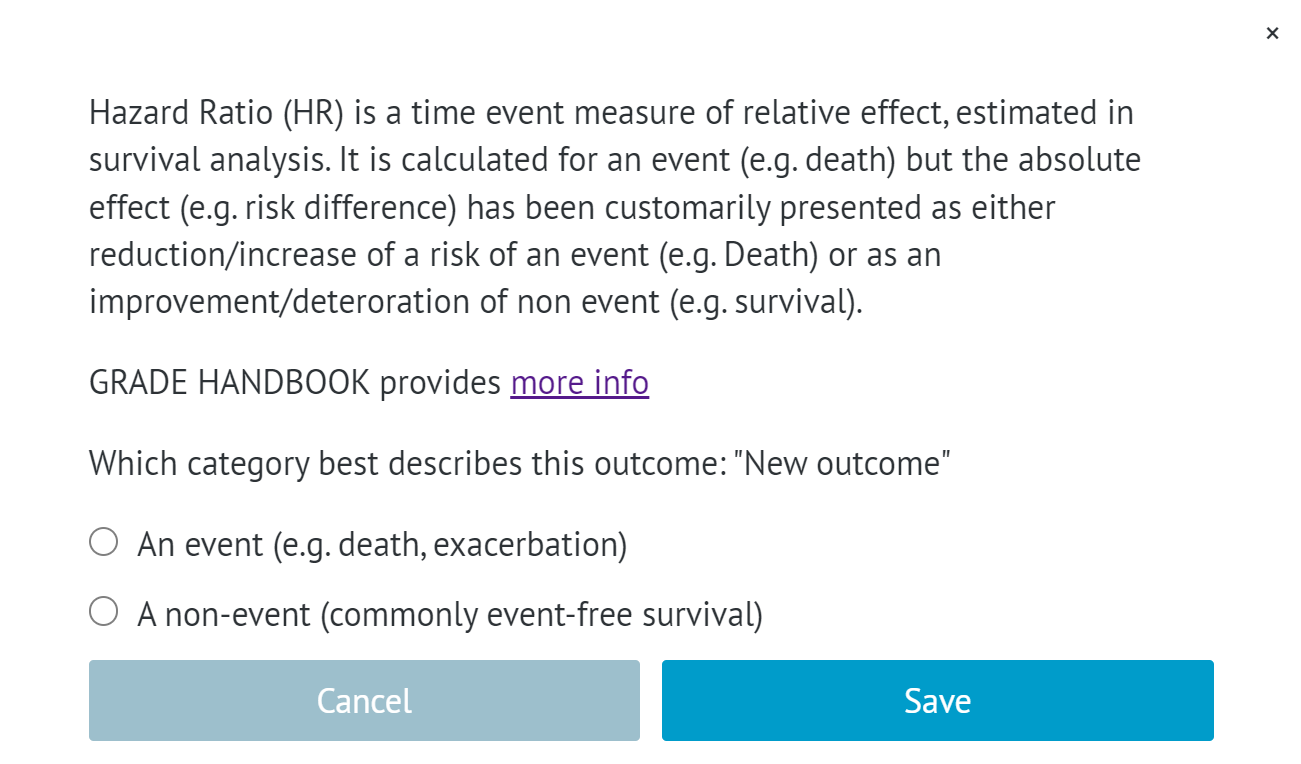
Regardless of which category you choose, data is entered the same way.
For the intervention, similarly to continuous outcomes, only the number of participants can be entered.
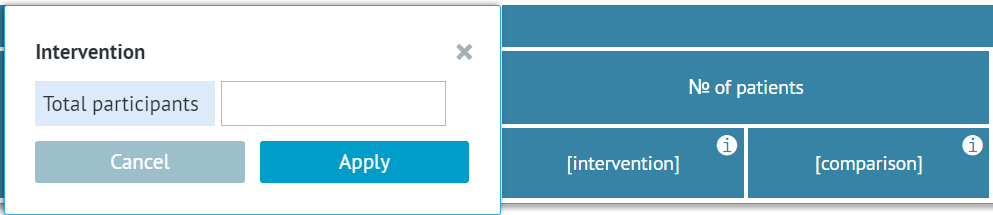
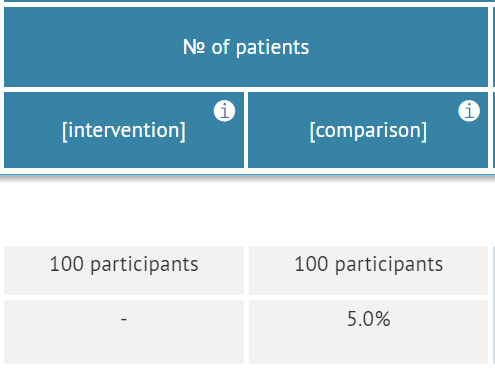
The data is then presented as follows (here with exemplary values)
4.4 Narrative outcomes
If your data cannot be presented with any of the outcome types presented above, you choose to describe them as a narrative outcome.
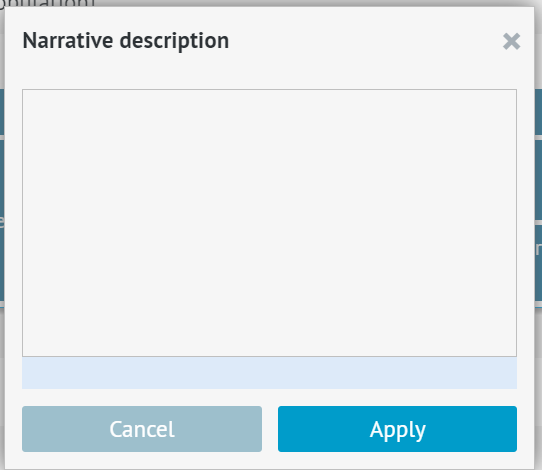
All of the numeric data - the number of patients, events, as well as the absolute and relative effect columns are replaced with a single text field where you can describe your findings.
 The data is then presented as follows (here with mock values)
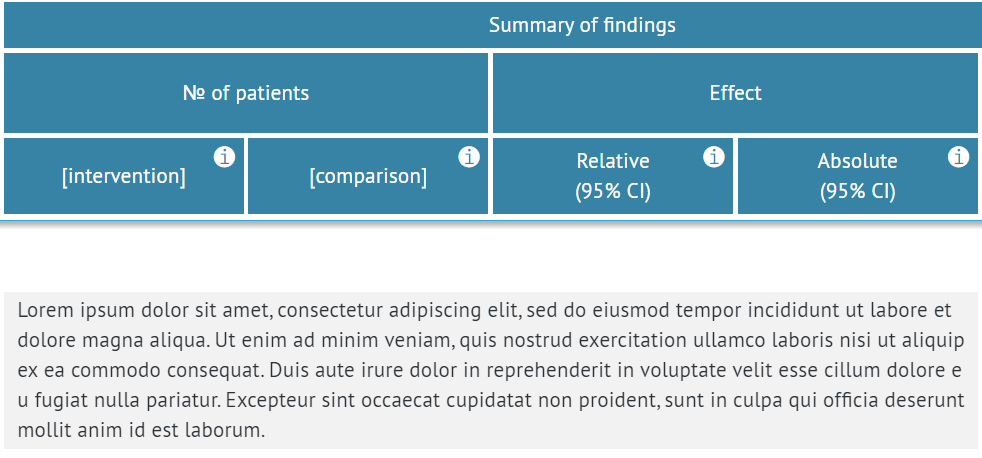
Tips: If all of the outcomes in your evidence table are narrative you can switch the table into the narrative view.5. Data categories
There are six categories of data available in evidence tables for management questions:

Depending on the source of your data, you can choose from:
5.1 Pooled
This is the most commonly used data category in GRADEpro.
Pooled data were gathered from multiple studies and subject to meta-analysis.
Apart from the data entered in the comparison and intervention columns, they can be described with absolute and relative effects.
5.2 Not pooled
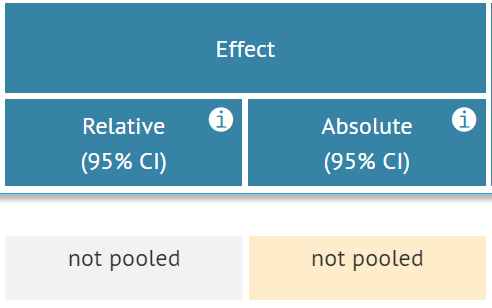
Not pooled data refers to instances when data were gathered from multiple studies but were not subject to meta-analysis.
When this setting is selected, both relative and absolute effect cells are blocked since, without meta-analysis, those values cannot be obtained.
5.3 Range of effects
The range of effects setting can be used when only the range of relative effect is known and not the exact value.
Once it is used, there is no option to enter the exact value of the relative effect, only the minimum and maximum, which are then displayed in the table.
Please note these are the minimal and maximal values and not 95% CI as is in the case of pooled data.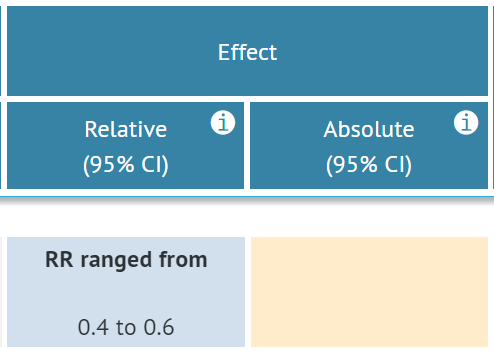
The absolute value for the range of effects type of data is not calculated.
5.4 Single study
This setting can be used when the data for the outcome measured have been collected from only one study.
5.5 Not measured
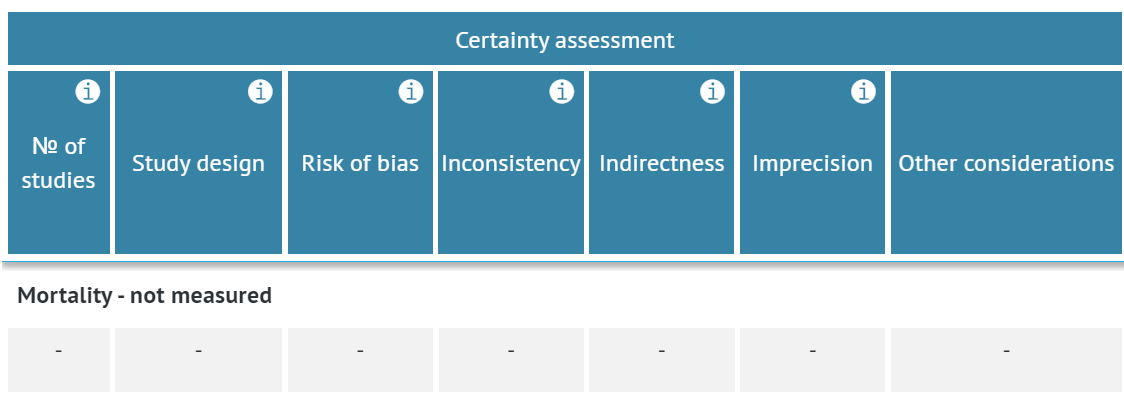
This setting can be used when the outcome was not measured in any of the studies found during the systematic review.
If it is used, all cells are blocked for this outcome, and the not measured label is added to its name.
5.6 Not reported
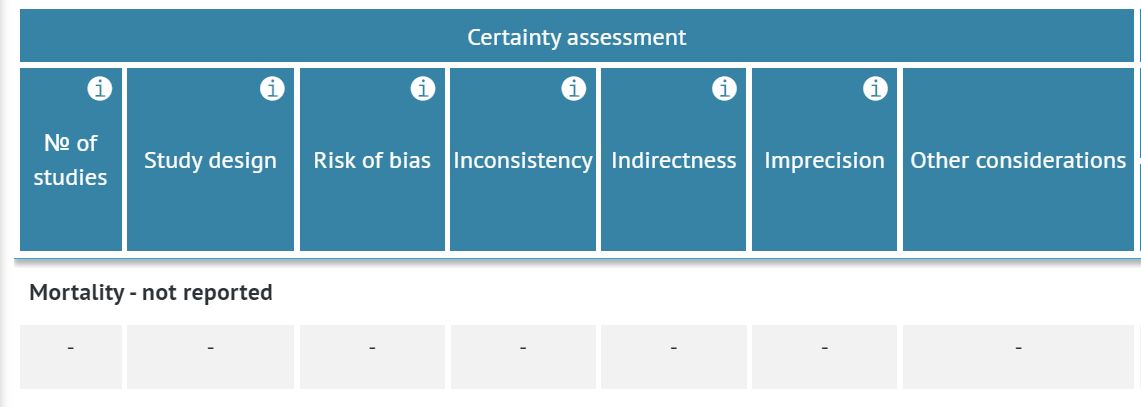
This setting can be used when the outcome was not reported in any studies found during the systematic review.
If it is used, all cells are blocked for this outcome and the not reported label is added to its name.
6. Follow-up
When adding a new outcome, you can set up the length of the follow-up.
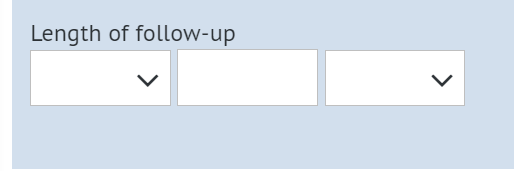
Follow-up is the observation over a period of time of study/trial participants to measure outcomes under investigation. In treatment comparisons, follow-up is the assessment of study participants after treatment or the length of time that participants are observed after being allocated to a treatment comparison group.
In GRADEpro, you can enter the follow-up as three different types of values depending on how it was measured and using six different units depending on the length of the follow-up.
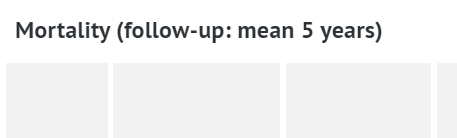
Tips: When entering the length of follow-up use numbers only regardless of selected type of value.Follow-up will be automatically added next to the name of the outcome.
6.1 Follow-up value type
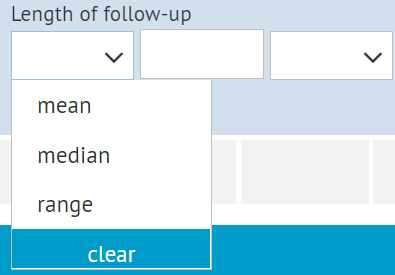
There are three value types available:
- mean, where you enter the arithmetic mean of the follow-up from all the studies
- median, where you enter the median of the follow-up from all the studies
- range, where you can enter the minimum and maximum values of the follow-up
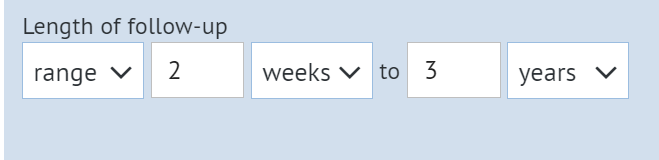
Using the range option adds another field so that you can enter two values - minimum and maximum.
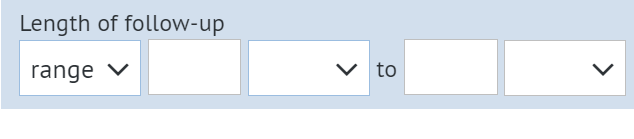
Tips: If you want to enter the range of values, always use the range option. If you simply enter e.g. 12-30 into the single field available in mean and median options this may cause issues later on as GRADEpro will not recognise "-" symbol. Only numbers can be entered for the follow-up.An example with mock values:

If you use the range option, you can use different units for minimum and maximum values, e.g. below:
6.2 Follow-up units
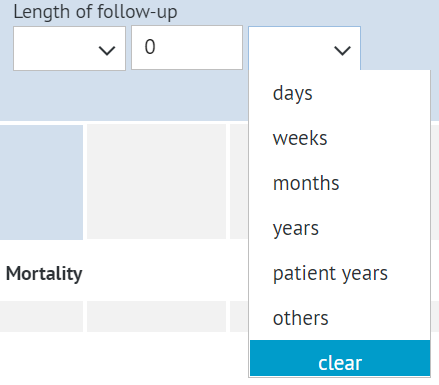
There are six units available
- days
- weeks
- months
- years
- patient-years
- others
If you select others, a separate text field will appear where you'll be able to enter the non-standard unit.

An example with mock data:

Tips: The others fields is the only instance when letters and other characters can be entered in the follow-up. Other than that only numbers can be used.7. Relative effect
After GET-IT Glossary, relative effects are ratios of outcome measures between treatment comparison groups in a study.
The relative effect for a dichotomous outcome from a single study or a meta-analysis will typically be a risk ratio (relative risk), odds ratio, or occasionally a hazard ratio.
You may want to present a relative effect measure you found in the literature you use to develop a GRADE evidence profile or to convert different relative effect measures.
From the drop-down menu, you can select the relative effect used in the meta-analysis or the relative effects of one or more studies if no pooled estimate is available. Regardless of the option selected, you can enter the exact value of the relative effect and the 95% Confidence Interval values (unless you selected the Range of effects option for this outcome)
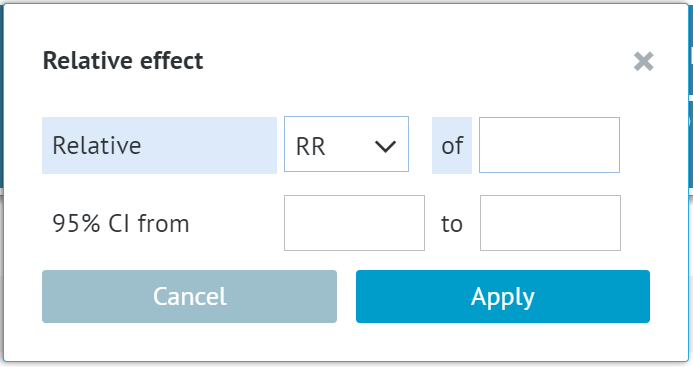
There are 5 options:
7.1 Risk Ratio (RR)
A risk ratio is a ratio between the risk in the intervention group and the risk in the control group.
For example, if the risk in the intervention group is 1% (10 per 1000) and the risk in the control group is 10% (100 per 1000), the RR is 10/100 or 0.10.
If the RR is exactly 1.0, this means that there is no difference between the occurrence of the outcome in the intervention and the control group.
If the RR is greater than 1.0, the intervention increases the risk of the outcome. If it is a good outcome (for example, the birth of a healthy baby), a RR greater than 1.0 indicates a desirable effect for the intervention, whereas if the outcome is bad (for example, death), a RR greater than 1.0 would indicate an undesirable effect.
If the RR is less than 1.0, the intervention decreases the risk of the outcome. This indicates a desirable effect if it is a bad outcome (for example, death) and an undesirable effect if it is a good outcome (for example, the birth of a healthy baby).
RR is calculated according to the formula:
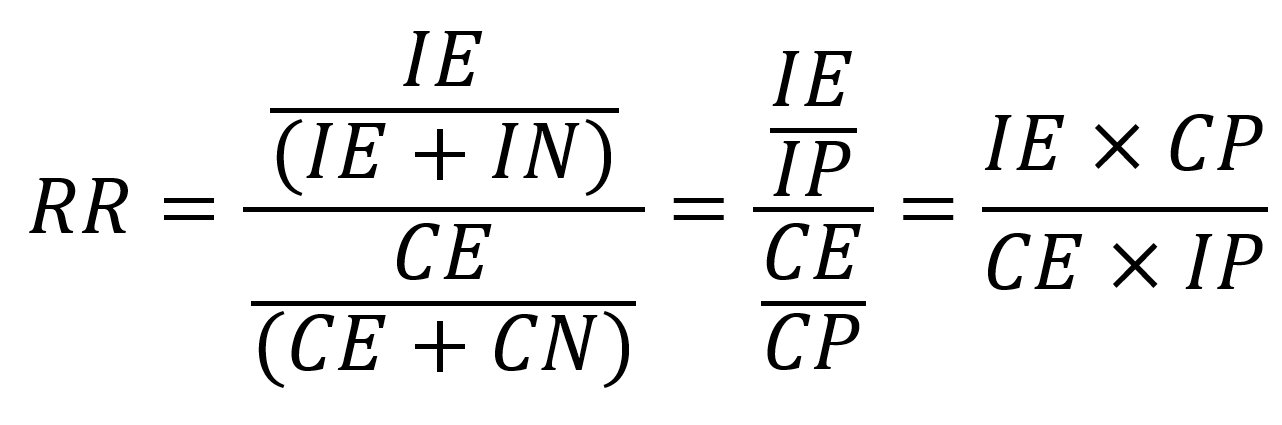
RR - Risk Ratio
IE - Intervention Events
IN - Intervention Non-Events
IP - Intervention number of Patients (total)
CE - Comparison Events
CN - Comparison Non-Events
CIP - Comparison number of Patients (total)
7.2 Odds Ratio (OR)
The ratio of the odds of an event in one group to the odds of an event in another group. In studies of treatment effect, the odds in the treatment group are usually divided by the odds in the control group.
An odds ratio of one indicates no difference between comparison groups.
For undesirable outcomes, an OR that is less than one indicates that the intervention was effective in reducing the risk of that outcome.
When the risk is small, the value of the odds ratio is similar to the risk ratio.
When the events in the control group are not frequent, OR and HR can be assumed to be equal to the RR for the application of this criterion.
OR is calculated according to the formula:

OR - Odds Ratio
IE - Intervention Events
IN - Intervention Non-Events
CE - Comparison Events
CN - Comparison Non-Events
7.3 Hazard Ratio (HR)
A measure of the effect produced by survival analysis and representing the increased risk with which one group is likely to experience the outcome of interest.
For example, if the hazard ratio for death for treatment is 0.5, we can say that treated patients are likely to die at half the rate of untreated patients.
After the Cochrane Handbook, the hazard is similar in notion to risk. Still, it is subtly different in that it measures instantaneous risk and may change continuously (for example, one’s hazard of death changes as one crosses a busy road). A hazard ratio describes how many times more (or less) likely a participant is to suffer the event at a particular point in time if they receive the experimental rather than the comparator intervention. When comparing interventions in a study or meta-analysis, a simplifying assumption is often made that the hazard ratio is constant across the follow-up period, even though hazards themselves may vary continuously. This is known as the proportional hazards assumption.
7.4 Rate ratio
After the Cochrane Handbook, analyses of rare events often focus on rates. Rates relate the counts to the amount of time during which they could have happened. For example, the result of one arm of a clinical trial could be that 18 myocardial infarctions (MIs) were experienced, across all participants in that arm, during a period of 314 person-years of follow-up (that is, the total number of years for which all the participants were collectively followed). The rate is 0.057 per person-year or 5.7 per 100 person-years. The summary statistic usually used in meta-analysis is the rate ratio, which compares the rate of events in the two groups by dividing one by the other.
The rate ratio is calculated according to the formula:
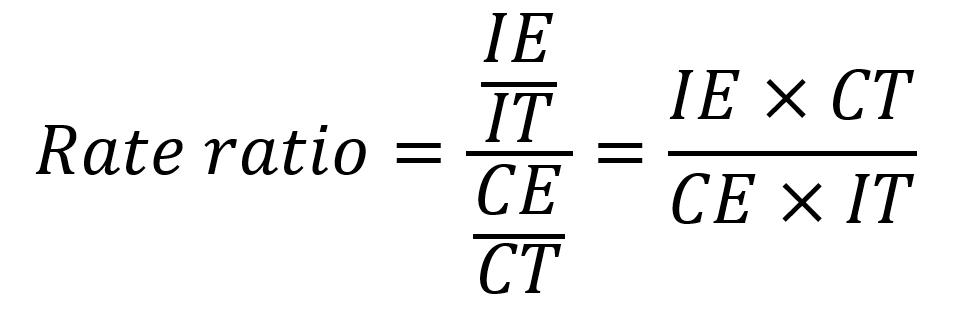
IE - Intervention Events
IT - Intervention person-years
CE - Comparison Events
CT - Comparison person-years
7.5 Other
In case none of the above relative effect measures fit your needs, GRADEpro gives you the option to enter a relative effect of your choice.
To use this option, you need to select other from the dropdown list.
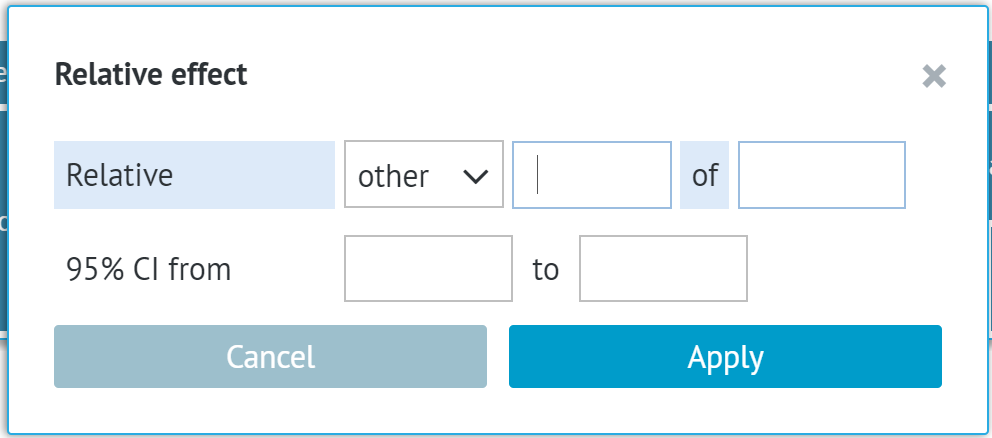
A new text field will appear next to it, where you'll be able to enter the name of the relative effect you chose. As for other relative effects, you can enter the exact value and the 95% Confidence Intervals.
Restriction: Since the exact formula that your custom relative effect is calculated with will not exist in GRADEpro, you will need to turn off auto-calculation for the absolute effect and enter appropriate values manually for this solution to work correctly.8. Absolute effect
The absolute measure of intervention effects is a difference between the baseline risk of an outcome(e.g. in patients receiving control intervention or estimated in the observational studies) and the risk of outcome after the intervention is applied, i.e. the risk of an outcome in people who were exposed or received an intervention.
The absolute effect settings in GRADEpro differ depending on the type of outcome.
8.1 Absolute effect for dichotomous outcomes
The absolute effect for dichotomous outcomes is calculated based on the baseline risk - the risk in the comparison group - and the relative effect size. GRADEpro will calculate the absolute effect risk once at least one of the baseline risk values is provided and the magnitude of the relative effect has been entered. Absolute effect values are then automatically entered into the GRADE evidence profile.
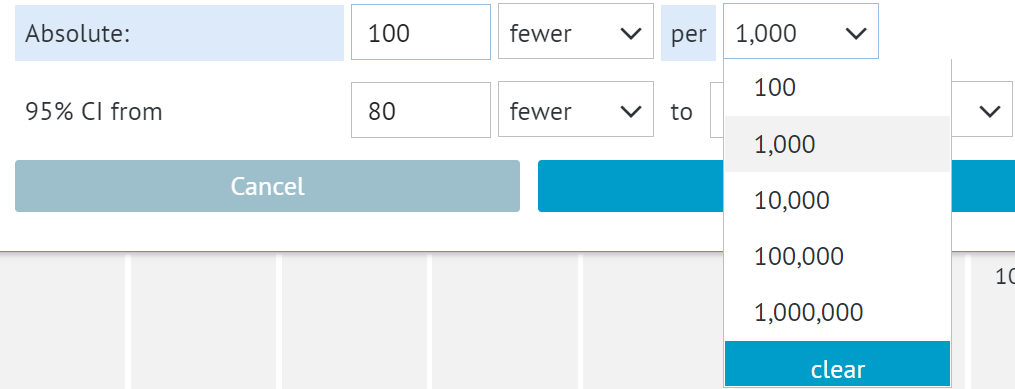
You can select the denominator for the absolute effect to present it in the desired order of magnitude. The values will be adjusted automatically.
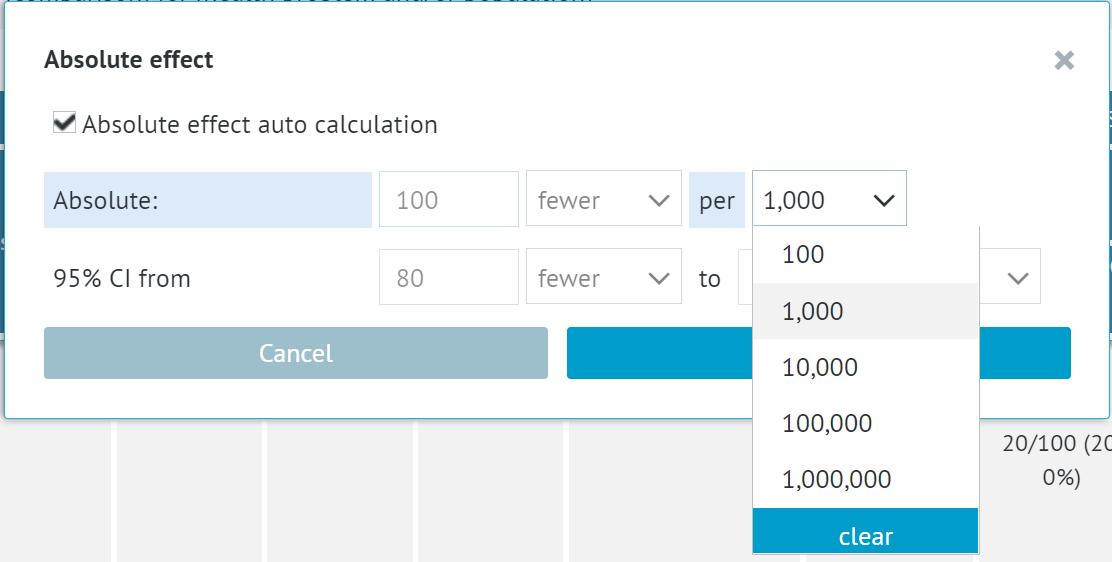
Tips: Since the absolute effect is calculated with the Comparison group values, if the value is 0, the absolute effect will also be 0. If you want to change that, you will need to turn off auto-calculation as described below.8.1.1 Disabling automatic absolute effect calculation
If you are using the other relative effect setting or for various reasons, you are not satisfied with the automatically calculated value of the absolute effect, you can enter these values manually.
In order to do it, you need to uncheck the box next to the Absolute effect auto calculation.
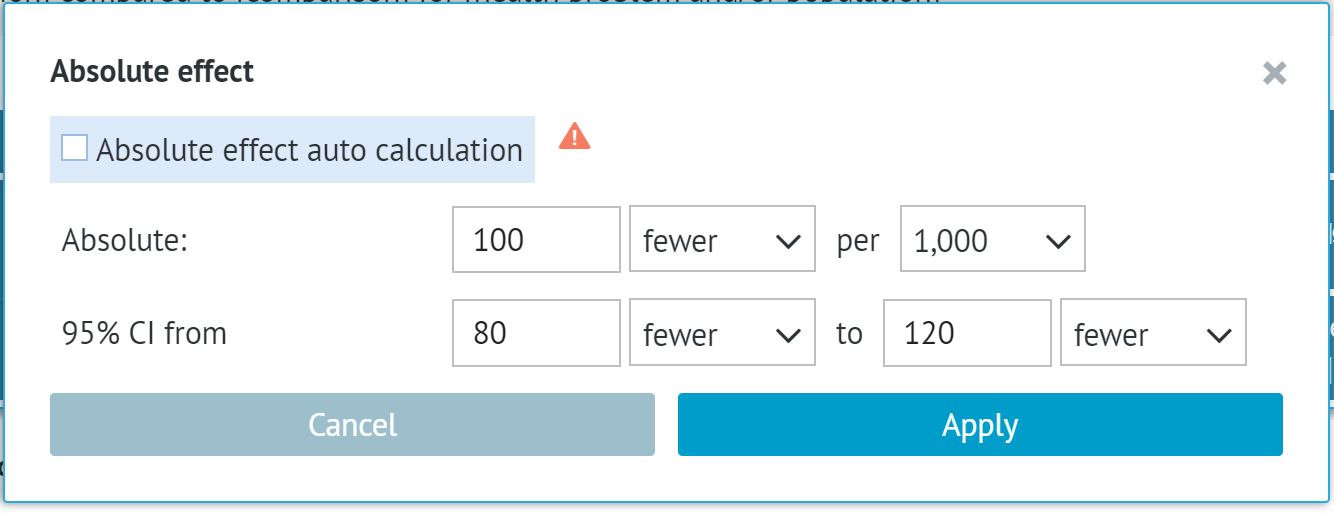
You will be asked to provide an explanation for turning the option off.
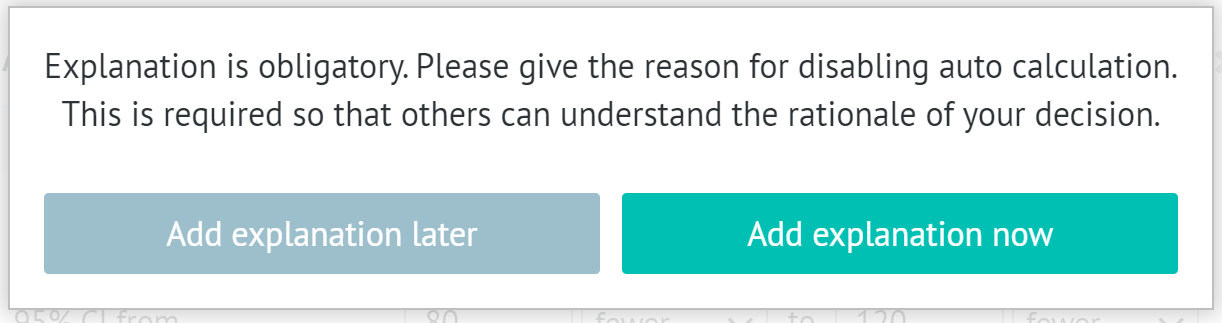
This can be done immediately or at a later stage. Until you provide an explanation, you will see the warning sign next to the option. 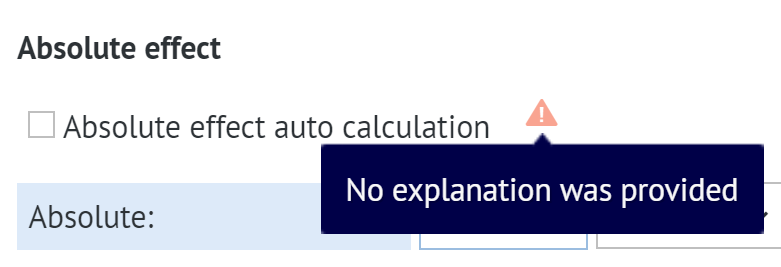
Once the auto calculation is turned off, you are free to enter your own desired values. You can choose the appropriate one to match the value.
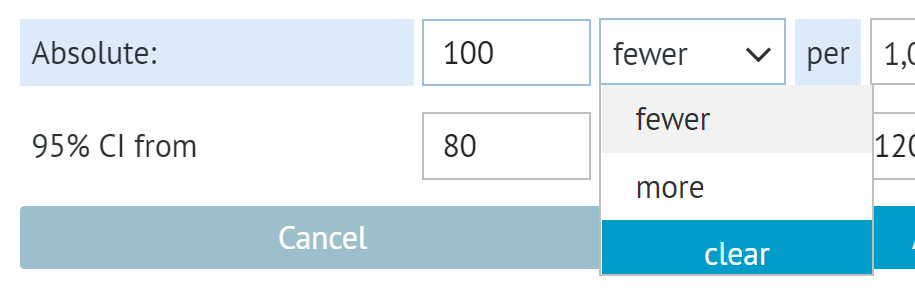
Same as with auto calculation, you can also select the desired denominator.
8.2 Absolute effect for continuous
outcomes
In the case of continuous outcomes, the absolute effect is always entered manually.
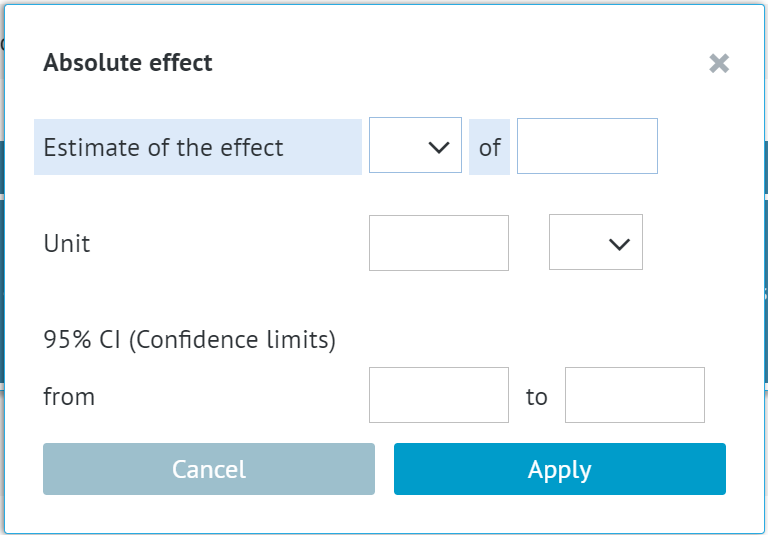
Firstly, you need to select the desired estimate of the effect, described in detail below.
Then you can enter the unit the outcome is measured in.
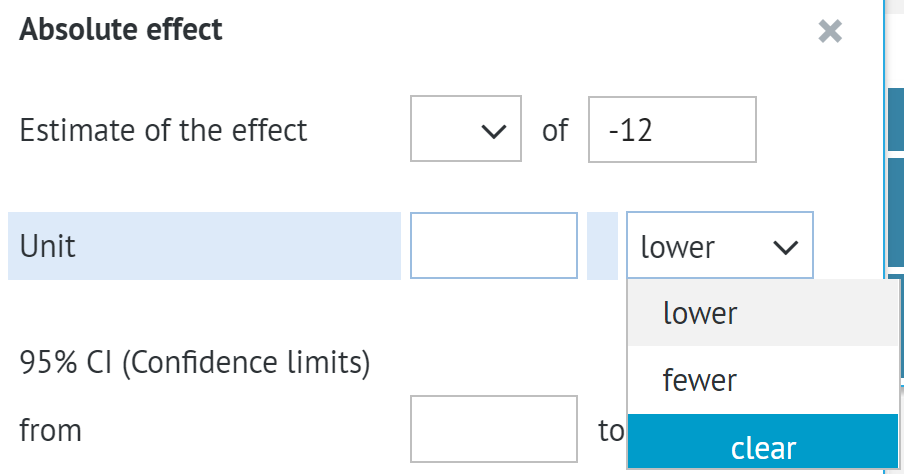
Restriction: For Standardised Mean Difference the unit will be fixed as the Standard Deviation (SD).You can choose the appropriate adjective
- more or higher in case of positive values
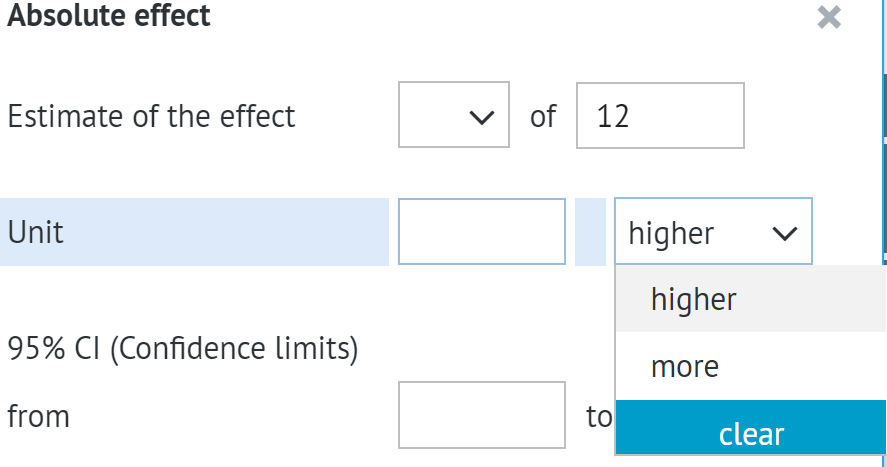
- fewer or lower in case of negative values
Finally, you can add the 95% Confidence interval.
Additionally, in the Summary of Findings view, you will be able to add the base value in the Risk with comparison/control column.
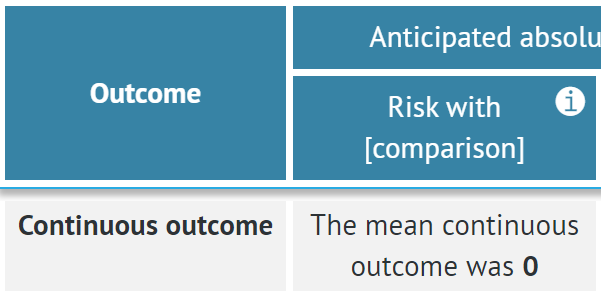
To do this, you need to click on the cell. A new window will open.
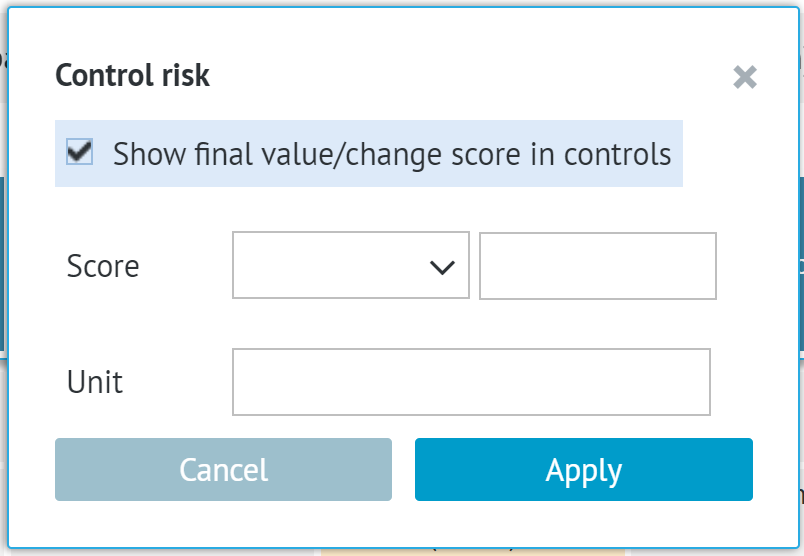
You'll be able to enter the value of the base score, its unit and data type (range, mean or median).
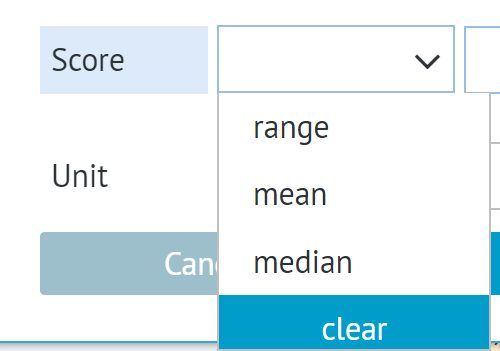
8.2.1 Estimate of the absolute effect in continuous outcomes
For continuous outcomes five types of estimate of the absolute effect are available
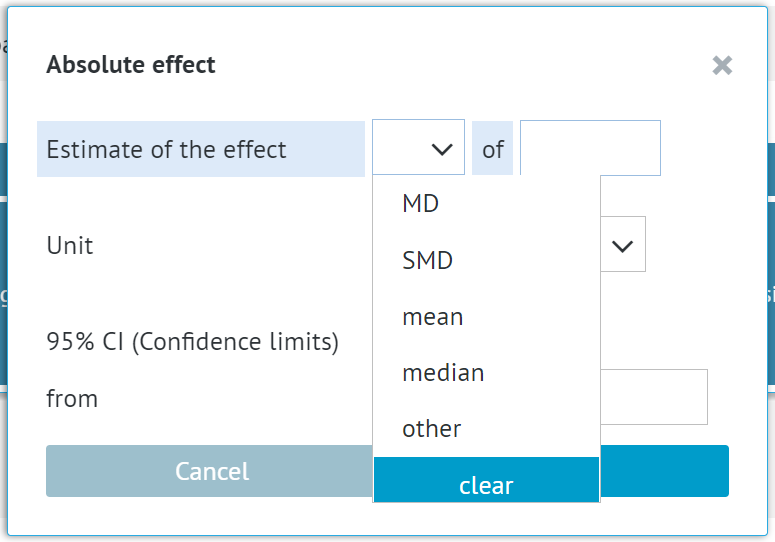
- 8.2.1.1 Mean Difference (MD)
- 8.2.1.2 Standardised Mean Difference (SMD)
- 8.2.1.3 Mean
- 8.2.1.4 Median
- 8.2.1.5 Other
8.2.1.1 Mean Difference (MD)
Mean difference (MD), the ‘difference in means’, is a standard statistic that measures the absolute difference between the mean value in the two groups in a clinical trial. It estimates the amount by which the treatment changes the outcome on average. It can be used as a summary statistic in a meta-analysis when outcome measurements in all trials are made on the same scale. Previously referred to as weighted mean difference (WMD).
8.2.1.2 Standardised Mean Difference (SMD)
The difference between the two estimated means is divided by an estimate of the standard deviation. It is used to combine results from studies using different ways of measuring the same continuous variable, e.g. pain. By expressing the effects as a standardised value, the results can be combined since they have no units. Standardised mean differences are sometimes referred to as a d index.
If you select SMD, the unit of the effect will be automatically set to Standard Deviation (SD).
8.2.1.3 Mean
Mean is simply the arithmetic mean value.
8.2.1.4 Median
Median is the value separating the higher half from the lower half of a data sample, a population, or a probability distribution. For a data set, it may be thought of as "the middle" value.
8.2.1.5 Other
If none of the effect measures above suit your needs, you can enter your own effect. In order to do this, you need to select the other option.
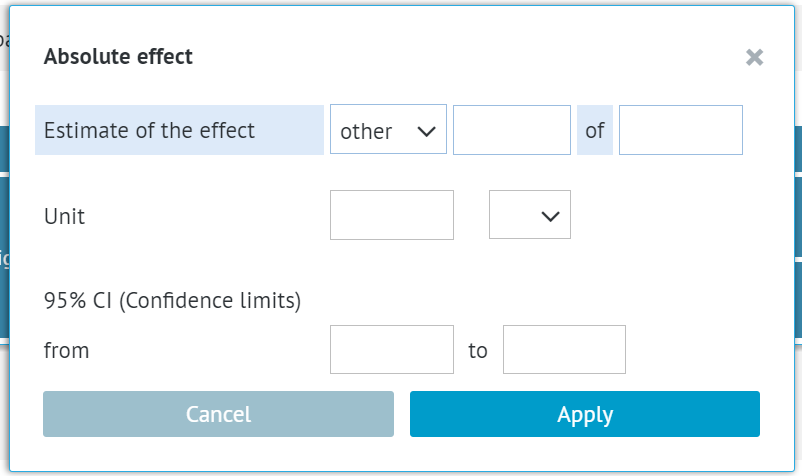
A new text field will appear next to the option where you'll be able to enter the name of your estimate of the effect.
9. GRADE certainty assessment
Once the table is filled in, you can proceed with assessing the GRADE certainty of the outcomes. This is described in a separate article.
RELATED ARTICLES
Was this article helpful?
That’s Great!
Thank you for your feedback
Sorry! We couldn't be helpful
Thank you for your feedback
Feedback sent
We appreciate your effort and will try to fix the article