TABLE OF CONTENTS

1. Accessing project menu
Once you have created or imported a project, you will be able to see it on your project list.
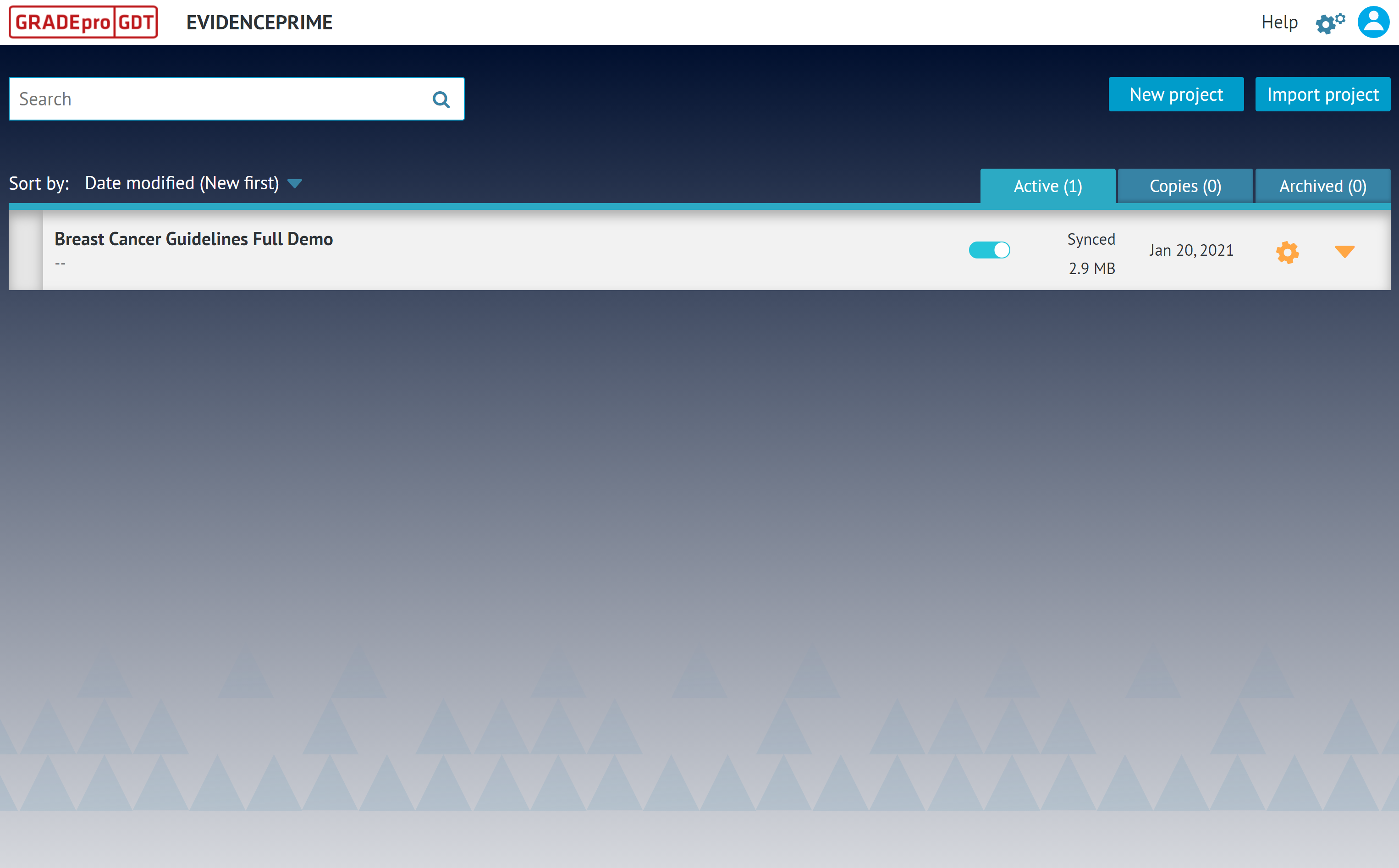
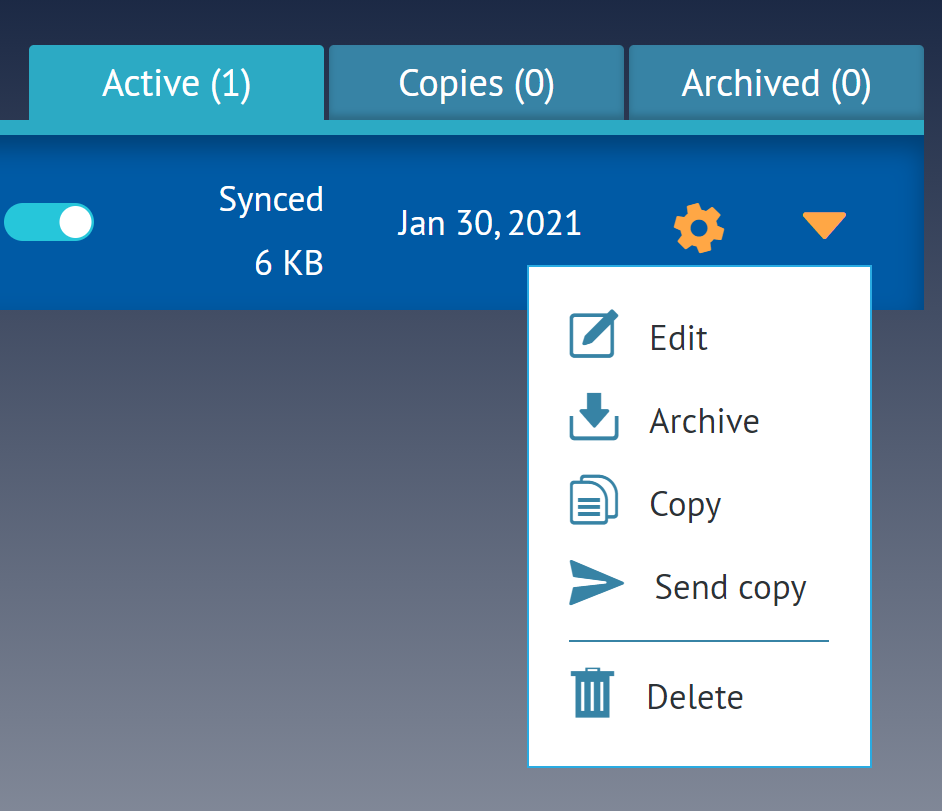
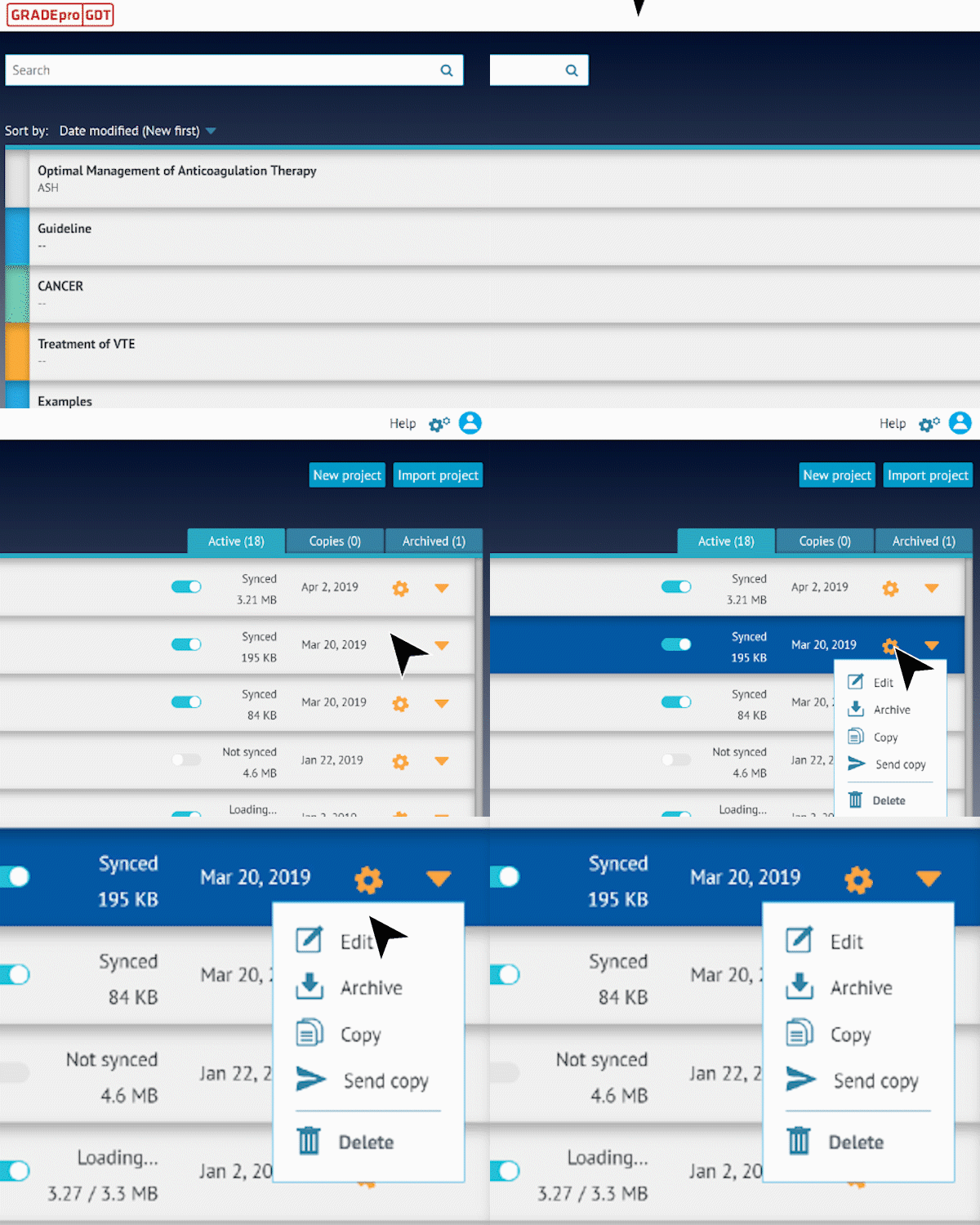
On the right-hand side, you will see a cog wheel icon. Once you click on it, a menu will expand, which will help you perform basic management actions regarding the project.
In this article, we will briefly describe all of them.
2. Edit
Once you click on it, a new window will appear
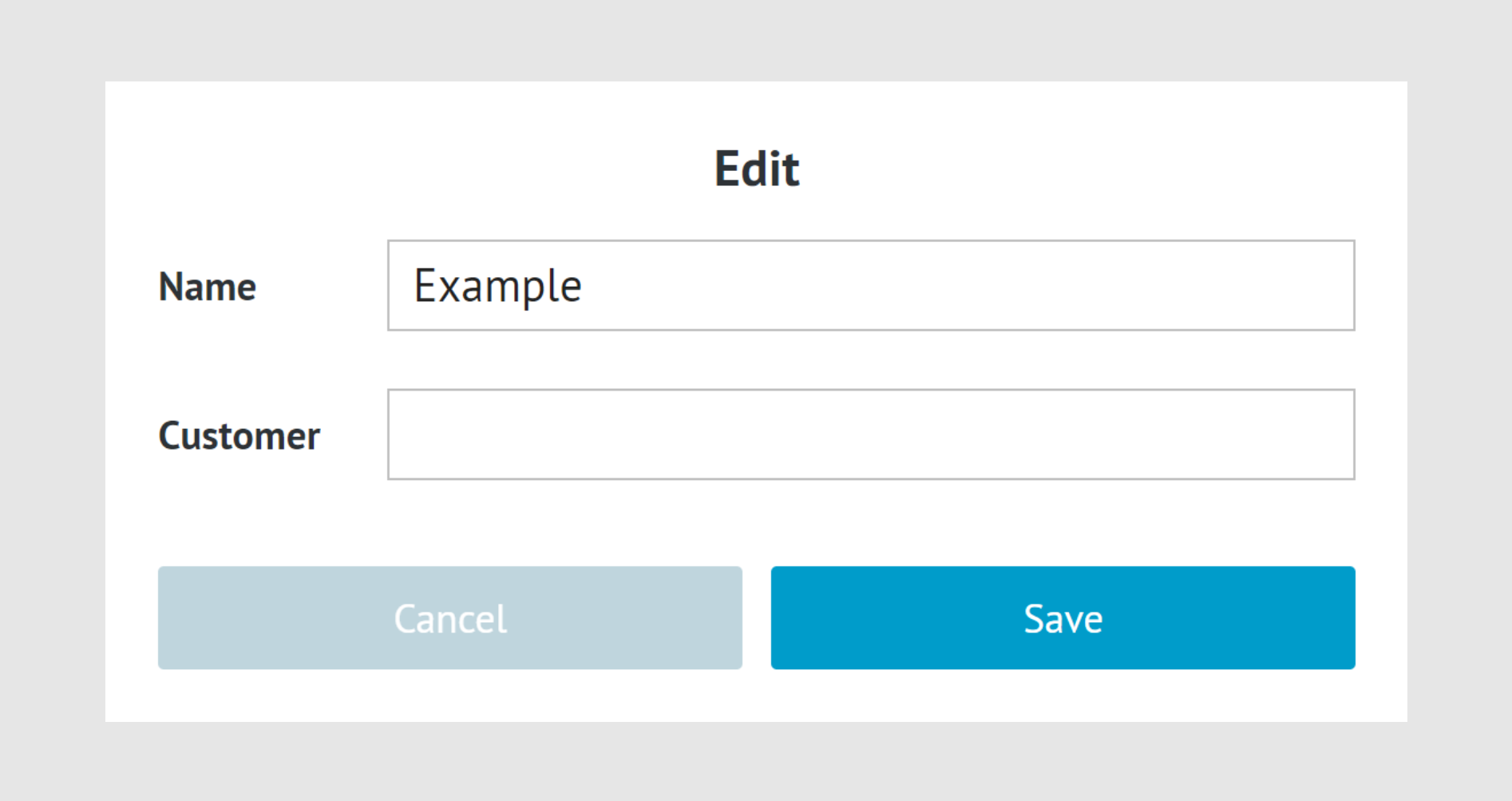
There you will be able to change the project name or enter the customer.
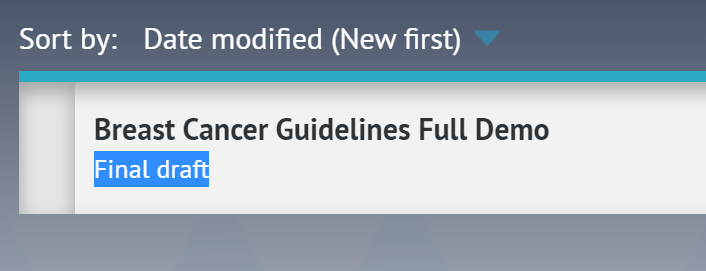
The customer text field content is displayed below the project title. It can be used for labelling purposes as well, like in this example.
Tips: To edit the project itself, e.g. enter new questions, outcomes or change content of the tables, simply click on the project.3. Archive
When you archive a project, you move it to the “Archived section”. You can do it when you don’t want this project on your main list, e.g. when you decide there are too many projects, and you want to keep everything in order, but you want to come back to it in the future, so you don’t want to delete it.
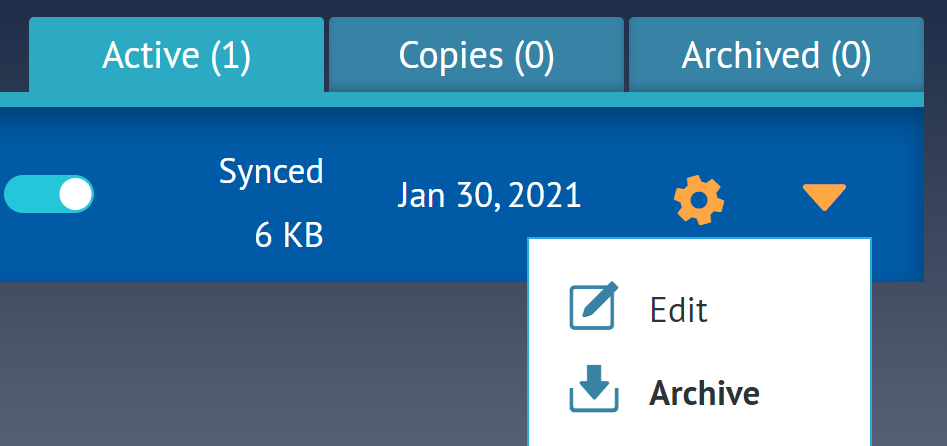
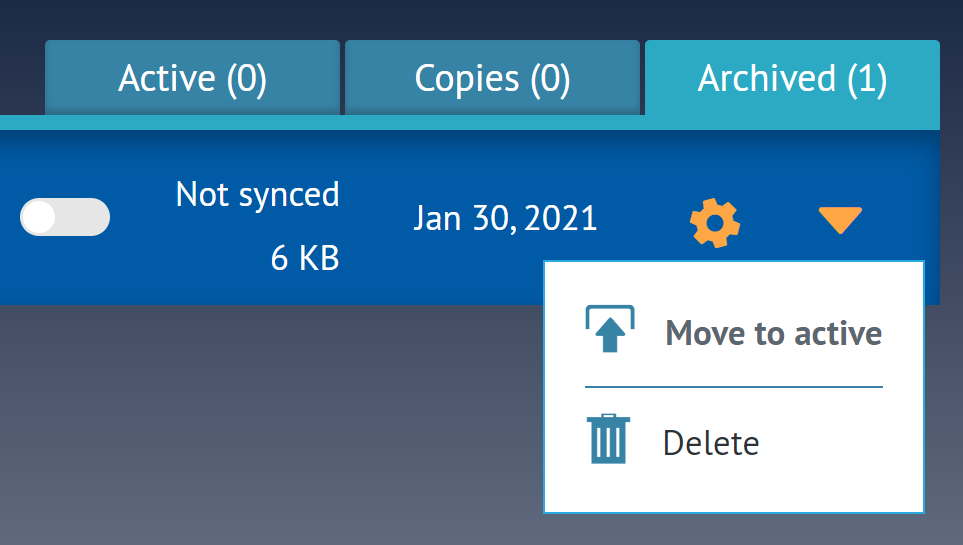
Once a project is in the “Archive” tab, you can restore it to the “Active” tab by using the “Move to active” option, available with the cog wheel button.
4. Copy
This option creates a copy of the project in the “Copies” tab. Each copy is named like the original project, with a note on the time of the creation
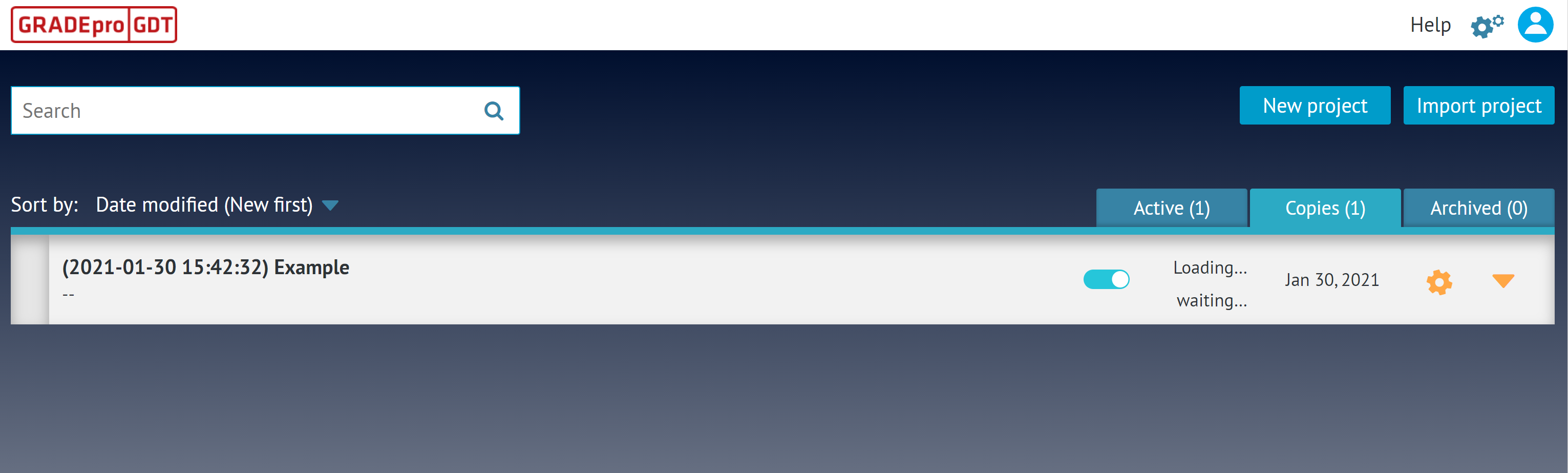
Copies are a good tool if you want to be able to come back to a previous version of the project if you decide that some of the introduced changes should be revoked.
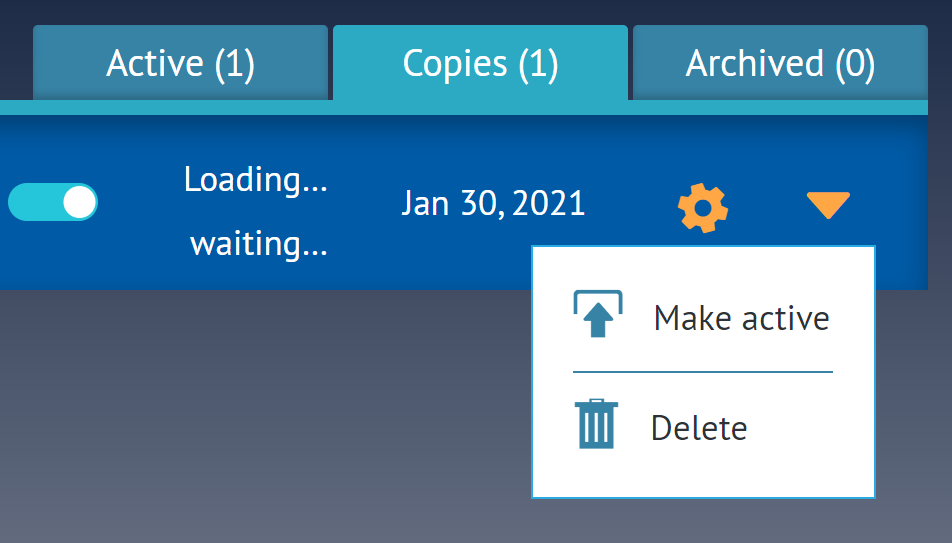
Copy is not an active project, however. To edit it and work on it, you need to use the “Make active” option, available with the cog wheel button.
5. Send copy
This is an option to be used when you want to share your project with another GRADEpro user, however, you don’t want them to alter your version. Once you click on “Send copy”, you will see a slot to enter the email address:
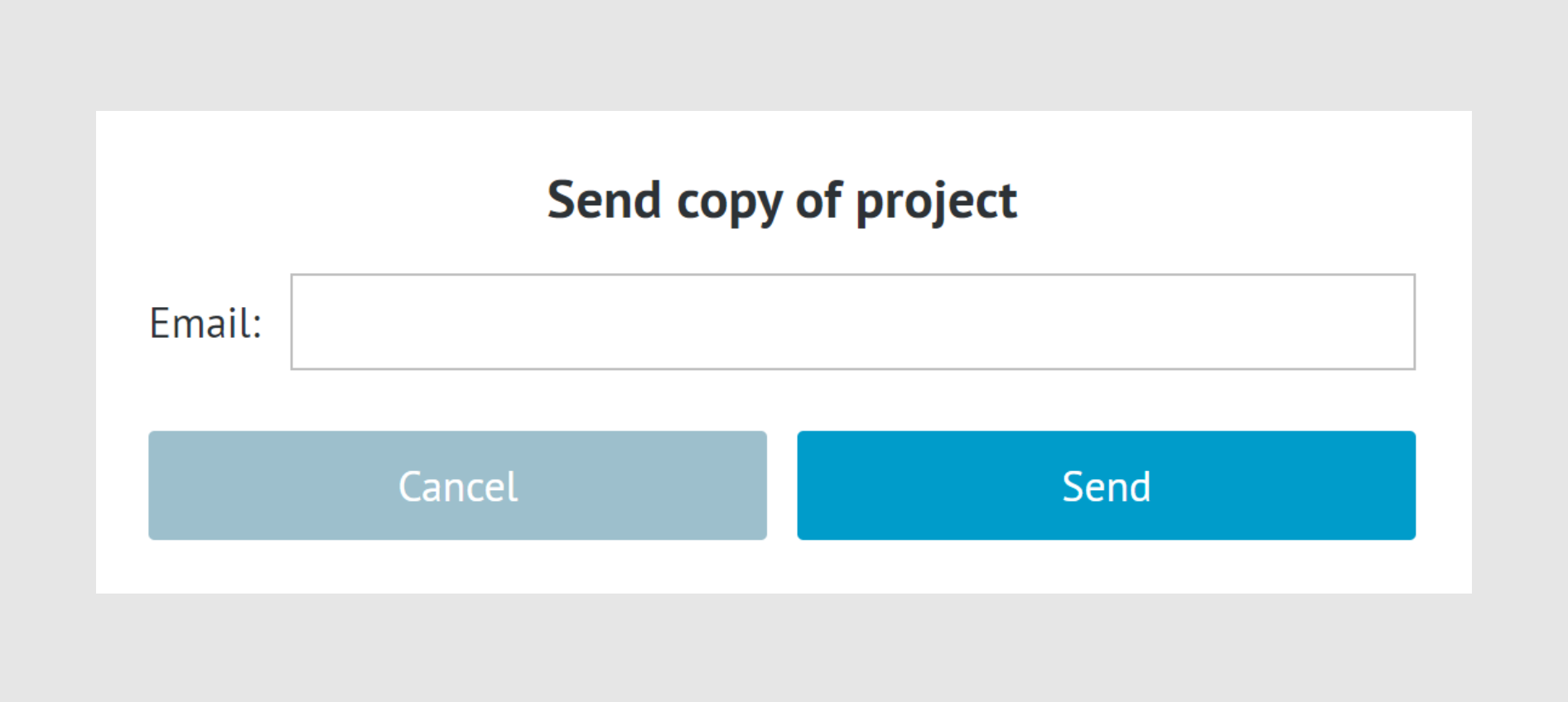
There you should enter an email address connected to the GRADEpro account you want to share with.
The person will receive the copy as a notification on top of their GRADEpro screen.
6. Delete
If you want to remove a project permanently from your project list, you can use the “delete” option.
This action is irreversible.
Remember: GRADEpro is a collaborative tool. If anyone else was invited to your project, they will retain the access to the project. If you want to remove the project completely, you need to revoke their access first. RELATED ARTICLES
Was this article helpful?
That’s Great!
Thank you for your feedback
Sorry! We couldn't be helpful
Thank you for your feedback
Feedback sent
We appreciate your effort and will try to fix the article