TABLE OF CONTENTS
- 1. GRADEpro and RevMan terminology
- 2. How to enable GRADEpro integration
- 3. Creating a table with GRADEpro
- 4. Editing vs. updating the table
- 5. Completing continuous outcomes
- 6. Quality of evidence assessment
- 7. Editing the SoF table - table title (intervention, comparison and health problem/population)
- 8. Editing the SoF table - names of the columns
- 9. Editing the SoF table - data within the table
- 10. Editing the SoF table - adding an outcome
- 11. Editing the SoF table - deleting an outcome
- 12. Deleting the table

1. GRADEpro and RevMan terminology
The elements of GRADEpro and RevMan Web differ in terms and names at times. Below is a list of the most common GRADEpro terms and their RevMan counterparts.
| In RevMan | In GRADEpro |
| Analyses group | PICO question / Evidence table |
| Analysis | Outcome |
| Intervention group 1 | Intervention |
| Intervention group 2 | Comparison |
2. How to enable GRADEpro integration
The online integration is available for Cochrane authors only. If you are not a Cochrane author, you can transfer your data from RevMan to GRADEpro through data packages.
As of 3 June 2024, the GRADEpro integration is enabled as a default system setting for all Cochrane intervention reviews. The exception to this is for reviews that are in the editorial process (being edited or revised) or have an acceptance decision (in production), as well as reviews supported by the Methods Support Unit. For these reviews, the GRADEpro GDT integration will be enabled automatically after a rejection decision or publication.
Please note that the GRADEpro Support Team cannot enable the integration. This is only available from the side of Cochrane and RevMan. If you cannot access the option to create tables directly in RevMan despite being a Cochrane author and meeting the above criteria, please contact Cochrane Team at support@cochrane.org
3. Creating a table with GRADEpro
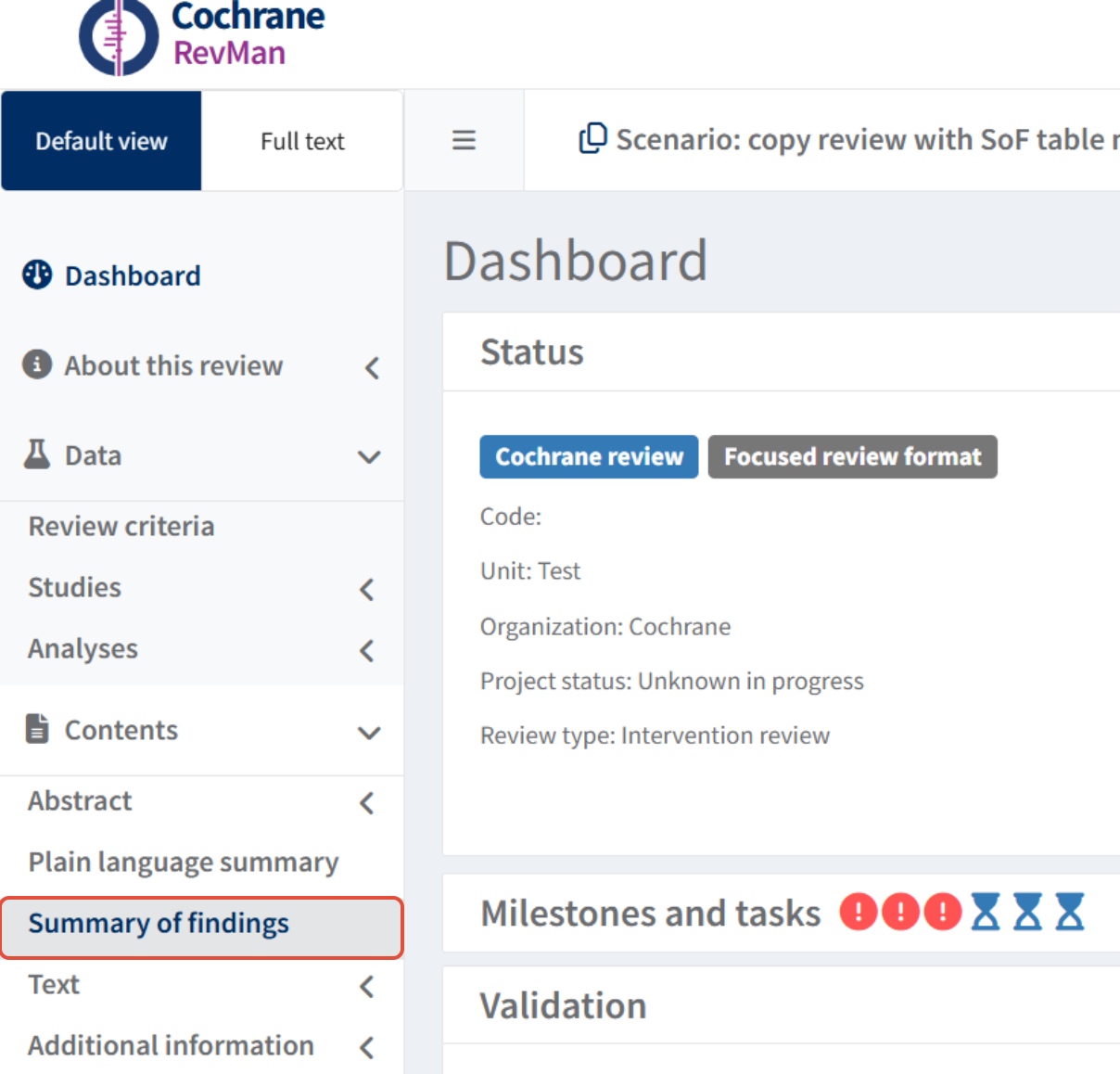
To create a table with GRADEpro, you need to move to the Summary of Findings section in the Tables tab of your project in RevMan Web.
 There you need to use Add Table using GRADEpro GDT option.
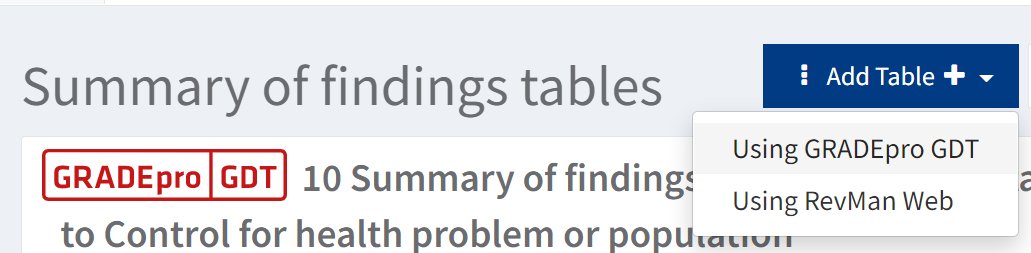
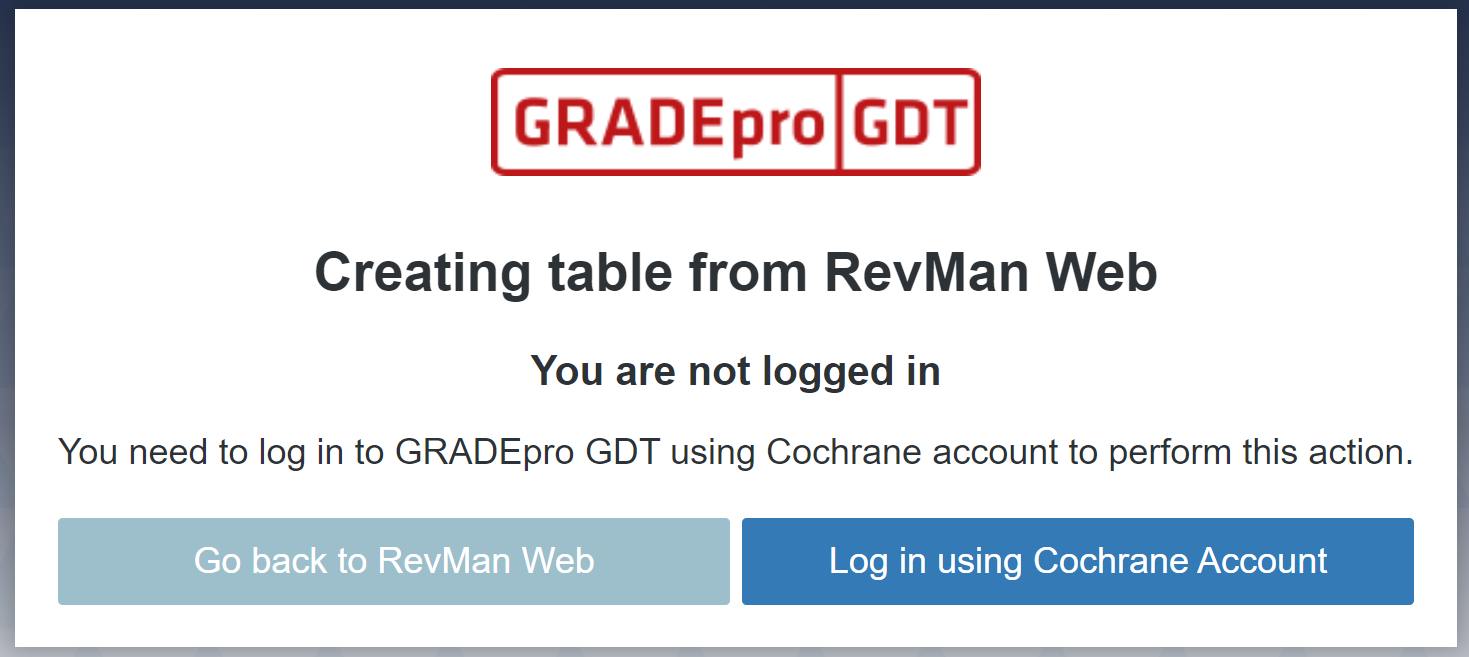
If the option to create tabe using GRADEpro GDT is inactive, it means it hasn't been activated for that review. In those cases, please contact RevMan Support at support@cochrane.orgYou will be moved to GRADEpro, where you will be asked to log in:
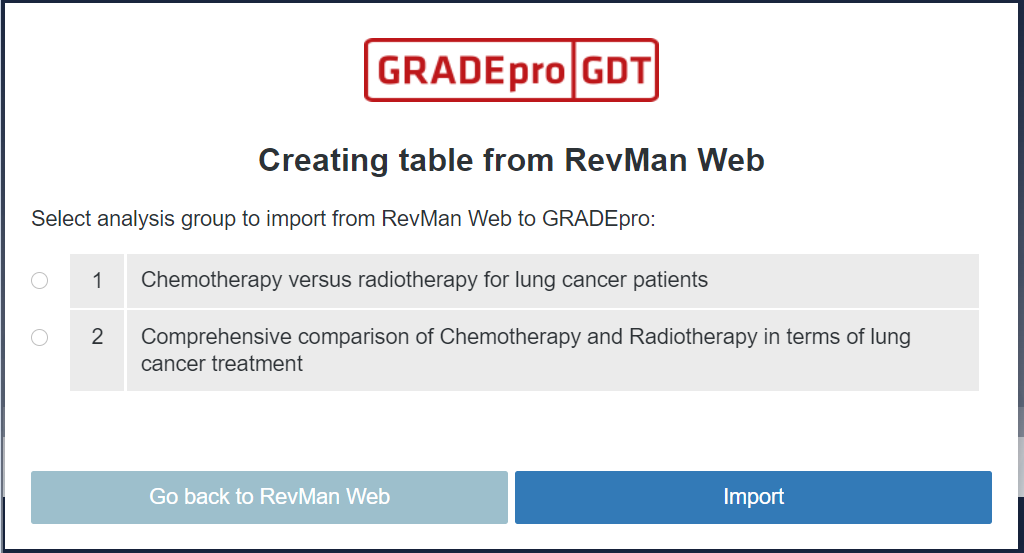
Once you log in, you will be able to choose which analysis you want to present in the table.
You will see a table created with the data from your analysis in GRADEpro.
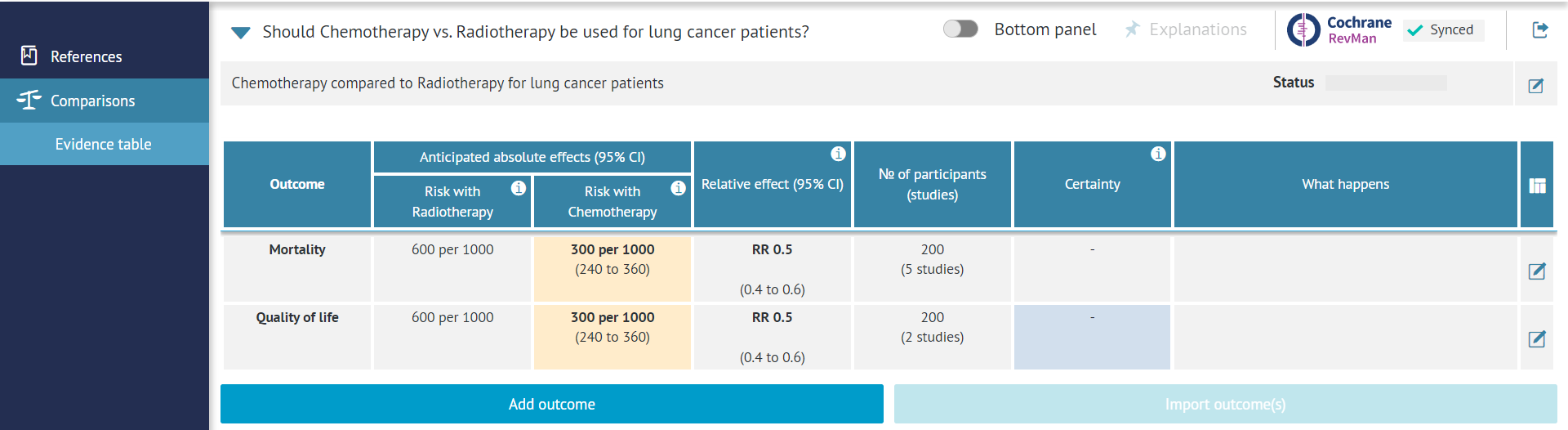
In the top right corner of the website, there is a button indicating synchronisation with RevMan.
Once you complete the table, you can simply close this tab and come back to RevMan.
There you will see the table on the list of your tables.
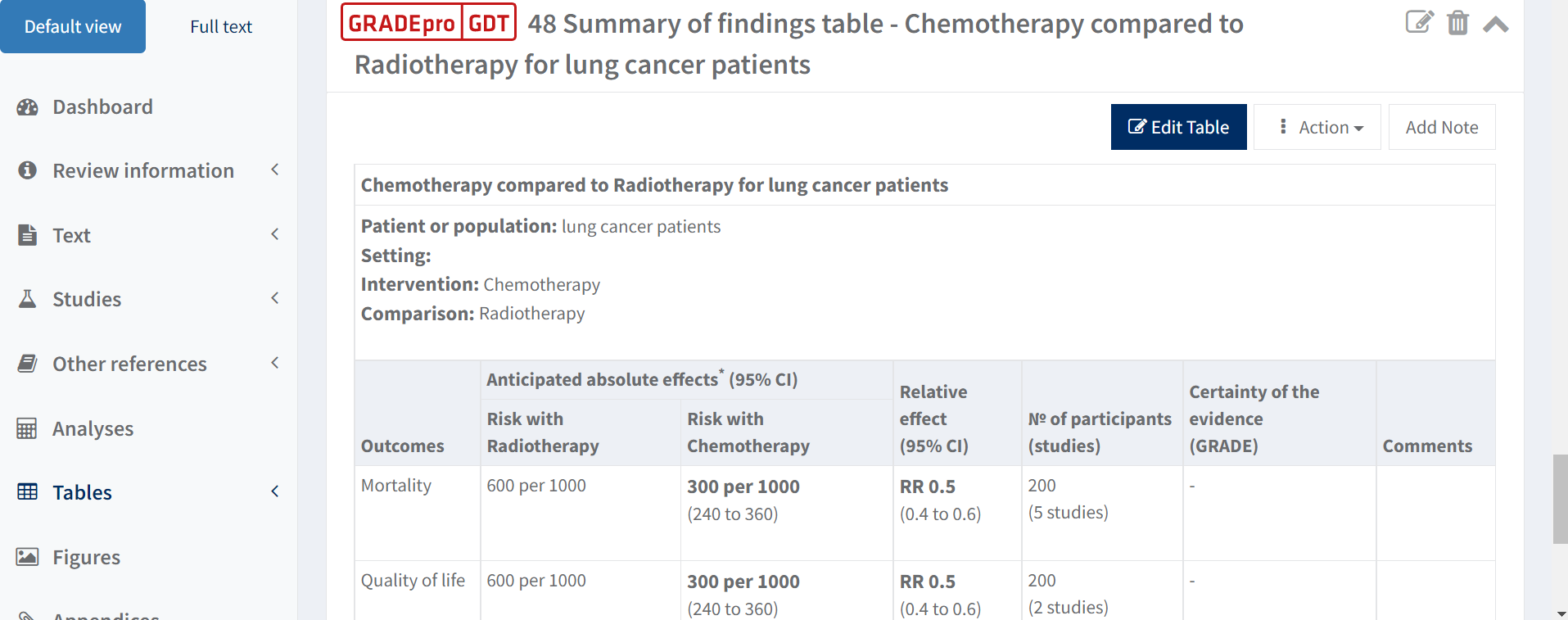
You may have to refresh RevMan Web to see it.
Below the header, you will see the “Edit table” button. You can use it, e.g., if you want to change the grading of the evidence later on. Editing the table is described in more detail below.
4. Editing vs. updating the table
When you create the SoF table, the data is automatically sourced from the analyses group you have selected.
If you want to edit the table in the future (e.g., change some details, names, grading, et cetera), you can simply use the Edit table option.
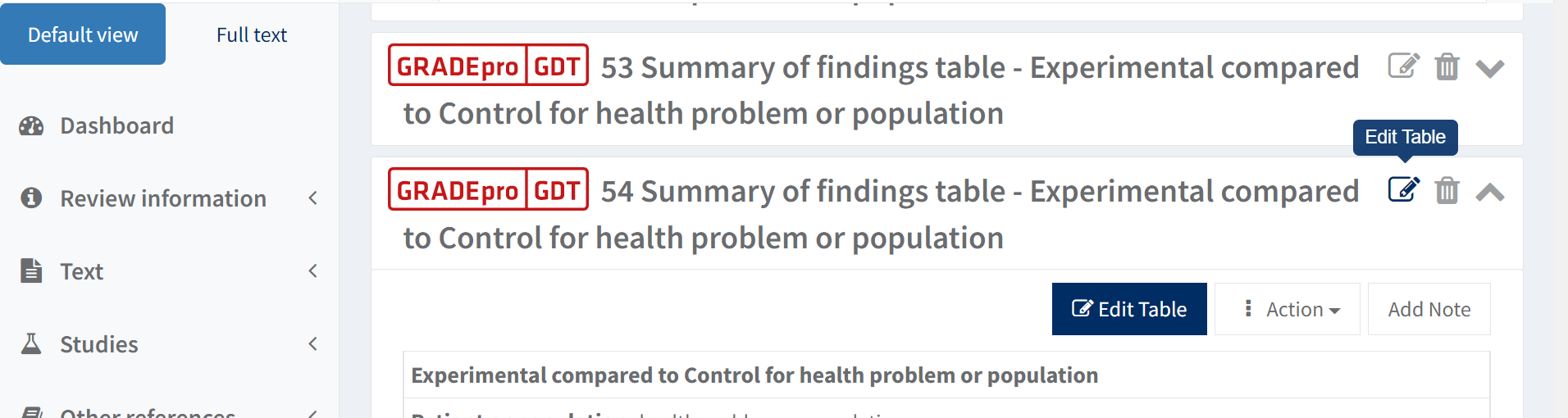
This action will simply open the table in GRADEpro, where you will be able to edit it.
If you want to update the data within the table after you update the data within your Analyses group, you can do it using the Edit and update option
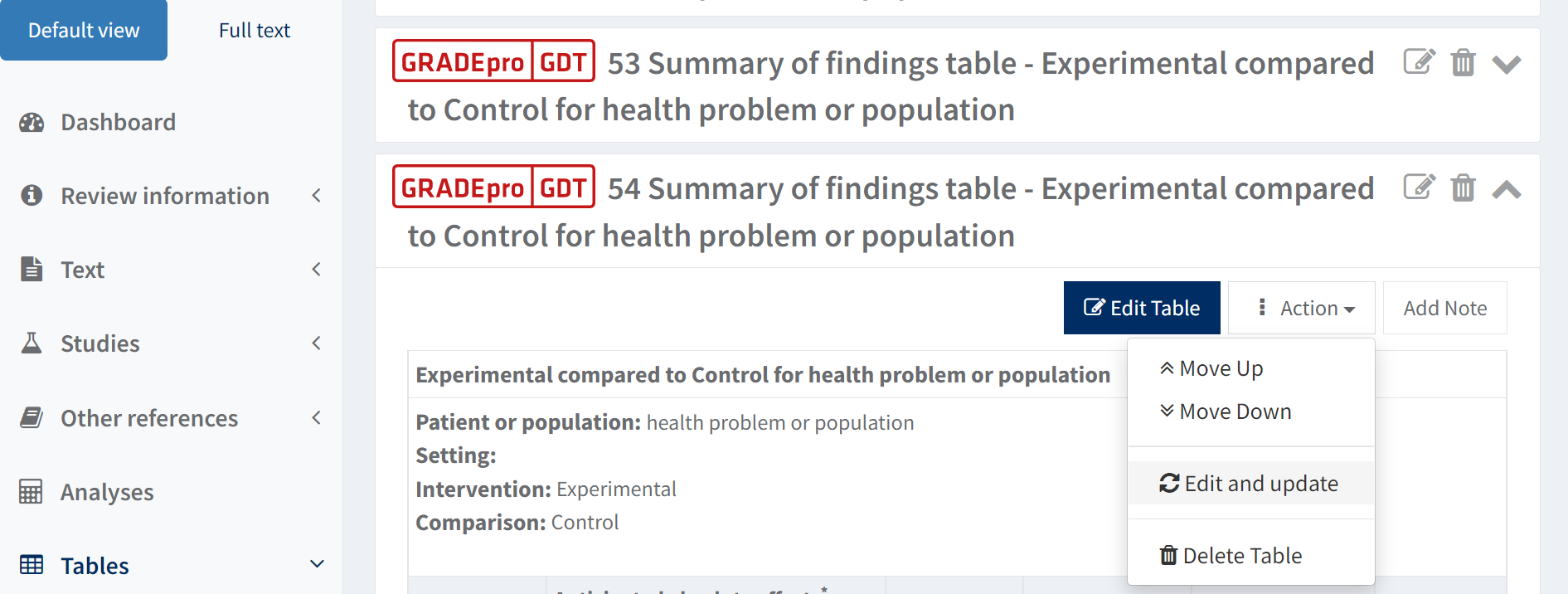
This will open the table in GRADEpro and copy the data from the Analyses group to the table.
Restriction: Please be aware that due to this action, some of the changes you might have previously made in the table could be overwritten. The grading of evidence will remain unchanged, but if you alter, e.g., the names of outcomes, these details will revert back to their original state, as they, too, will be synchronised with the content of the Analyses group.

If you want to avoid this, you can update the table manually, which simply means you can open the table using the regular Edit option and edit the numerical data within the table yourself.
5. Completing continuous outcomes
In case of continuous outcomes, you may need to complete some of the details when you open the table in GRADEpro for the first time.
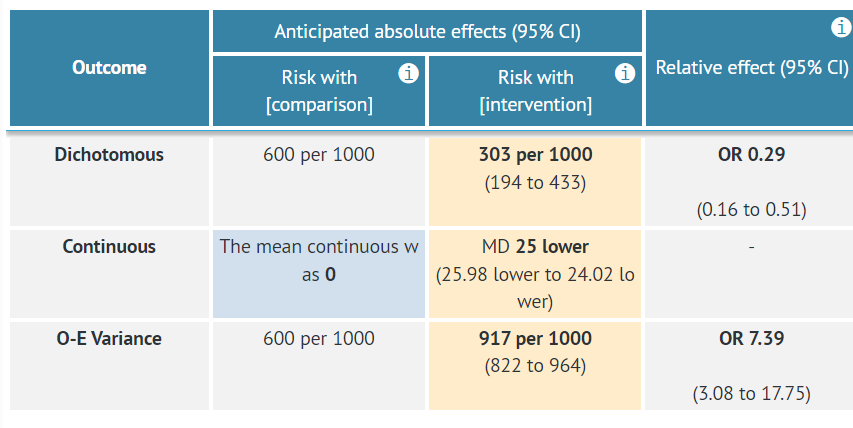
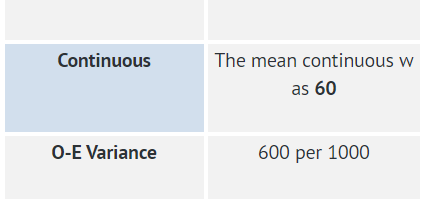
The risk in the comparison group may be empty. If this happens, you can enter those details in GRADEpro by clicking on the cell with the 0 value.
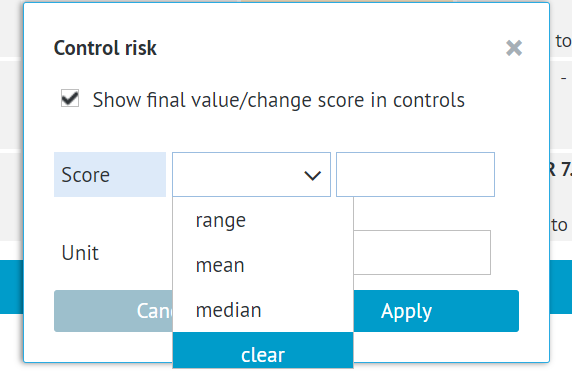
You will be able to enter the type of value, the number and the unit the value is measured in. Afterwards, it is enough to apply the changes.
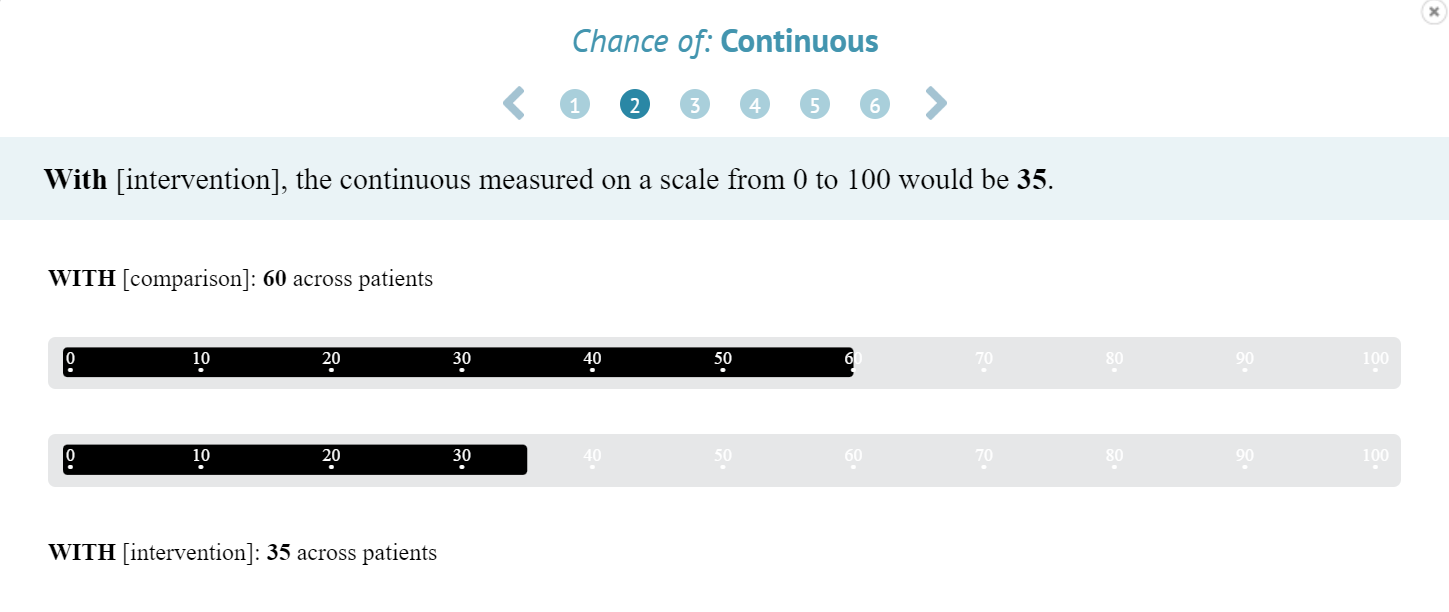
Additionally, you may need to enter the possible range of values, so it can be later displayed on the visualisations of the Interactive SoF table, which is attached to each table created with GRADEpro.
To enter the range, you need to click on the cell with the outcome name.
You will see the options to select the type of scale and enter the minimum and maximum scores.

Those can be any values, as long as the value of the outcome is between them. The scale does not necessarily need to start at 0.
The scale will be used for the Interactive SoF table, which you can open with the link below the table in RevMan.
6. Quality of evidence assessment
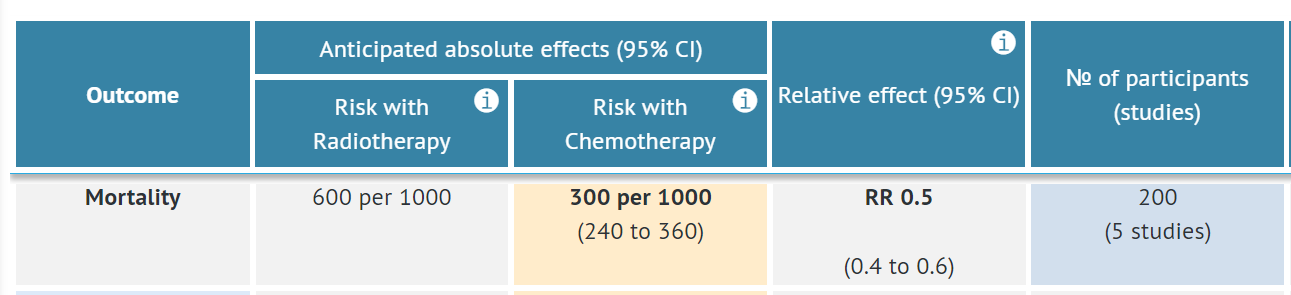
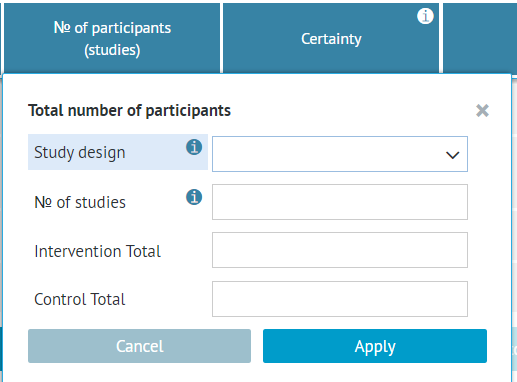
To assess the certainty of the evidence, you need to select the study design in the Number of participants (studies) column, as the baseline GRADEing depends on this.
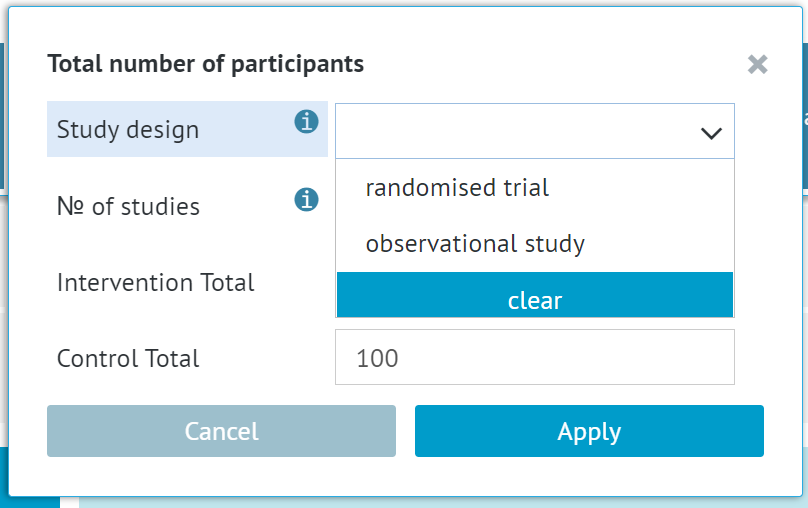
If you select Observational study, you will additionally need to select the study type
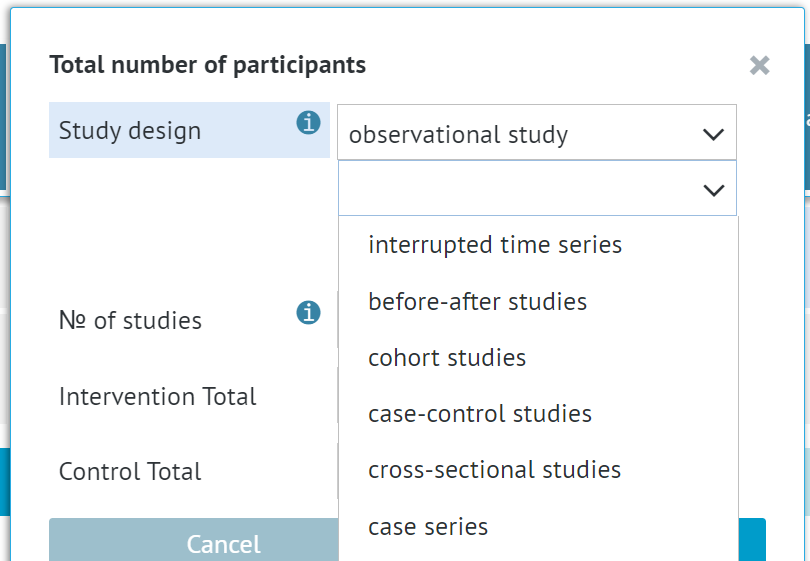
and whether or not you want to use the ROBINS-I.
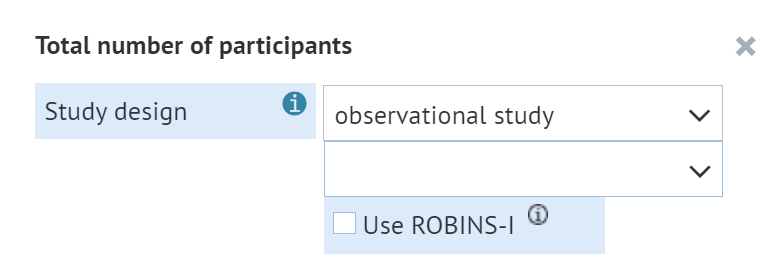
Once you select the study design, you can continue to the quality assessment in the Certainty column.

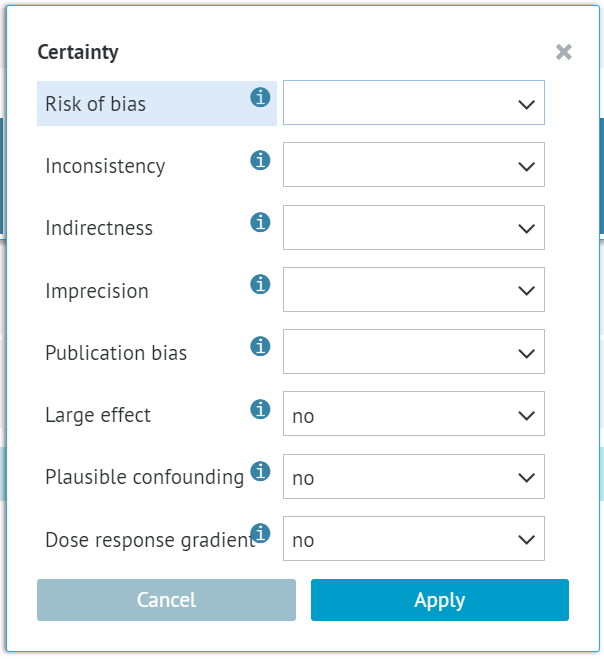
You can read more about certainty assessment here.
Certainty assessment will not be overwritten when you update the table.
7. Editing the SoF table - table title (intervention, comparison and health problem/population)
The table title is displayed on top of the table both in GRADEpro

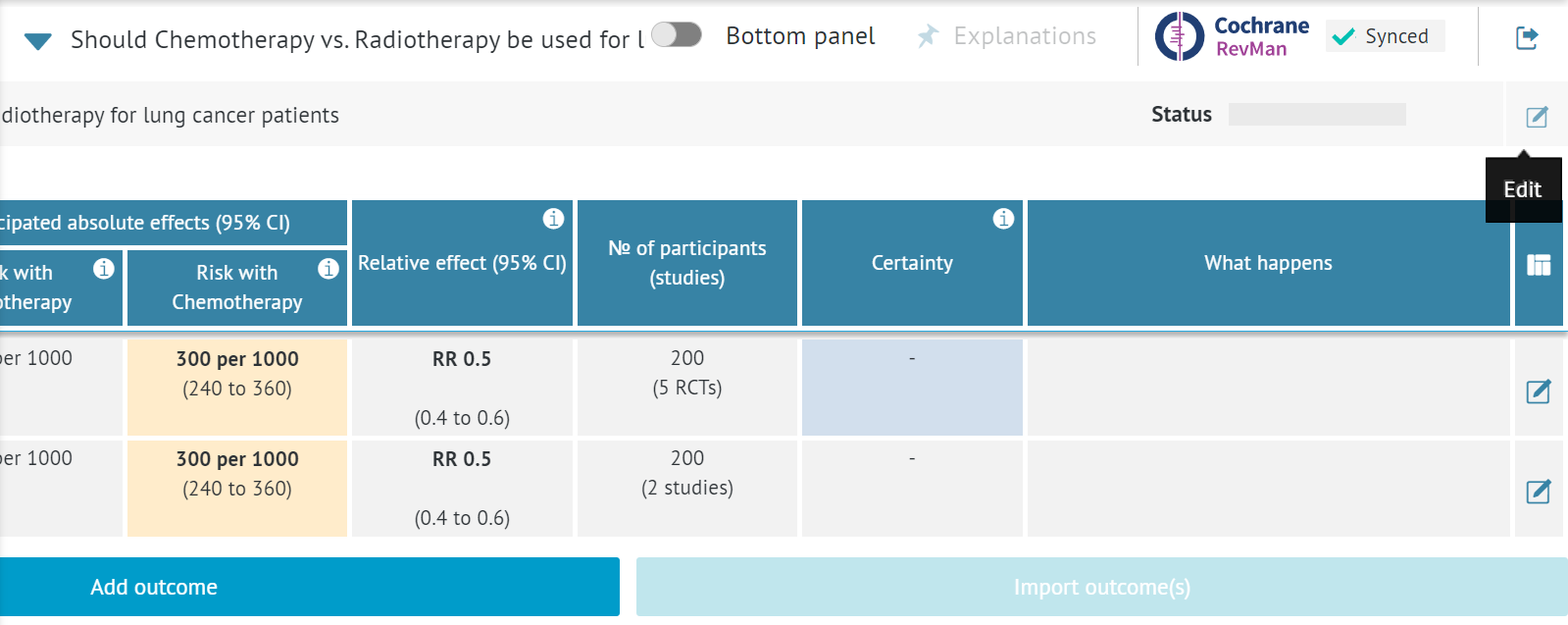
and RevMan Web
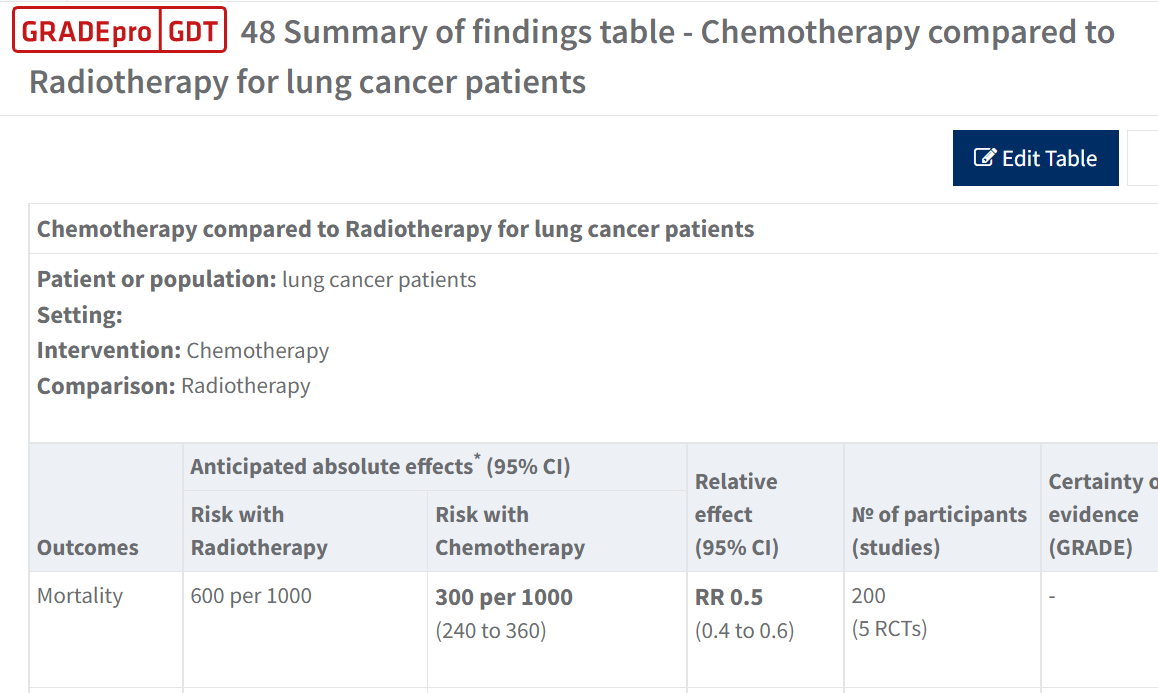
The table title is created based on the elements of the PICO question in GRADEpro.

PICO question follows the Should [intervention] vs [comparison] be used for/in [health problem/population]
Based on this following table title is created: [Intervention] compared to [comparison] for/in [health problem/population]
You can enter the [Intervention], [comparison], and [health problem/population] when you first enter the table.
To do this, you need to use the Edit icon available in the top right corner of the page in GRADEpro.
This will show you the options to enter the [Intervention], [comparison] and [health problem/population].

Once you enter the desired content, you can save it with the floppy disc icon.
8. Editing the SoF table - names of the columns
The names of the table columns cannot be edited in GRADEpro. They are based on the GRADE method and Cochrane standards.
The only element the user can alter in the table headers is the labels for intervention and comparison (Risk with [...] columns).
The instructions for editing these can be found above.
9. Editing the SoF table - data within the
table
To edit the content of any cell in the SoF table, it is enough to click on it. A window will open with fields where you can enter text or numbers, depending on the type of cell.
Please note that the № of participants (studies) column contains the study design as well.
10. Editing the SoF table - adding an outcome
If your Analysis cannot be transferred to GRADEpro or if you want to introduce changes that the synchronisation does not allow, you can do this by adding a new outcome.
Such an outcome will not be subject to synchronisation. This means that it will not be overwritten in any way, but if you want to update any details in this outcome, you will need to do so manually.
To add an outcome, you simply need to click on the Add outcome button at the bottom of the table.
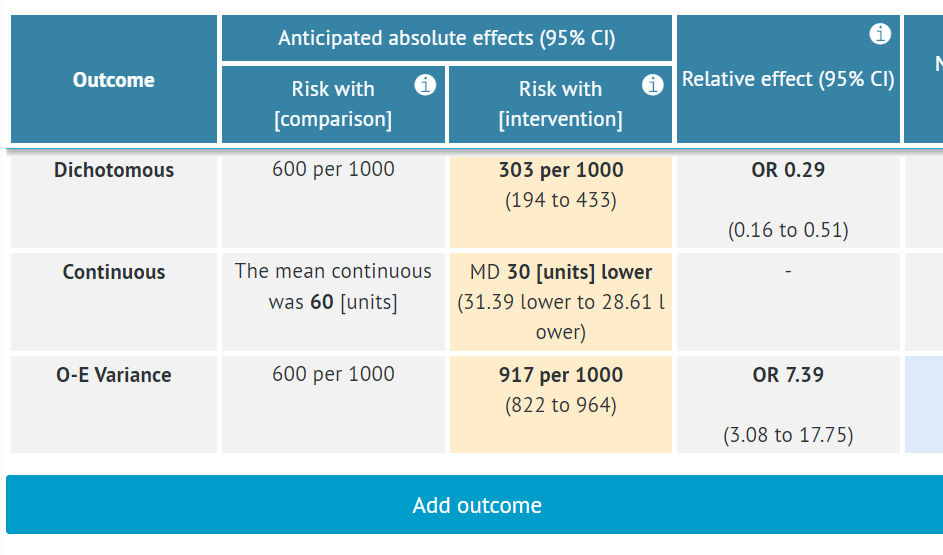
You can read more about adding outcomes here.
11. Editing the SoF table - deleting an
outcome
You can delete any outcome in the evidence table.
This action is irreversible.
Such an outcome will not be synchronised in the future and will not re-appear. If you need to re-add it in the future, you will need to either create a new table from scratch or add the outcome manually.
To delete an outcome, you need to click on the Edit icon on its right-hand side.

Then you need to click on the Delete icon.
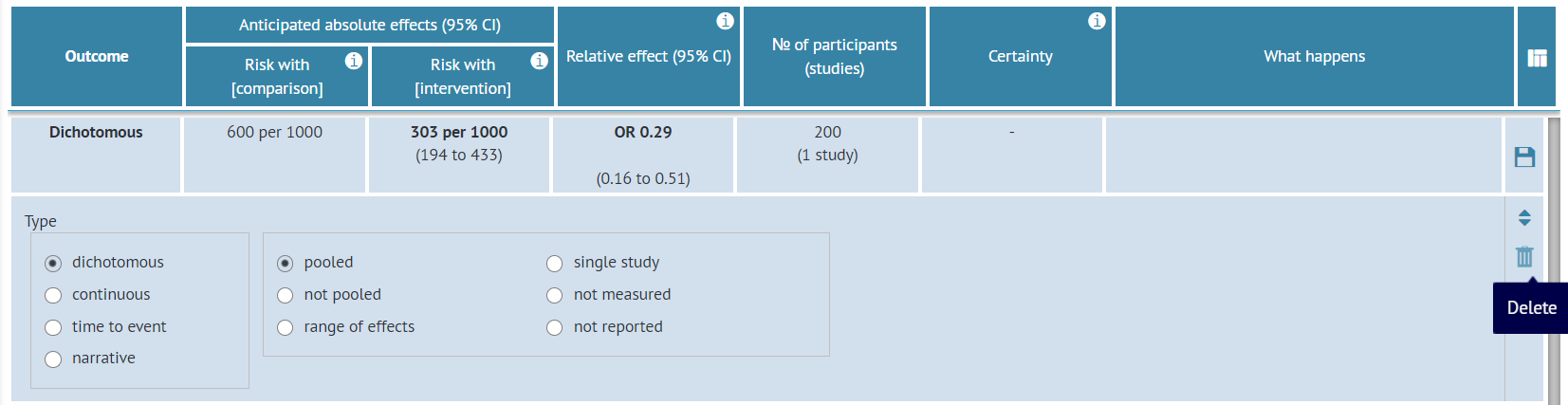
12. Deleting the table
If a table was created with GRADEpro, it needs to be deleted in GRADEpro. For this, you need first to use the Edit table button.

Once in GRADEpro, please click the Edit icon on the right-hand side.

Then select the Delete option.
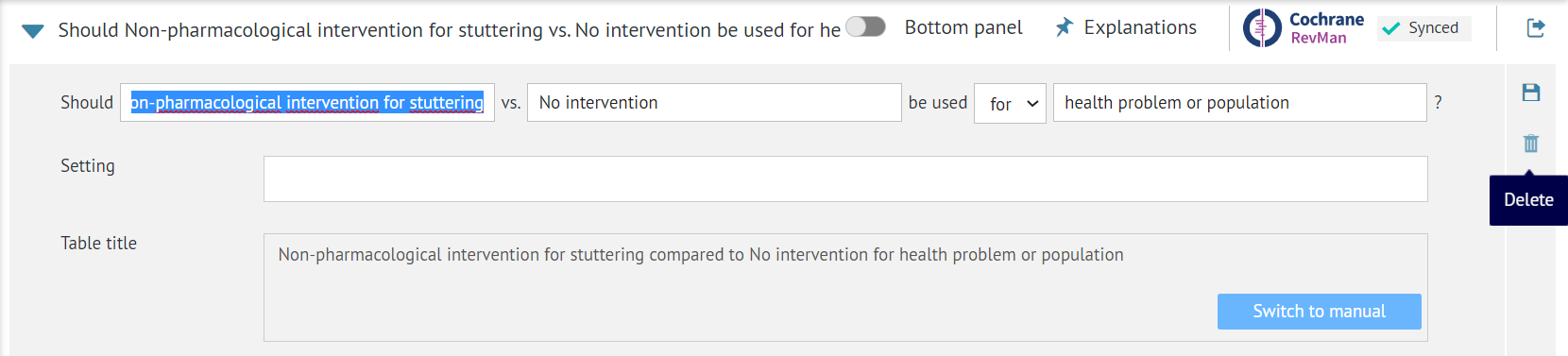
You will be warned that this action will have effects on RevMan as well and is irreversible.
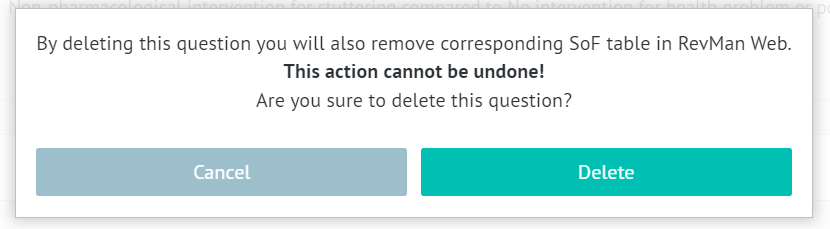
Once you delete it, you will be moved to the question list in GRADEpro. You can simply close the tab then.
RELATED ARTICLES
Was this article helpful?
That’s Great!
Thank you for your feedback
Sorry! We couldn't be helpful
Thank you for your feedback
Feedback sent
We appreciate your effort and will try to fix the article