TABLE OF CONTENTS
- 1. Introduction
- 2. Importing projects/reviews into GRADEpro from RevMan 5
- 3. Importing questions into existing projects from RevMan 5
- 4. Importing outcomes into existing questions from RevMan 5

1. Introduction
Despite the fact RevMan 5 is no longer supported by Cochrane, you may still like to import the files you have from RevMan 5 into GRADEpro. It will be a similar process to importing the files from RevMan Web.
2. Importing projects/reviews into GRADEpro from RevMan 5
To import a project (a whole review) from RevMan 5 into GRADEpro, you should use the Import project button in the top right corner of your screen.
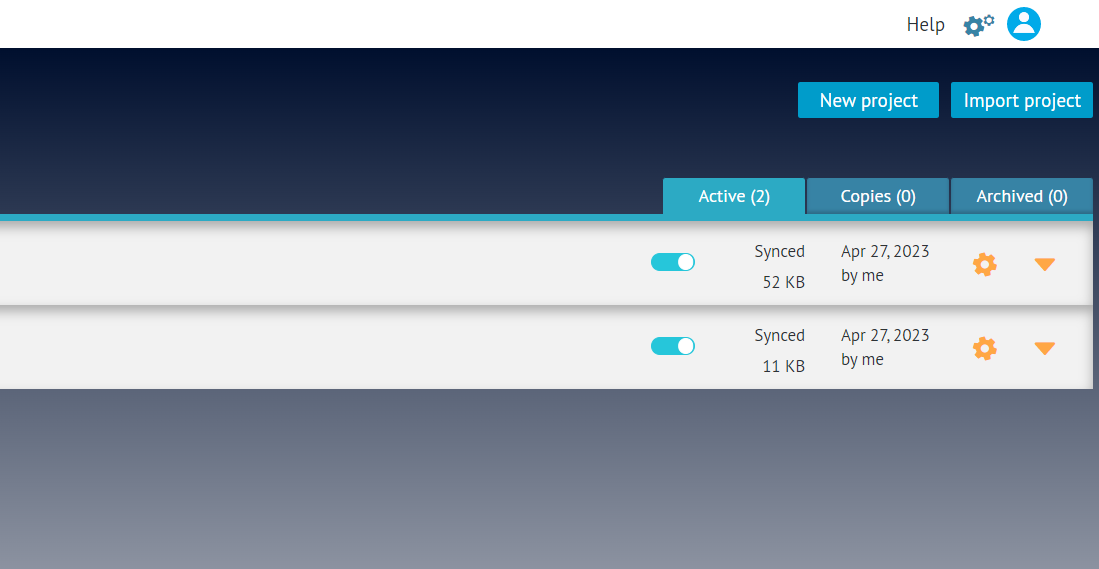
Tips: If you are in the Cochrane workspace of your account, this option will not work. Cochrane workspace is for the RevMan Web online integration only. To import projects, you will need to move to your personal workspace.
You will see a new window where you can select a file from your device to import.
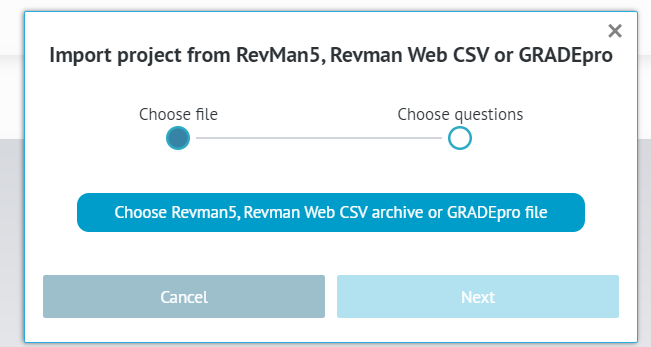
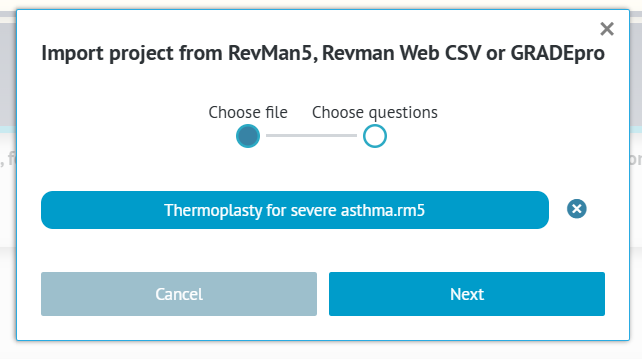
Once you select a file, you can move to the next step.
You will then see the list of all questions (analyses groups) from that project. You can choose whether you want to import all of them or only the selected ones.
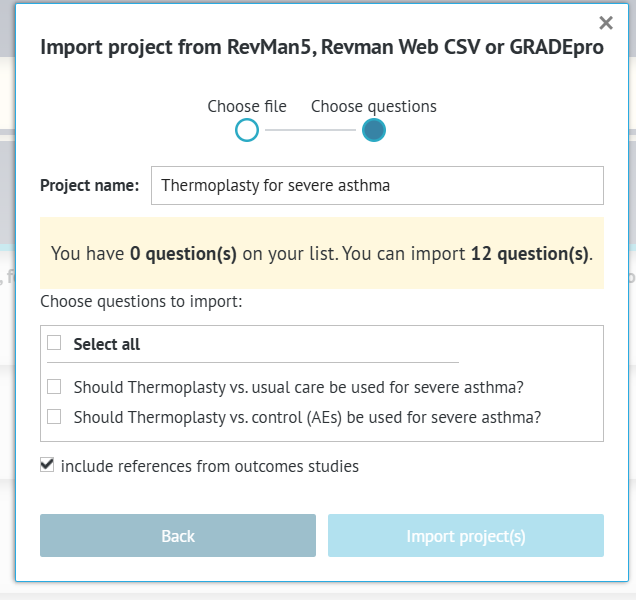
Once you choose, you can confirm with the Import project button.
You will be transported into the project, where you can begin your work on completing the evidence tables. You can find the tables within the questions on the list. To enter a question, it is enough to click on it.
If you seek more information about working in GRADEpro, you can refer to the tutorial on completing the evidence tables and certainty of evidence assessment or the rest of our Knowledgebase.
3. Importing questions into existing projects from RevMan 5
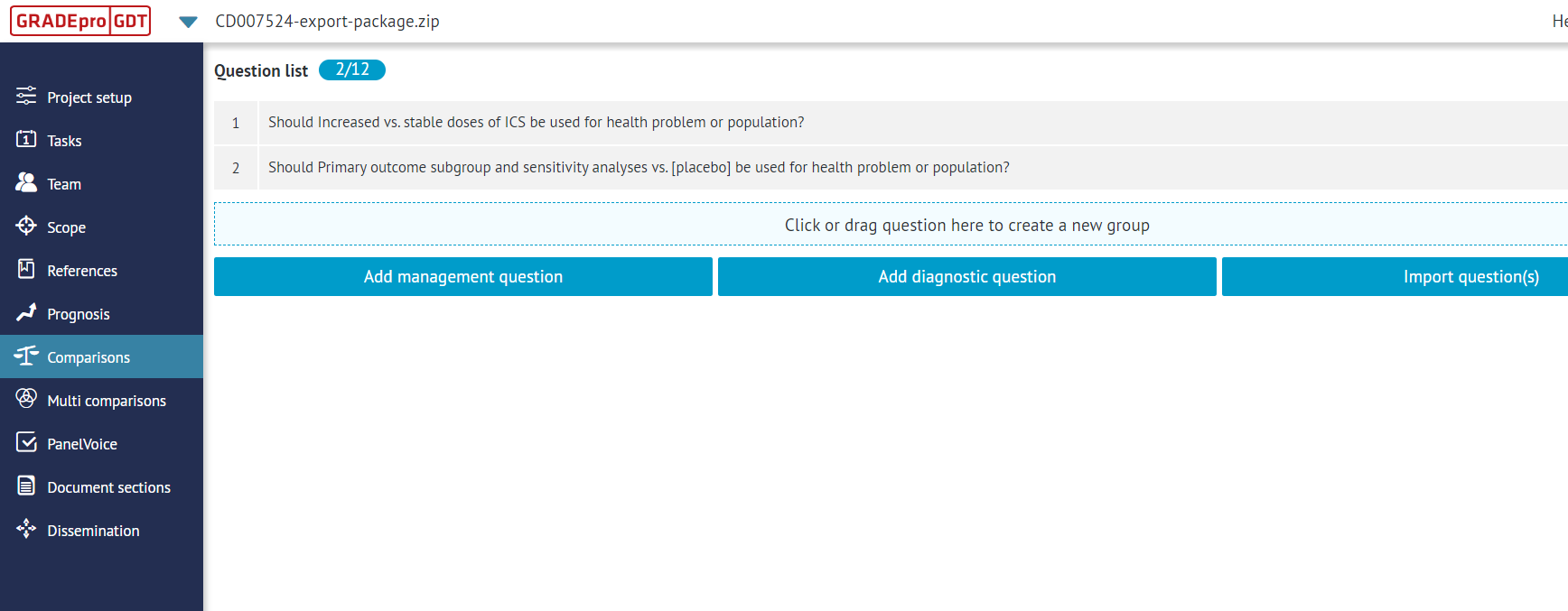
You can also import questions (analyses groups) into existing projects in GRADEpro.
To import questions from RevMan 5 files, you need to use the Import question option.
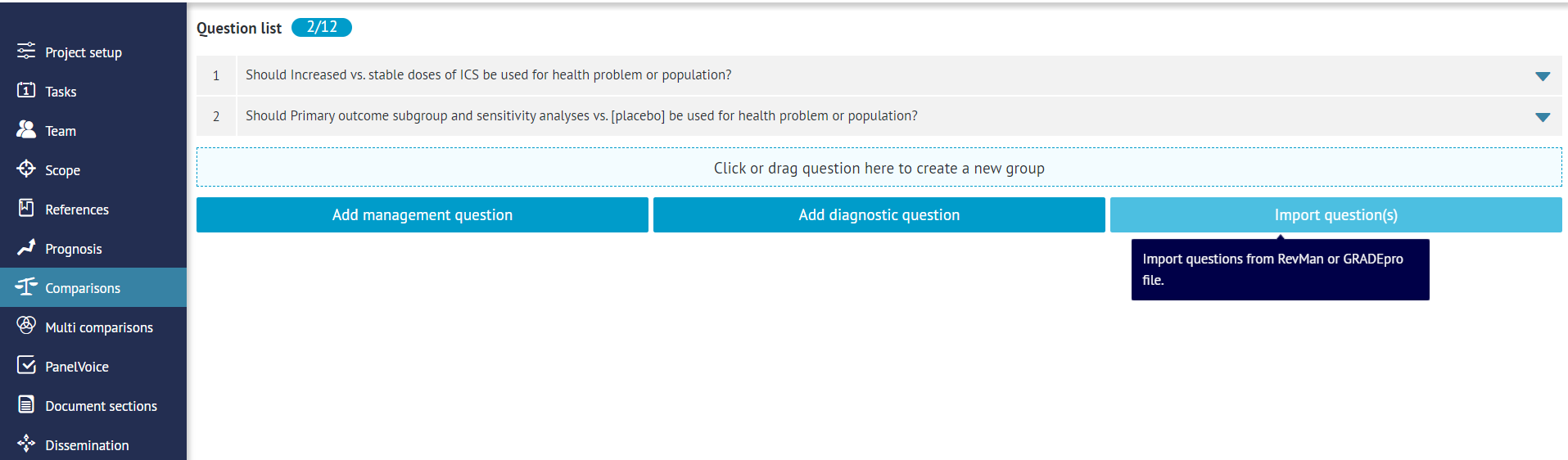
You will see a new window where you can select a file from your device to import.
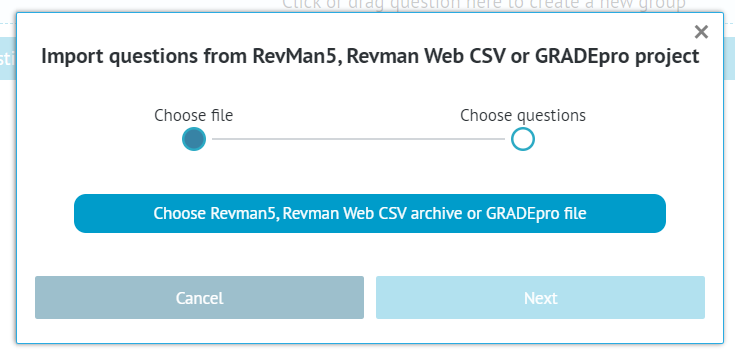
Once you select a file, you can move to the next step.
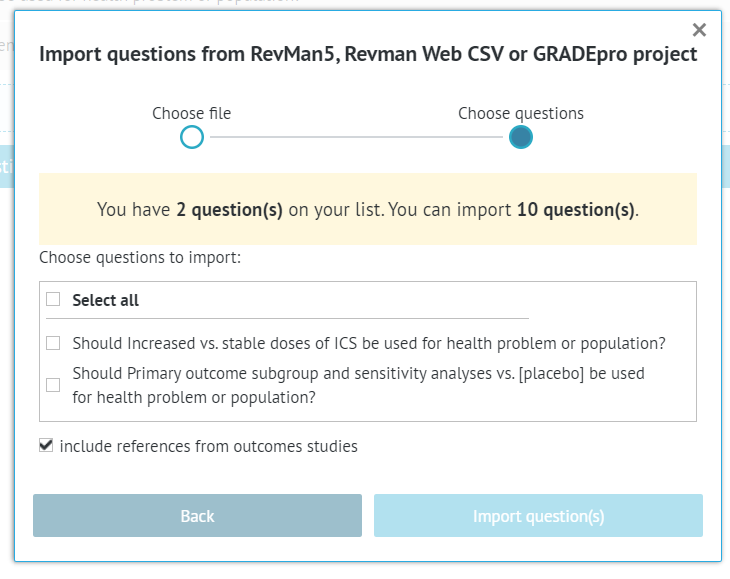
You will then see the list of all questions (analyses groups) from that project. You can choose whether you want to import all of them or only the selected ones.
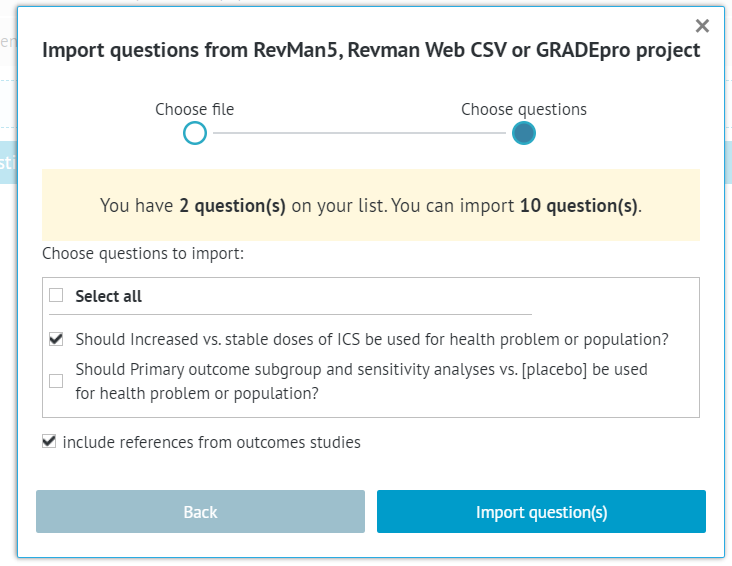
Once you choose, you can confirm with the Import question button.
The questions will be added to the list.
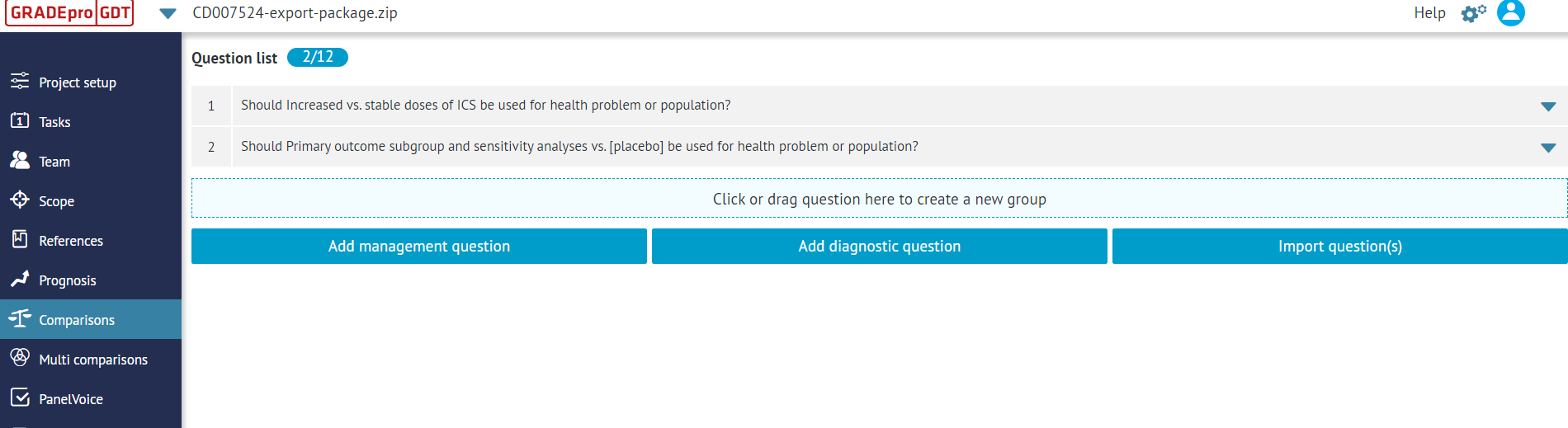
You can find the tables within the questions on the list. To enter a question, it is enough to click on it.
If you seek more information about working in GRADEpro, you can refer to the tutorial on completing the evidence tables and certainty of evidence assessment or the rest of our Knowledgebase.
4. Importing outcomes into existing questions from RevMan 5
You can also import outcomes (analyses) into existing questions (analyses groups) in GRADEpro.
To import outcomes from RevMan 5 files, you need to use the Import outcome option.
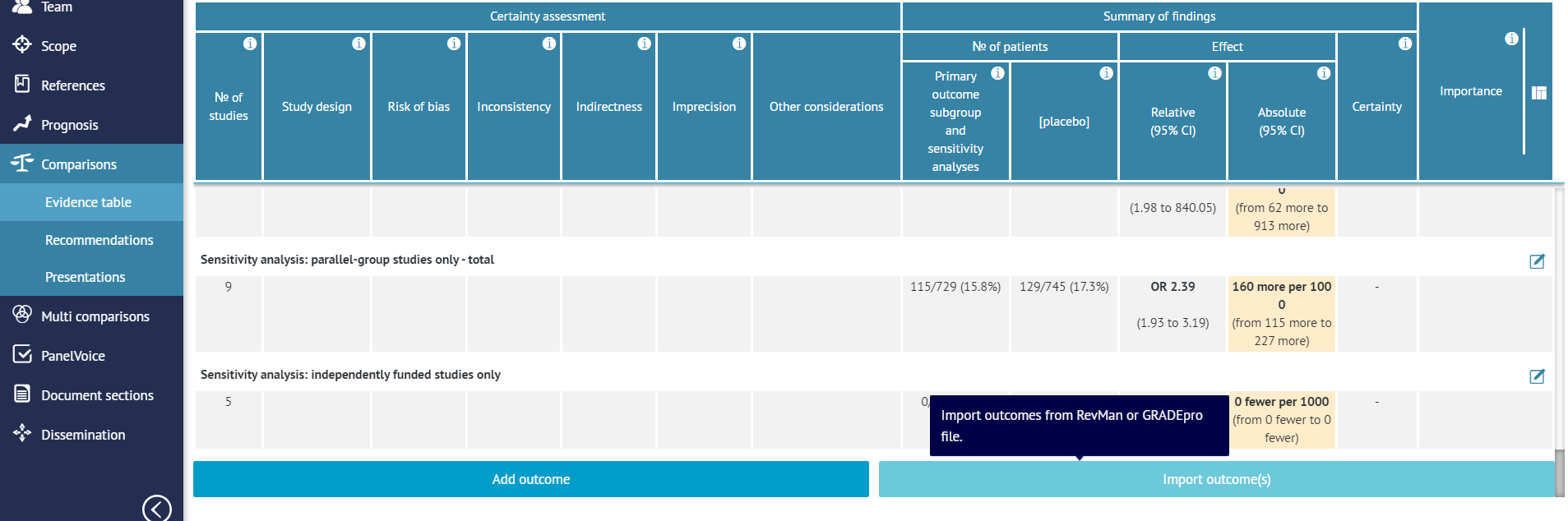 You will see a new window where you can select a file from your device to import.
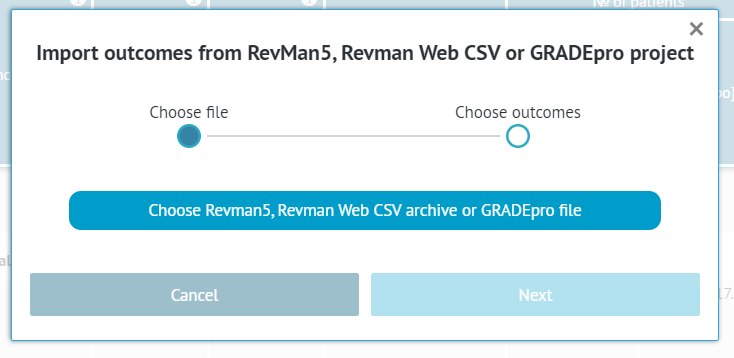
Once you select a file, you can move to the next step.
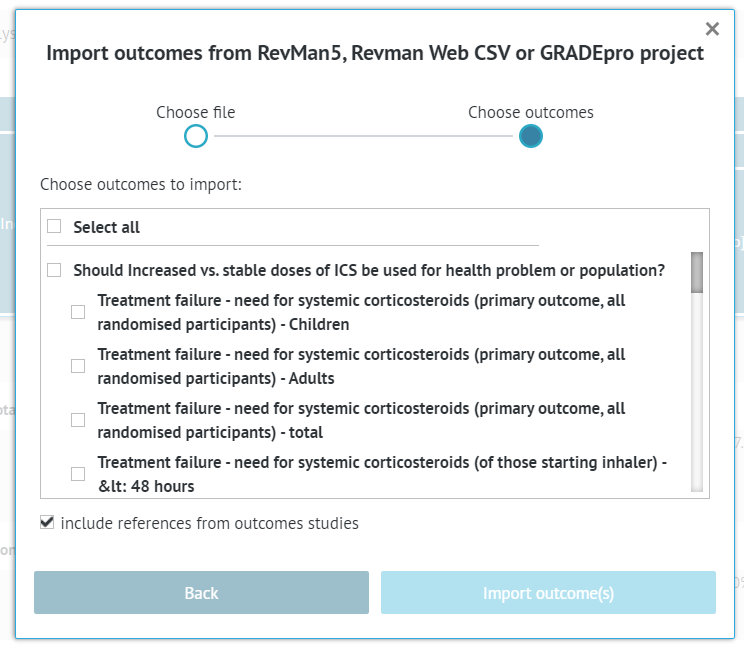
You will then see the list of all outcomes from that project. You can choose whether you want to import all of them or only the selected ones. If you mark a question, all outcomes belonging to it will be marked automatically.
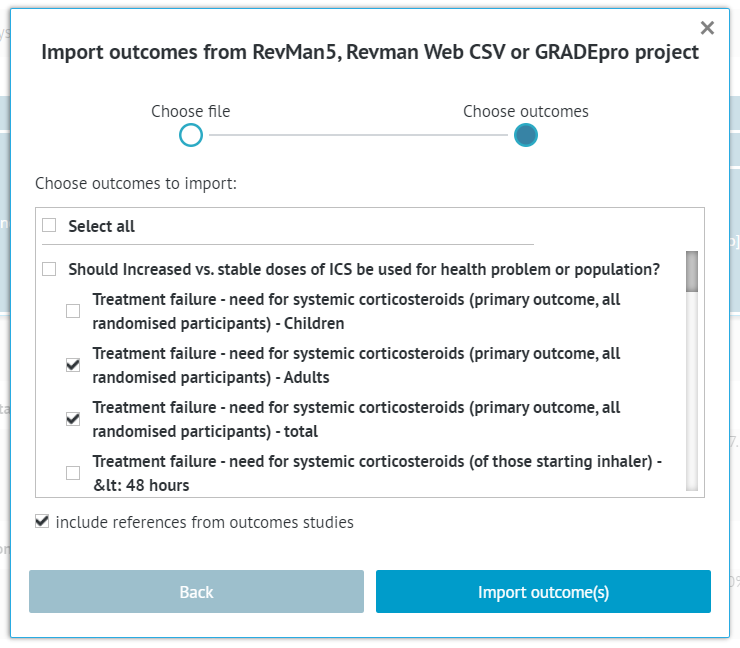
Once you choose, you can confirm with the Import outcome(s) button.
The outcomes will be added to the table.

If you seek more information about working in GRADEpro, you can refer to the tutorial on completing the evidence tables and certainty of evidence assessment, or the rest of our Knowledgebase.
RELATED ARTICLES
Was this article helpful?
That’s Great!
Thank you for your feedback
Sorry! We couldn't be helpful
Thank you for your feedback
Feedback sent
We appreciate your effort and will try to fix the article