TABLE OF CONTENTS
- 1. Introduction
- 2. Importing references
- 3. Adding references manually
- 4. Deduplication
- 5. Editing references
- 6. Deleting references

Learn how to add and manage references in your project.
1. Introduction
References can be added to various parts of your project, e.g. the evidence table , the Evidence to Decision table, or the guideline document.
Every project has its own reference database in a dedicated module accessible through the sidebar menu.
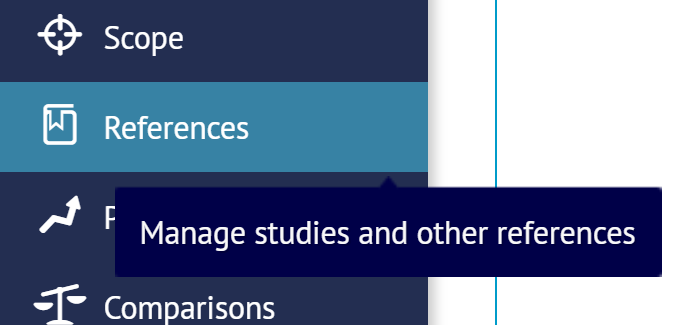
This section of the project allows you to add and manage references to be used in your project.
2. Importing references
To import references, please go to the References section of your project and use the Import button available in the top right corner.

You will have to choose a file. The file needs to be in EndNote XML format (other formats may be accepted if they're similar enough).
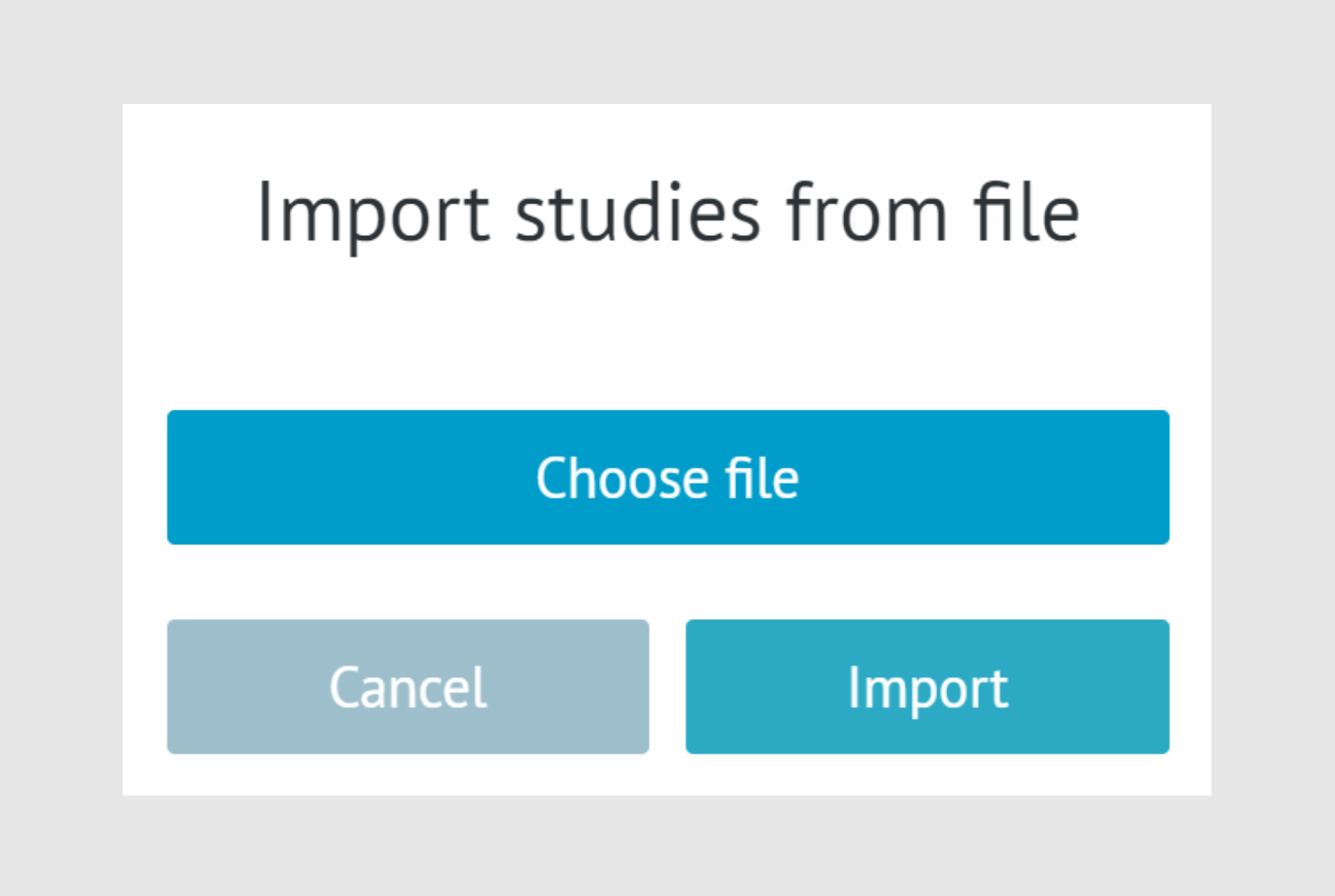
Once you choose a file and click on the “Import” button, you will see the reference(s) on your list.
Note: References cannot be exported from GRADEpro.3. Adding references manually
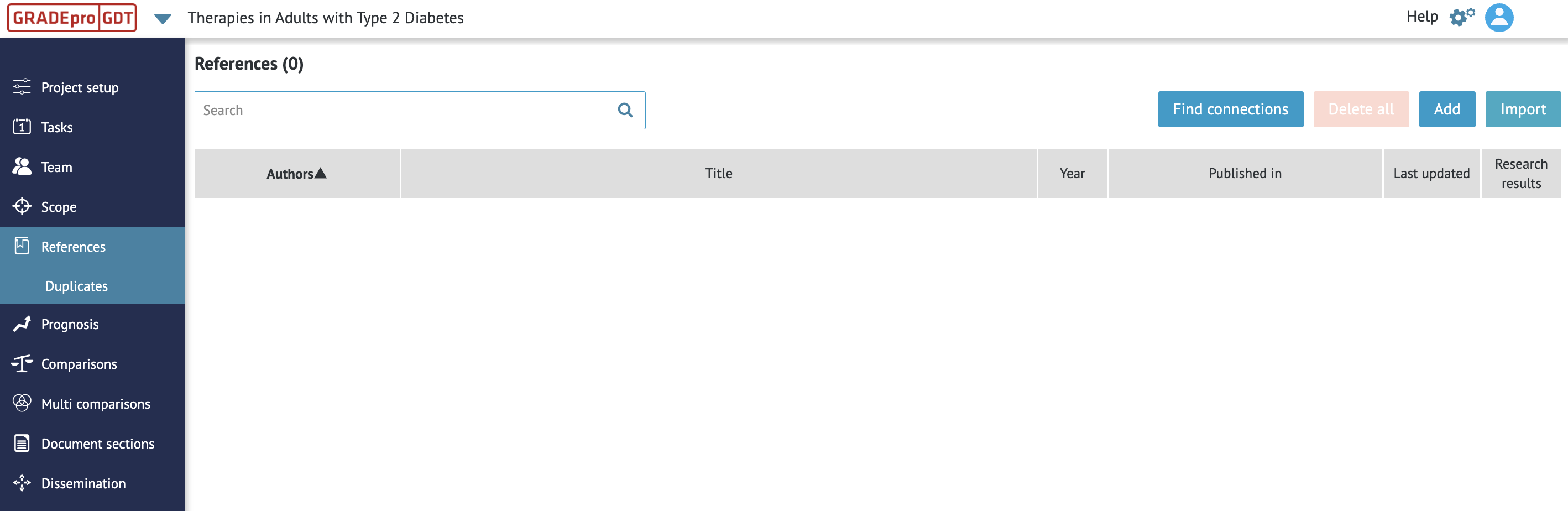
References can also be added manually. This can be done within the evidence table or within the References section by using the Add button in the top right corner.
 You will see a new window where you can enter the details of the reference.
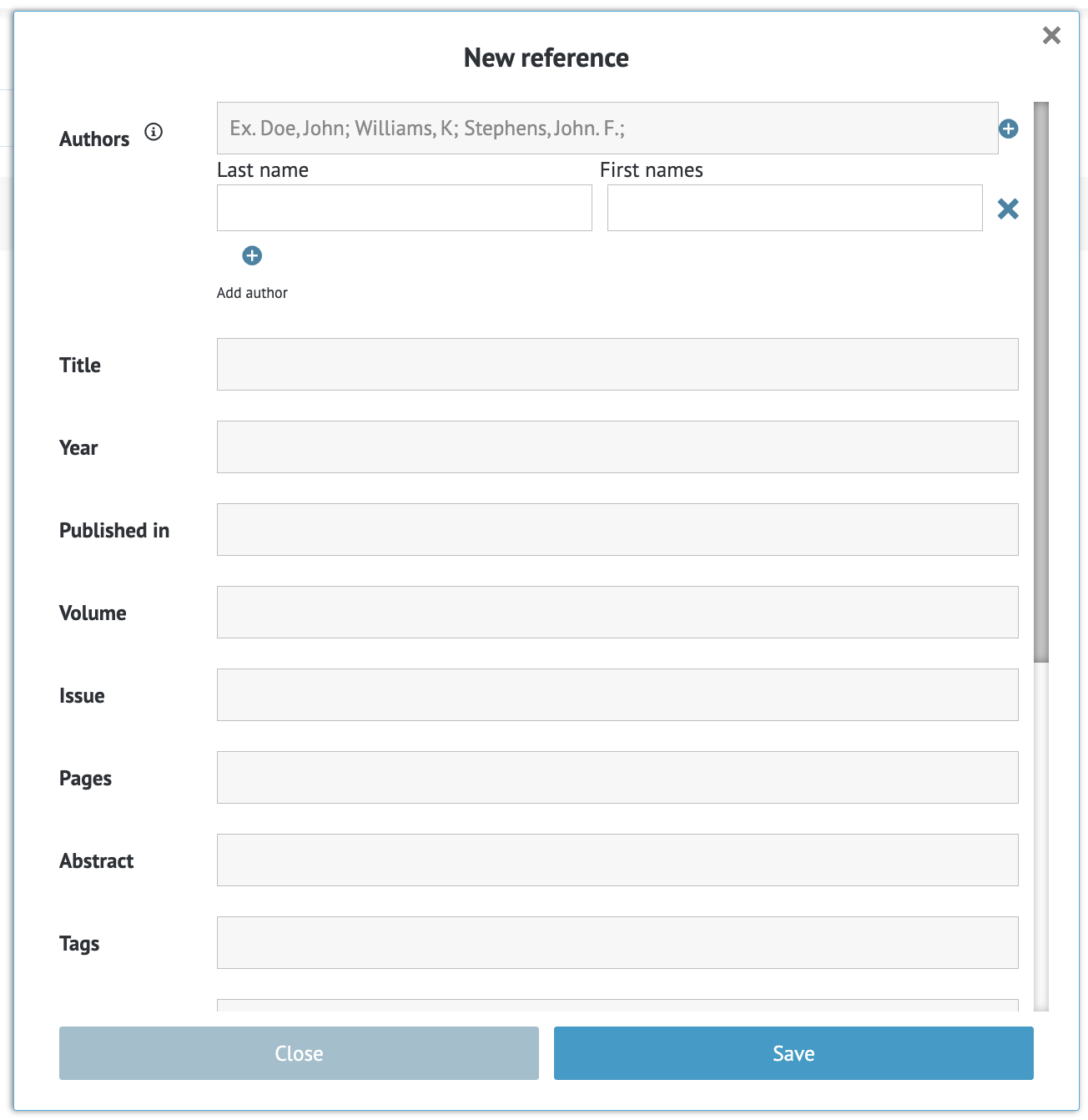
The mandatory details for the reference to be displayed properly are authors (at least one), title, and year. The other details are optional. Once you enter the details, you can confirm with the Save button.
You will see the reference on the list.
4. Deduplication
If any two or more references that you upload, either manually or by importing, are found to be identical, they will be displayed for you in the Duplicates subsection of the References module.
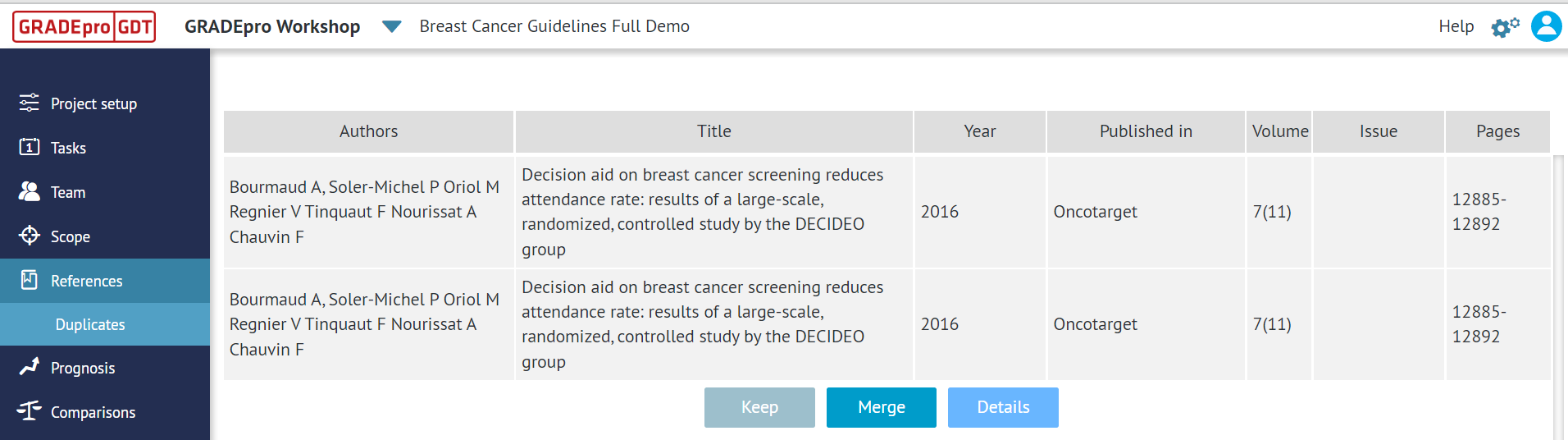
You have the option to:
- keep both/all references if you decide they were mislabeled as duplicates
- merge the references into one
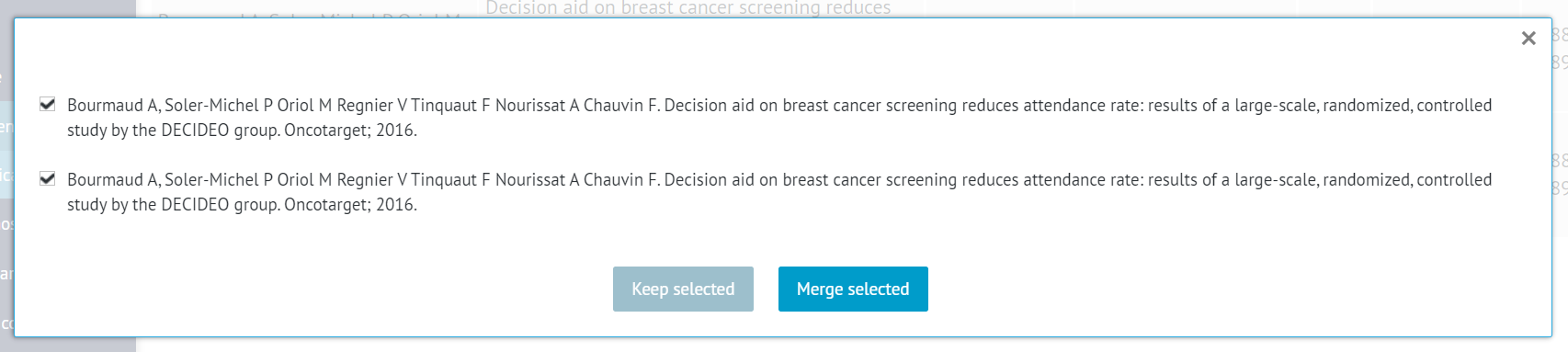
- open the details, where you can select only some of the references for merging/keeping if more than two references were found to be duplicates, and you don't want to apply the same decision to all of them
5. Editing references
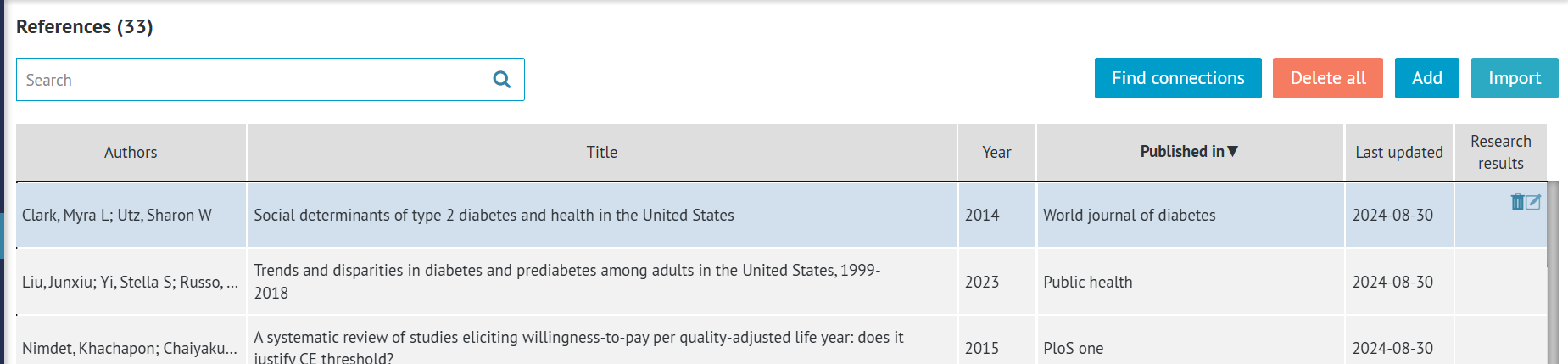
If details of a reference are incorrect, you can update them by clicking on the reference and using the edit icon on the right-hand side.
6. Deleting references
References can be deleted in two ways:
- Individually, by clicking on a reference and using the trash-can icon.
- In bulk, by using the "Delete all" option.

Note: Before you delete references, you can use the "Find connections" option, which allows you to check, which references were used in the Guideline document. This way you can avoid removing a reference which is in use.
RELATED ARTICLES
Was this article helpful?
That’s Great!
Thank you for your feedback
Sorry! We couldn't be helpful
Thank you for your feedback
Feedback sent
We appreciate your effort and will try to fix the article