TABLE OF CONTENTS

Introduction
GRADEpro saves progress in the local storage of your browser (cache) before that progress is then synchronised with our central server (you can read more about this mechanism here).
In some cases, clearing this local storage may remedy technical issues (e.g. if you cannot log in due to the loading screen being stuck). You may also be suggested clearing local storage by our Support Team in the course of resolving an issue.
The operation differs depending on the browser you use. Detailed instructions can be found below.
Note: As long as your progress is synchronised with the central database, no data will be lost. To check whether the progress is fully synchronised, you may access GRADEpro using incognito/private mode of your browser. If you see all your recent changes there it means they have been successfully synchronised. If some of the changes are not visible in incognito/private mode it means they have not been synchronised and you may need to re-enter them after clearing the local storage.

While private/incognito mode can be used for troubleshooting, we don't recommend operating in it for longer periods of time.
1. Google Chrome Users
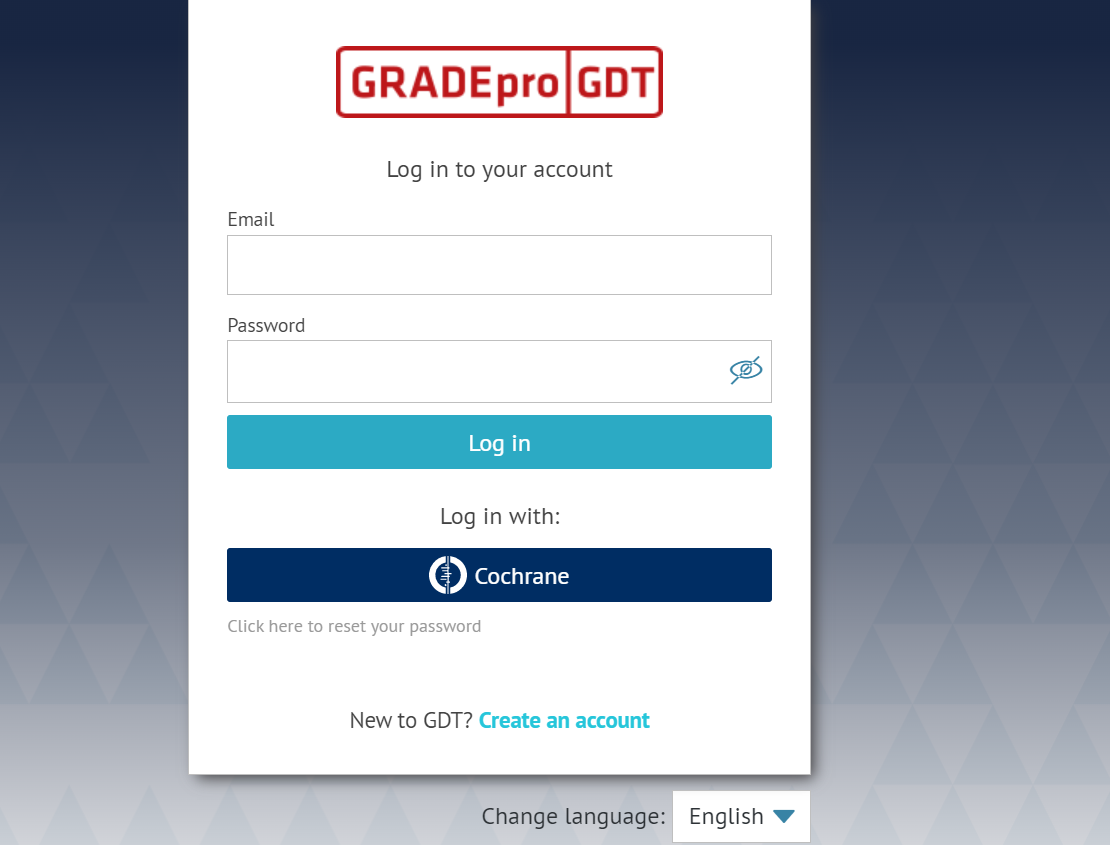
Open GRADEpro on your Chrome browser as usual with the https://gdt.gradepro.org/app/ address (unless you are using a dedicated Enterprise server, then use the server's address).
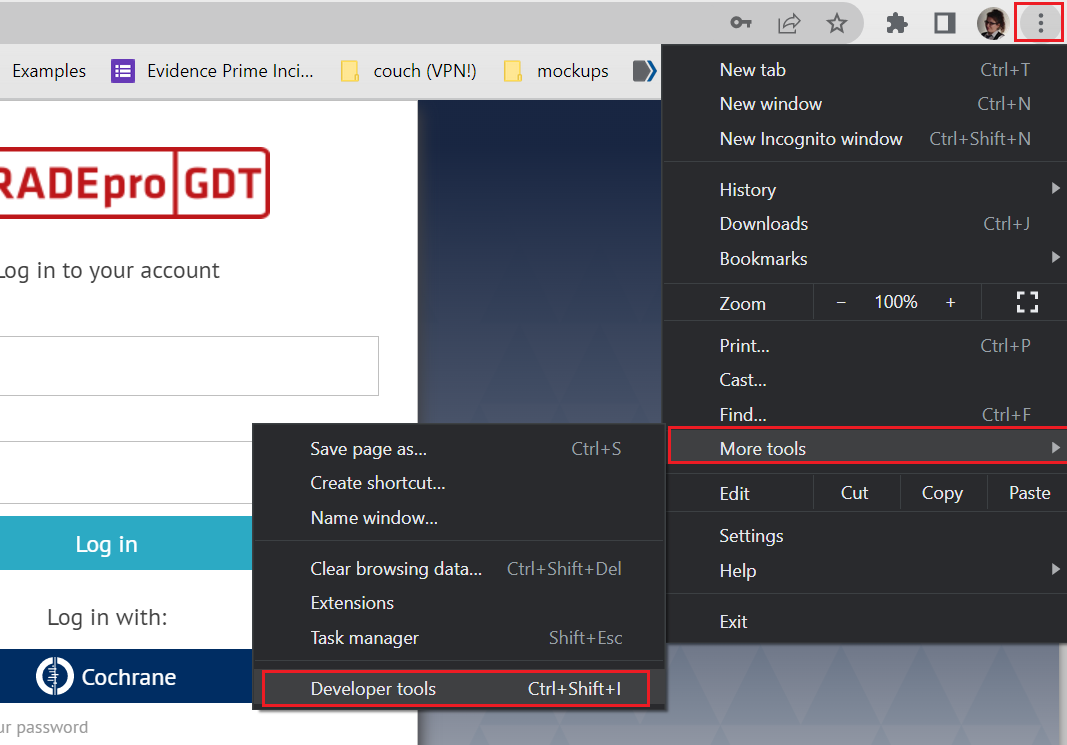
Click your Chrome options button (right corner of the browser window) and go to More Tools and click Developer tools as shown in the picture. Users of Windows computers can alternatively click F12 on the keyboard.
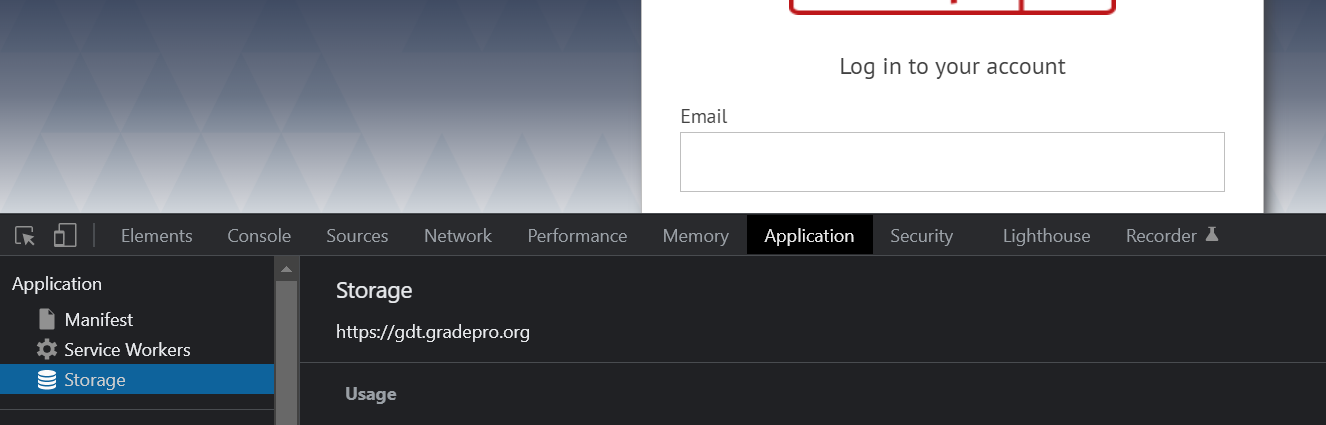
A new window will appear on the bottom or side of the screen. Please find the Application tab, and when you click it on the left side, please choose Storage, as shown in the picture.
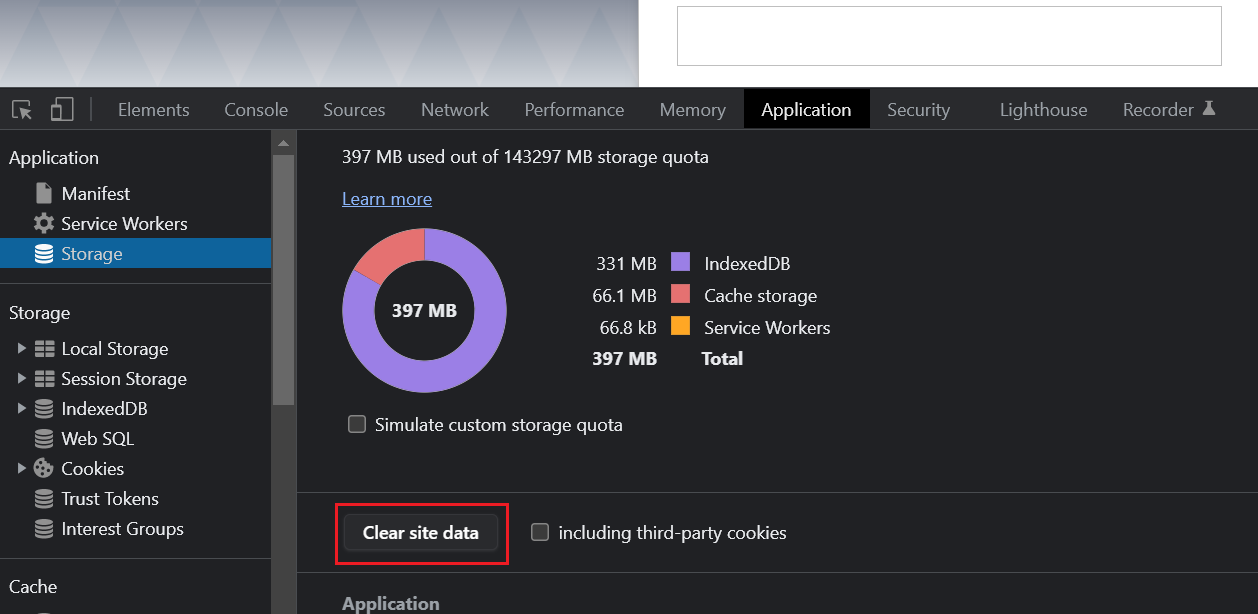
Scroll this view a bit down to see the button Clear site data and press this button.
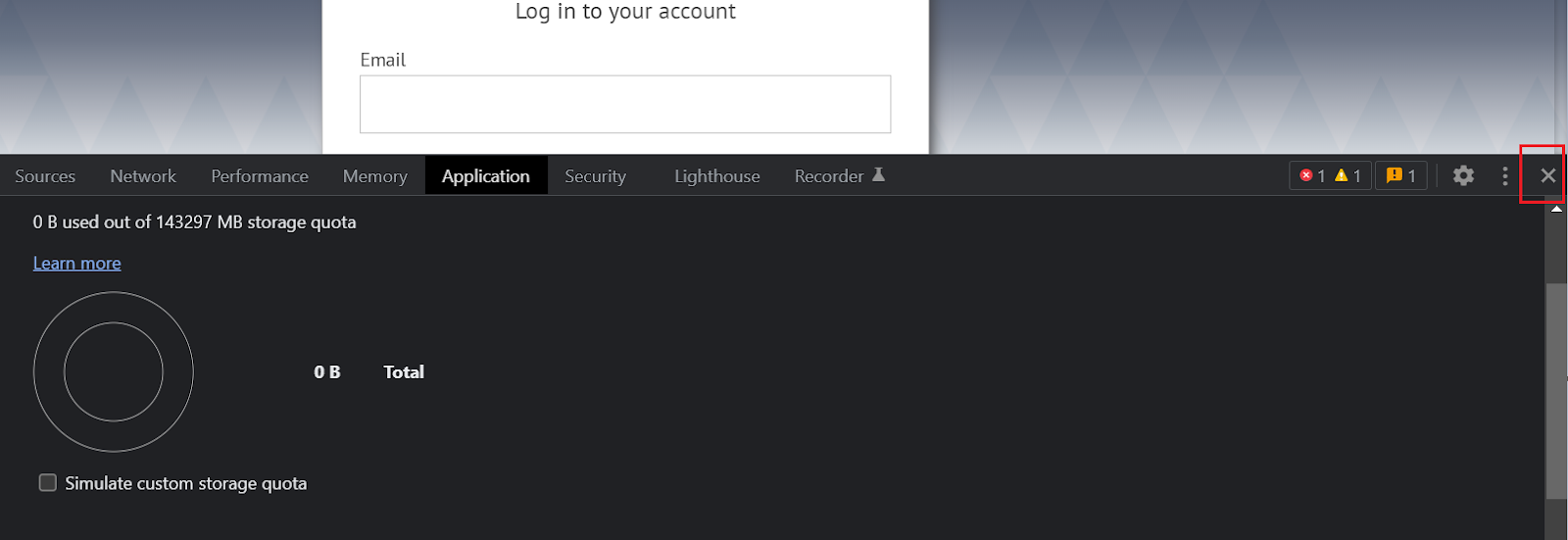
Now close this window with a small X icon in the right corner of this window.
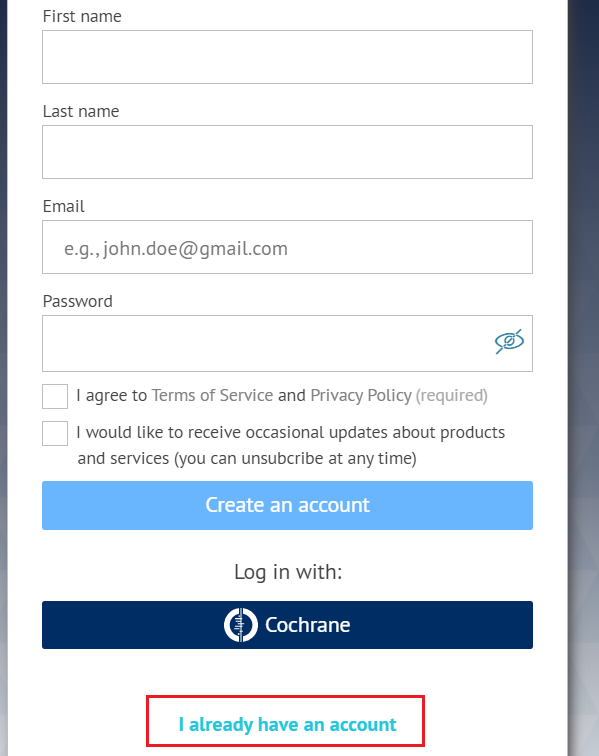
Reload the GRADEpro website. You should be asked to log in again. Please log in. Please pay attention that the Create account screen will appear instead of the Log in screen. To log in, you must click I already have an account.
2. Mozilla Firefox Users
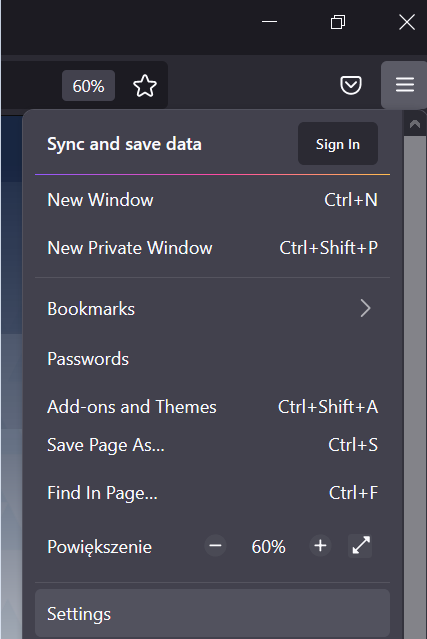
Through the menu in the top right corner, enter the Settings.
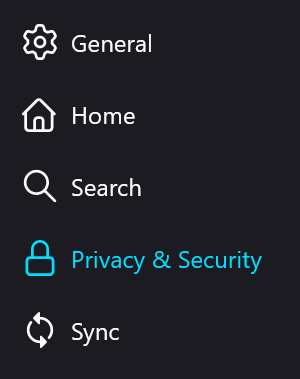
Once there, go to the Privacy and Security tab.
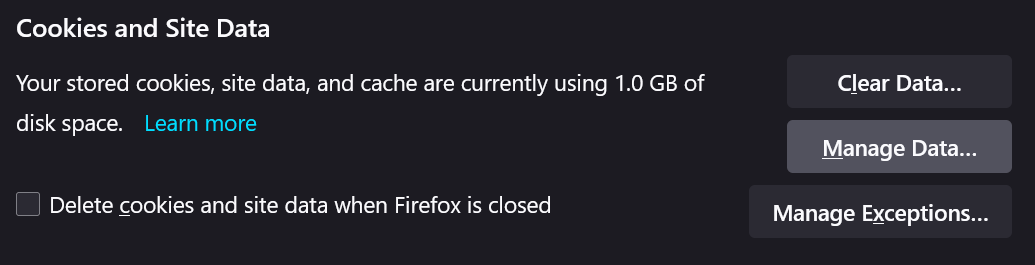
Scroll down to Cookies and site data and select Manage data.
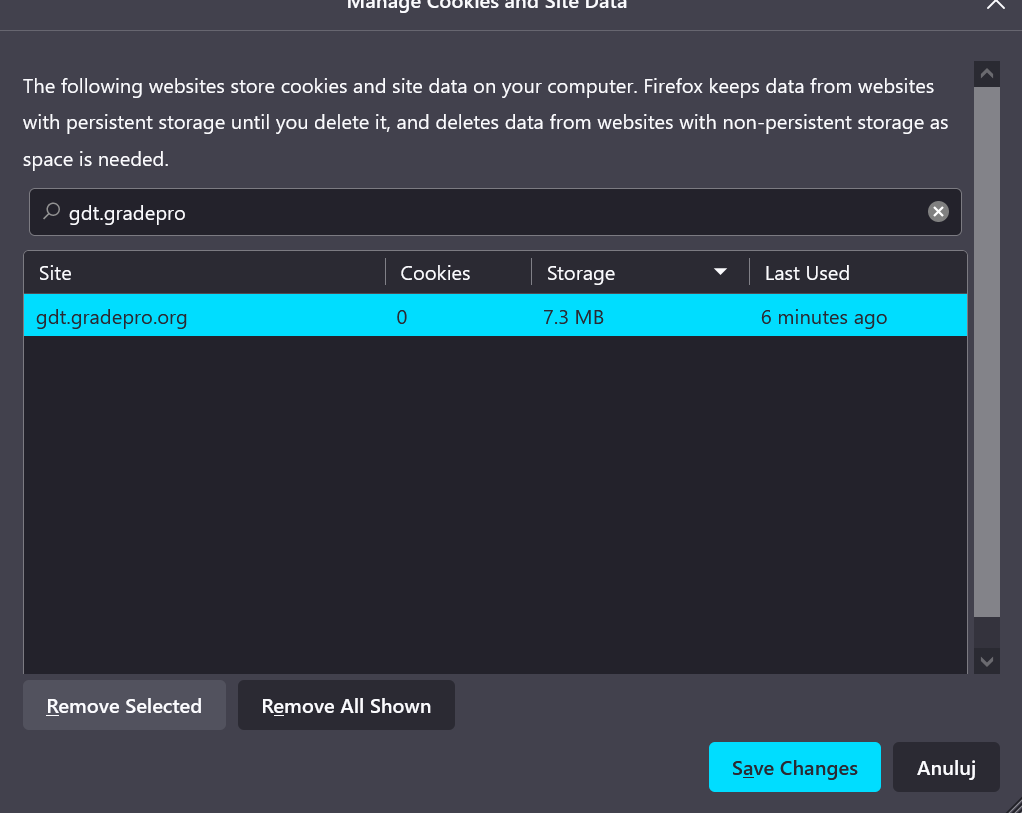
Search for gdt.gradepro and click on it. Then click on Remove selected and confirm with the Save changes button.
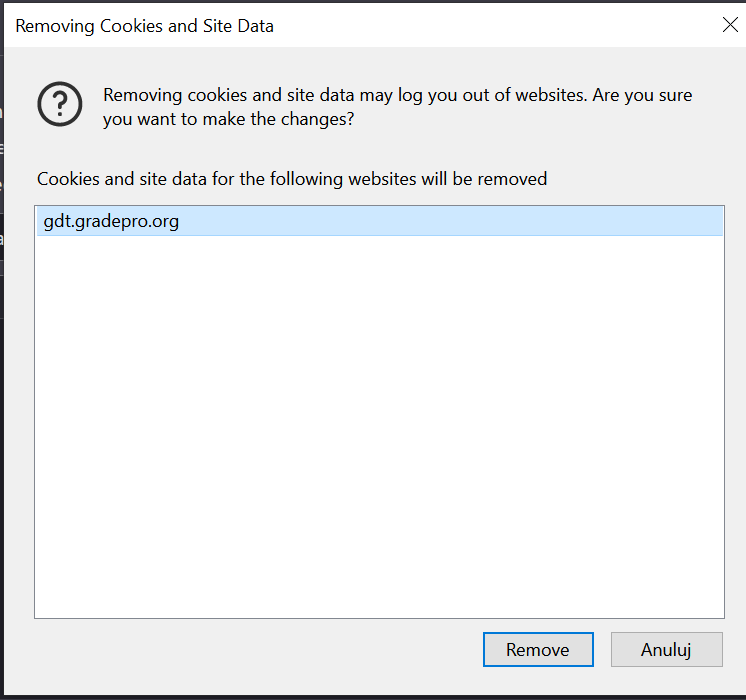
You will be asked to reconfirm.
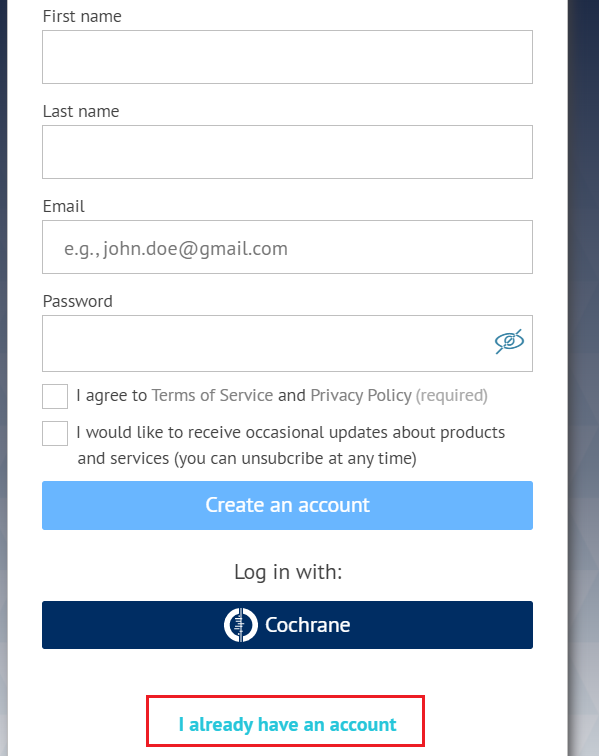
The process is now complete - you can go to GRADEpro and try to log in (if it was open, you may have to refresh). Please pay attention that the Create account screen will appear instead of the Log in screen. To log in, you must click I already have an account.
3. Safari Users
Open GRADEpro on your Safari browser as usual. Do not log in but stay on the login screen.
Enter Safari preferences
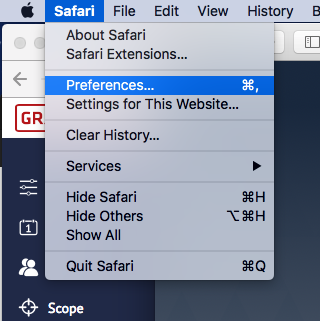
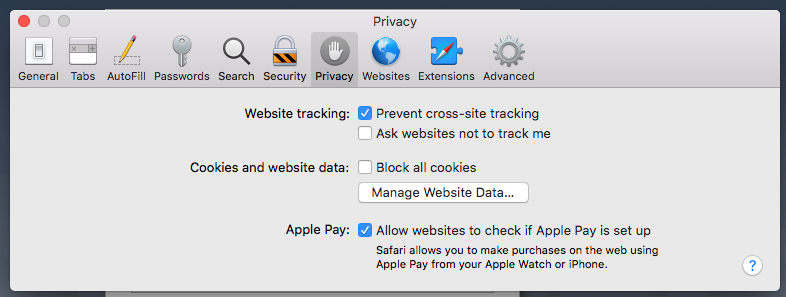
In privacy, go to Preferences and click Manage Website Data.
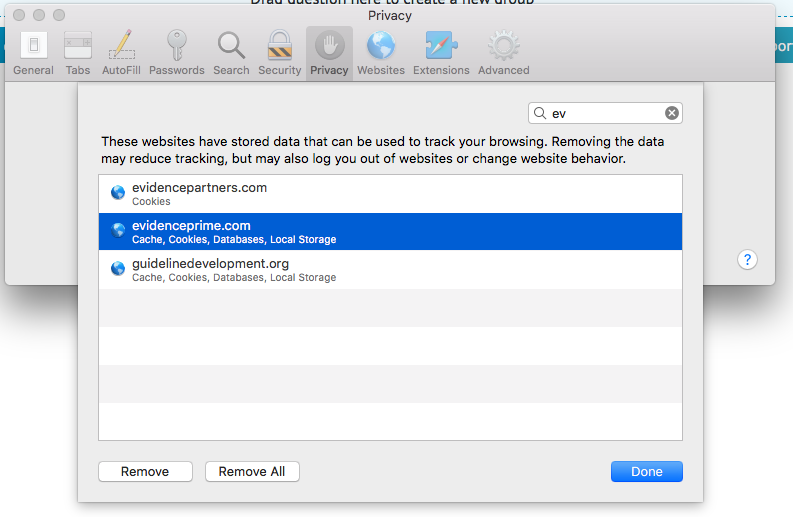
In this window, find gradepro.org, click on it and choose Remove.
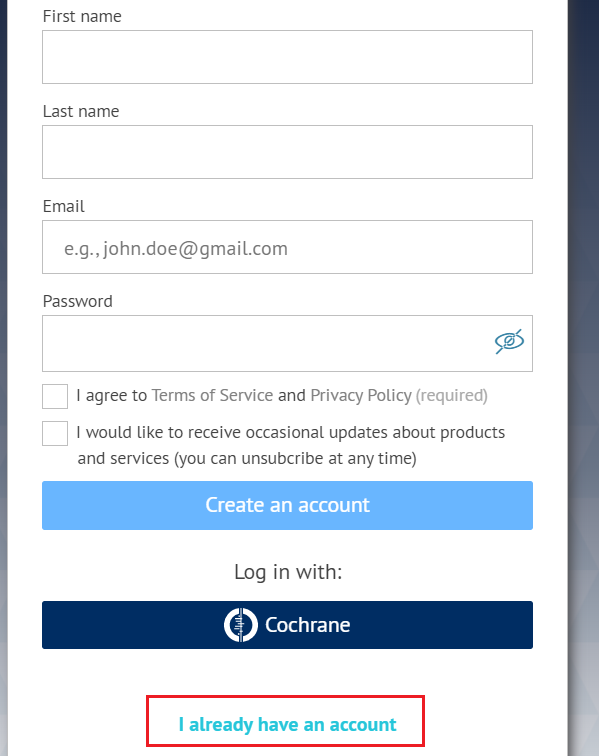
Reload the GRADEpro website. You should be asked to log in again. Please log in. Please pay attention that the Create account screen will appear instead of the Log in screen. To log in, you must click I already have an account.
4. Microsoft Edge Users
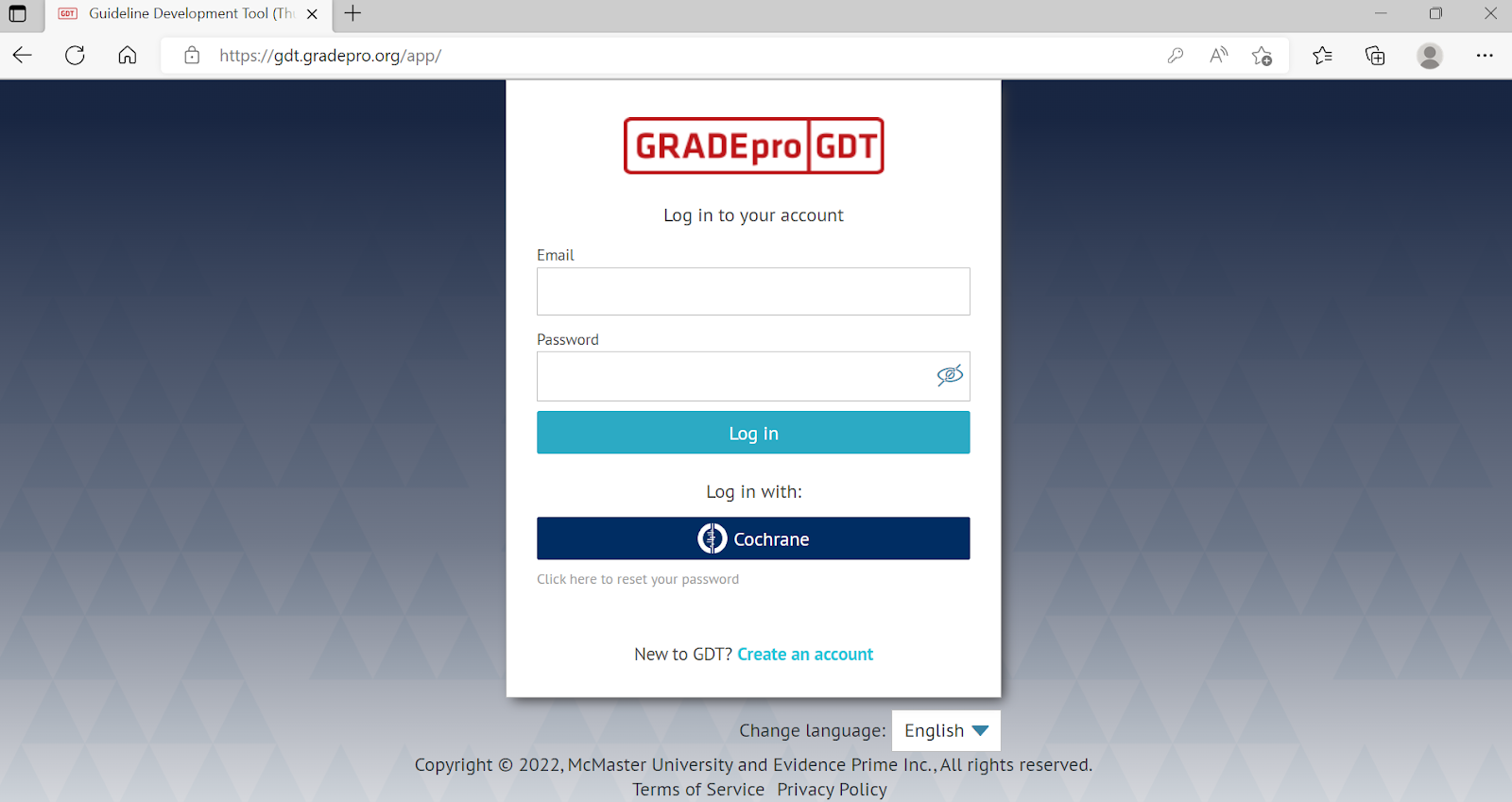
Open GRADEpro on your Edge browser as usual with the https://gdt.gradepro.org/app/ address (unless you are using a dedicated Enterprise server, then use the server's address).
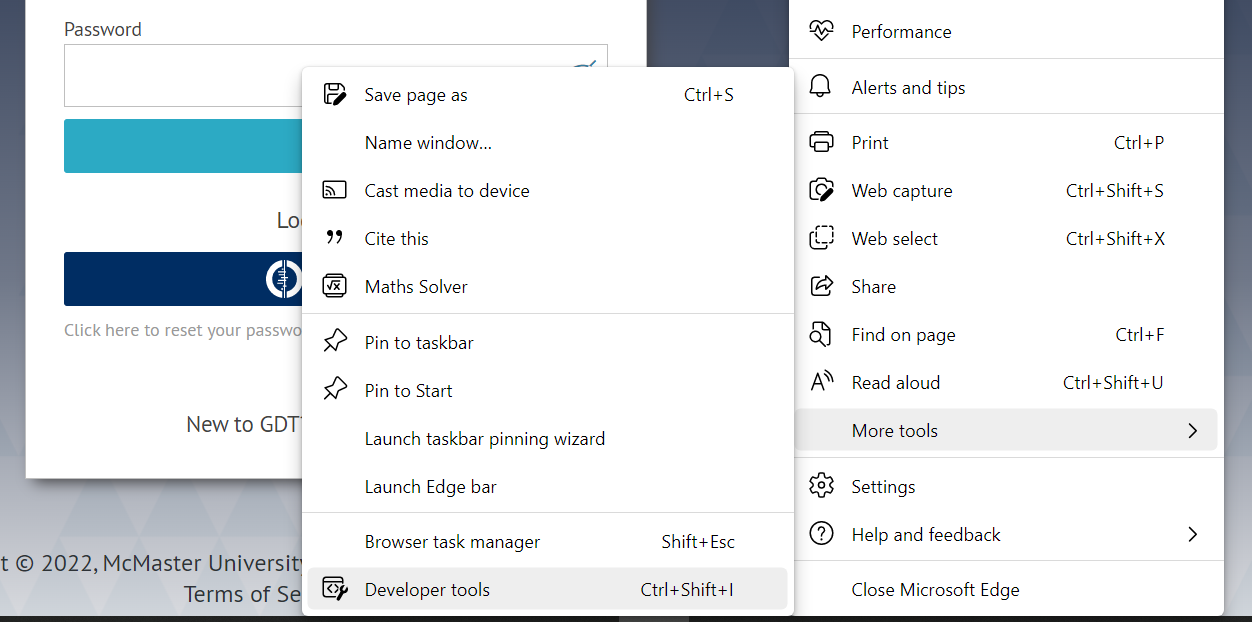
Click your Edge options button (right corner of the browser window), go to More Tools, and click Developer tools, as shown in the picture. Users of Windows computers can alternatively click F12 on the keyboard.
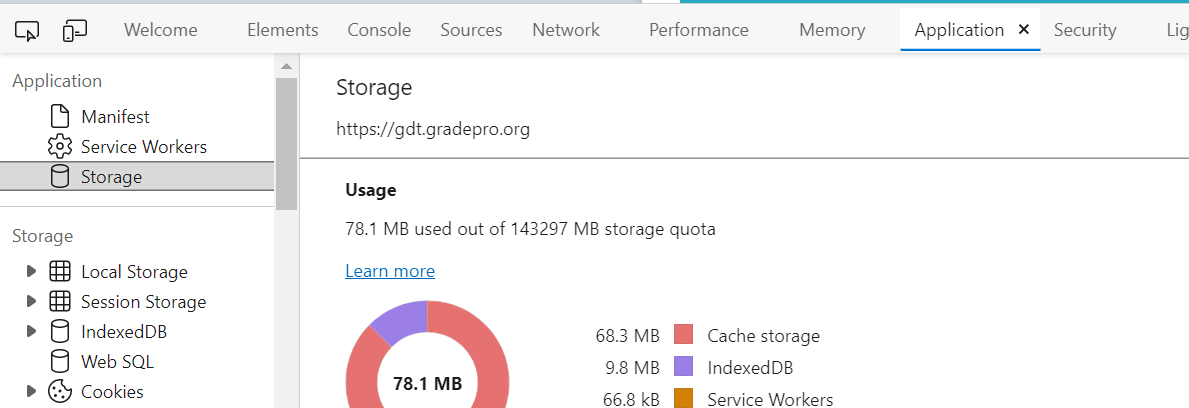
A new window will appear on the bottom or side of the screen. Please find the Application tab, and when you click it on the left side, please choose Storage, as shown in the picture.
Scroll this view a bit down to see the button Clear site data and press this button.
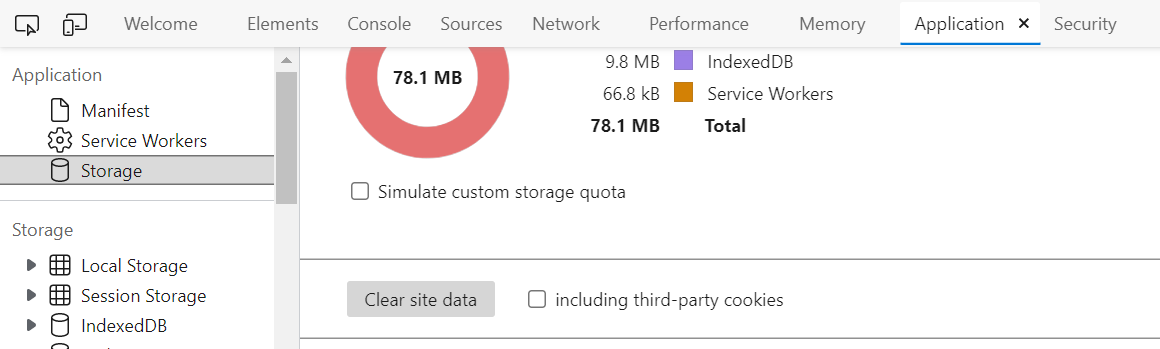
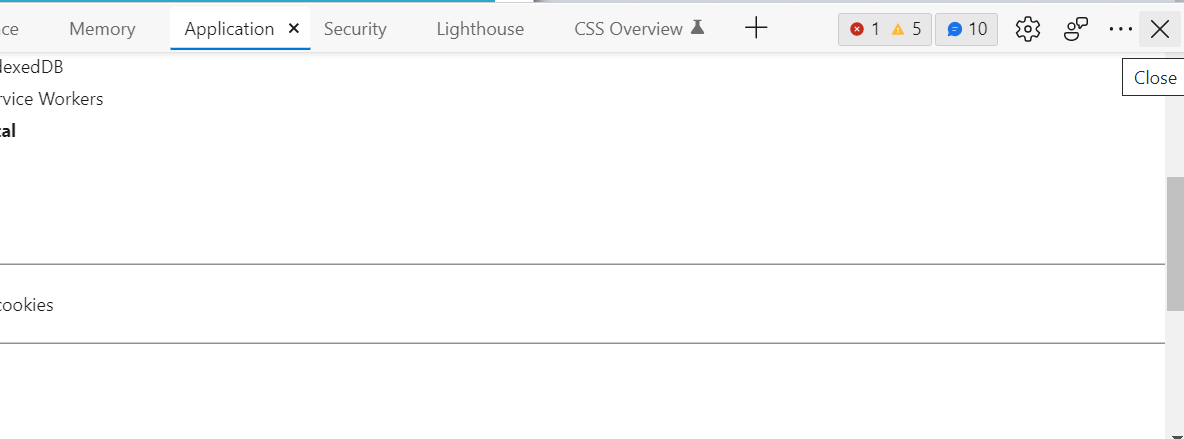
Now close this window with a small X icon in the right corner of this window
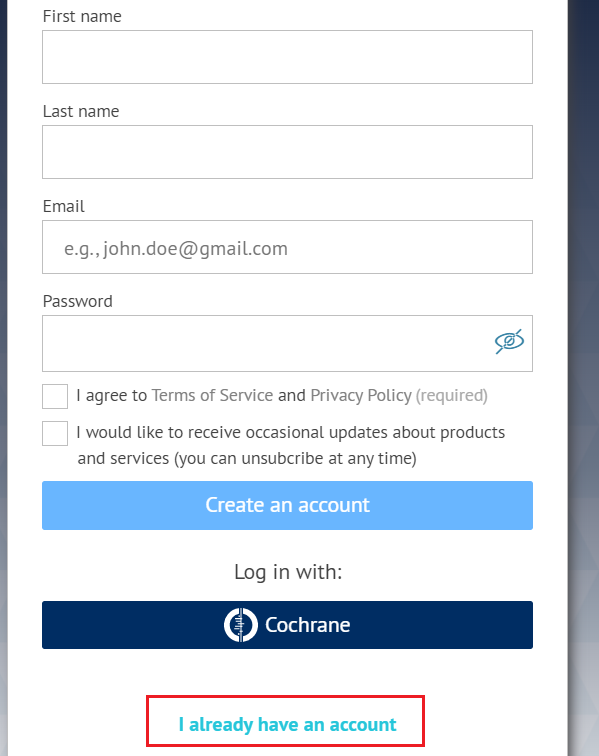
Reload the GRADEpro website. You should be asked to log in again. Please log in. Please pay attention that the Create account screen will appear instead of the Log in screen. To log in, you must click I already have an account.
RELATED ARTICLES
Was this article helpful?
That’s Great!
Thank you for your feedback
Sorry! We couldn't be helpful
Thank you for your feedback
Feedback sent
We appreciate your effort and will try to fix the article