TABLE OF CONTENTS
 1. How to start
To create your GRADEpro account, you must go to the login site. You can do this with the log in and Get started buttons presented on our main site www.gradepro.org
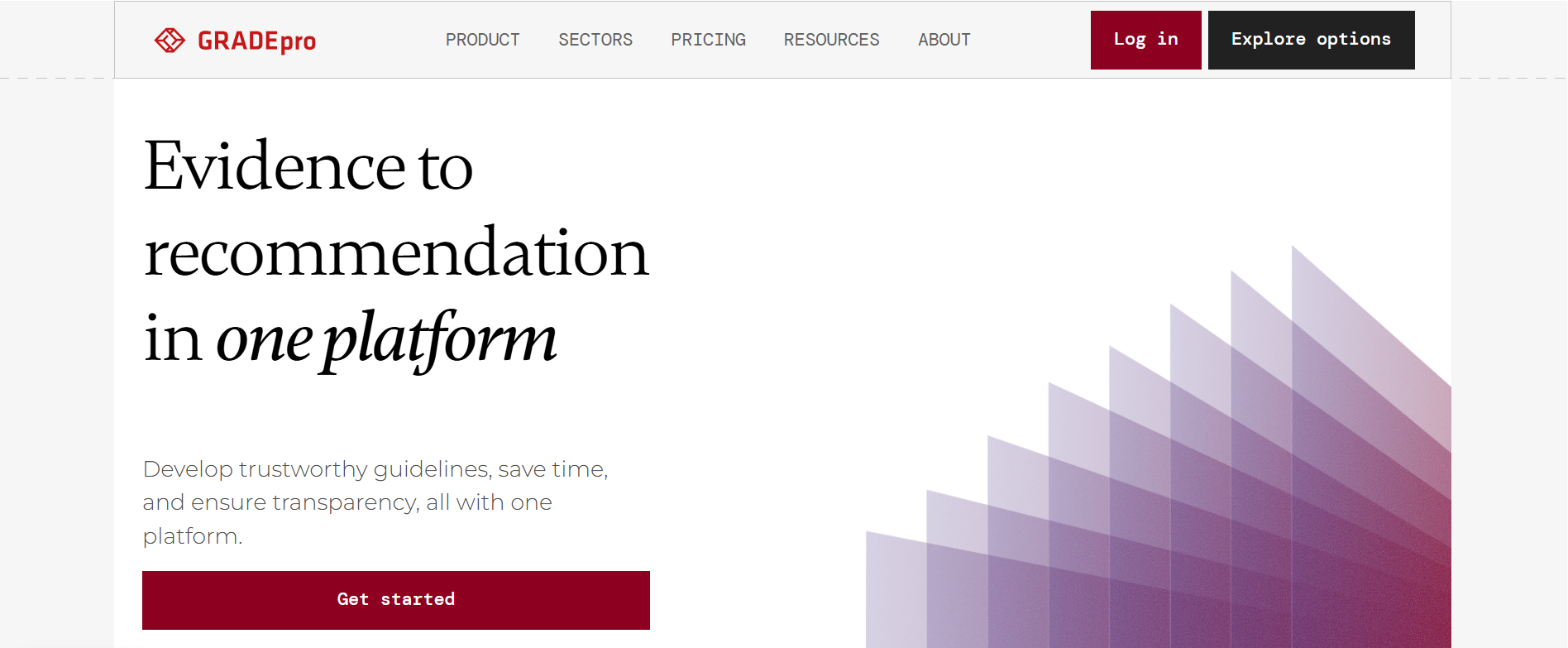
If what you see is the log in window:
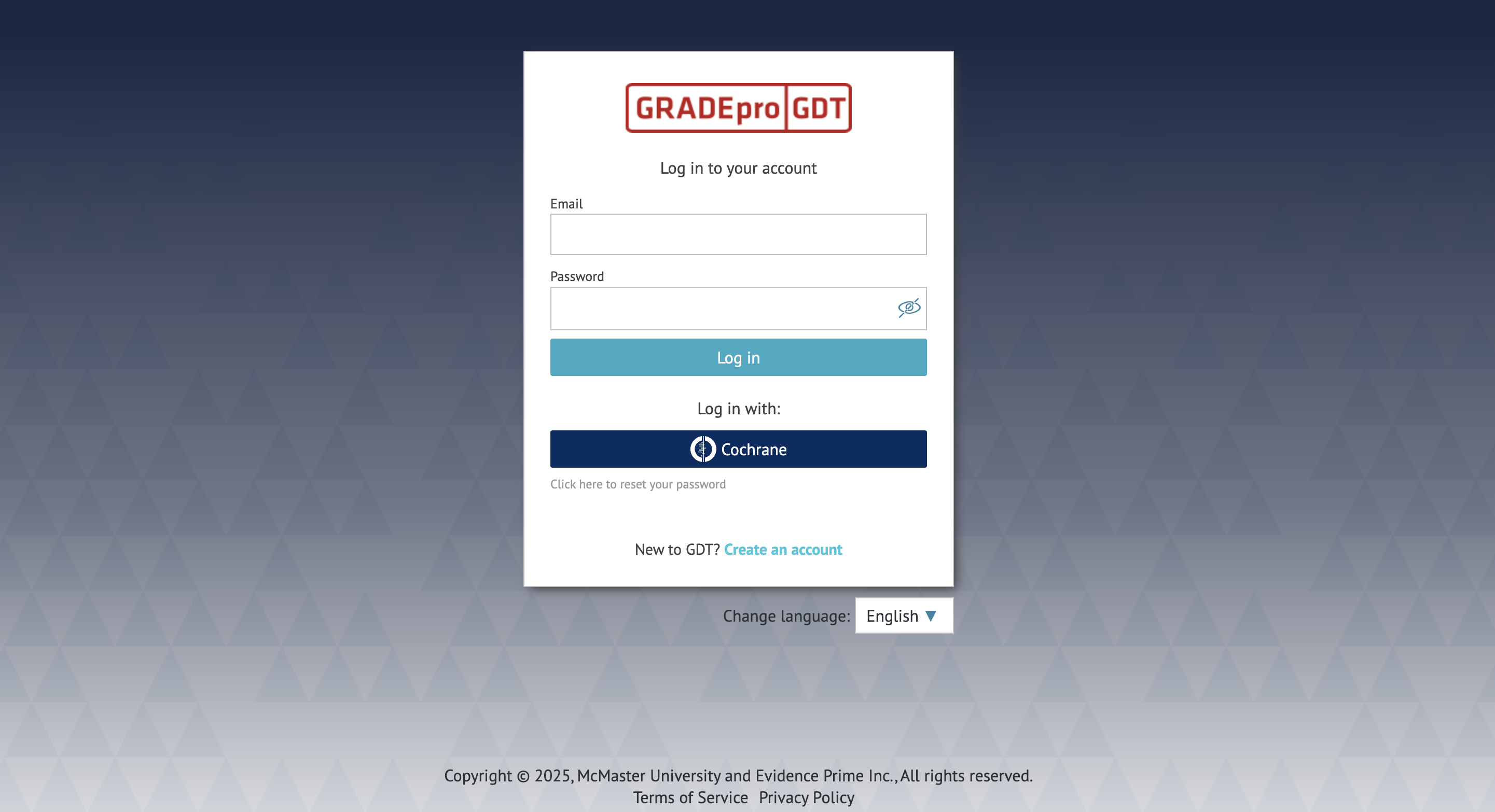
Then please use the “Create an account option” at the bottom.

You will see this window:
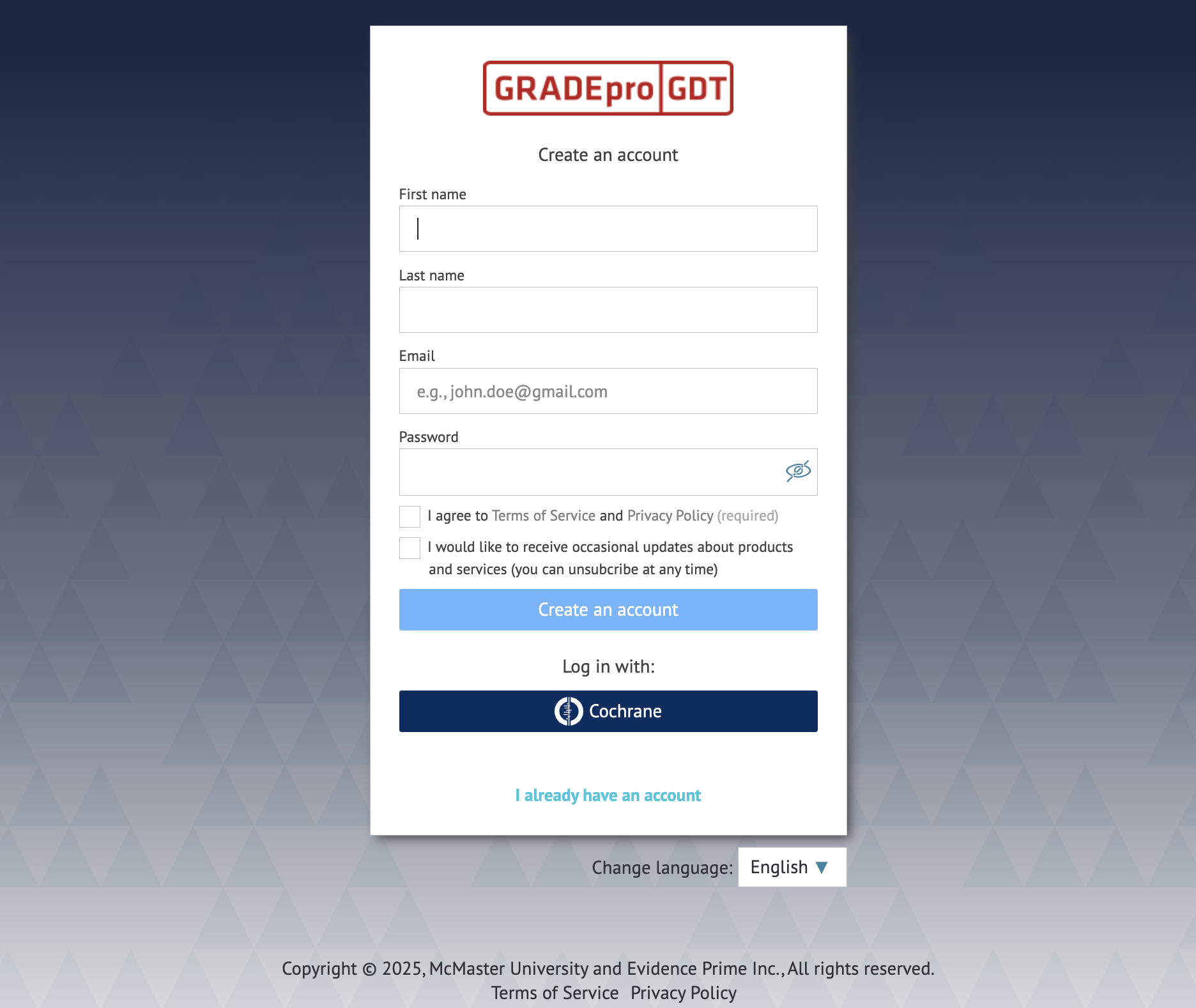
From there you have two options - you can create a GRADEpro account using GRADEpro itself, or you can do it using your Cochrane account. In this article, we will discuss the former scenario. For the instructions on creating an account with your existing Cochrane account please go here.
2. Creating an account
Tip: If you come across any issues in the account creation, you can check for solutions in our troubleshooting article.
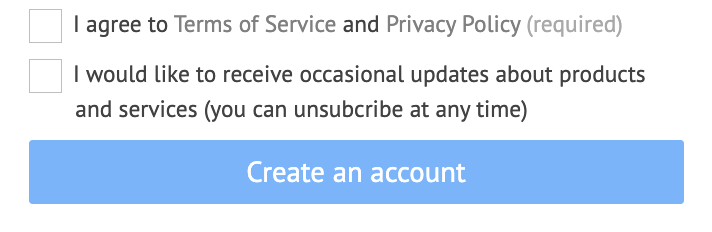
If you want to continue with GRADEpro, you must enter your details as requested (name, surname, email address, password) as well as agree to the Terms of Service and Privacy Policy.
Then you click the Create an account button.
You will then find yourself on the home page of your GRADEpro account, where you will see an onboarding panel. You can go through the tutorial or choose to skip it.
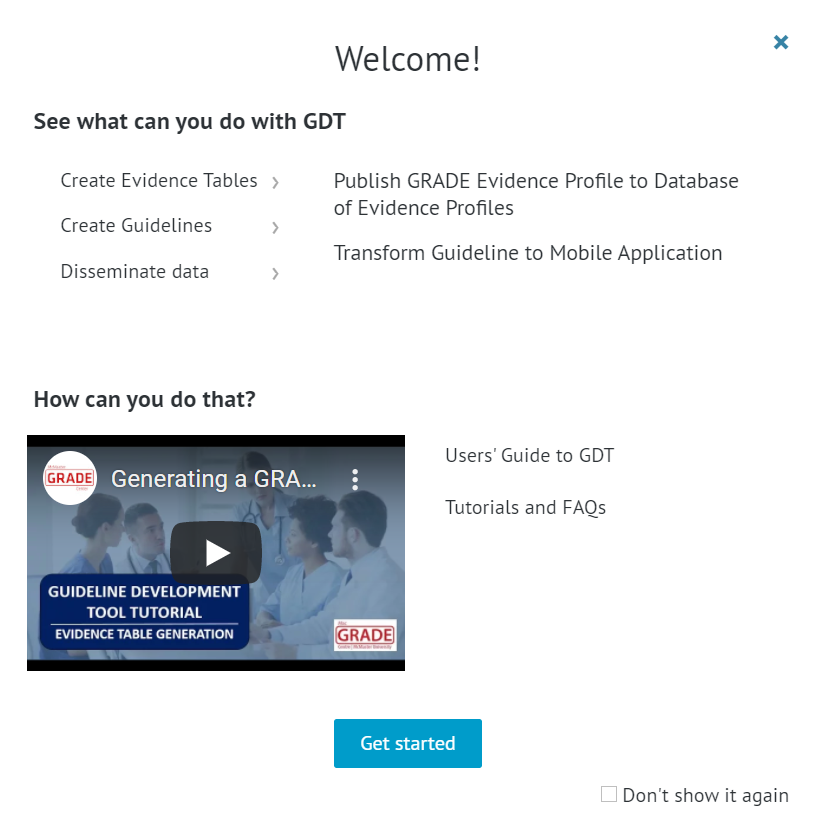
Once you go through the onboarding screen or skip it, you will see your main GRADEpro dashboard.
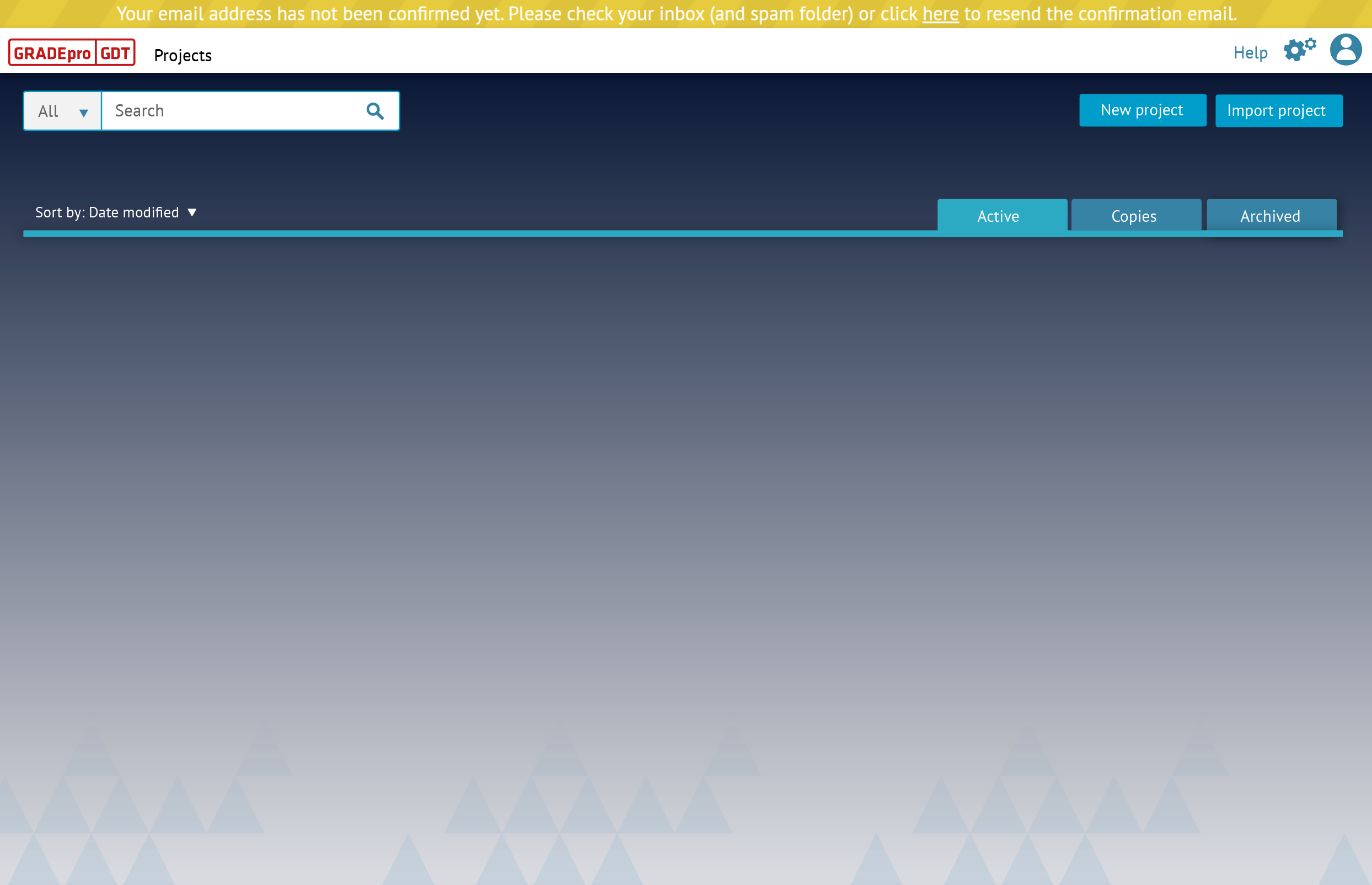
There will be a yellow string notification at the top, stating that you should confirm your email. To do that, you need to go to the mailbox whose address you used to create the account. There you will find an email:
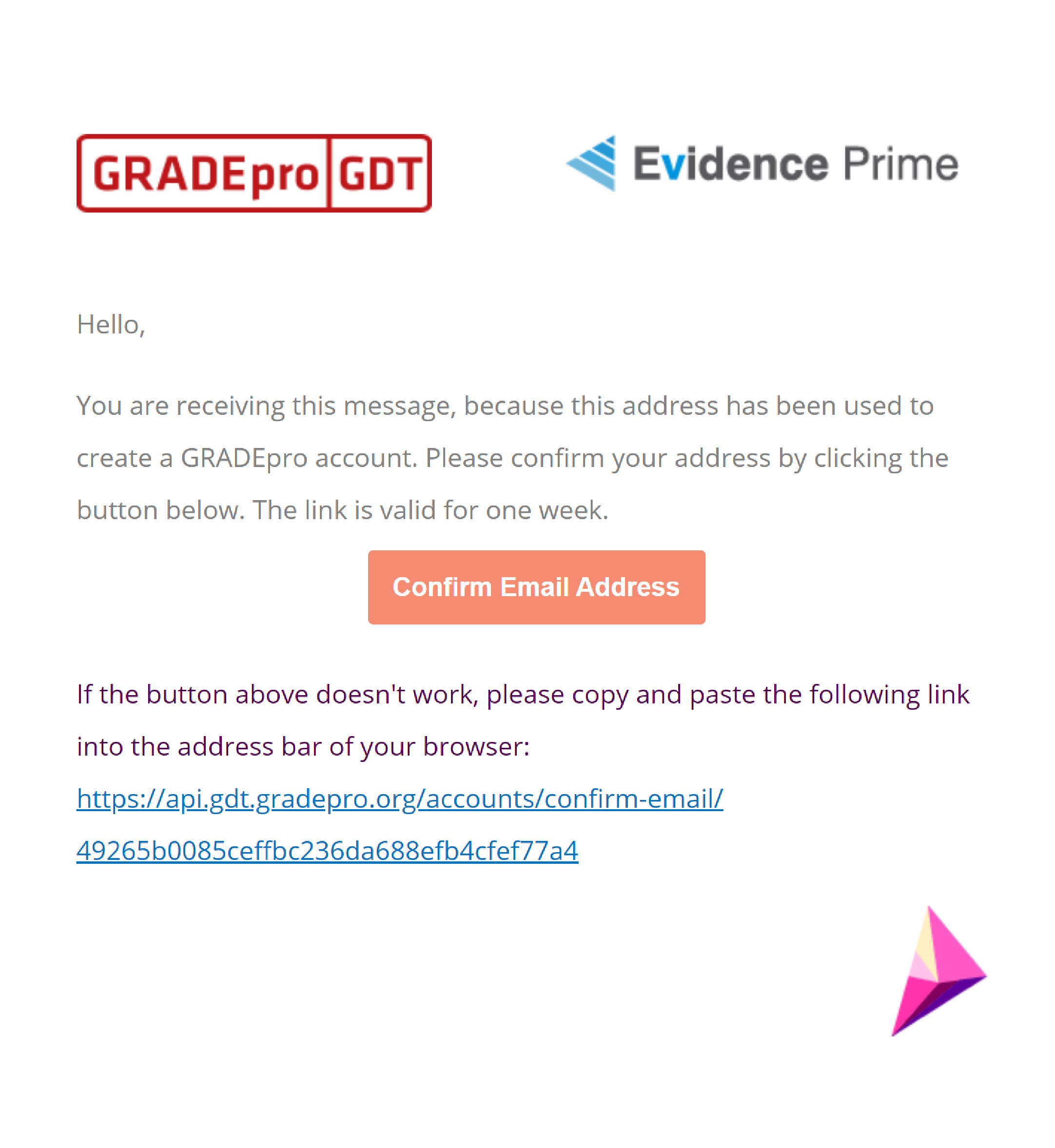
To confirm the email address, you simply need to click on the button or the link provided in the message.
Your account is now created. You can explore the navigation of GRADEpro and its features, learn how to add evidence, or explore other interesting materials in the Knowledgebase.
RELATED ARTICLES
Was this article helpful?
That’s Great!
Thank you for your feedback
Sorry! We couldn't be helpful
Thank you for your feedback
Feedback sent
We appreciate your effort and will try to fix the article