TABLE OF CONTENTS

1. Reviewing panel members’ responses
To review panel members’ comments and votes, click on the relevant question in PanelVoice.
Note: For you to see the results, the panelist must submit the full survey. Results don't appear in GRADEpro as panelists mark them in their surveys, only once they submit.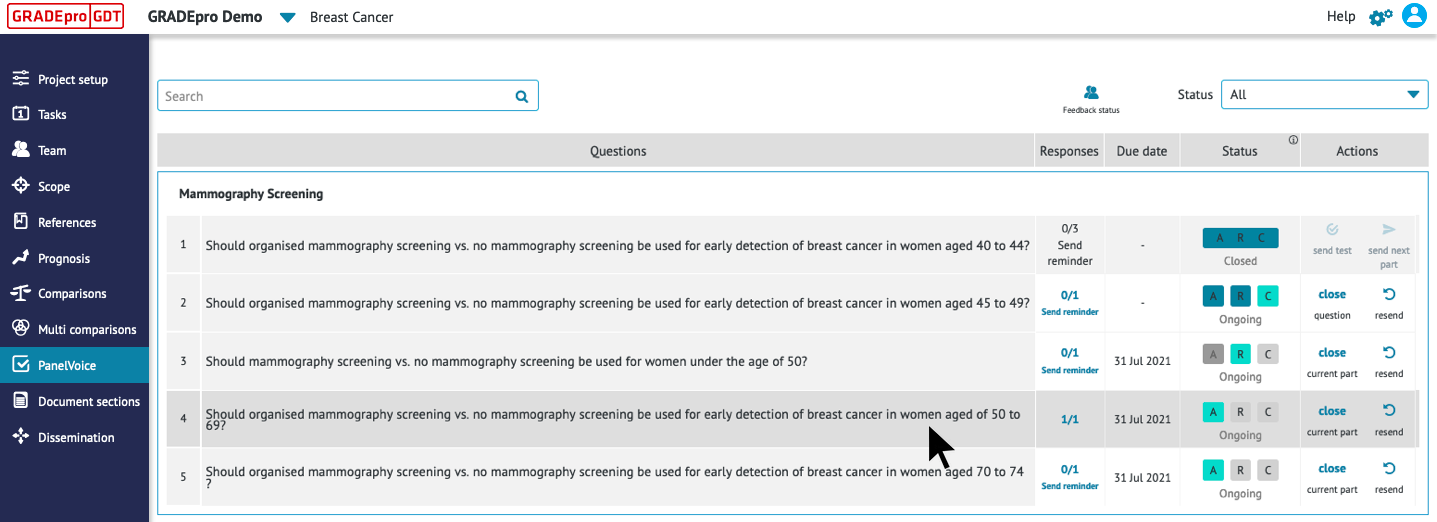 This will bring you to the EtD table for that question. Panel members’ “Voting Results” will appear on the left-hand side of the EtD table in each section on which they have voted. To the right of the voting results, you will find comments from panel members (“Responses”). You can manually add a summary of their responses in the “Summary” box below their comments.
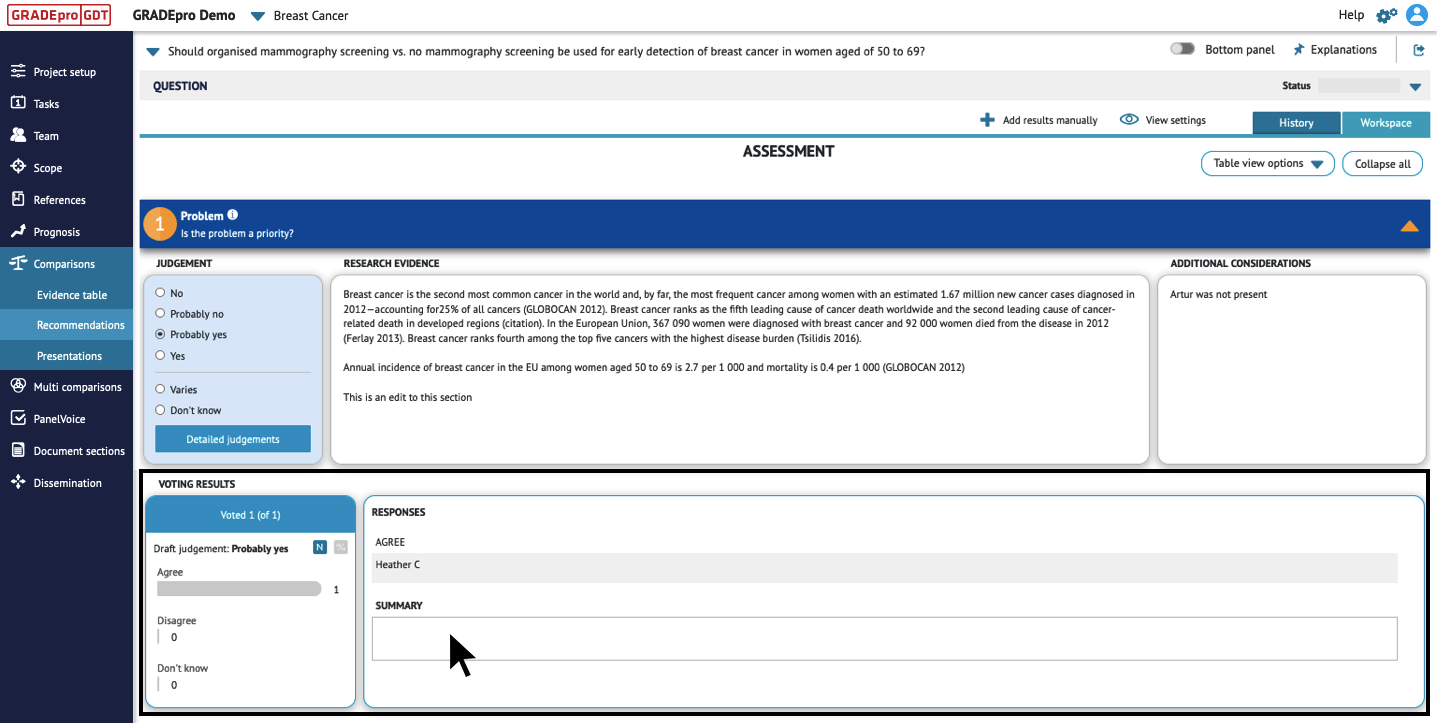
Tips: You may note dissenting panel members’ votes in the “Additional Considerations” column. You may include any justification or explanation that panel members provide for their dissent. After making these additions, you may decide to resend the updated EtD table to panel members.2. Reviewing previous rounds of voting
If you have conducted multiple rounds of discussion and voting, a History tab will appear in the upper right-hand corner of the EtD table. To review panel members’ responses to previous rounds of discussion and voting, click on the History tab. A pair of drop-down menus will appear in the upper left-hand corner of the table. Select the appropriate round from the drop-down menus.
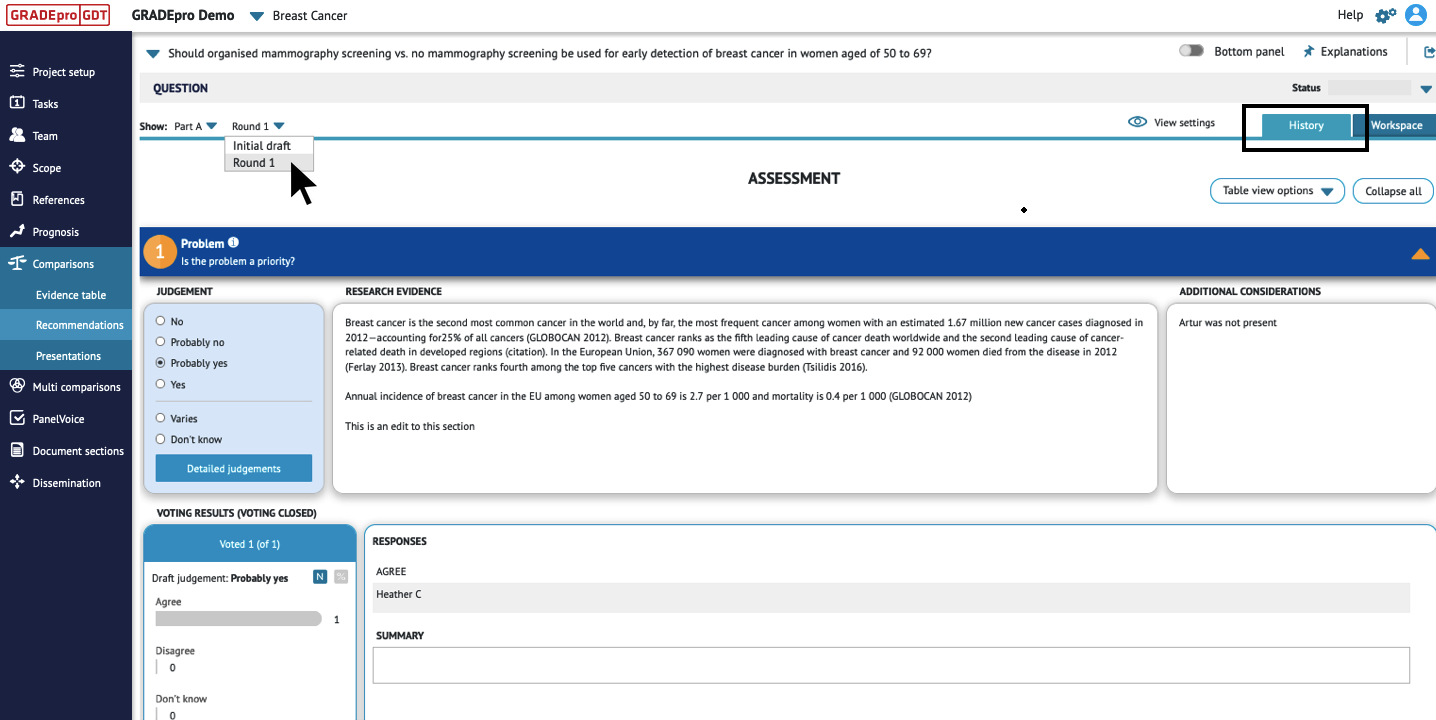 To return to the current version of the EtD table, click the Workspace tab in the upper right-hand corner.
RELATED ARTICLES
Was this article helpful?
That’s Great!
Thank you for your feedback
Sorry! We couldn't be helpful
Thank you for your feedback
Feedback sent
We appreciate your effort and will try to fix the article