TABLE OF CONTENTS

1. Overview
GRADEpro also facilitates the initial stages of guideline development. Using the Questions generation module, you can compose the list of relevant PICO questions in collaboration with your Panel Members.
2. The process
The process consists of a few stages, including brainstorming when the questions are proposed and prioritisation when the most relevant questions are selected. In the end, the selected questions are automatically transferred into the Comparisons section.
2.1. Brainstorming
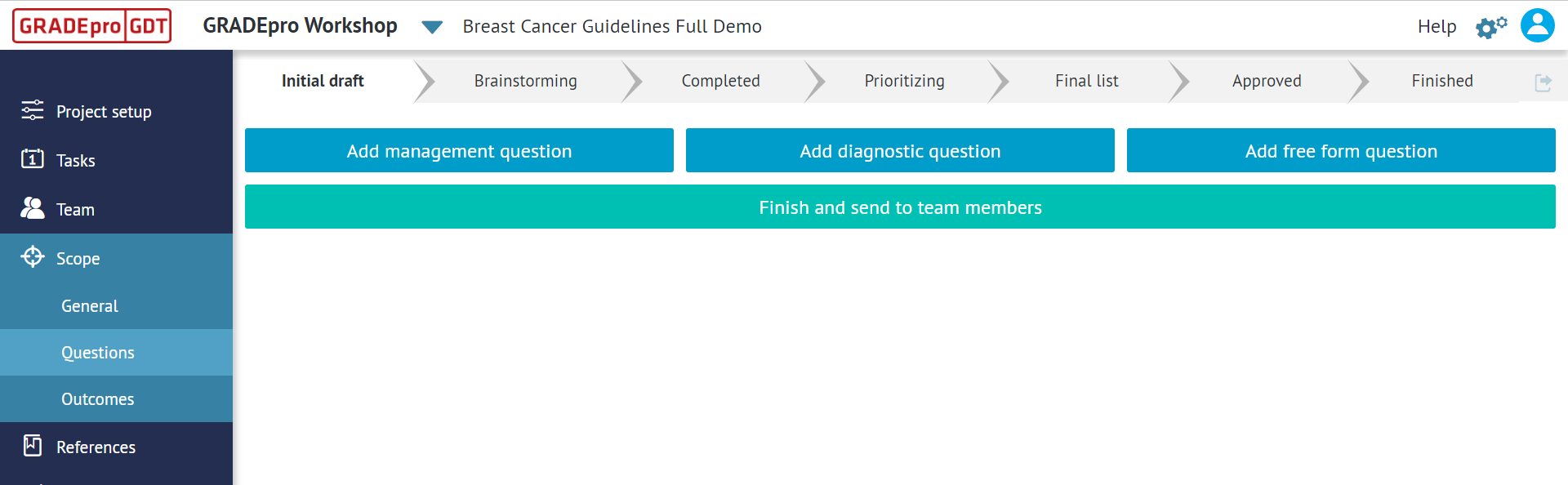
In the first step, you can enter some questions before opening the list to the panel's suggestions.
Both at this point and later on, three types of questions can be added - management questions, diagnostic questions, and free-form questions. The latter is a question with no PICO structure (you can read more about question types and structure here).
Restriction: Please be aware that a free-form question will not be transferred into the Comparisons section automatically at the end. It needs to be either transformed into a PICO question prior to the prioritisation stage (and then will be transferred automatically) or entered into Comparisons section manually in the form of a pairwise PICO question or as a Multiple intervention question. 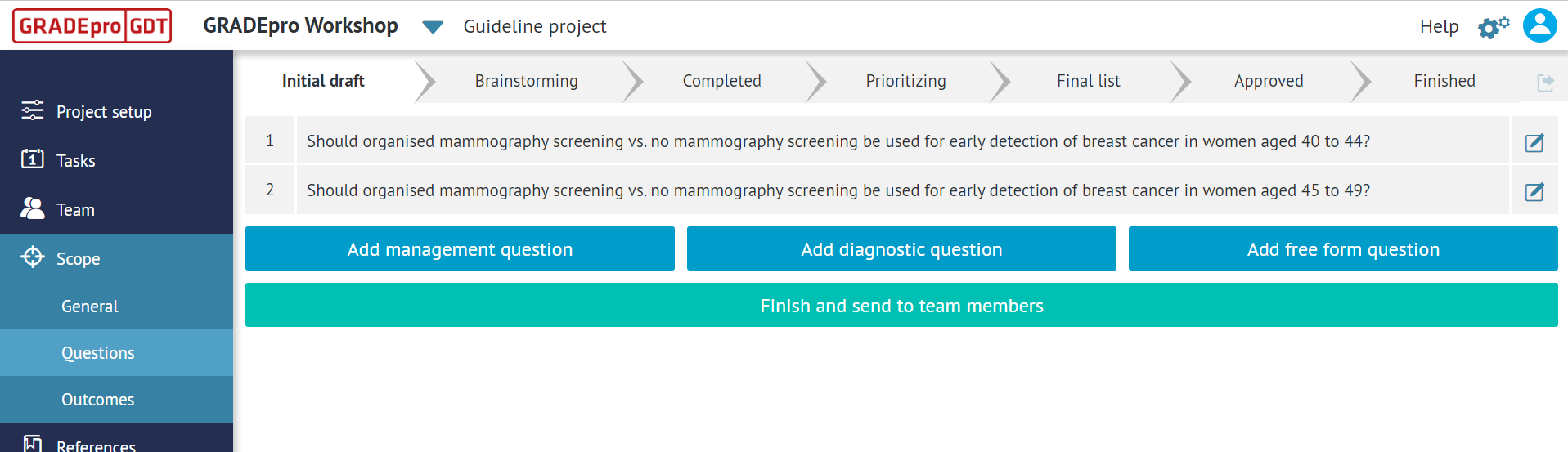
Similar to the Comparisons section, after the question is added for the Questions generation, it can be edited, deleted, or copied using the icon on the right-hand side:
 Once you have added all the desired questions, you can open the list for Panel Members' input. To do this, please use the send button. The action is irreversible.
Remember: Please be aware that all the people marked as Panel Members within the Team section of your project will receive the list.Then all of the Panel Members will be able to provide their comments and suggested questions
Remember: Please be aware that the Panel Members will not see one another’s suggestions, only the initial list they were sent. You can see the process from the Panel Member perspective in a separate article.As the Panel Members submit their forms, you will see suggested questions and comments appear on your list.
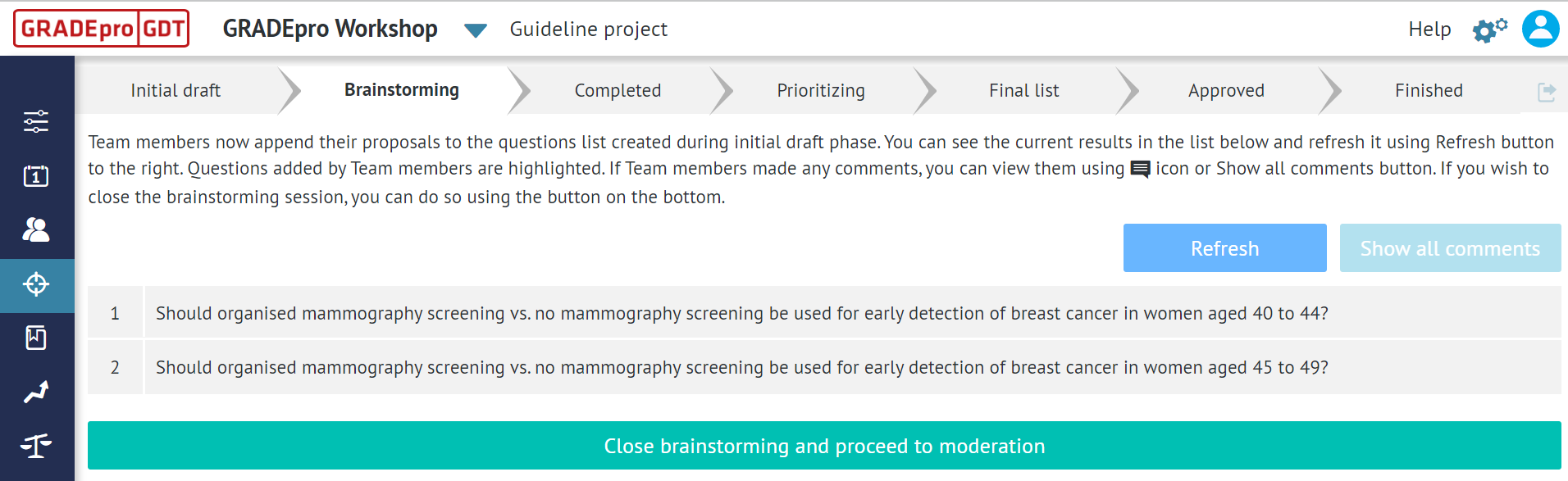
You may have to use the Refresh button to see the answers
You can also preview the comments provided by the Panel Members, either by clicking on the comment icon on the right-hand side or by using the Show all comments option
Remember: Please be aware that all the comments will be anonymous. You will not be able also to check which members of the panel have provided feedback. Panel Members will be able to send their responses until you close the form and proceed to the next stage.
Remember: Closing the form is irreversible. Once you close it and move to the next stage, the Panel Members won't be able to add any more suggestions.2.2. Moderation (Completed brainstorming)
In the next step, you will be able to edit the questions, both the ones entered by you and submitted by the Panel Members. You will also be able to enter new questions if need be, or delete the redundant ones.
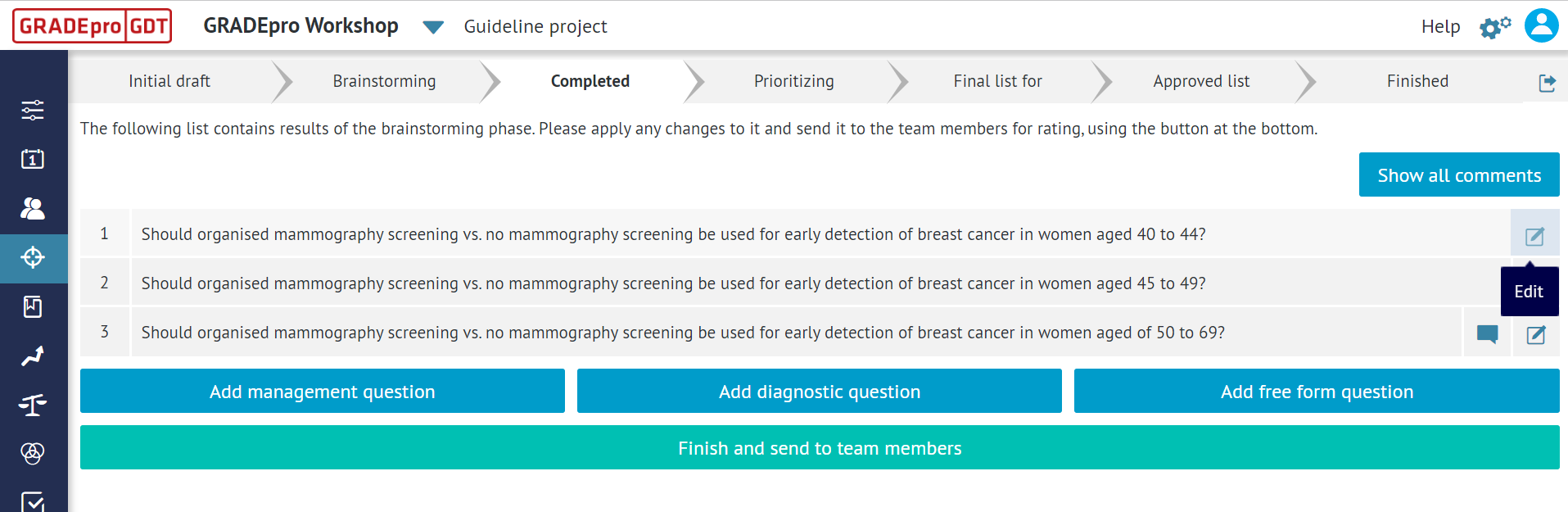
Once you are satisfied with the questions list, you can submit it for prioritisation by the Panel Members. Sending the prioritisation form is irreversible.
2.3. Prioritisation
In this part, the Panel Members will decide on the priority of each question. You will see the list of all Panel Members.
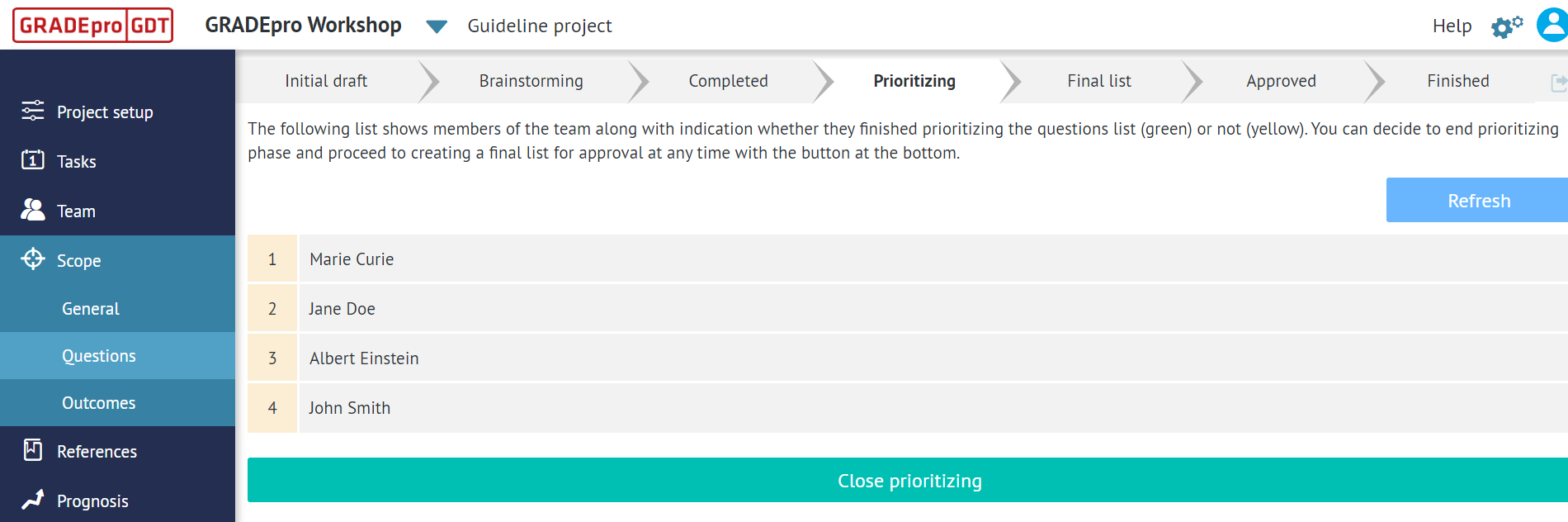 Once any person submits their form, the label next to their name will turn green.
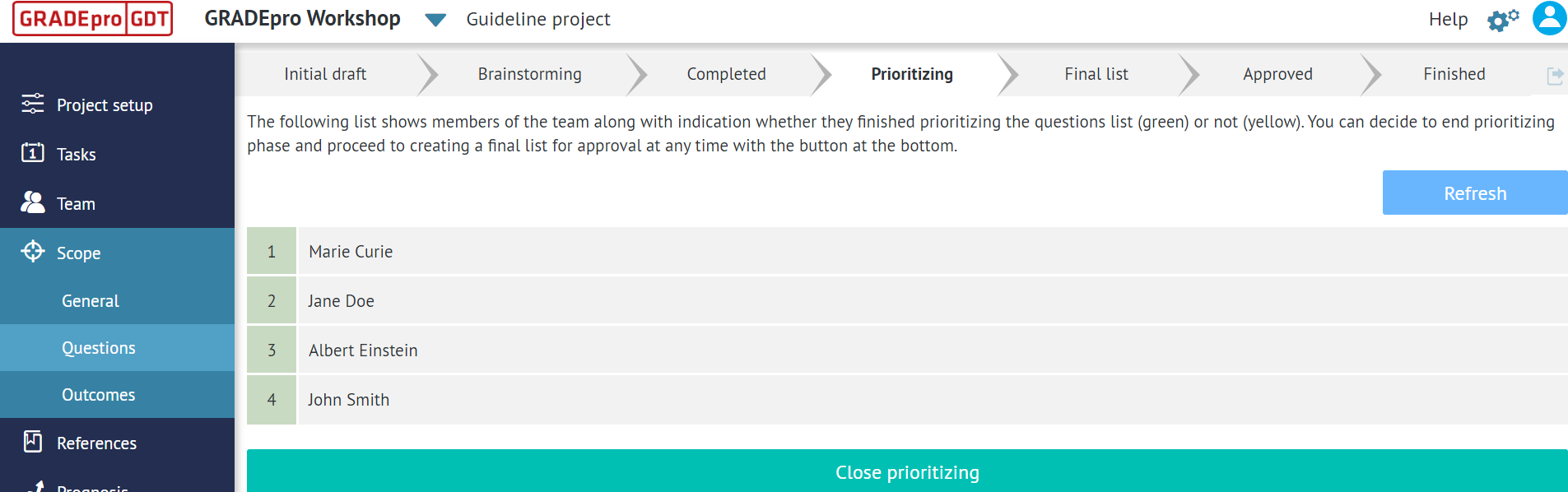
You will not, however, be able to see the exact answers of each person until you close the Prioritisation stage.
Remember: Closing the form is irreversible. Once you close it and move to the next stage, the Panel Members won't be able to vote for questions priority.2.4. Final list
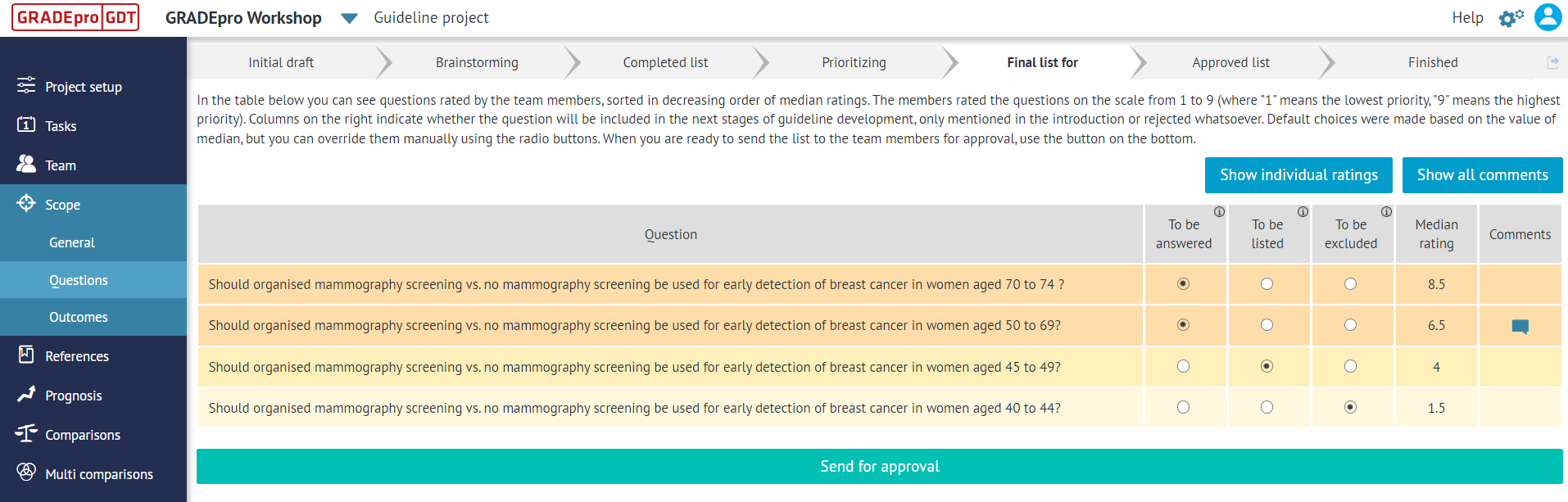
In the next step, you will see the list of questions and their median priority results on a scale from 1 to 9.
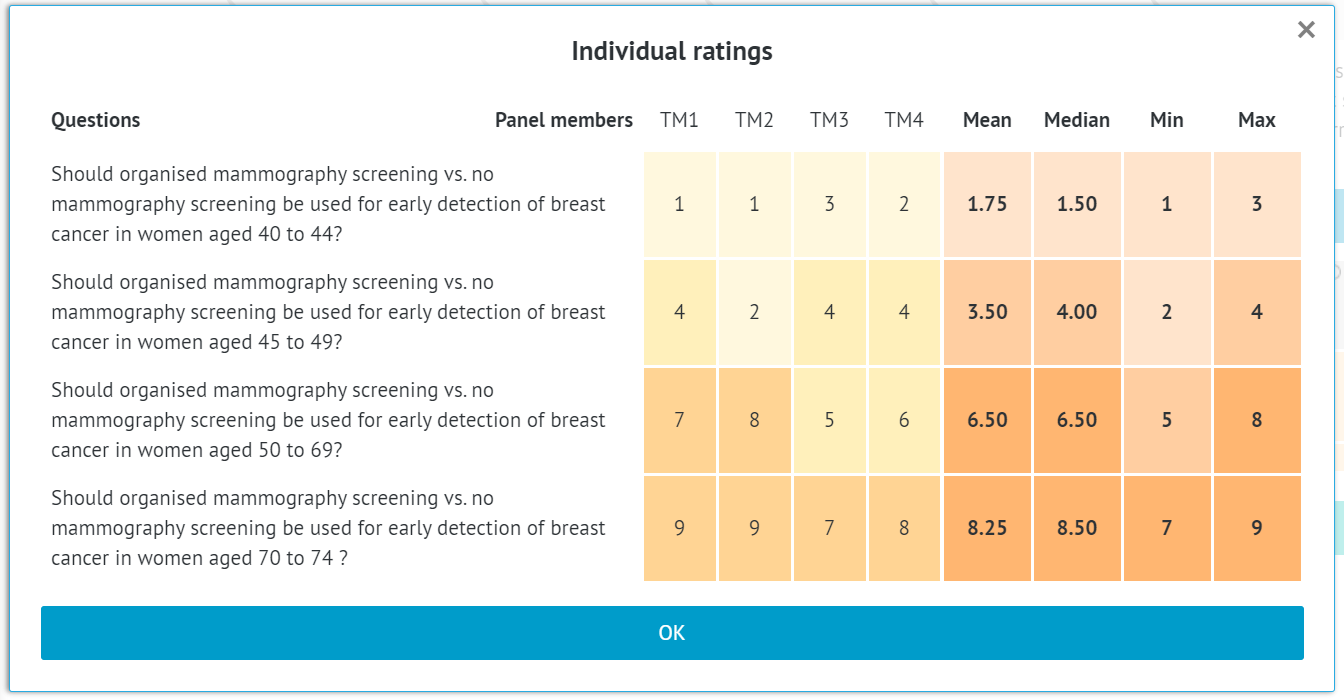
You can preview the individual ratings; however, they will remain anonymous (they will be marked as TM - Team Member - and a number).
Based on the panel's answers, you can decide on further actions regarding each question. They can be:
- Answered - such questions will be automatically transferred into the Comparisons section (with the aforementioned exception of free-form questions). This action is automatically suggested for questions with a median rating of 7 or higher; however, the question can be manually reclassified.
- Listed - such questions will remain on the list, but they will not be transferred into the Comparisons section. They may be reentered in a different project later on. This action is automatically suggested for questions with a median rating between 4 and 6; however, the question can be manually reclassified.
- Excluded - such questions will be deleted from the list as either irrelevant or not a priority regarding the subject of the project. This action is automatically suggested for questions with a median rating of 3 or lower; however, the question can be manually reclassified.
As you make those decisions, the questions will change the highlight colour.
The last step will be to send the list for final approval by the Panel Members. Sending the list is irreversible.
2.5. Approval
In the next stage, you will see the list of questions grouped according to the decisions you made in the previous step.
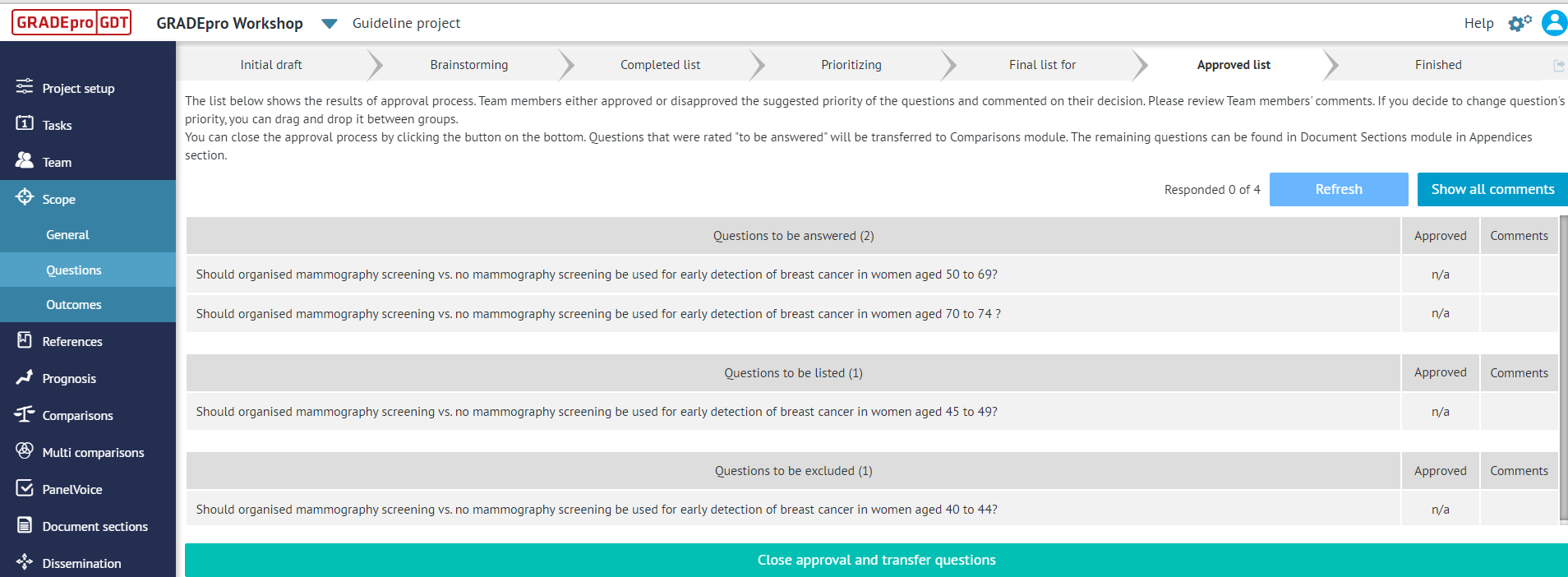 Once the Panel Members provide their feedback (you can use the Refresh button to see if any new votes arrived), you will see the percentage of the approved and disapproved answers among the respondents. The Panel Members are required to provide comments if they disagree, and you will be able to preview these comments.
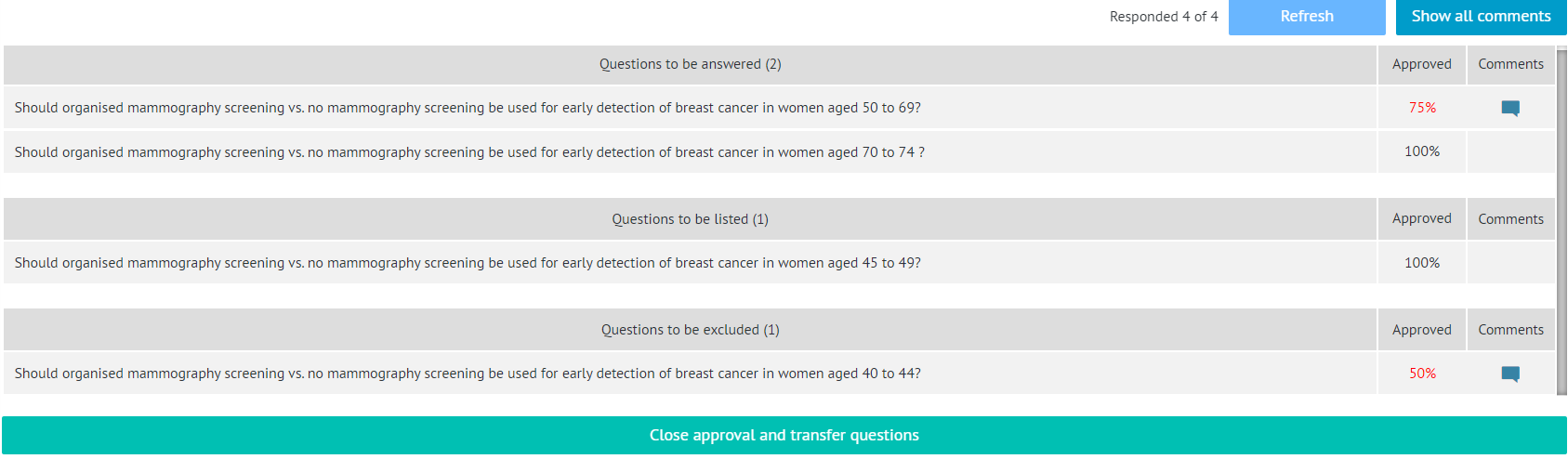
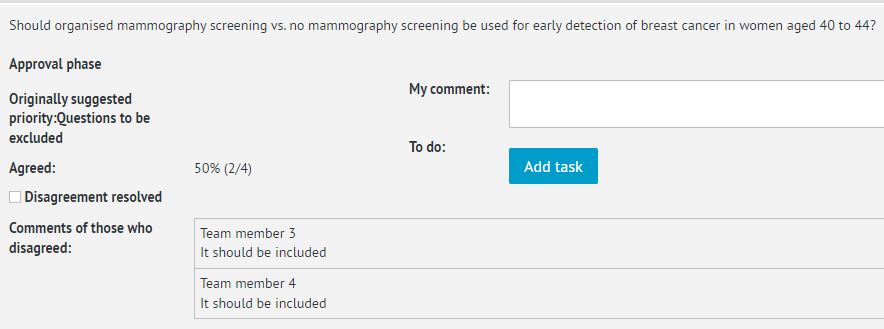
In the comments preview, you will be able to see the following:
- The initially suggested priority of the question
- The percentage and exact number of people who disagreed with the initial suggestion
- Anonymous comments of people who disagree
To facilitate the discussion process regarding the disagreement, you can:
- Add and save your own comments (they will be only seen by you and other project admins)
- Add tasks and later on mark them as done
In the end, you can mark the disagreement as resolved, and it will no longer be highlighted in red.
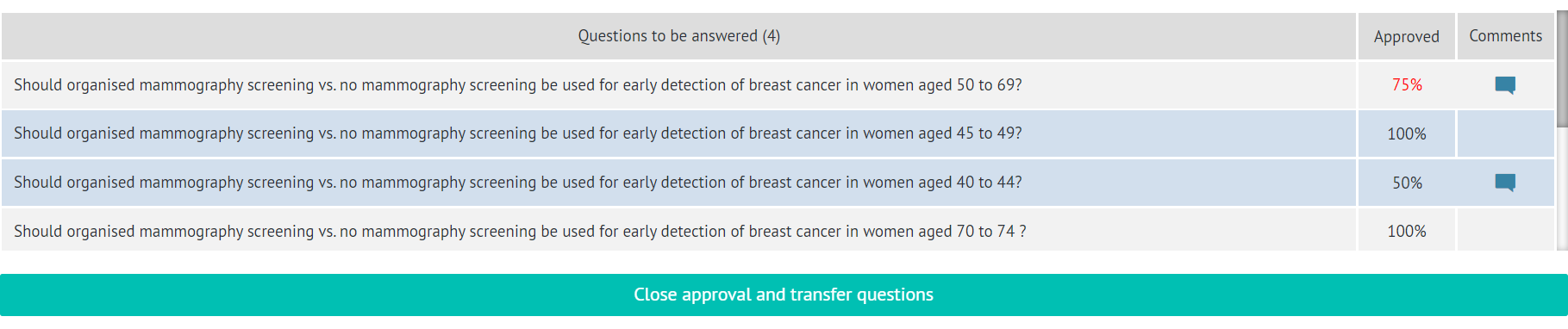
If the discussion results in changing the final priority of the question, you can easily move the question to another group by clicking on it and dragging it with your cursor. The questions that are moved will be highlighted.
2.6. Export
In the end, you can close the approval stage. This action is irreversible - panel members will no longer be able to vote on the approval. You will then be shown the list of all questions marked as to be answered.
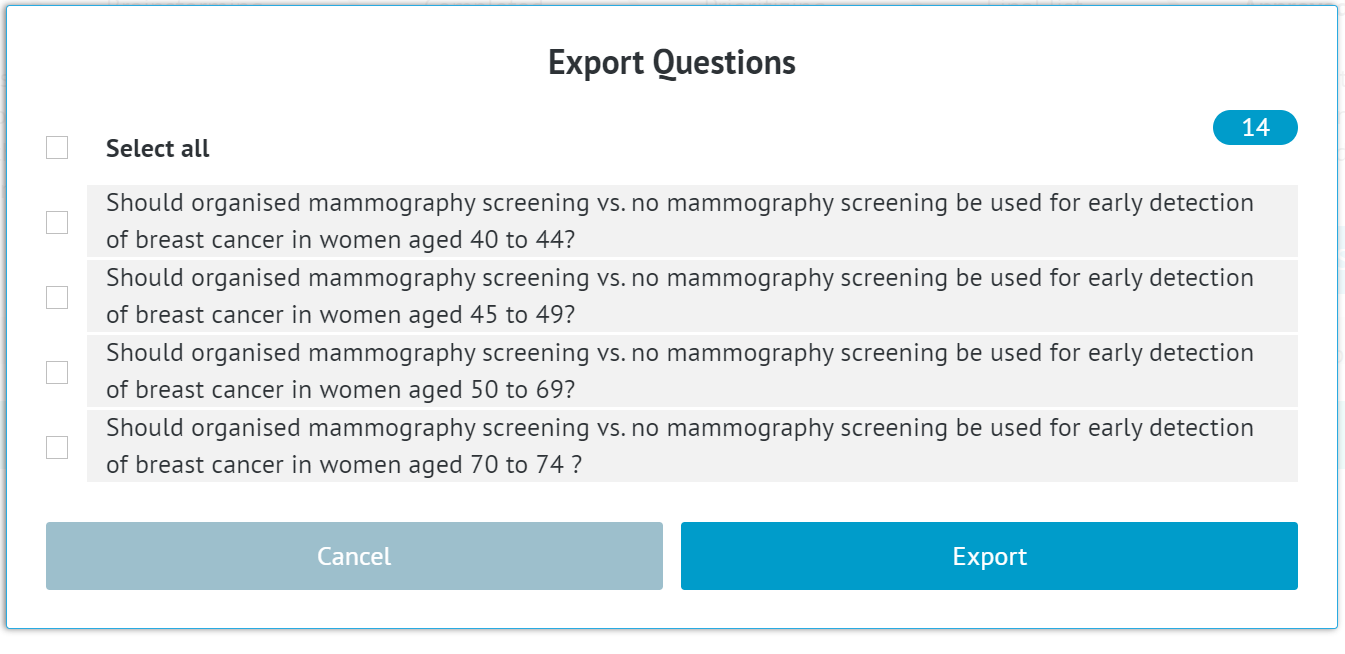
You can select which ones should be transferred to the Comparisons section, where you can continue working on them - add evidence tables and Evidence to Decision tables.
Remember: Only questions which follow the standard management or diagnostic PICO format are transferred automatically. Free form questions you will need to transfer yourself, by adding them manually in the Comparisons section. Read following articles if you want to learn more about PICO types or adding management and diagnostic questions.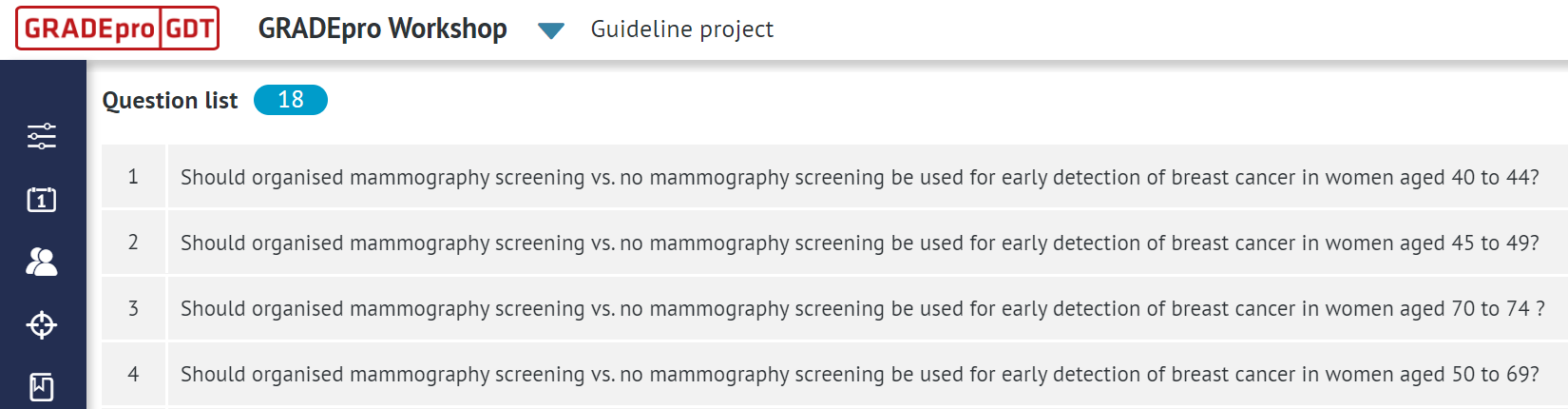
RELATED ARTICLES
- Questions generation - panelist perspective
- Outcomes generation - guideline manager perspective
- Outcomes generation - panelist perspective
- PICO and evidence tables - introduction
- Types of questions and evidence tables
- Creating a management question step by step
- Creating a diagnostic question step by step
Was this article helpful?
That’s Great!
Thank you for your feedback
Sorry! We couldn't be helpful
Thank you for your feedback
Feedback sent
We appreciate your effort and will try to fix the article