TABLE OF CONTENTS

Decision Aids are specialised forms that help patients undertake a decision regarding their treatment with the use of Evidence Based Medicine. Decision Aids can also be used by patients in cooperation with their doctors. Learn how to create Decision Aids with GRADEpro.
1. Introduction
Decision Aids are specialised forms that help patients undertake a decision regarding their treatment with the use of Evidence Based Medicine. Decision Aids can also be used by patients in cooperation with their doctors.
There are two ways to create a Decision Aid:
- Team and Enterprise subscription users can generate their own Decision Aids based on existing questions in the projects - this mechanism is described below.
- If you want to create a dedicated Decision Aid, you may contact our Sales Team at sales@evidenceprime.com to arrange for Decision Aid to be priced and then generated manually by our designers. Examples of such custom-made decision aids are Cow’s milk allergy Decision Aid created as a part of the Diagnosis and Rationale for Action against Cow's Milk Allergy guidelines, and the blood thinners Decision Aid created for the American Society of Hematology.
2. Generating Decision Aid
Restriction: This is only available for the Team and Enterprise licence usersYou have to first move to the “Dissemination” section of your project:
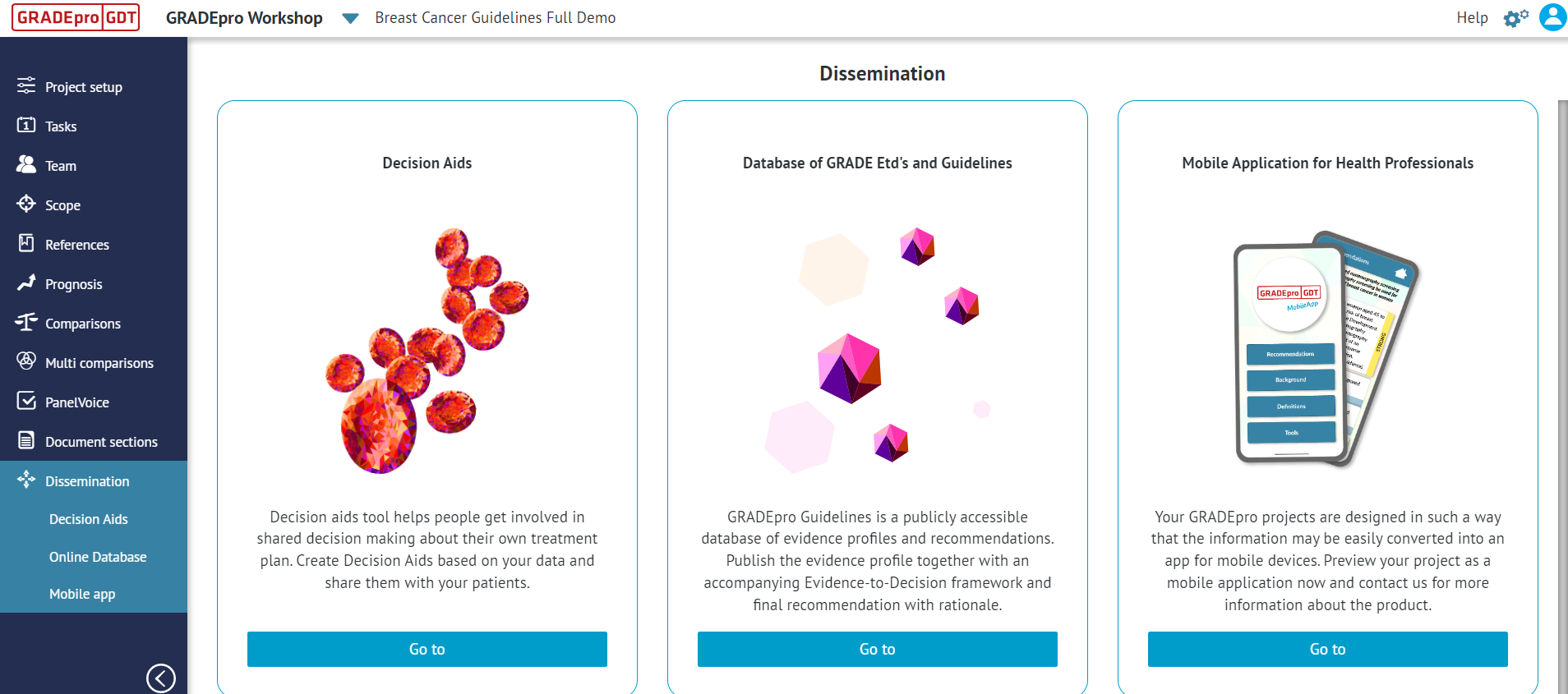
There you may either select “Decision Aids” tab from the side menu or pick the according panel in the main screen
You will see the list of your previous Decision Aids (provided you made any) as well as the “Create new” button.
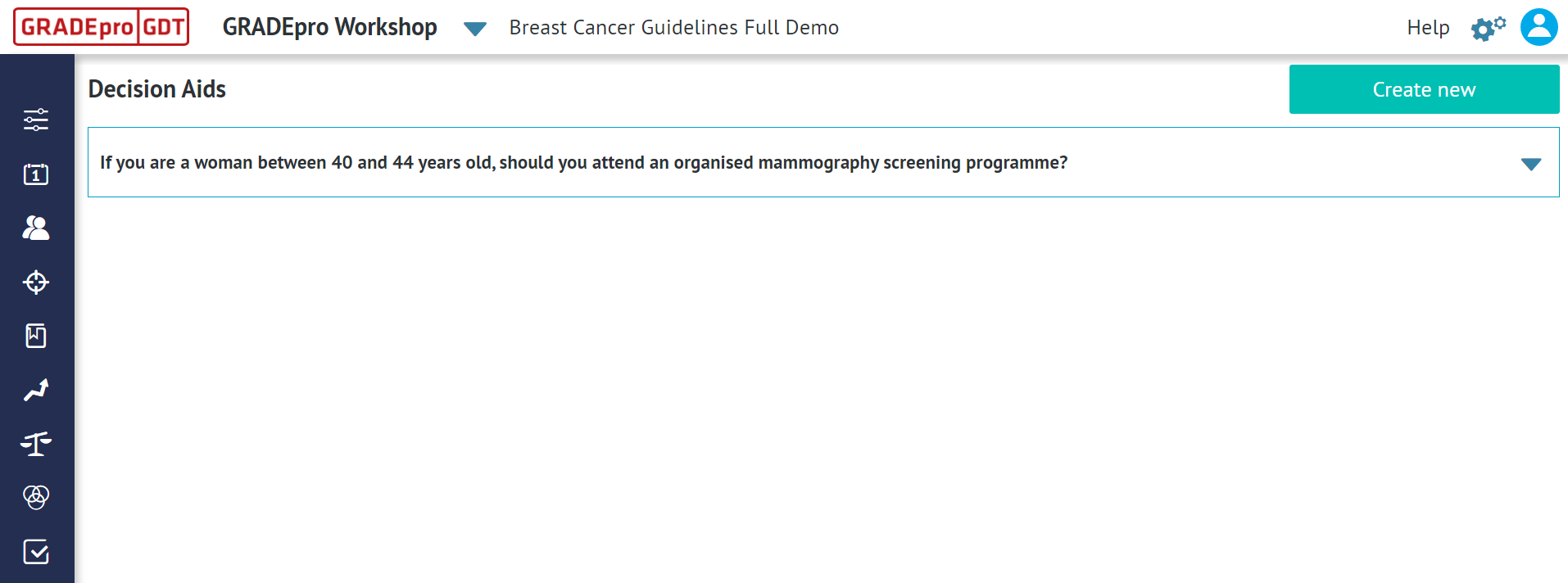
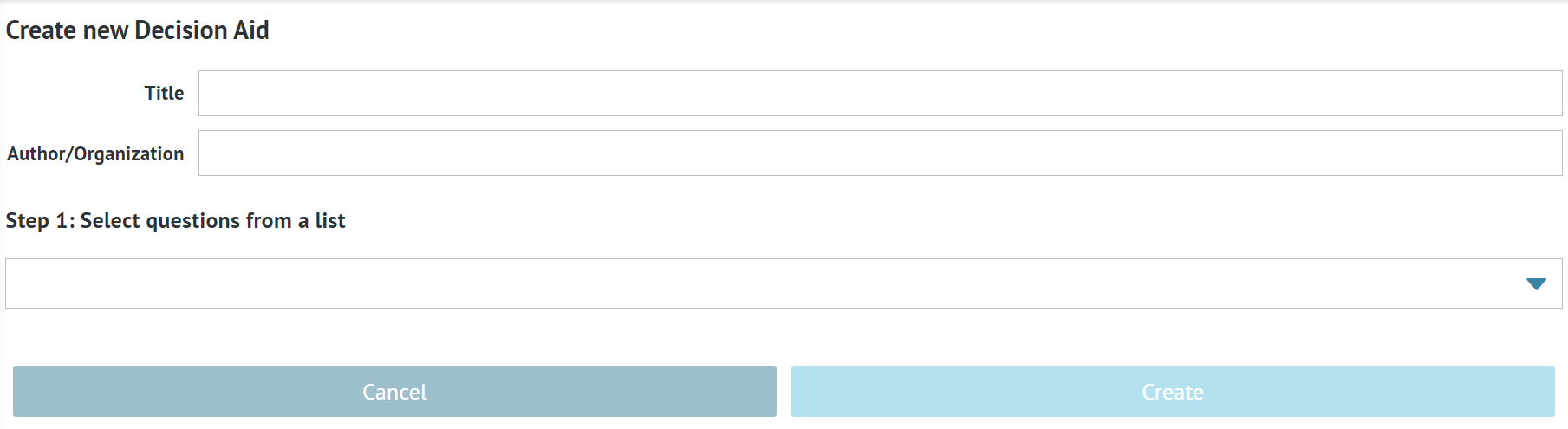
Once you use the button, you will be moved to the decision aid creator.
You will have to create a title and enter the person(s) or organisation authoring it.
Below you will be able to choose the PICO question you want the decision aid to be based on
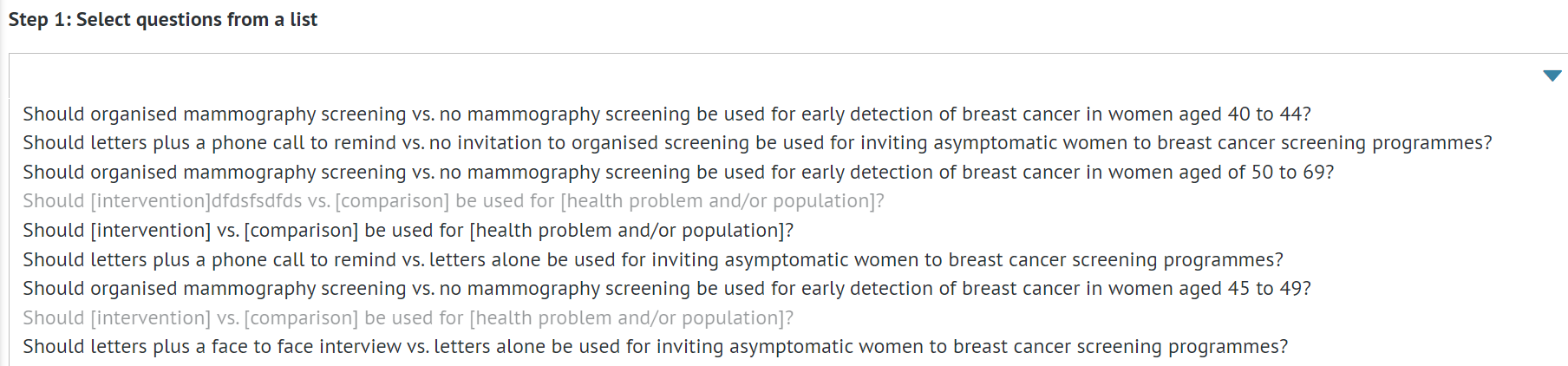
One decision aid can only be based on one PICO question.
Tips: If a question is inactive it means it doesn't have an active EtD table inside, which is necessary for creating a Decision Aid.Once you choose a question, you will be asked to pick the outcomes to include in the decision aid.
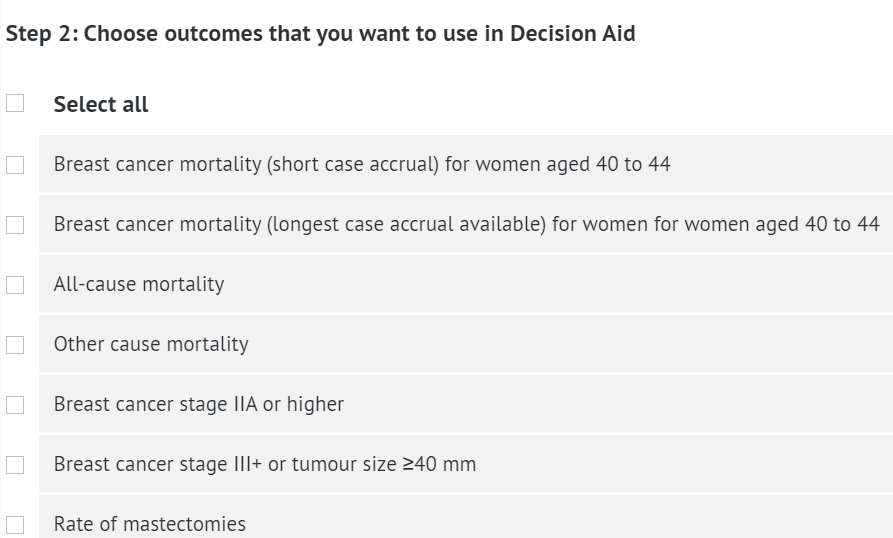
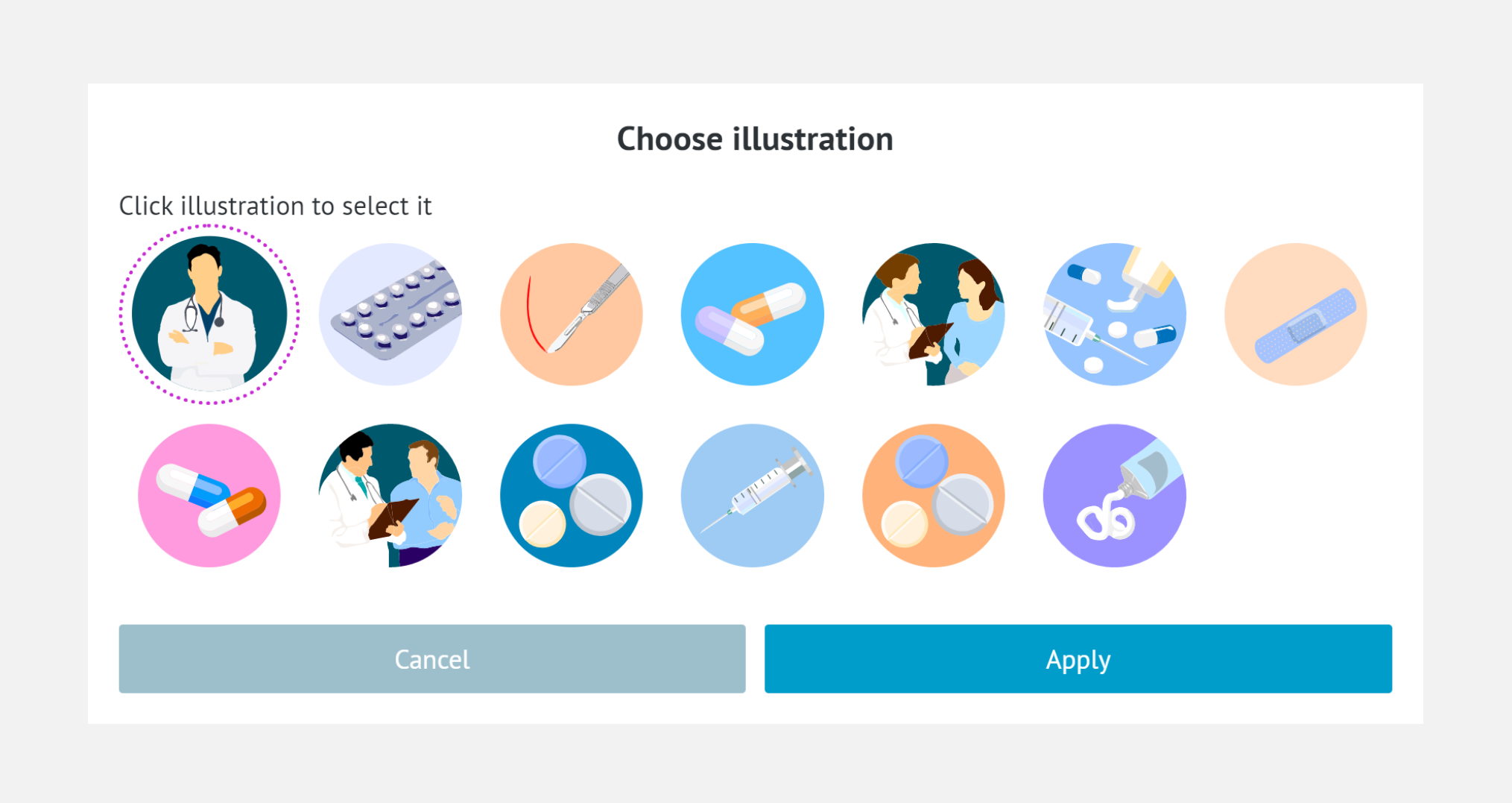
Then you will be presented with a set of illustrations, from which you will have to choose the most suitable for the topic of your decision aid.
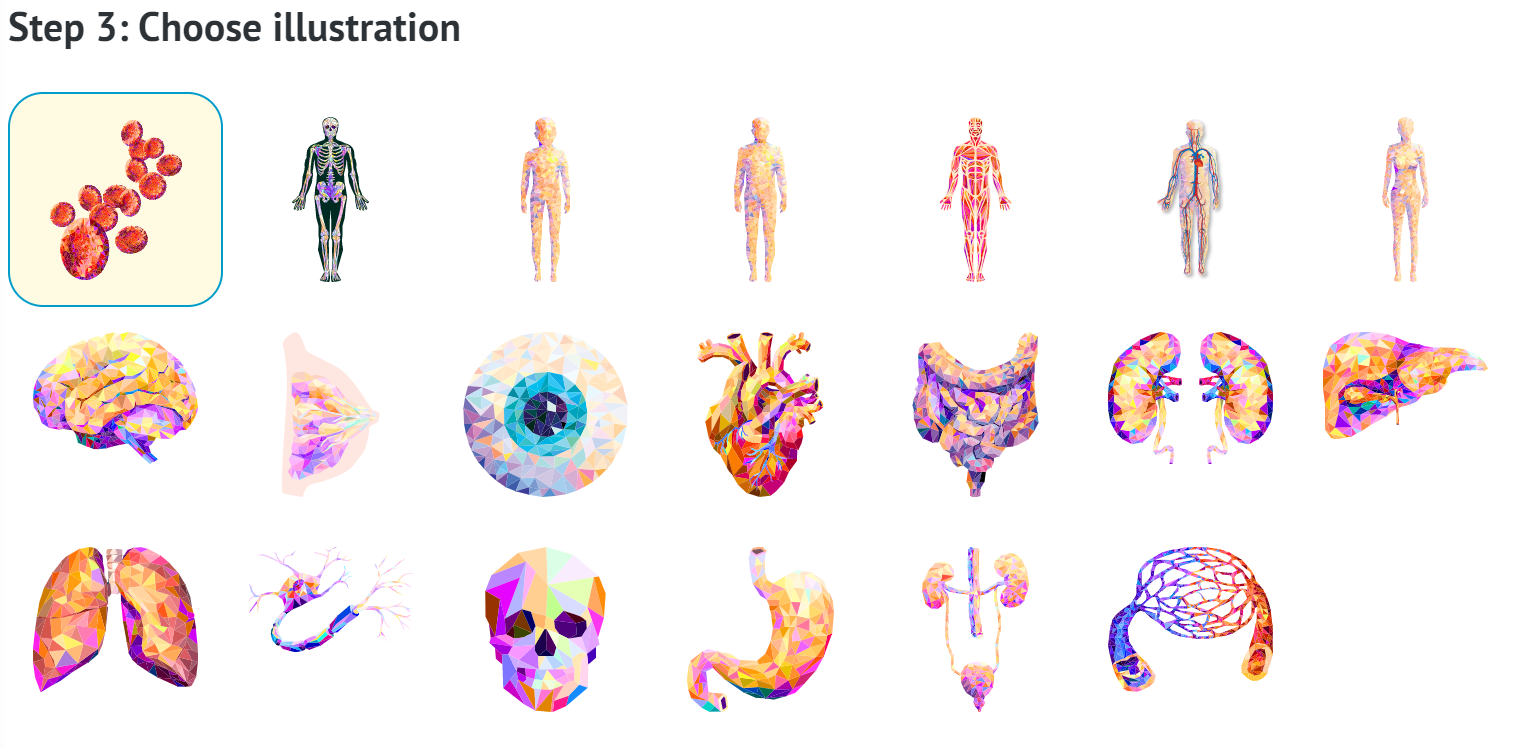
You will be able to choose the colour theme as well.

Once you do that, the process will be complete. After confirming your choices with a button, you will see your new decision aid on the list.
You will be able to expand it using the dropdown button and edit it using the edit button (both marked red).
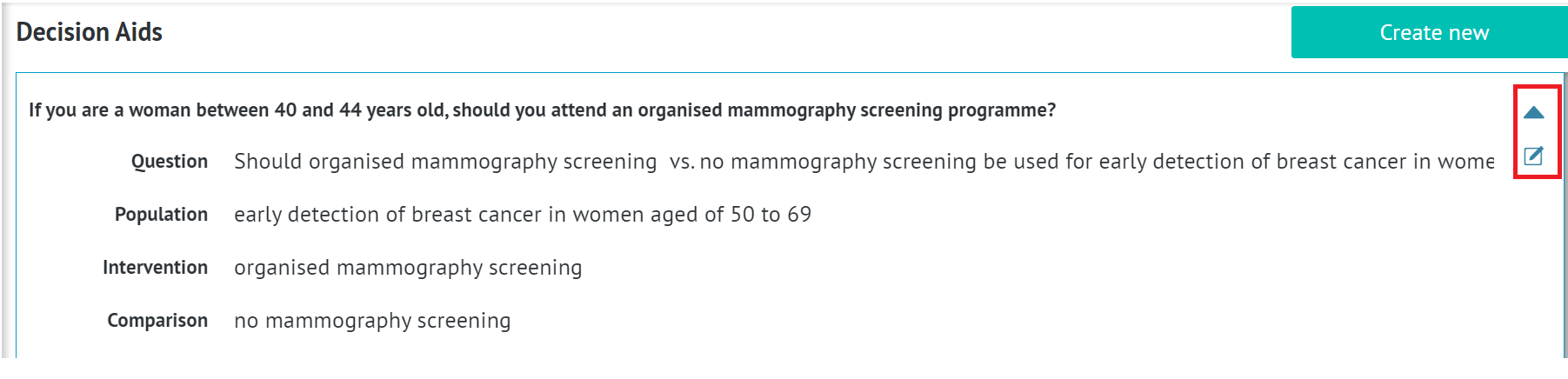 If you click on the title of your decision aid, you will enter it.
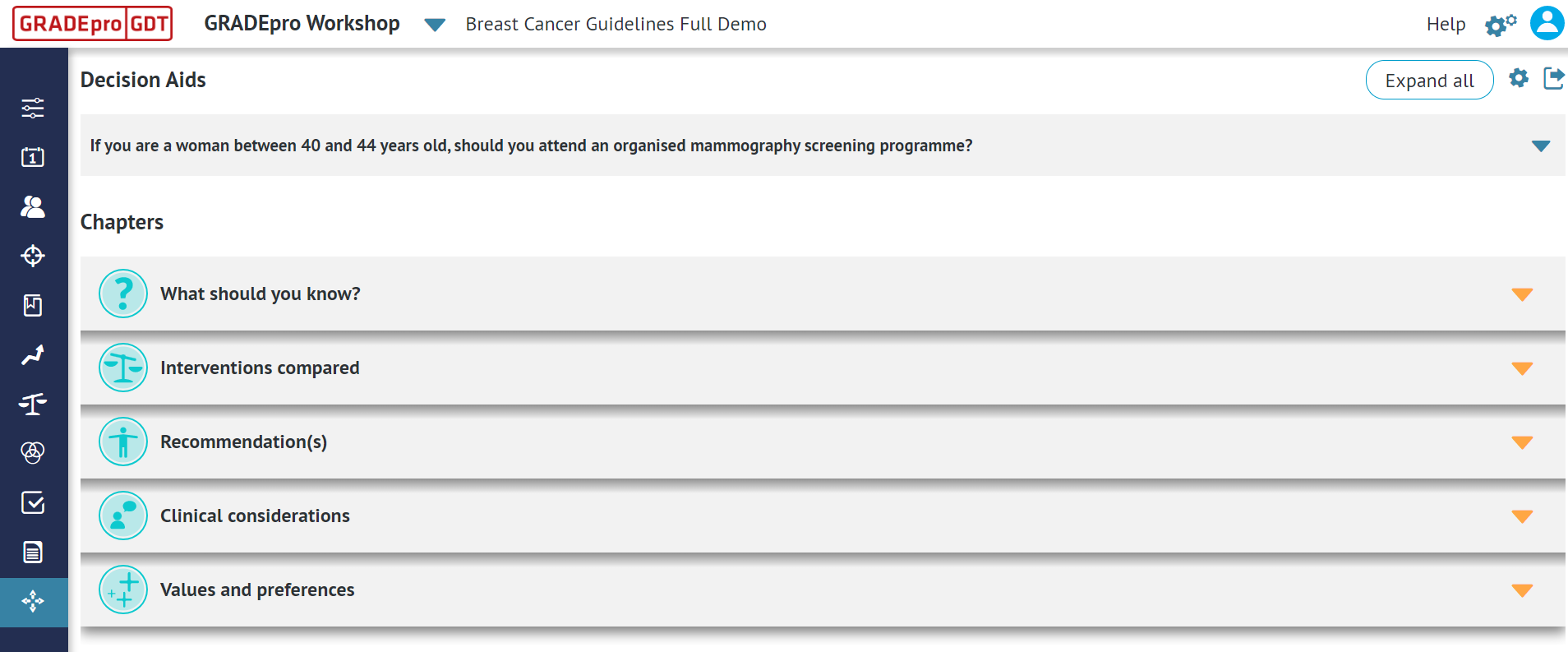
You will see a list of default chapters of your decision aid. You can unfold each chapter in order to populate its subchapters with content.
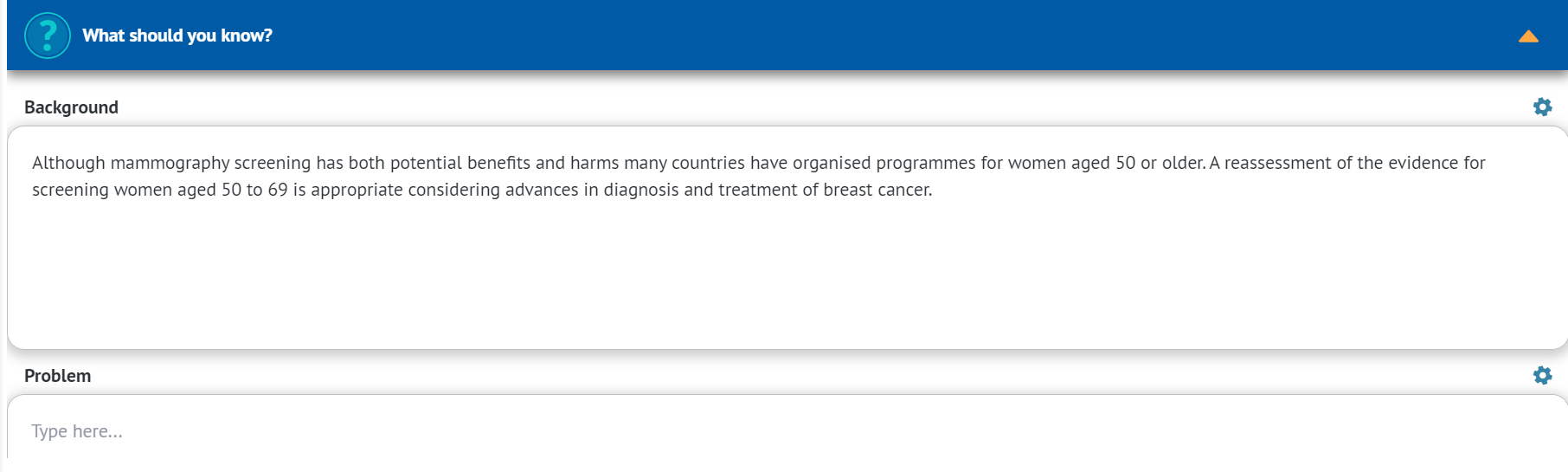
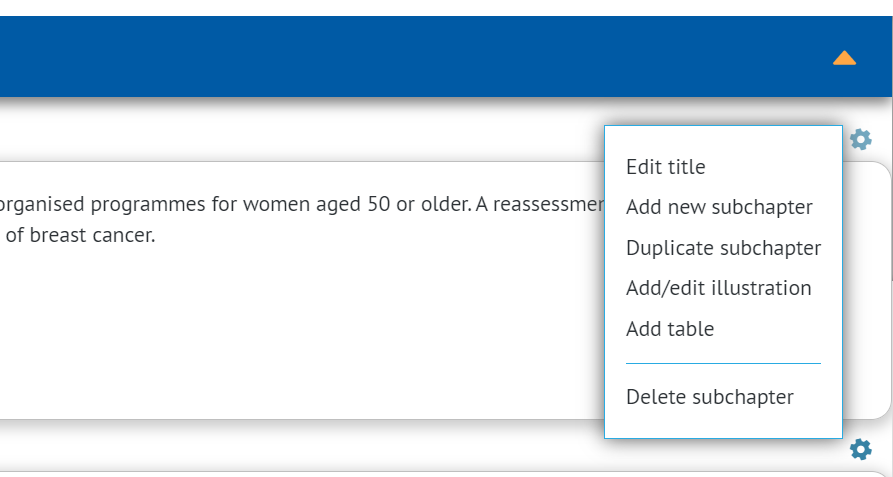
Next to each subchapter, there is the cog wheel icon you can use to access additional options.
The evidence table will be presented in a simplified format in the Interventions compared chapter.
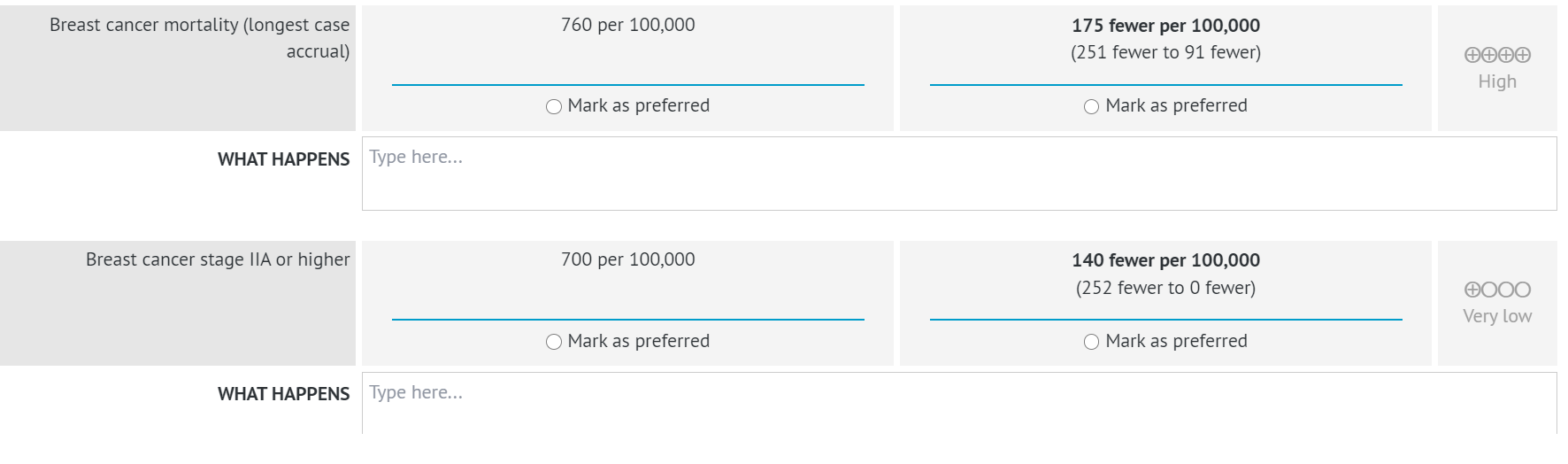 You will be able to explain in simple terms the consequences of a given outcome in a dedicated What happens text field as well as choose the “preferred one” so whether this outcome favours the intervention or the comparison.
You are also free to edit the whole layout of the decision aid
Using the cogwheel icons, you can edit, add, delete or duplicate subchapters; within tables you can add or remove columns.
In some places, you can also add some more illustrations
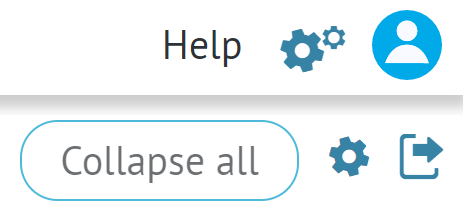
In the top right corner of the website, there are two more icons.
The cogwheel allows you to add new chapters or change their order.
The arrow icon exports the table as a website - you can use it once the Decision Aid has been completed.
 The link will work for anyone, whether they have a GRADEpro account or not.
Tips: After exporting the decision aid as a website, if you edit anything, to see those changes you will have to export it again, thus generating a new link.RELATED ARTICLES
Was this article helpful?
That’s Great!
Thank you for your feedback
Sorry! We couldn't be helpful
Thank you for your feedback
Feedback sent
We appreciate your effort and will try to fix the article