TABLE OF CONTENTS
- 1. "Create table with GRADEpro GDT" doesn't work for me in RevMan
- 2. I cannot create a project in Cochrane workspace
- 3. I cannot import files into GRADEpro
- 4. Absolute effect is 0 when it shouldn't be

Below, you can read about the most common questions and issues for Cochrane users.
1. "Create table with GRADEpro GDT" doesn't work for me in RevMan
When you go to the "Summary of Findings" section in your review, the "Create table with GRADEpro GDT option is greyed out.
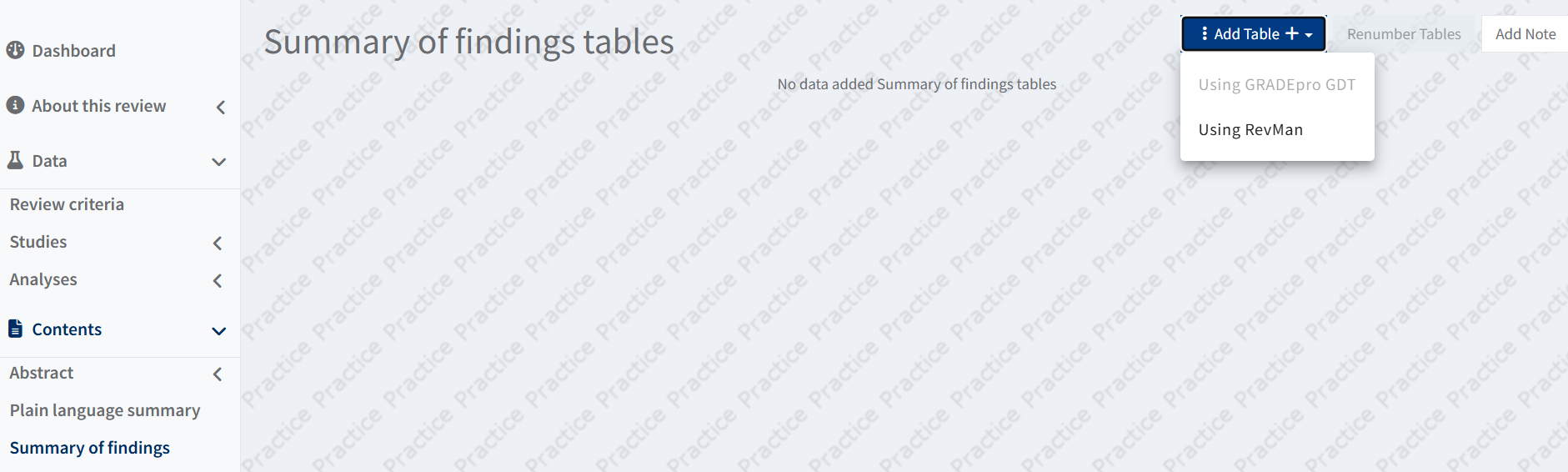
This means that the option has not been enabled for your review. It can be so for a number of options, but most likely it is because that review is not a Cochrane review.
As of 3 June 2024, the GRADEpro integration is enabled as a default system setting for all Cochrane intervention reviews. The exception to this is for reviews that are in the editorial process (being edited or revised) or have an acceptance decision (in production), as well as reviews supported by the Methods Support Unit. For these reviews, the GRADEpro GDT integration will be enabled automatically after a rejection decision or publication.
Please note that the GRADEpro Support Team cannot enable the integration. This is only available from the side of Cochrane and RevMan. If you cannot access the option to create tables directly in RevMan despite being a Cochrane author and meeting the above criteria, please contact Cochrane Team at support@cochrane.org
2. I cannot create a project in Cochrane workspace
When you try to create a project in the Cochrane workspace, the project doesn't appear; instead you see a communication:
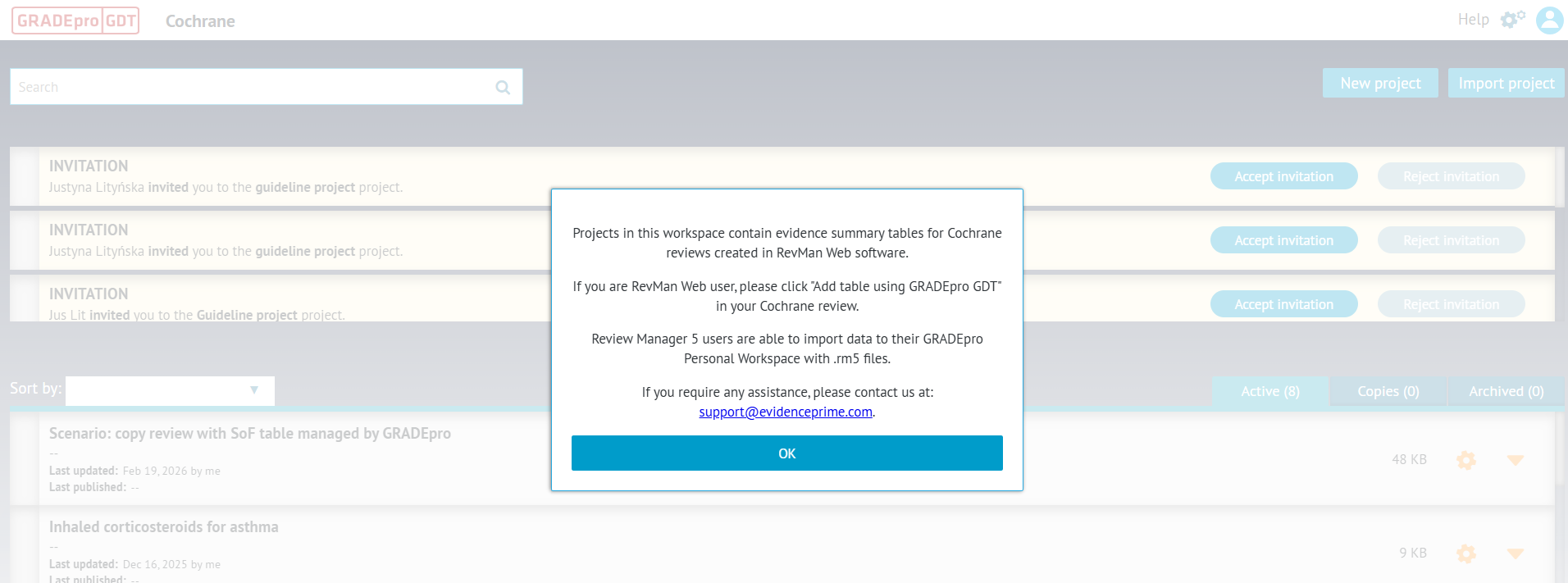
As it says in the notification, Cochrane workspace is only meant for the purpose of GRADEpro - RevMan web online integration. Projects and tables in that workspace are created directly from within RevMan Web. If you want to create a project directly in GRADEpro or import RevMan Web or RevMan5 files into GRADEpro, this should be done in your personal workspace. You can enter your personal workspace either by selecting the panel when you log in or by selecting it from the list in the user menu in the top right corner of the website.
3. I cannot import files into GRADEpro
There may be a few reasons why you cannot import the files:
3.1 You are in the Cochrane workspace
If you try to import files into the Cochrane workspace, you will see the following message:
As it says in the notification, Cochrane workspace is only meant for the purpose of GRADEpro - RevMan web online integration. Projects and tables in that workspace are created directly from within RevMan Web. If you want to import RevMan Web or RevMan5 files into GRADEpro, this should be done in your personal workspace. You can enter your personal workspace either by selecting the panel when you log in or by selecting it from the list in the user menu in the top right corner of the website.
3.2 You are using the wrong types of files
Only data packages downloaded from Cochrane library or from RevMan Web, and .rm5 files from the legacy software RevMan5 can be imported into GRADEpro. Other types of files (except for legacy .gdt files from the old desktop version of GRADEpro) cannot be imported.
3.3 The files are damaged in some way
If you have the correct type of files, but they aren't imported anyway, and an error message appears, please share them with our Support Team at support@gradepro.org, ideally including the screenshot of the error and the file itself.
4. Absolute effect is 0 when it shouldn't be
Despite the intervention value being non-zero in RevMan analysis, it is 0 in GRADEpro.
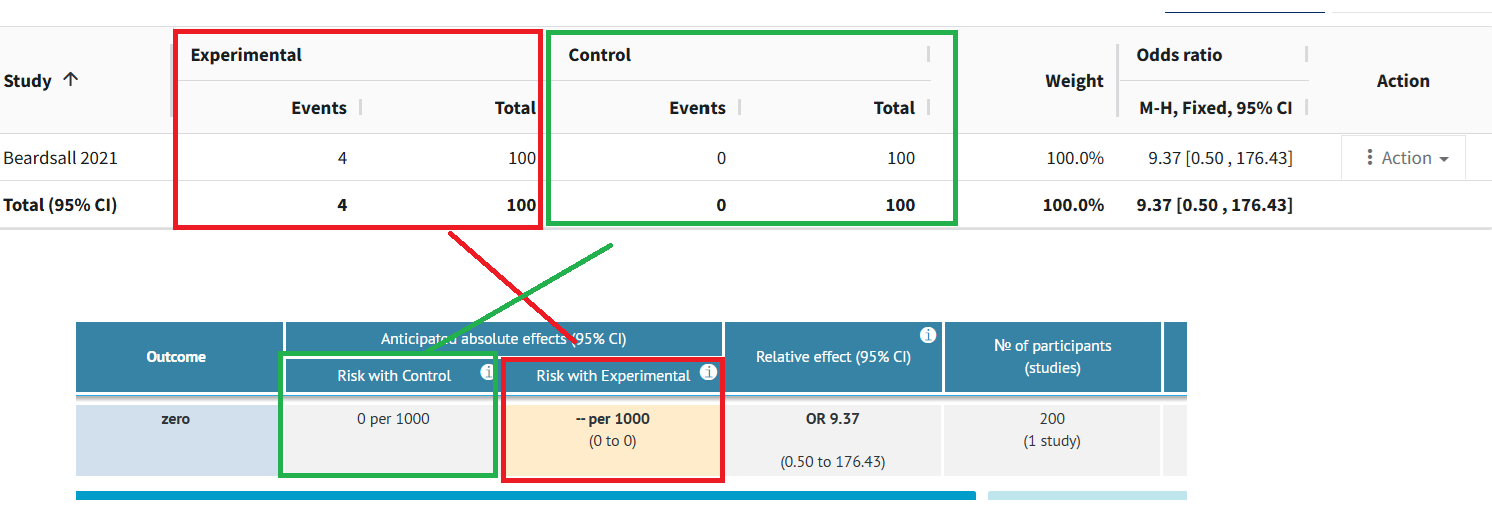
This is because the experimental/intervention value displayed in GRADEpro is calculated by multiplying the Control value and the relative effect. If the Control value is 0, the result will always be 0, too.
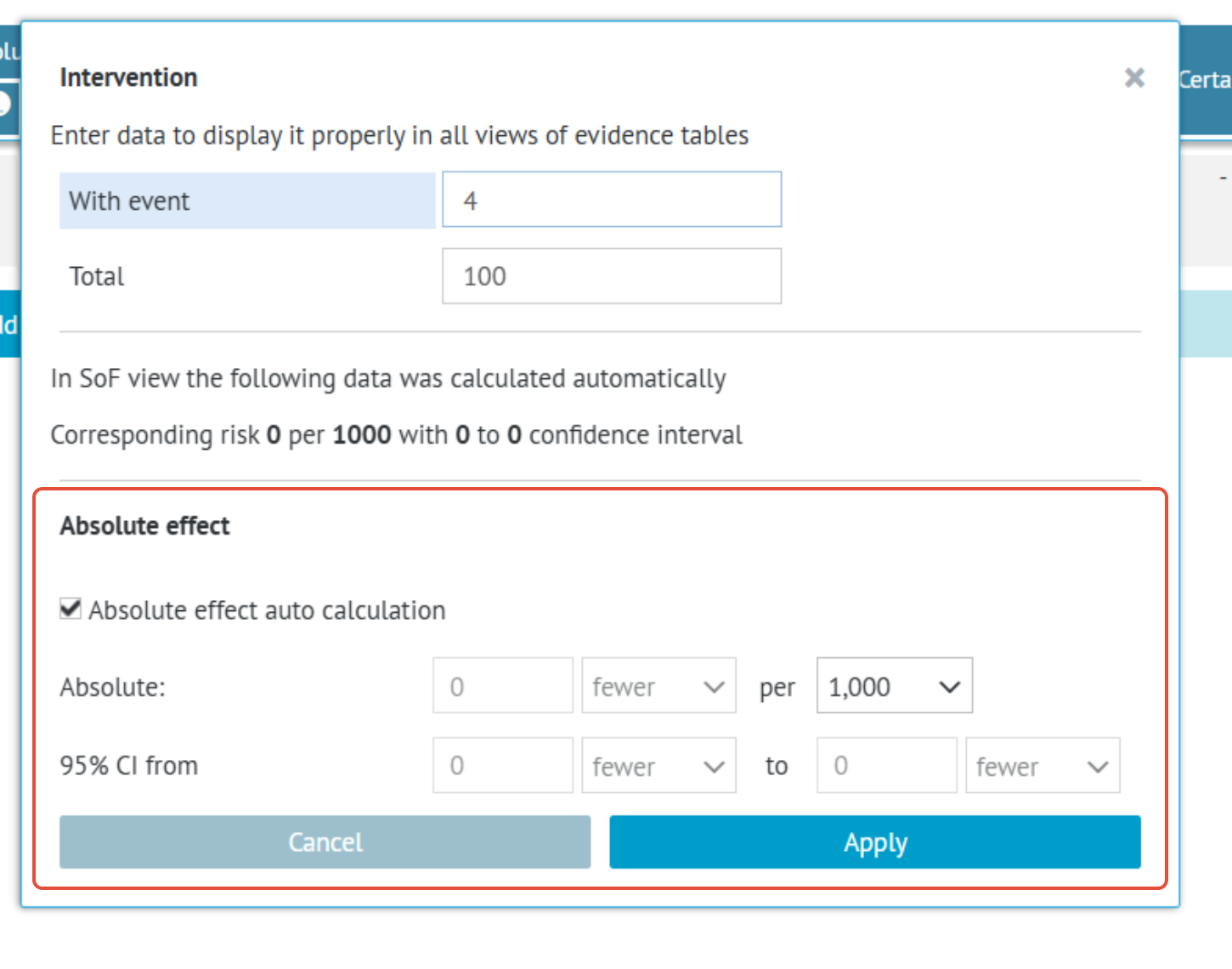
You can overwrite this value by clicking on the cell with the incorrect value.
You will see the event and total values transferred from RevMan (which are not displayed in the table), and below the calculated absolute effect. To overwrite it, you need to unmark the checkbox and enter the desired values.
RELATED ARTICLES
Was this article helpful?
That’s Great!
Thank you for your feedback
Sorry! We couldn't be helpful
Thank you for your feedback
Feedback sent
We appreciate your effort and will try to fix the article