TABLE OF CONTENTS
- 1. Introduction
- 2. The CoI dashboard
- 3. Available types of forms
- 4. Sending the CoI form
- 5. Tracking the response progress
- 6. Marking Conflicts of Interest

GRADEpro gives you the option to send CoI forms to your Panel Members and decide on their participation in the PanelVoice according to their answers.
1. Introduction
To ensure the transparency and fairness of the guideline development, it is necessary to confirm that the members of the panel, who will be deciding on the final recommendations, are not under the influence of a third party when it comes to making the decisions on which intervention to recommend.
For this reason, Conflict of Interest management is an inherent part of the guideline development process, as it has been described in the GIN-McMaster Guideline Checklist (the Checklist is also available in the "Tasks" tab of any GRADEpro project.
Below, you can see how to manage Conflict of Interest using GRADEpro.
2. The CoI dashboard
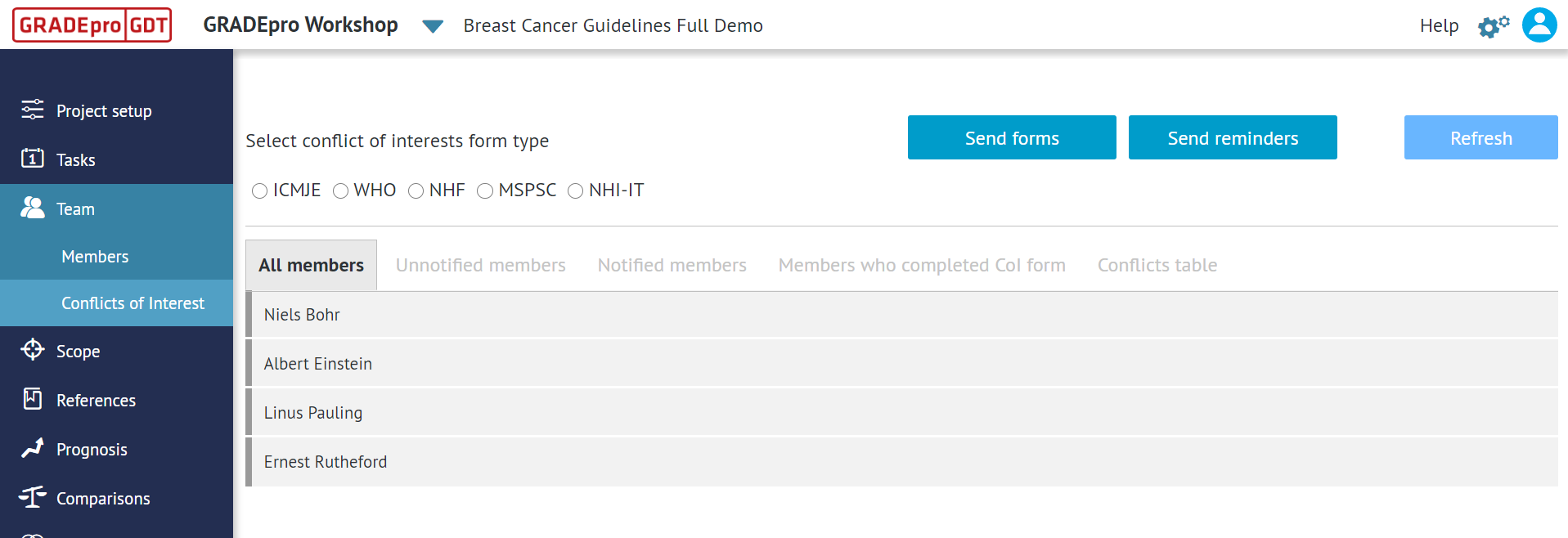
The Conflict of Interest module can be found in the Team tab of your project.
You will see there the list of all Panel Members in your project (if someone is not marked as a Panel Member on the team list, they will not be listed in CoI module). The list is organised into sections, depending on the status of the form for each member.
Apart from that, you can also see the list of form types you can select from and the buttons you will use to manage the process.
3. Available types of forms
GRADEpro offers five types of forms you can use for CoI management process. The forms have been listed below, together with links to the form templates.
Restriction: Once a form is selected for a project and sent to participants, it cannot be changed.Note: In case of paid subscriptions it is possibile to request additional integration with the German CoI service AWMF. If you are using this service, let our Sales Team know when discussing the details of your subscription.4. Sending the CoI form
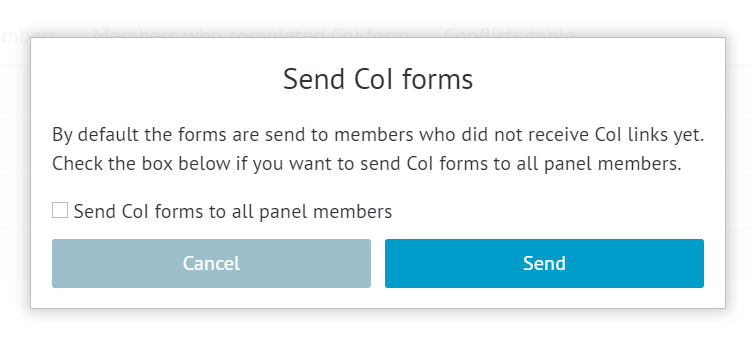
Once you select the form type, you can send the form with the button at the top of your screen.
You will have the option to send the form to all the panel members or only those who have not yet received it (if you have already sent the form before).
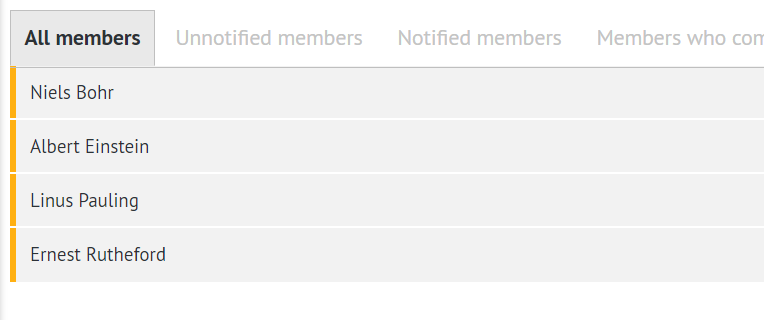
After that, the labels next to the names of your panel members will change to orange.
The labels will turn green once they respond.
5. Tracking the response progress
You can track the progress in a few ways.
The labels next to the names of the panel members differ in colour depending on the status.
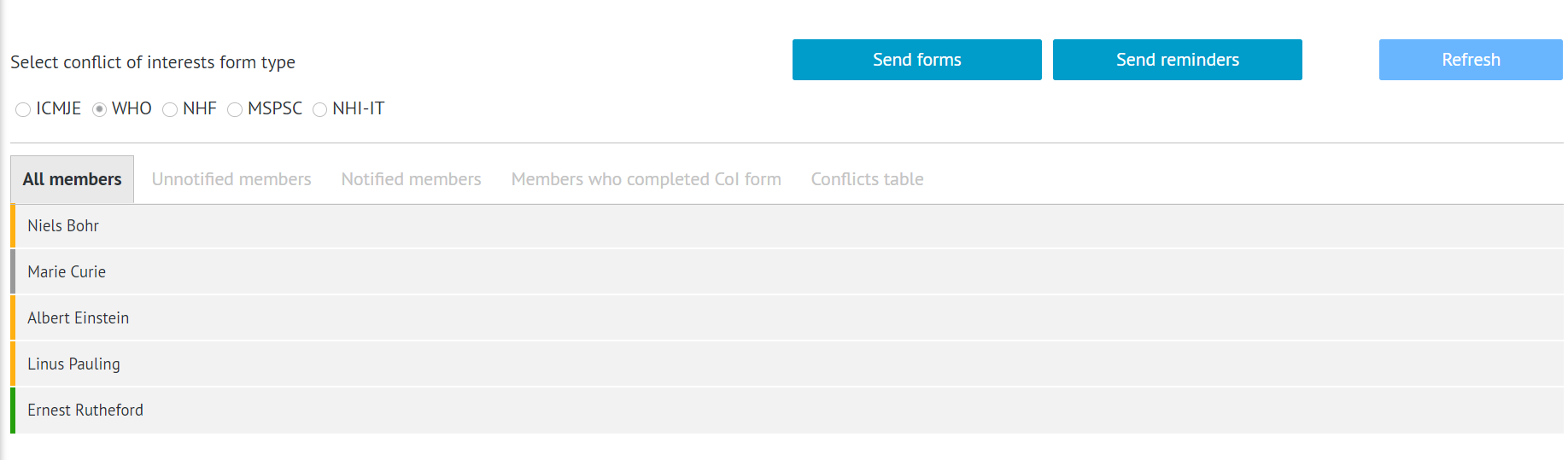
If the label is grey, it means the person has not yet received a form.
If it is orange, it means the person has received the form but has not responded yet.
If it is green, it means the person has responded already.
You can also sort the list with the categories on top of it to see the unnotified members, notified members, and members who completed the CoI form.
Tips: The conflicts table will become active only once you mark the conflicts for each member.You can use the Refresh button in the top right corner to update the view and see the latest results.
If you want to urge a person to provide their response, you can use the Send reminder option.
6. Marking Conflicts of Interest
Once a member has completed the CoI form, you can proceed to mark the conflicts of interest.
Tips: You will also have the possibility to mark the conflicts for a member, even if CoI form has not been sent to this person (for example if you manage the CoI outside of GRADEpro).To do this, you need to click on the name of that person on the list.
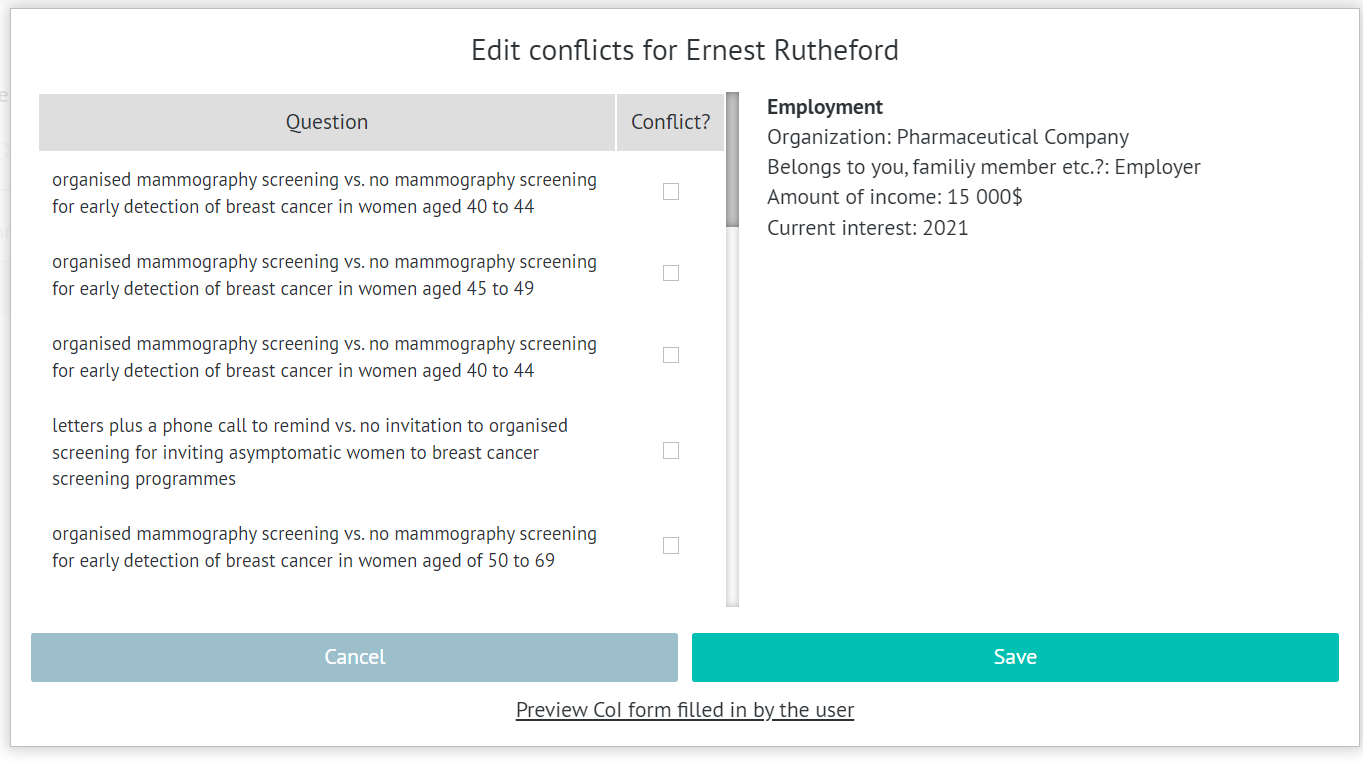
On the right-hand side, you will see the list of interests declared by that person (if they marked any conflicts in the form). If you want to learn more details, you can preview the form.
Based on the declared interests, you can mark whether that person has a conflict of interest with regard to any of the existing questions in the project listed on the left-hand side.
Restriction: Only the questions that have already been entered in the Comparisons section will be listed.The overall conflicts for all members who completed the CoI form can also be previewed in the Conflicts table.
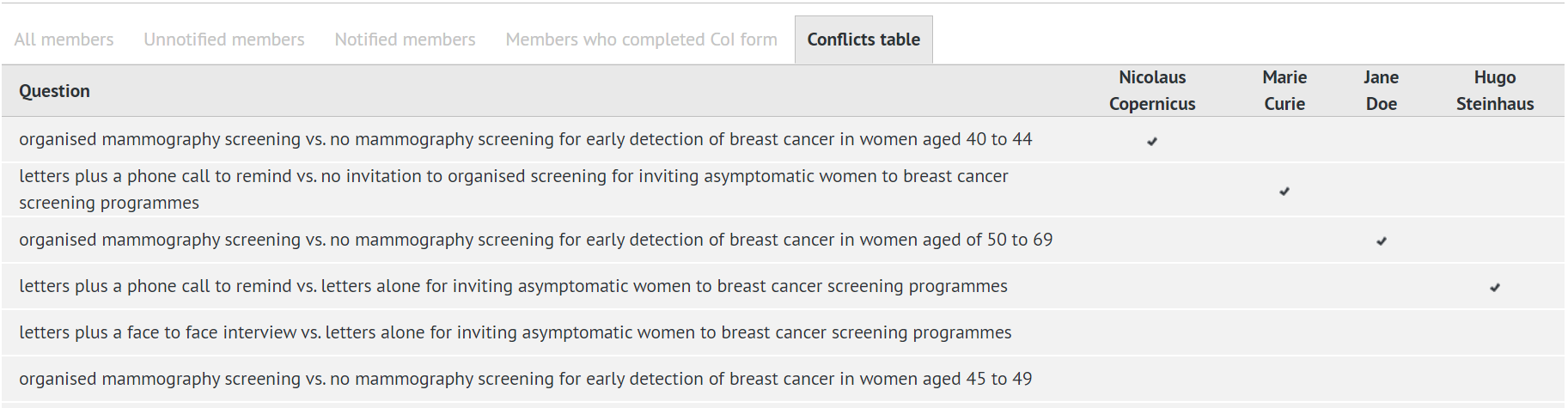
If the box next to the question is ticked, the person will be automatically excluded from the PanelVoice voting when a survey for that question is sent.
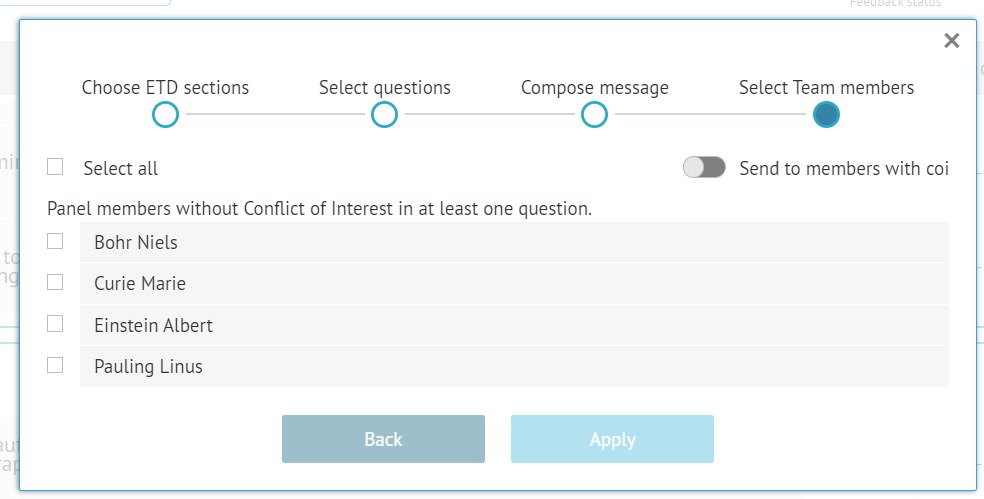
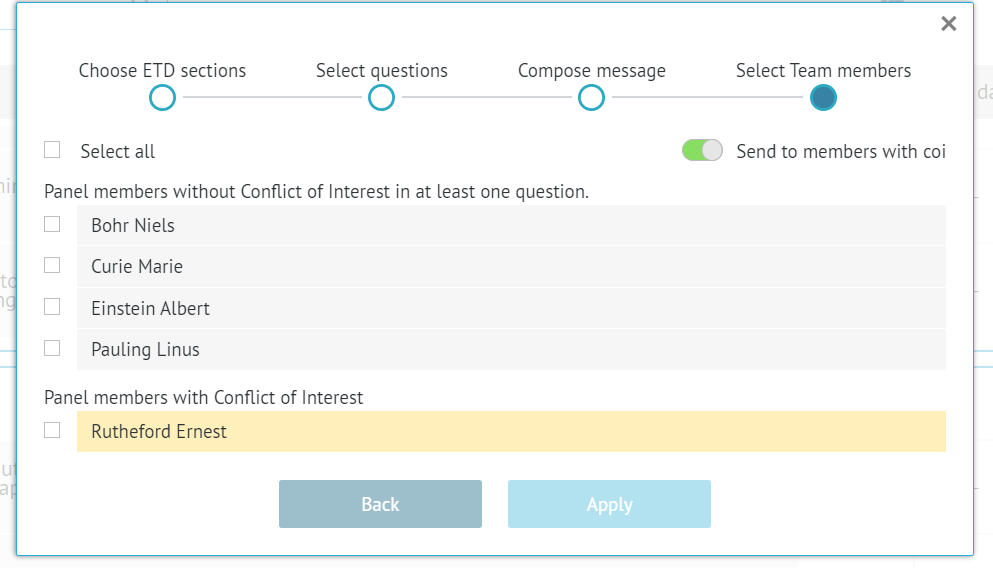
It is still possible then to override this decision and send the survey to that person as well, but it will be recorded in the project history for transparency.
RELATED ARTICLES
Was this article helpful?
That’s Great!
Thank you for your feedback
Sorry! We couldn't be helpful
Thank you for your feedback
Feedback sent
We appreciate your effort and will try to fix the article