TABLE OF CONTENTS
- 1. Creating an account
- 2. Logging in with Cochrane account
- 3. Linking Cochrane account to GRADEpro account from within
- 4. Unlinking Cochrane account from GRADEpro account

1. Creating an account
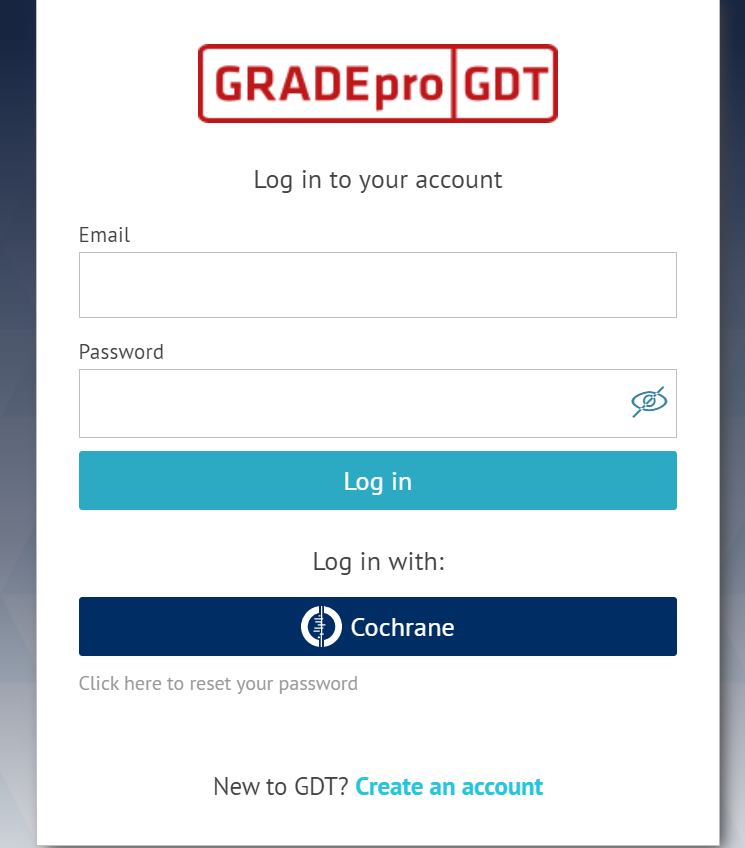
You will be moved to the Cochrane website, where you will be asked to log in: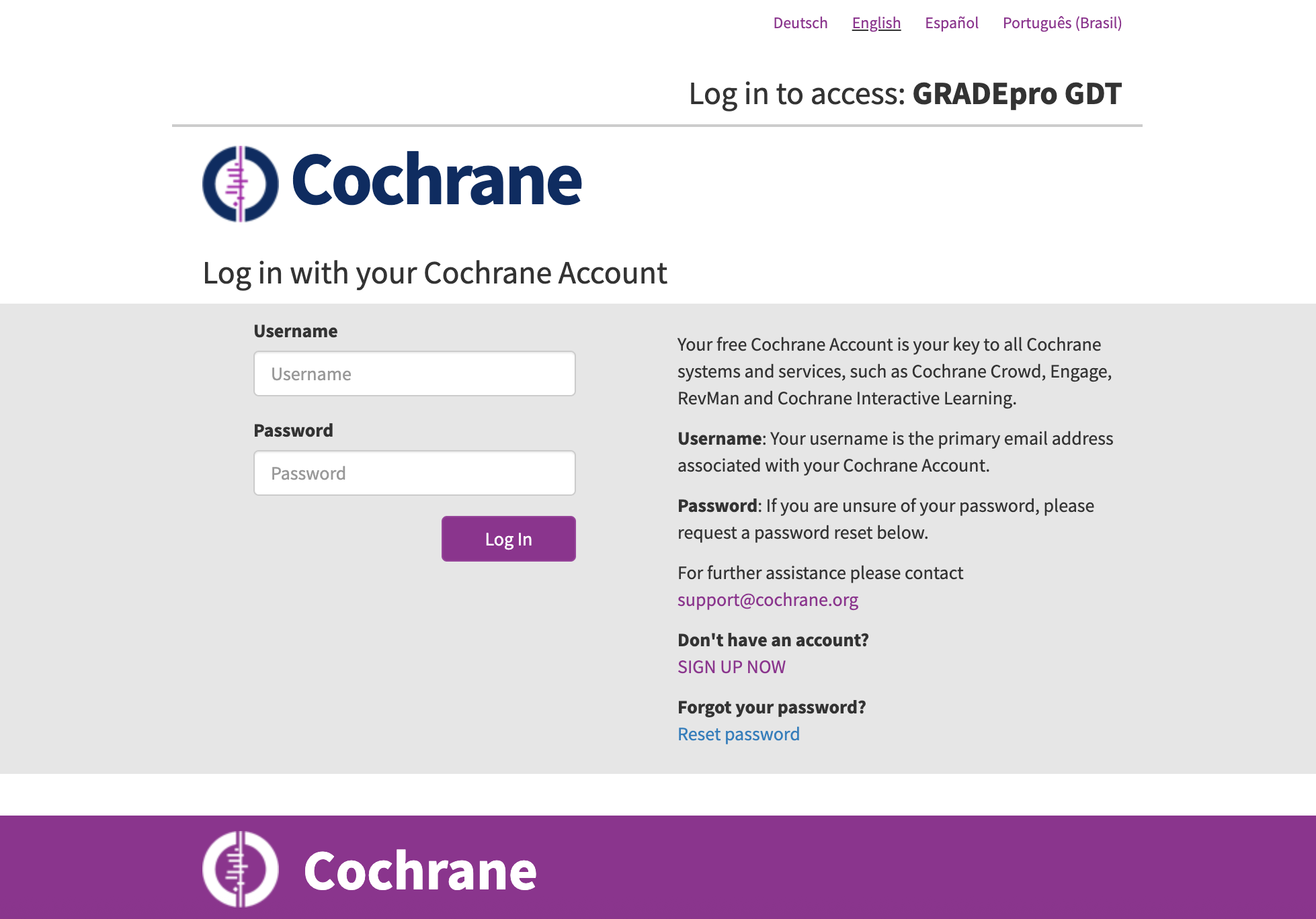
Once you log in, you will be asked to give your consent to GRADEpro accessing your Cochrane data. Without this consent, you will not be able to proceed.
Once you click Accept, you will be moved to GRADEpro, where you will see the following notification:
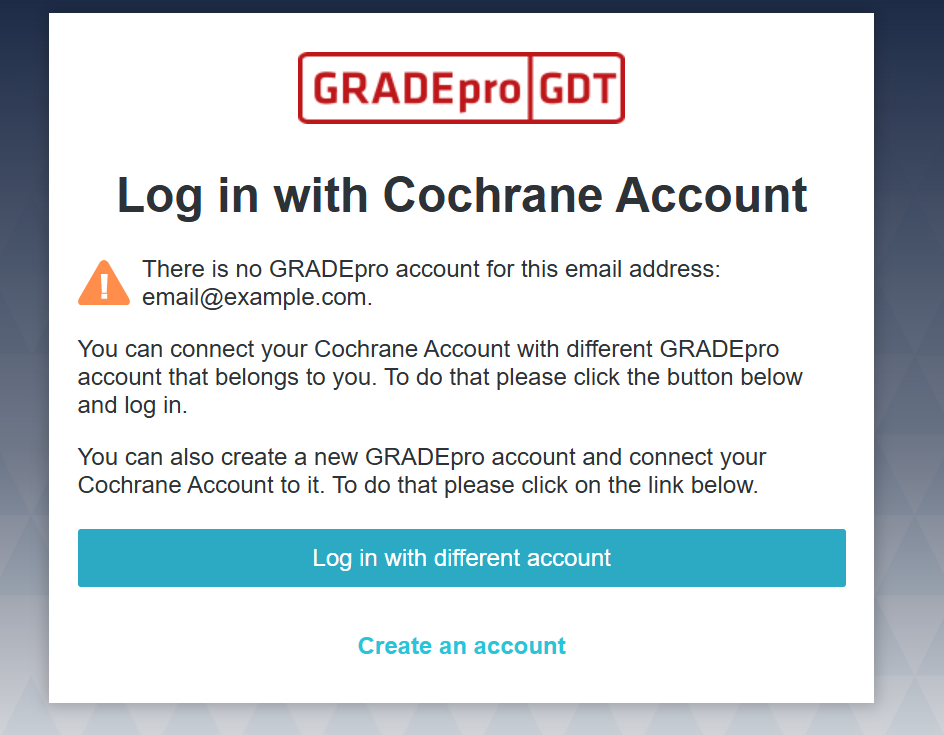 Please choose the Create an account option
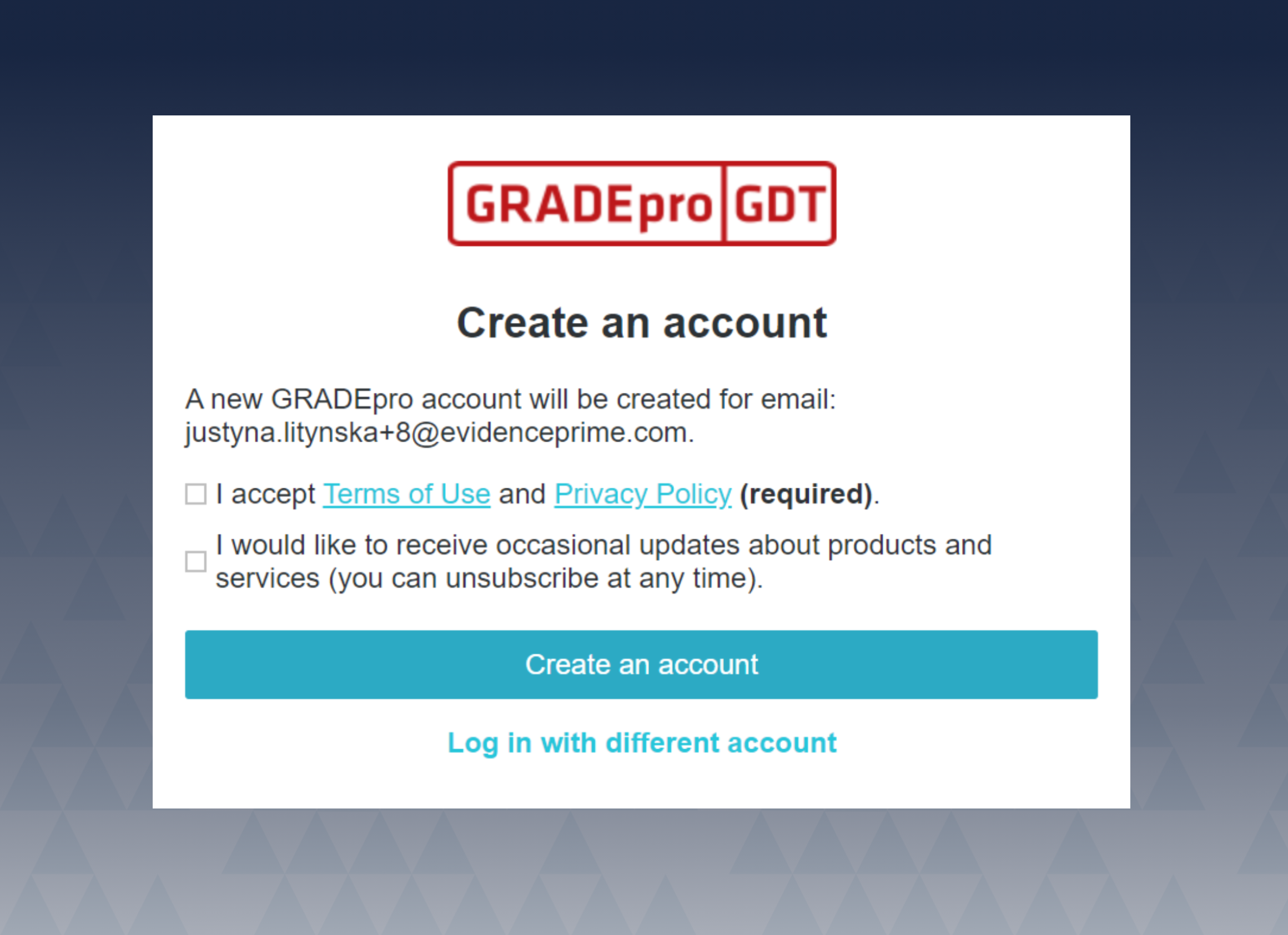
You will be asked to agree to the Terms of Use and Privacy Policy. Once you do, you can proceed further by reconfirming Create an account.
You will find yourself on the GRADEpro home screen:
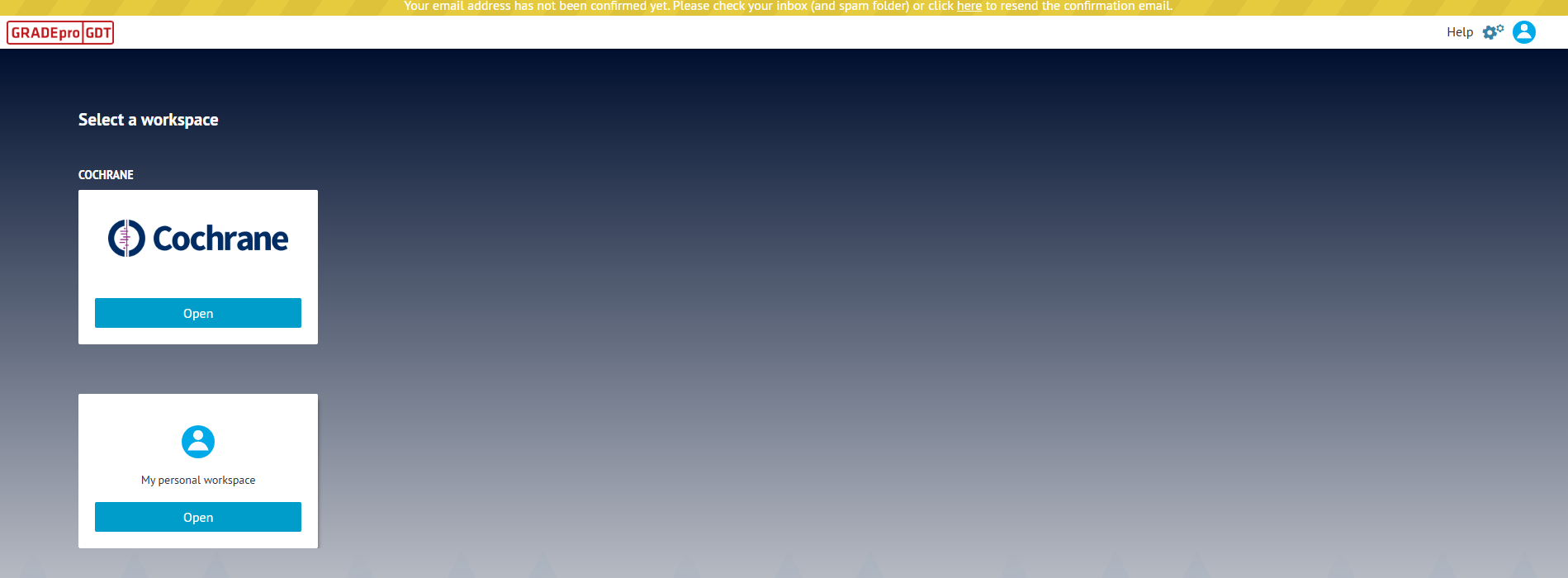
You will have to confirm your email address (an email will come to the email address connected with your Cochrane account).
Also, you will see two workspaces - Cochrane and personal workspace. (Read more about Workspaces)
2. Logging in with Cochrane account
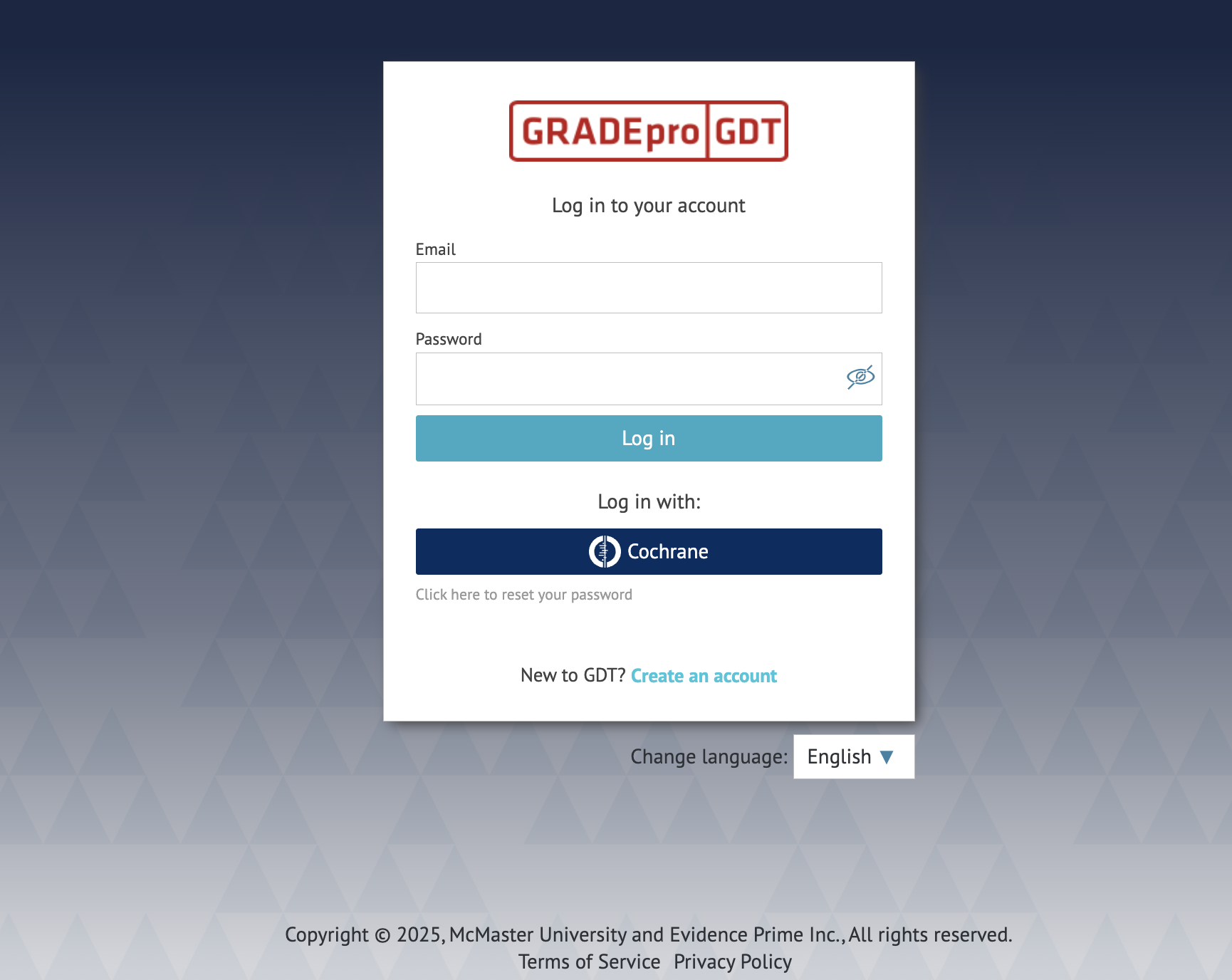
To log in with your Cochrane account, please click on the Cochrane button.
You will be moved to the Cochrane website and asked to log in: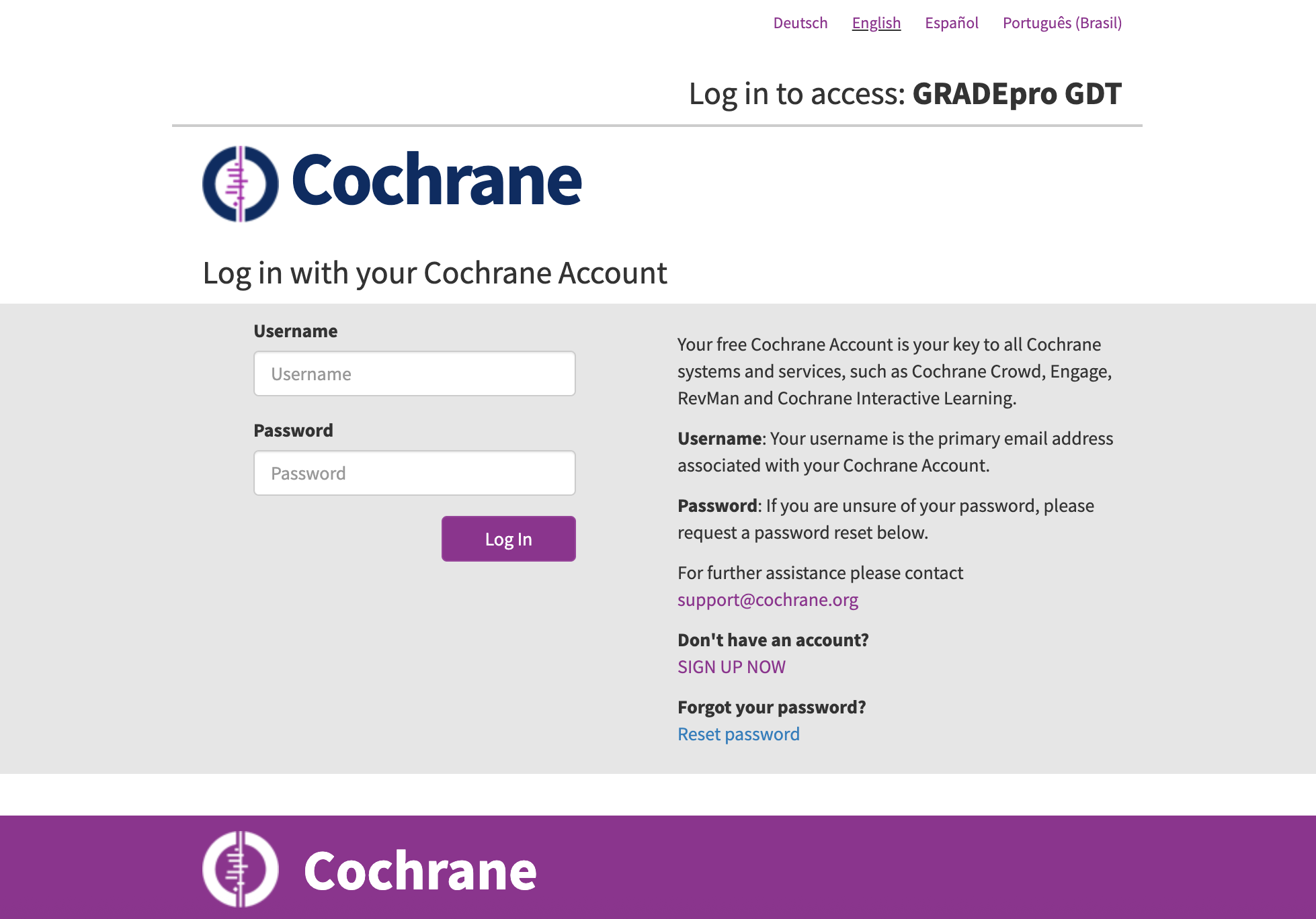
If it’s the first time you try to log in with Cochrane, you will see the below window:
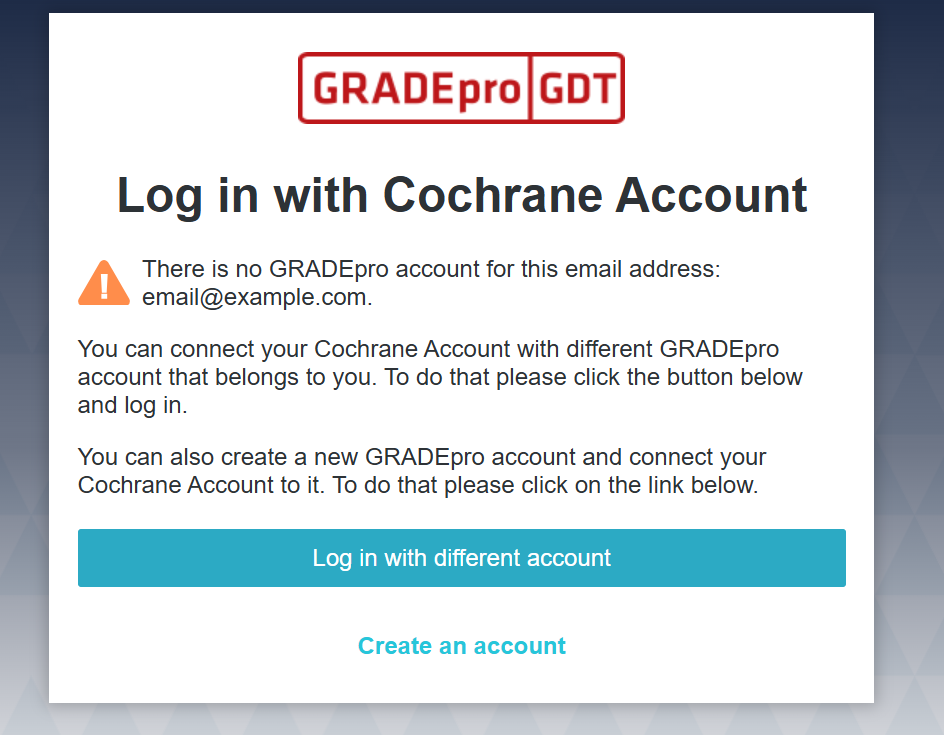 You can either create a GRADEpro account if you don't have one (as described in the first section of this article), or log in with a GRADEpro account if you have one already, thus connecting GRADEpro and Cochrane accounts.
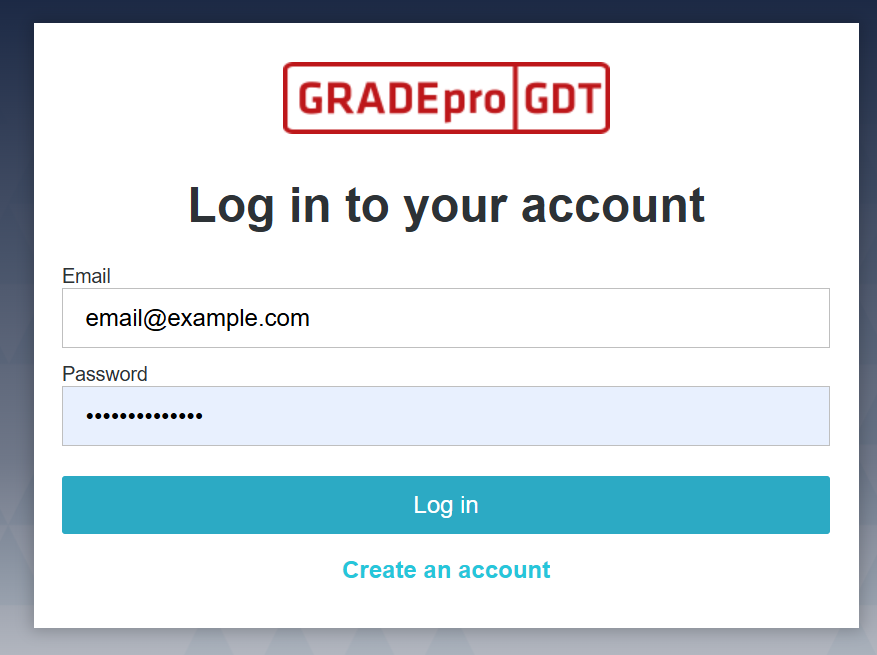 After that, the next time you try to log in with Cochrane, you will be logged in to GRADEpro automatically.
3. Linking Cochrane account to GRADEpro account from within
Your GRADEpro account can also be linked to your Cochrane account while logged in. Then you will be able to log in with your Cochrane account details as well as create GRADE evidence tables from within RevMan Web (provided you're a Cochrane author).
Please note that one Cochrane account can be linked to only one GRADEpro account, and one GRADEpro account can be linked to only one Cochrane account. If you want to change the linked accounts, e.g., link your Cochrane account to a different GRADEpro account than before or link your GRADEpro account to a new Cochrane account, you first have to unlink the previous one, which will also be described.
To link your Cochrane account, you must go to your user menu in the upper right corner of the website.
There you should enter the Account Settings.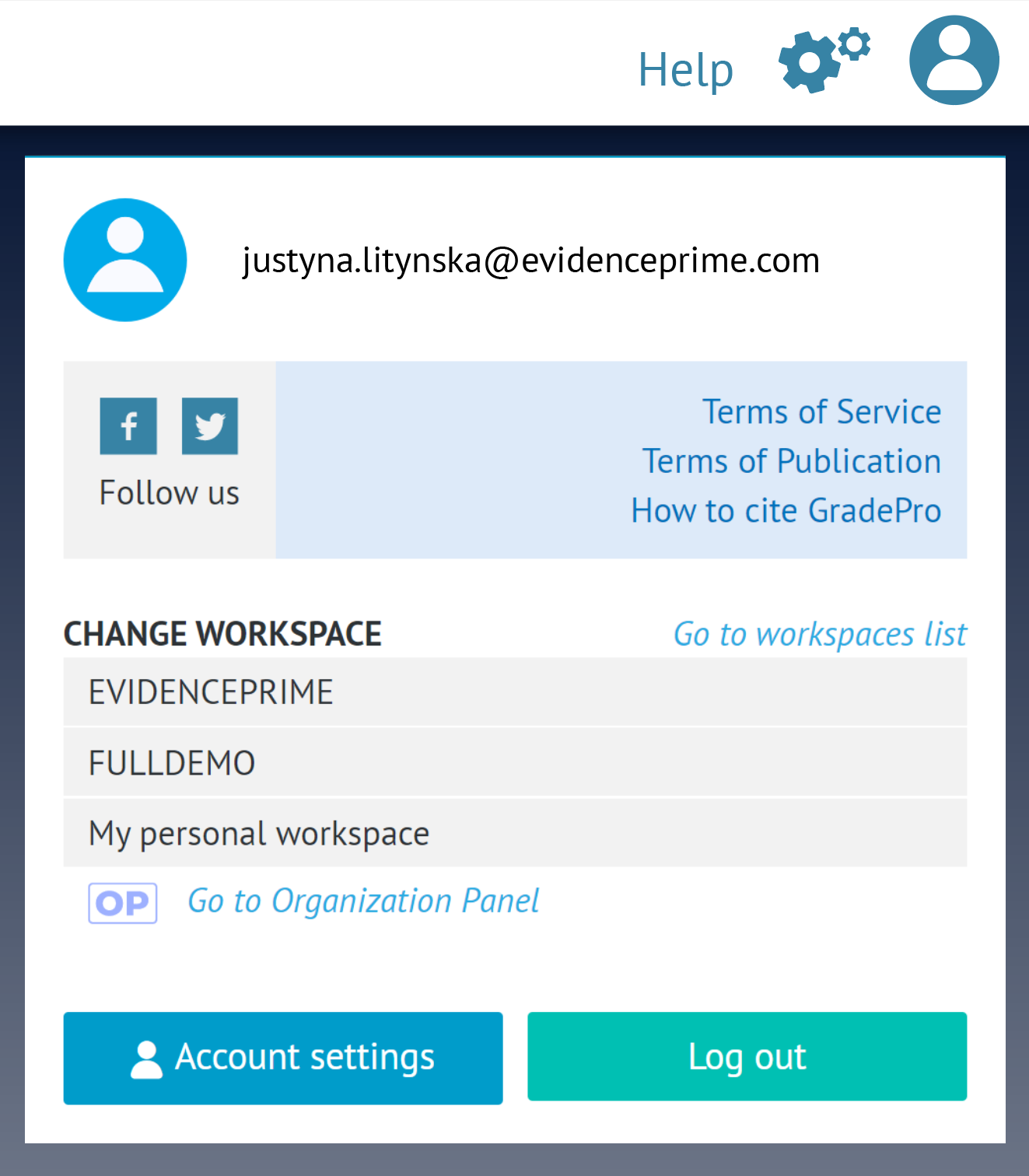 A new window will appear:
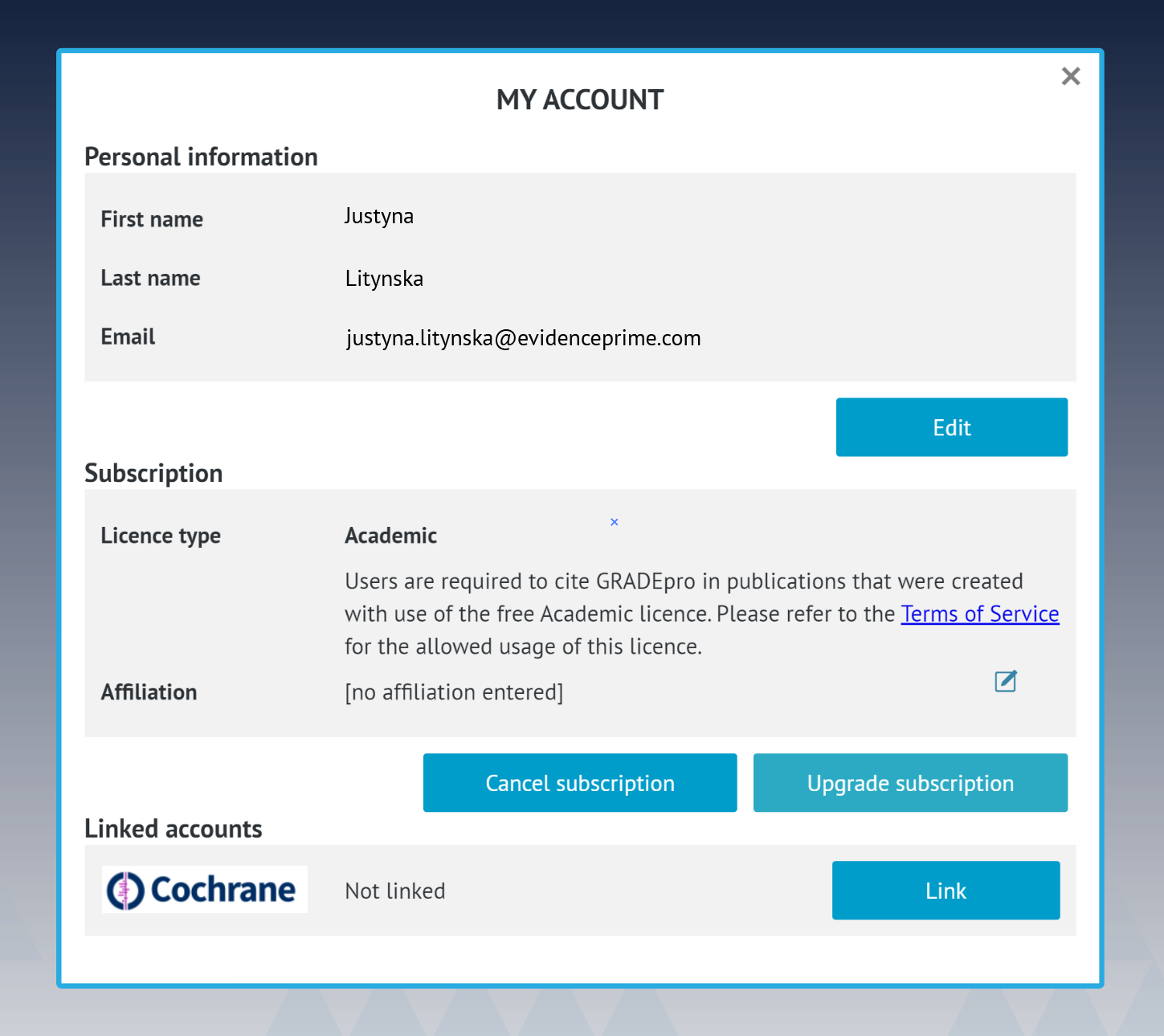 As you can see, the status of Cochrane is Not linked. To proceed, please press Link.
For security reasons, you will be asked to enter your GRADEpro account password.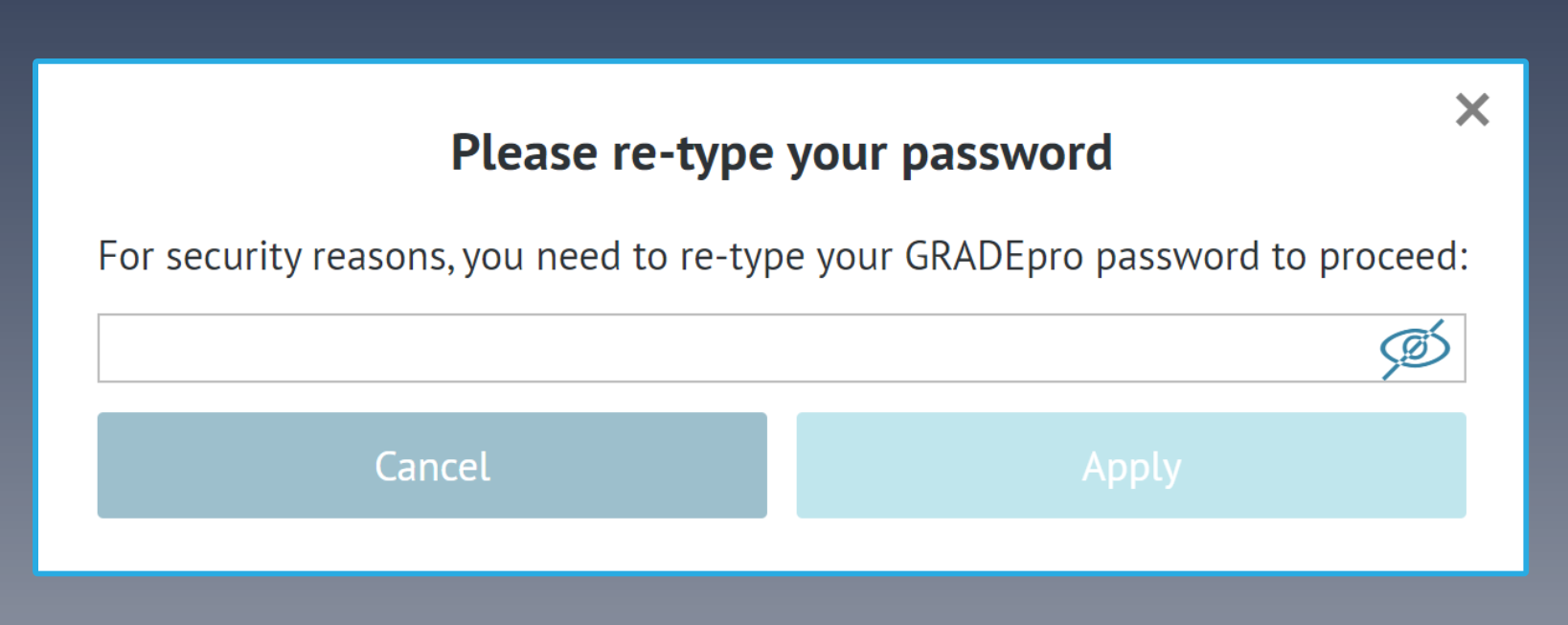 A new window will open with the Cochrane login page.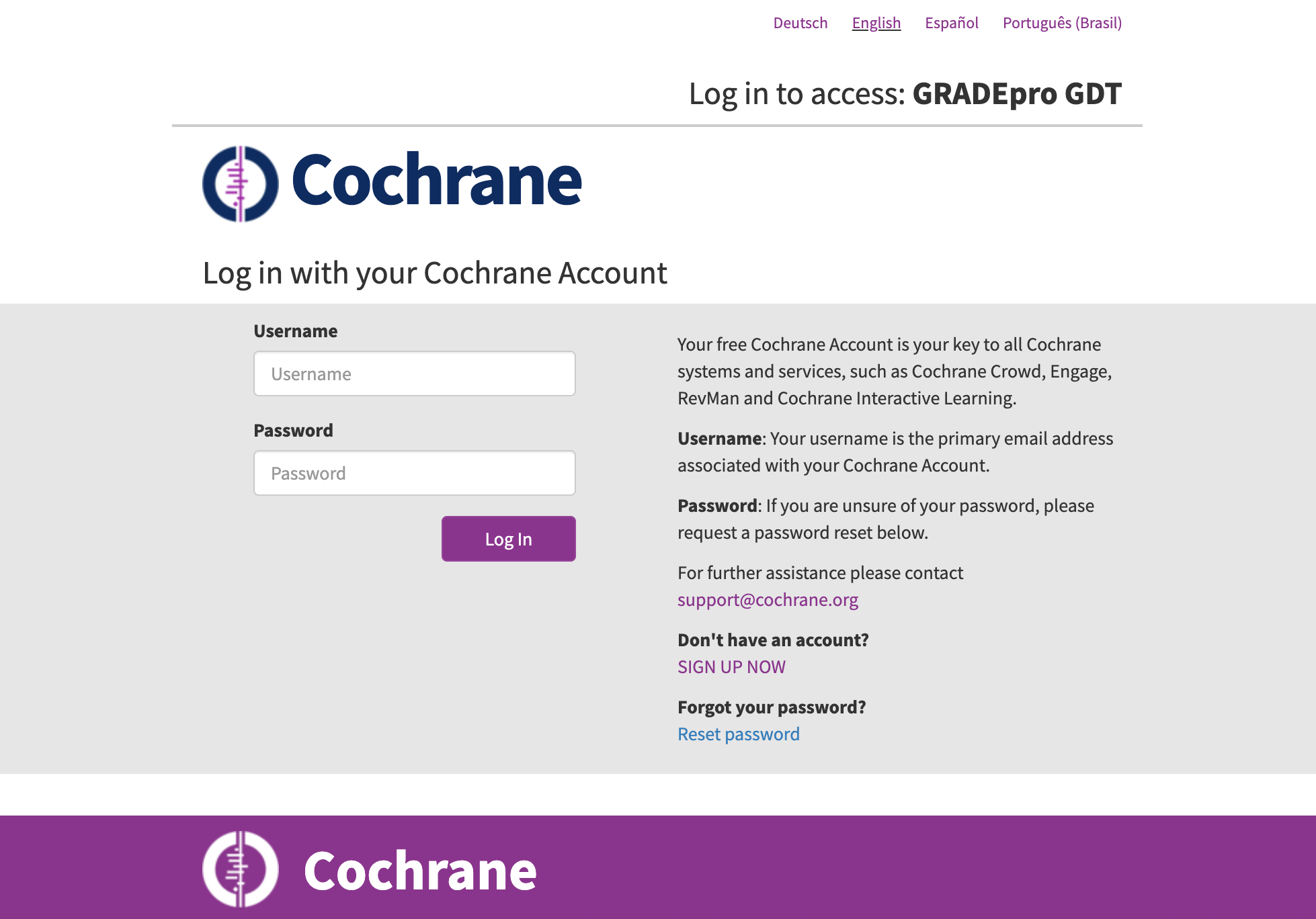
Please log in to the Cochrane account you want to be linked with your GRADEpro account.
Once you log in, the status next to Cochrane should change to Linked and read the email address of your Cochrane account: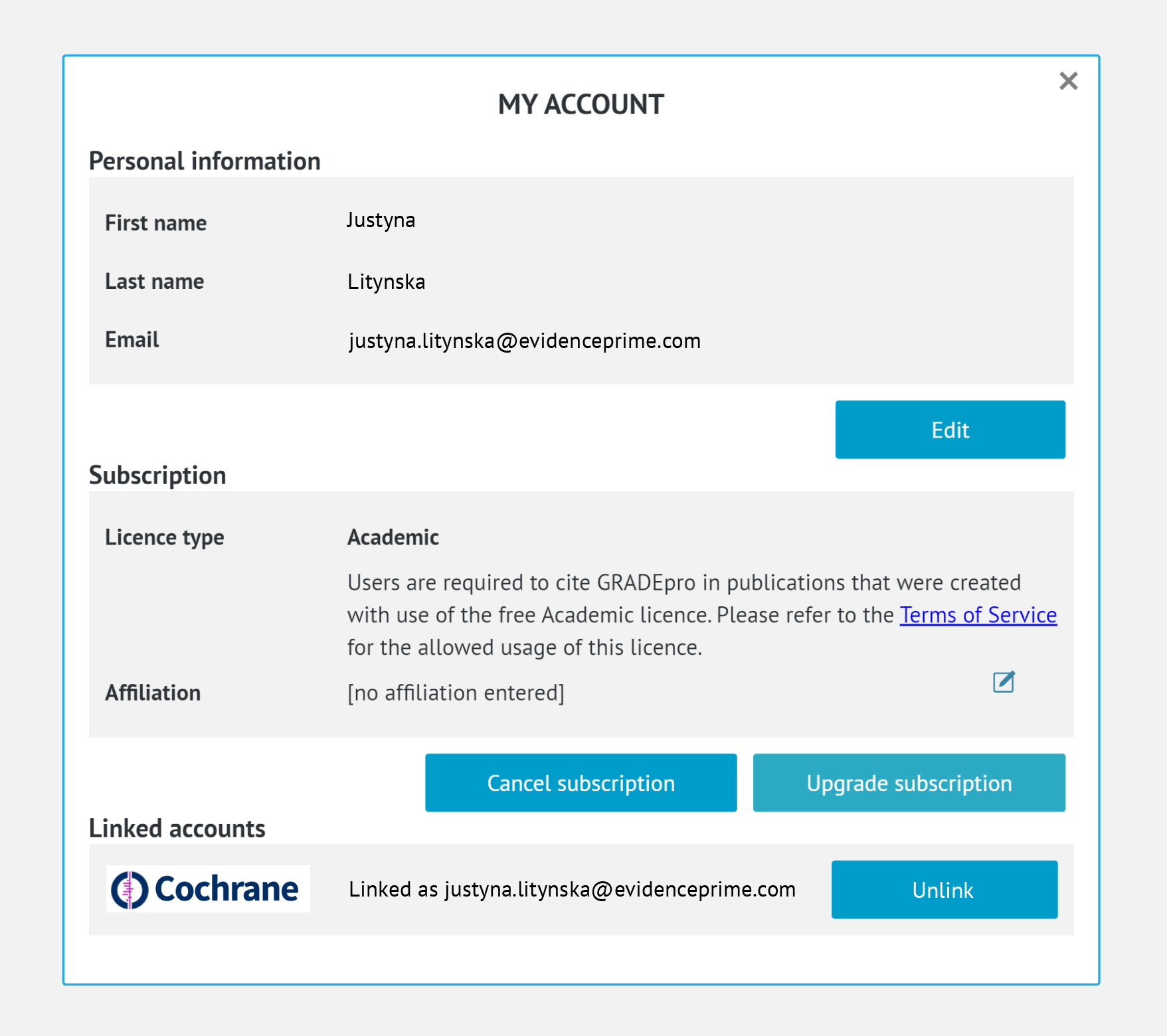 The process is now complete.
4. Unlinking Cochrane account from GRADEpro account
To unlink your Cochrane account, you must go to your user menu in the upper right corner of the website.
There you should enter the Account Settings.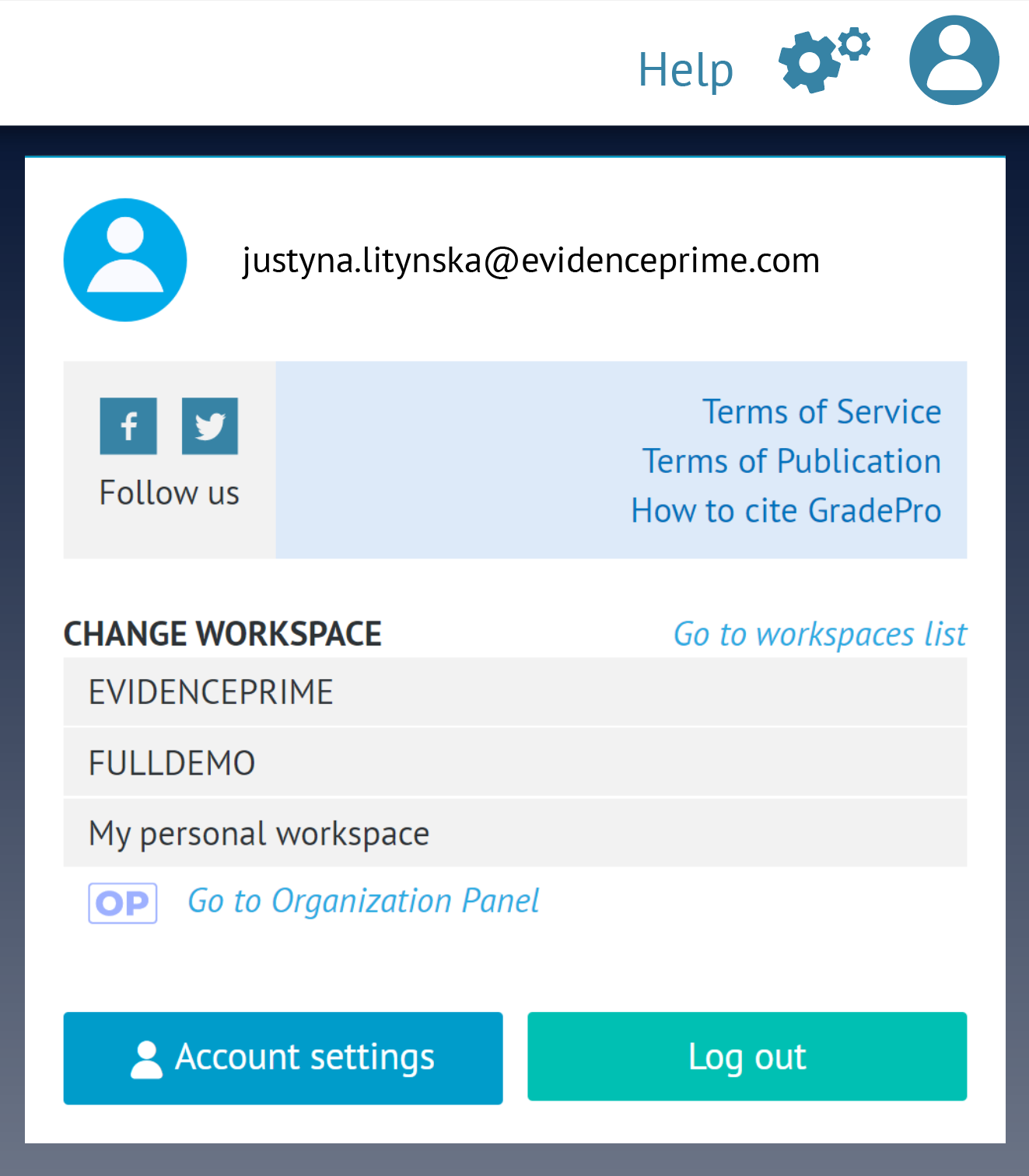 A new window will appear:
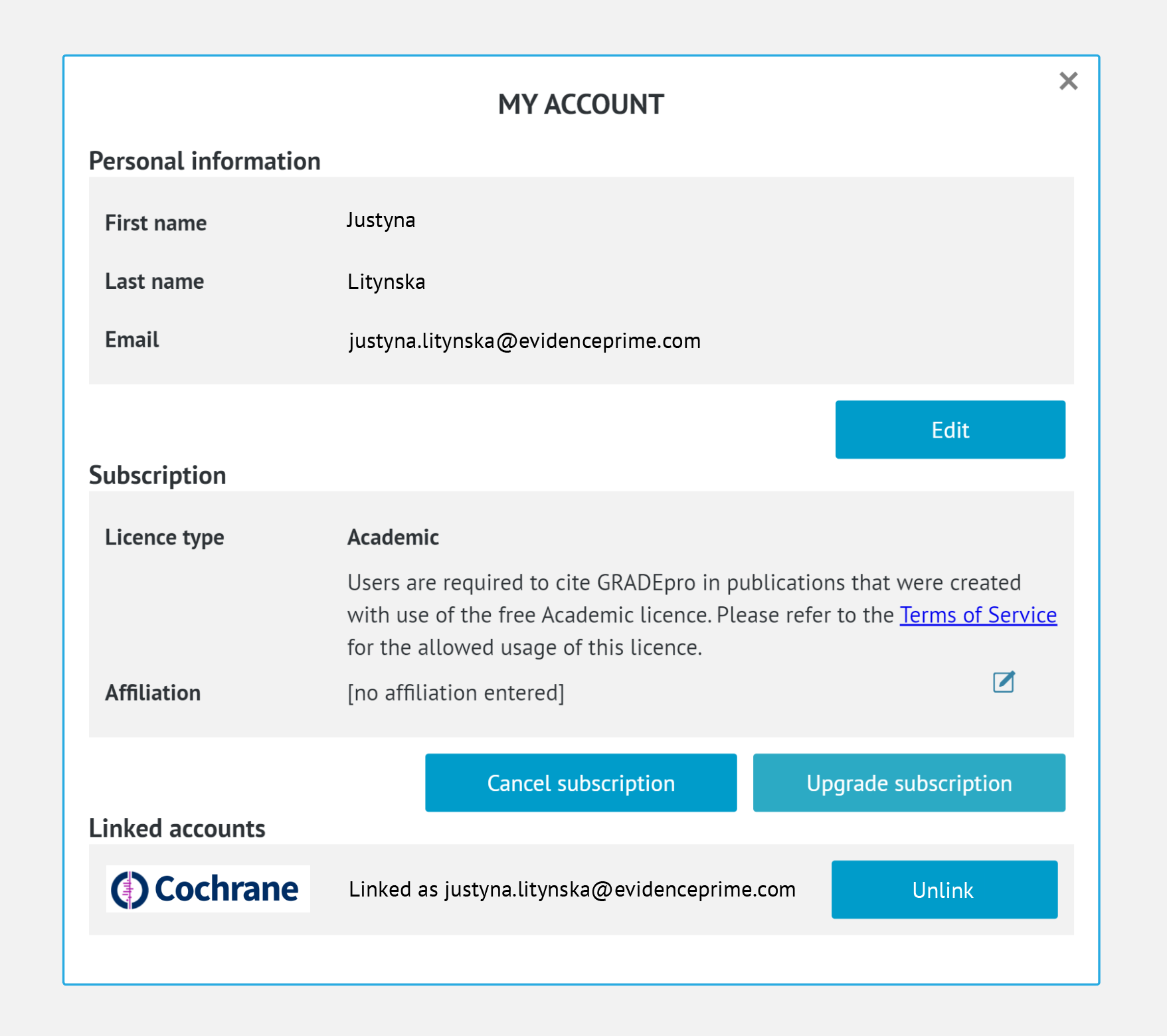 At the bottom of the window, you will see the Cochrane account linked to your GRADEpro account. Please select the Unlink button.
The system will confirm your choice so the account cannot be unlinked accidentally. If you are sure, press Yes.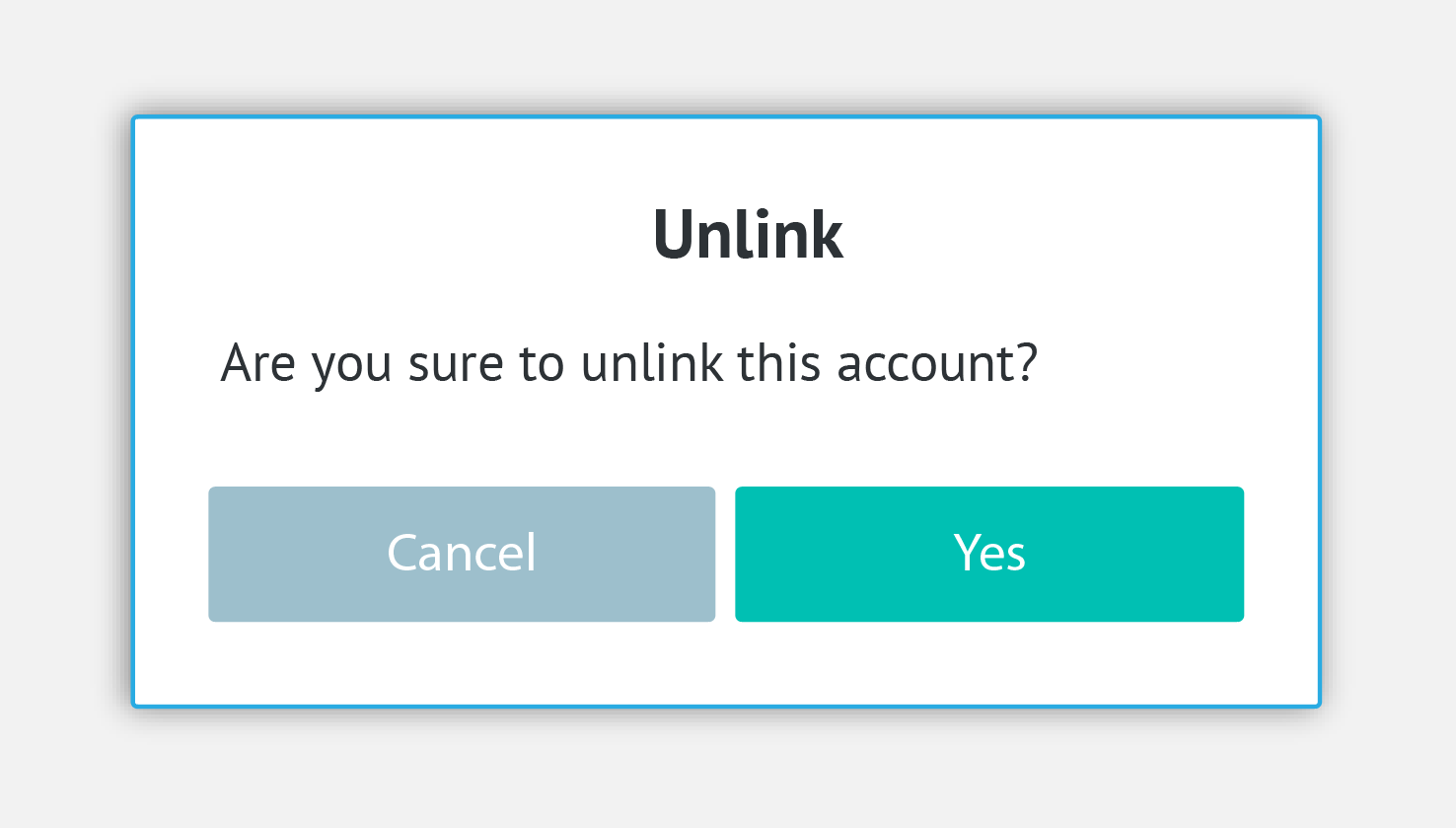 The status next to Cochrane should now be Not linked. The process is complete.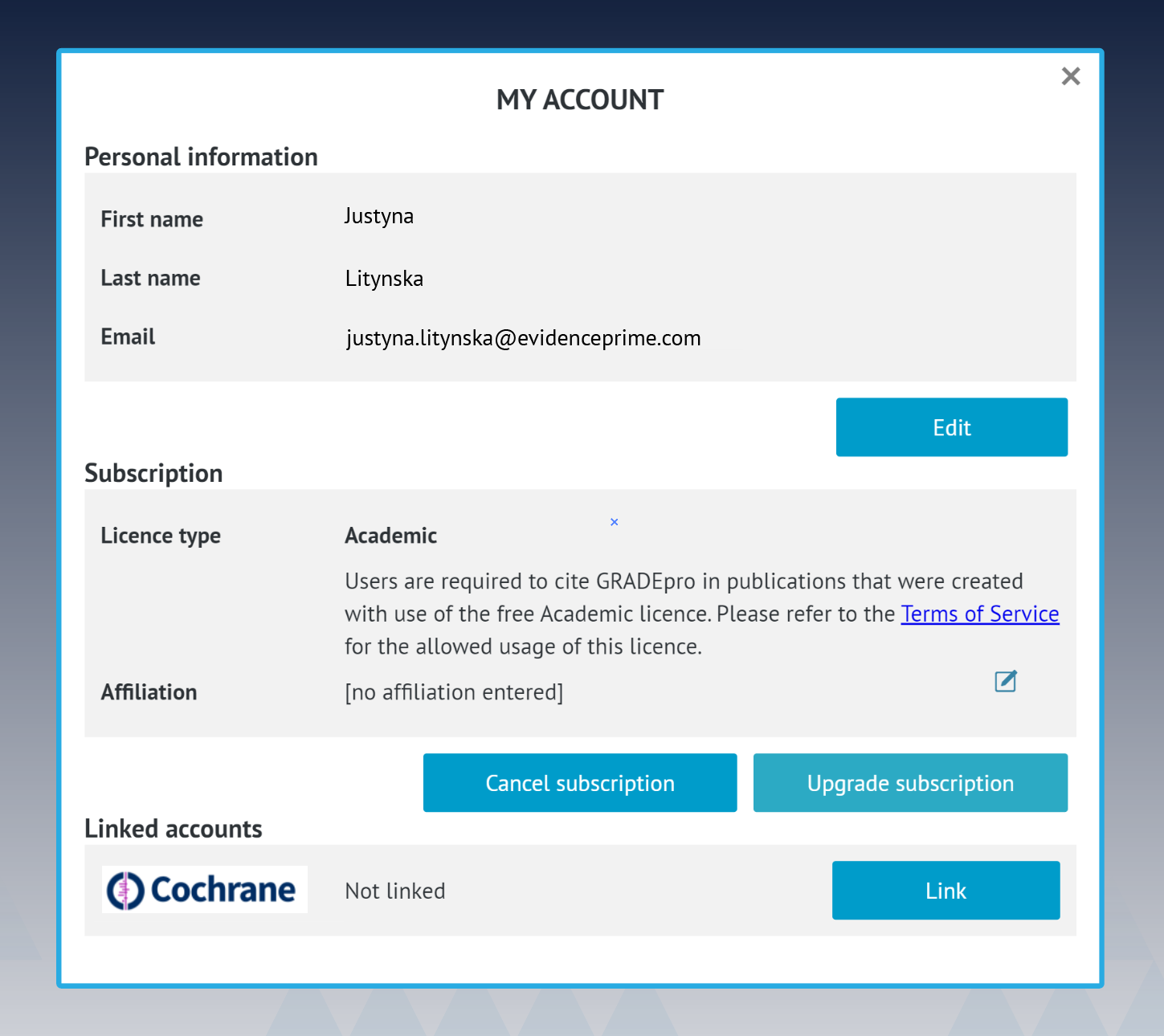
RELATED ARTICLES
Was this article helpful?
That’s Great!
Thank you for your feedback
Sorry! We couldn't be helpful
Thank you for your feedback
Feedback sent
We appreciate your effort and will try to fix the article