TABLE OF CONTENTS

1. Creating a guideline document
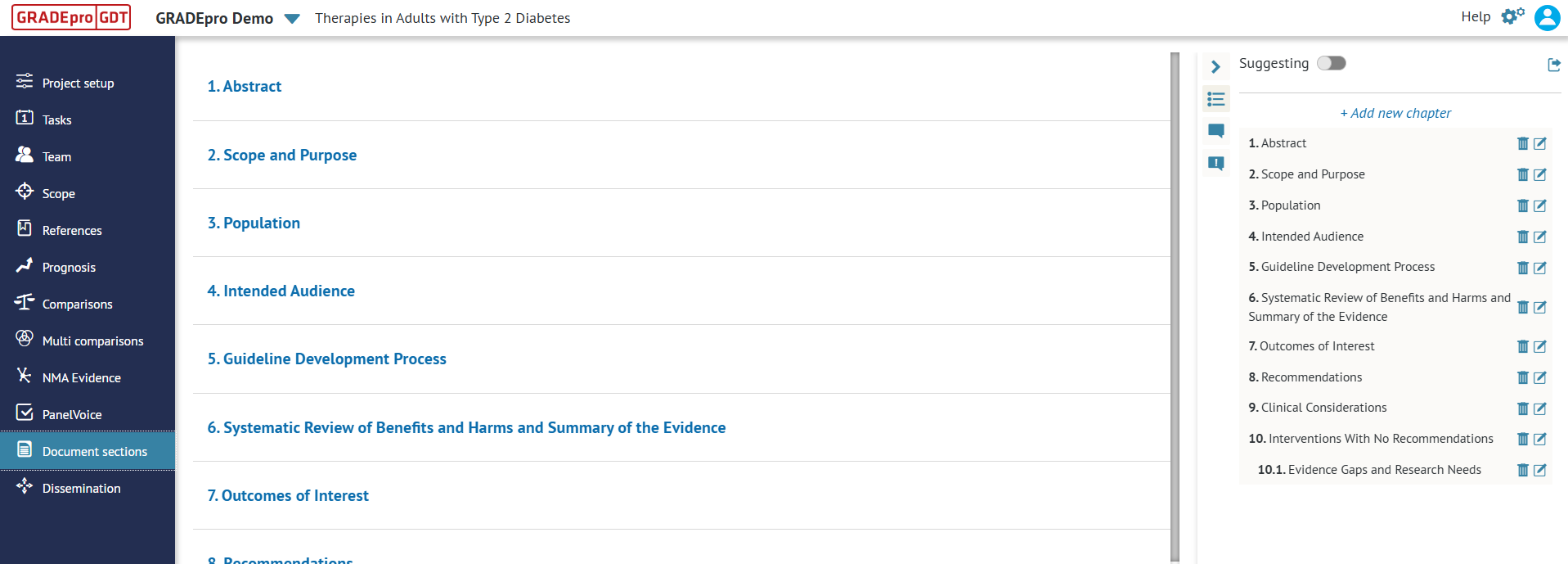
You can create a guideline document in the Document sections module.
1.1 Adding chapters
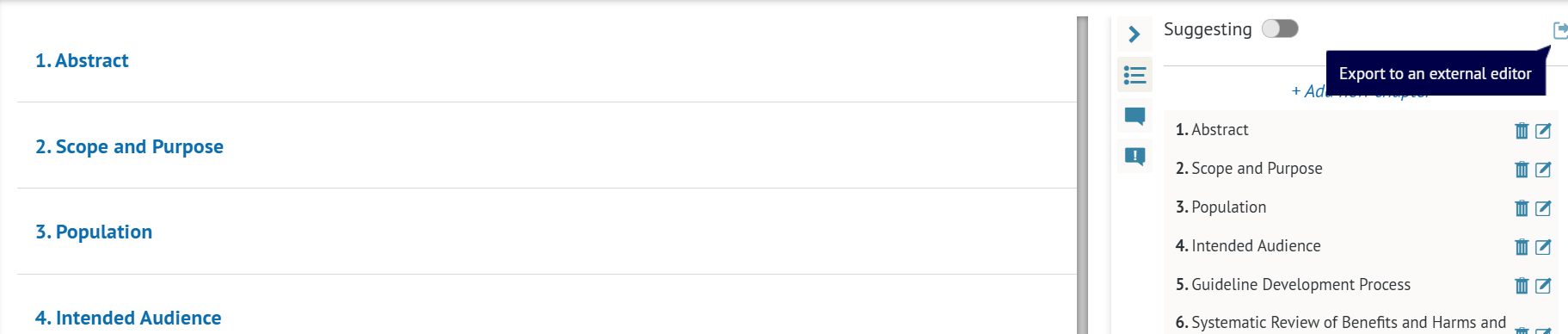
Chapters (and subchapters) are the basic structural unit of the GRADEpro guideline document. They help you keep the document organised and, upon publication, make up the table of contents. Chapters can be added in the panel on the right hand side by using the Add new chapter option.
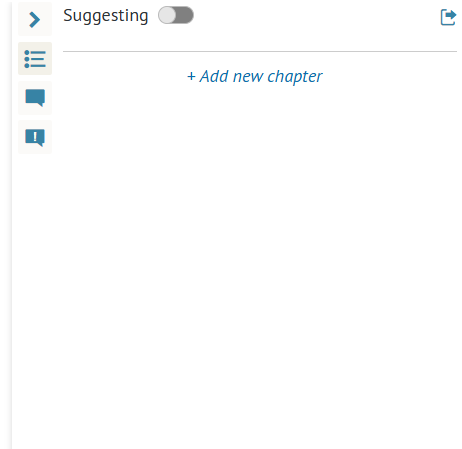
You will need to provide the chapter title and its URL. URL will be used if you decide to publish the document using a publication platform delivered by GRADEpro Team. The URL is generated automatically when you type in chapter title
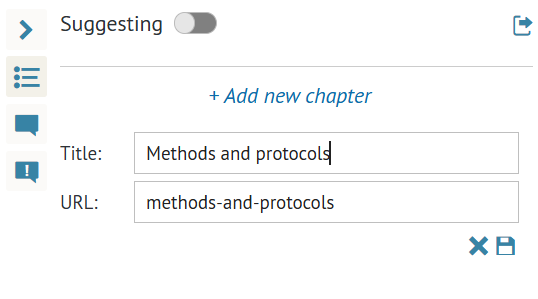
If you choose to edit the chapter title later on, URL will not change unless you edit it manually. The only allowed characters are letters, numbers, and dashes, otherwise the final link won't work properly.
Once you save, the chapter will appear in the document and on the chapters list. A new chapter will always be added at the bottom of the list. You can edit chapter names or delete existing chapters using icons on the right hand side of the chapter name on the chapters list.

1.2 Embedding chapters
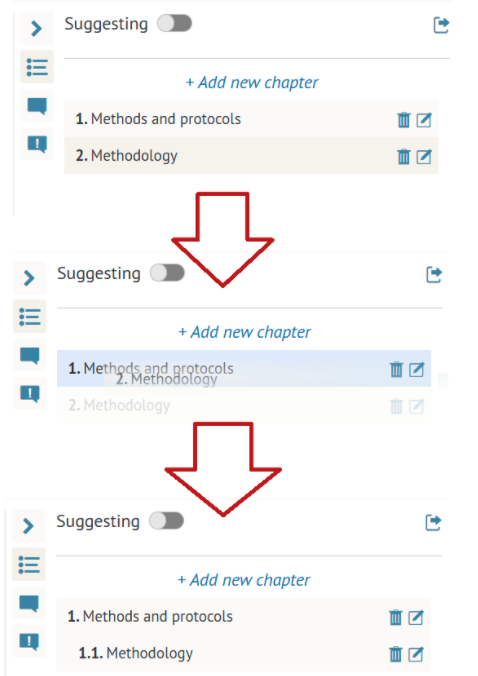
You can embed chapters to create subchapters by dragging and dropping. You can embed chapters on as many levels as needed.
1.3 Adding text fields
Chapters are created as empty by default. You can add textfields too them using the Add new text field option.
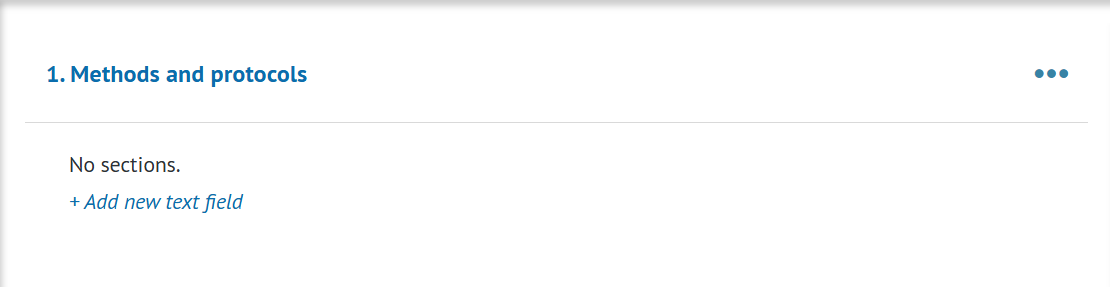
You can also add further text fields using the option available through the three-dot-menu.
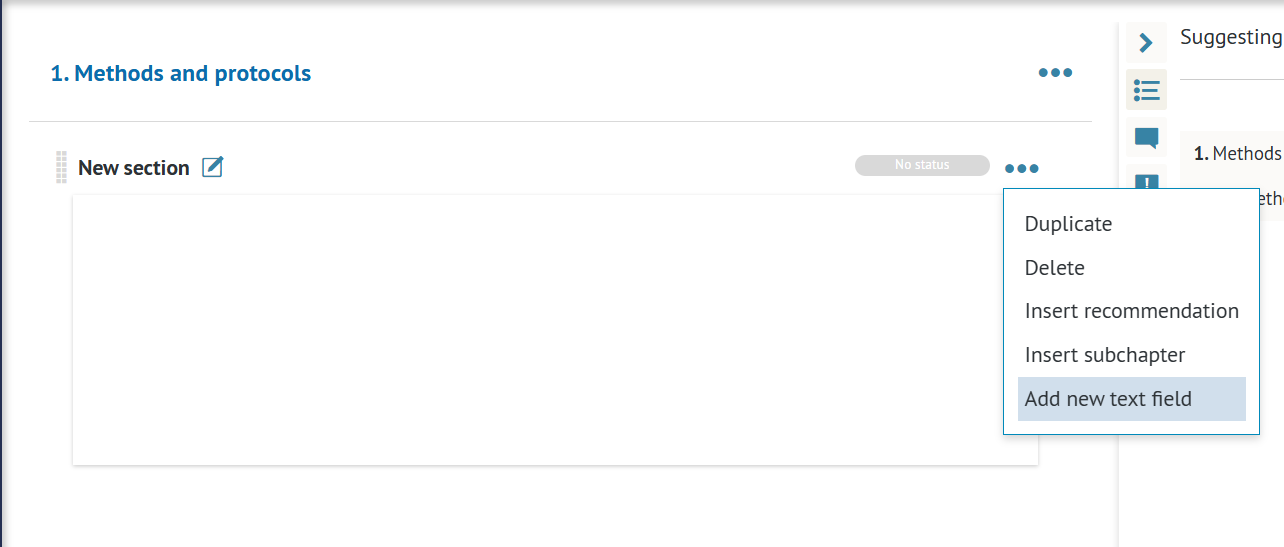
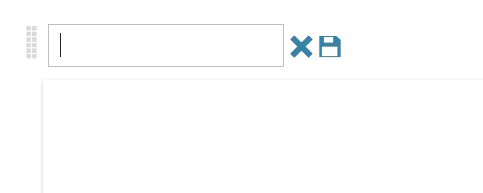
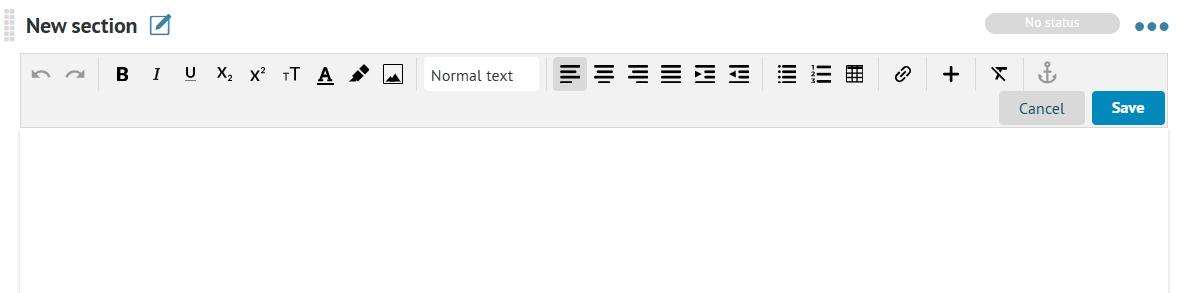
Any new text field is automatically titled "New section". You can edit that title as needed, including saving an empty title if the text field is the only one in the chapter and no additional title is needed.
There is no limit on the number of text fields in a chapter. Text fields are not listed on the chapters list nor in the table of contents after publication.
1.4 Inserting recommendations
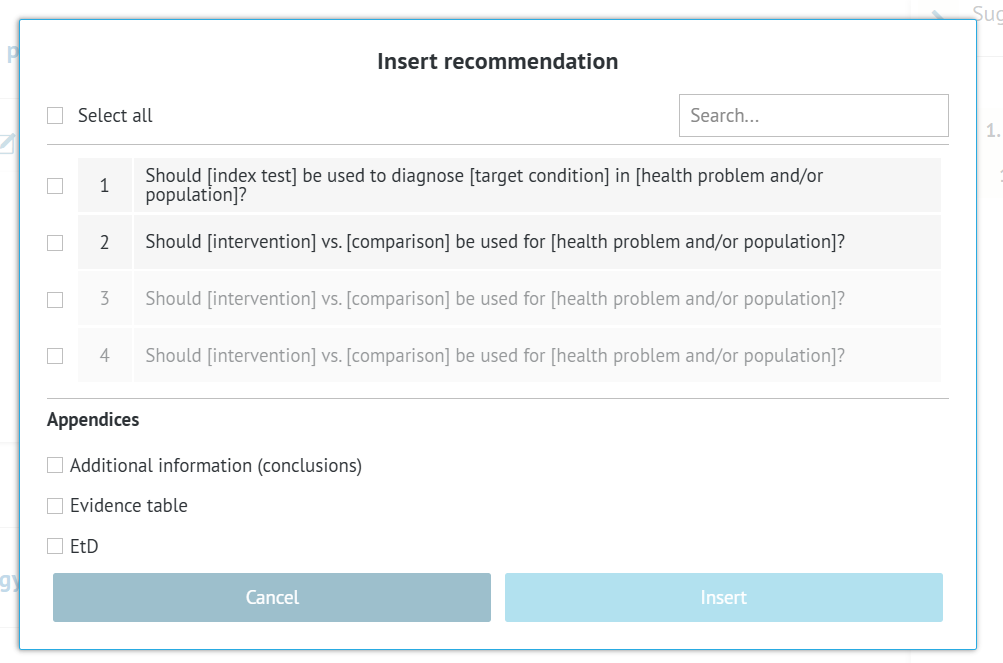
If you created a recommendation in an Evidence to Decision table, it can be embedded in the guideline document using an option available through the three-dot-menu.
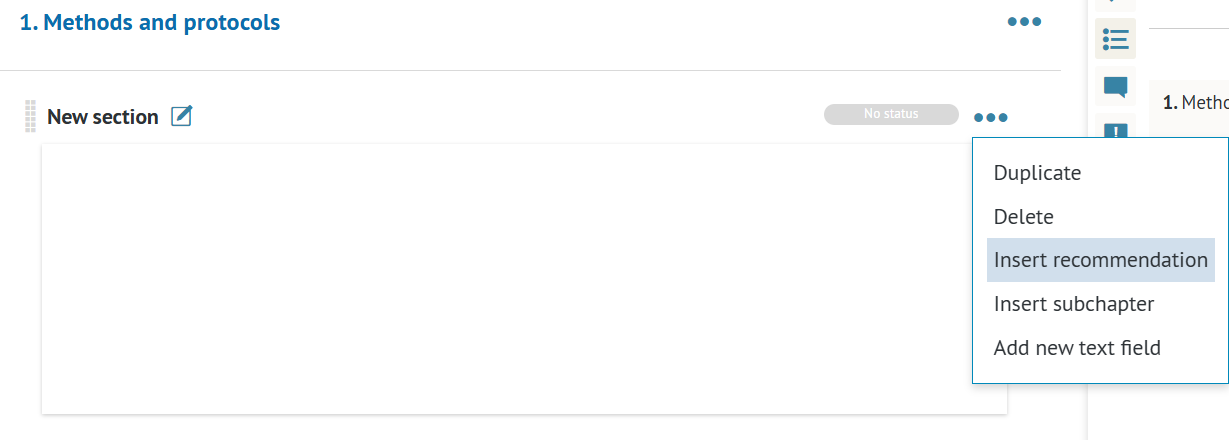
You will see the list of all questions in the project. Those which are greyed out don't contain a recommendation and thus they cannot be added. You have the option to attach Conclusions part of the EtD, the evidence (SoF) table and the entire EtD (those attachments will only be available in the online version of the guideline document).
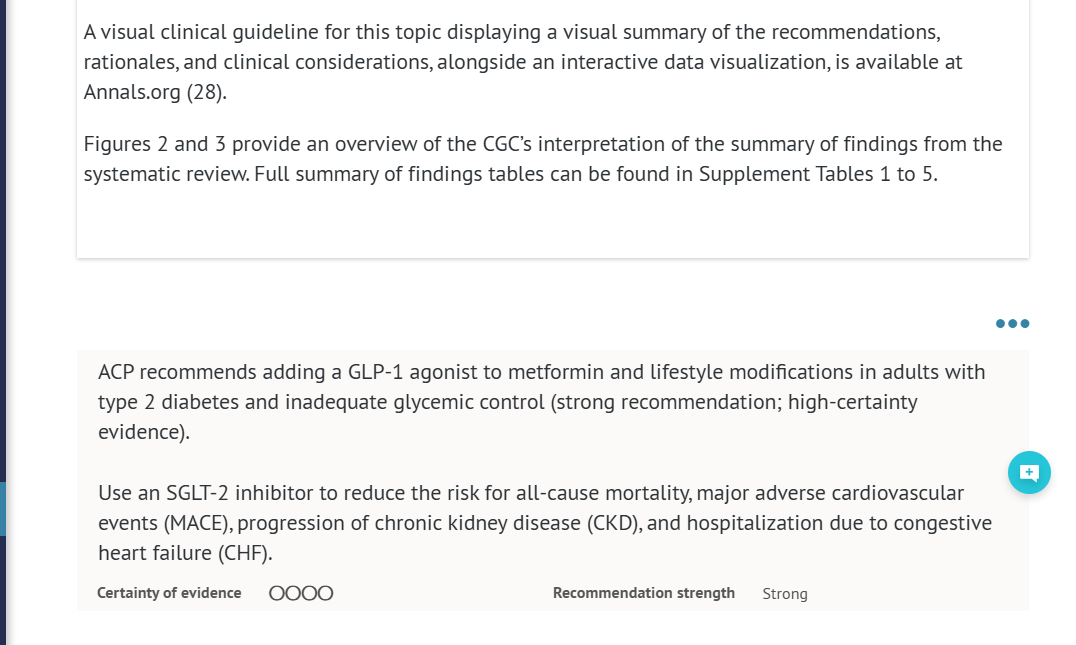
In the editor itself and in the Word export the recommendation will be available as a text field, which contains the text of recommendation, the Certainty of Evidence and the recommendation strength.
1.5 Text editor
In each text field a robust text editor is available, which allows you to format text in various ways.
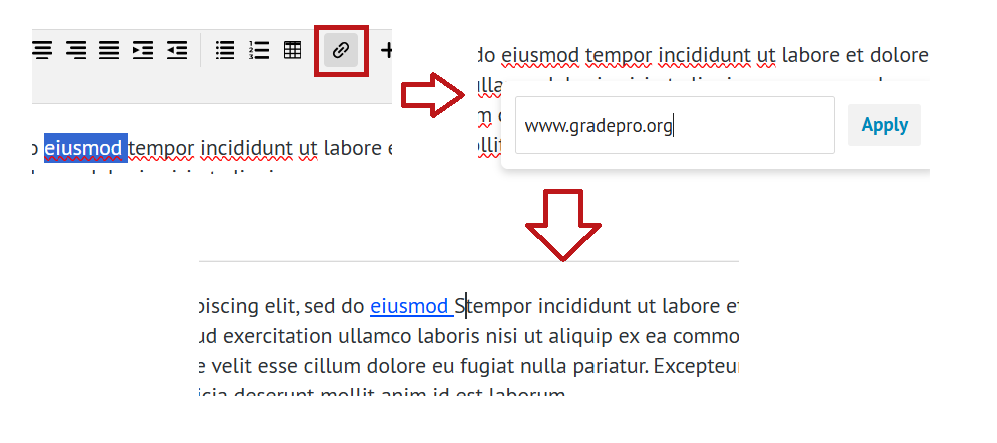
 The options include adding an external link to highlighed text,
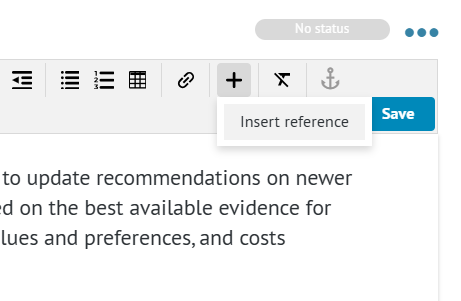
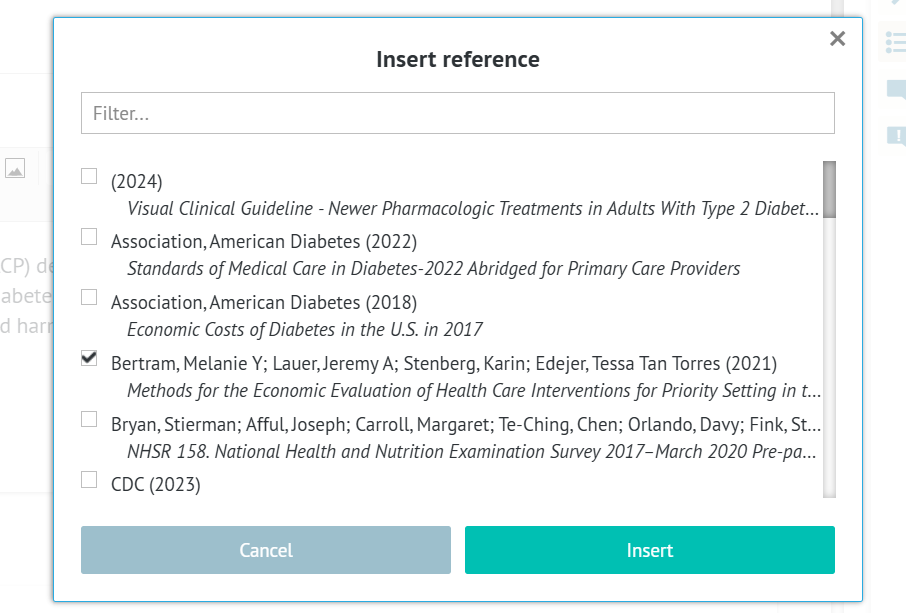
Inserting a reference from the project's references repository,

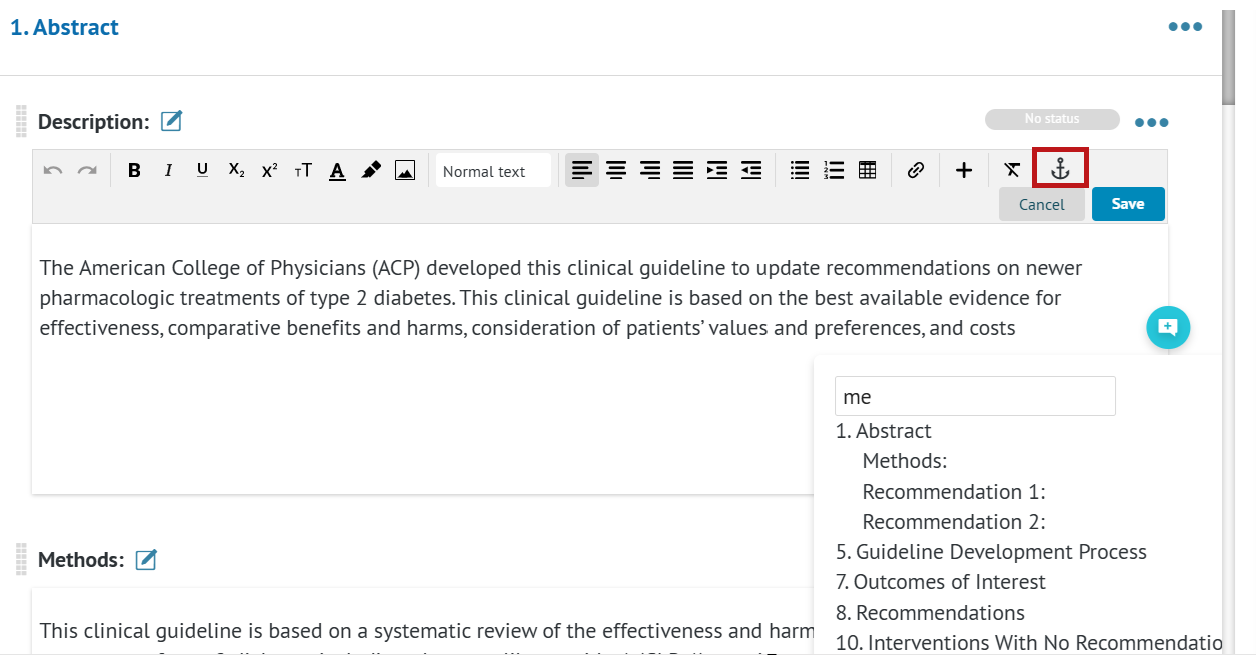
and linking to another chapter, subchapter, or a section of the document.
2. Collaborative editing of a guideline document
GRADEpro guideline document editor was created to facilitate collaborative document editing, in order to avoid sending multiple versions of a file via email. Instead, multiple project members can access and edit document together.
2.1 Guideline document editing permissions
To reflect different roles in a project, different access rights can be set in the Team section of the project in order to control the extent to which project members can edit the document.
Note: Anyone who needs to access the document in any way must have a GRADEpro account, and in cases of paid subcriptions needs to be a member of the organisation workspace.
2.1.1 Admin and Researcher
Users with Admin or Researcher rights can freely access and edit the document.
2.1.2 Editor-in-chief
An Editor in Chief can also edit the document freely. While their changes don't need to be accepted, they are marked with highlighting in order to keep track of them.
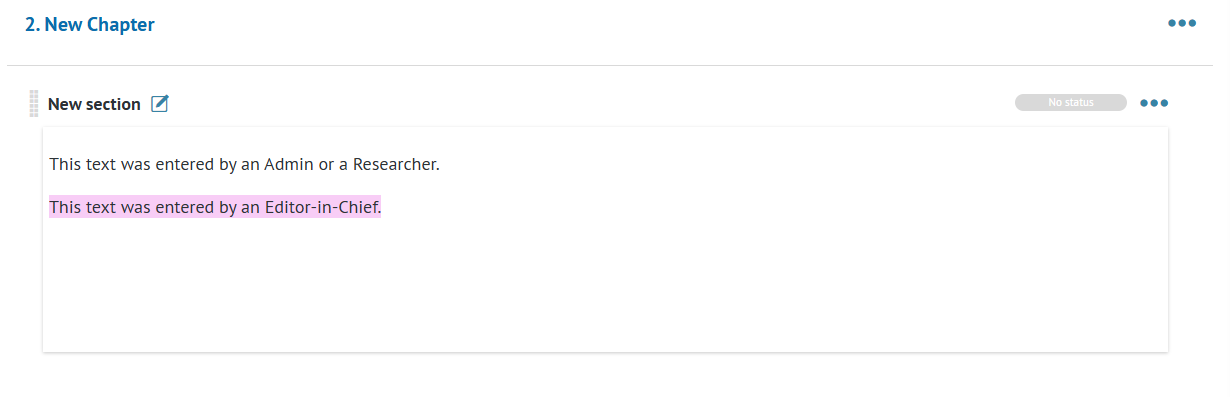 The highlighting can then be easily removed using the three-dot-menu next to the chapter.
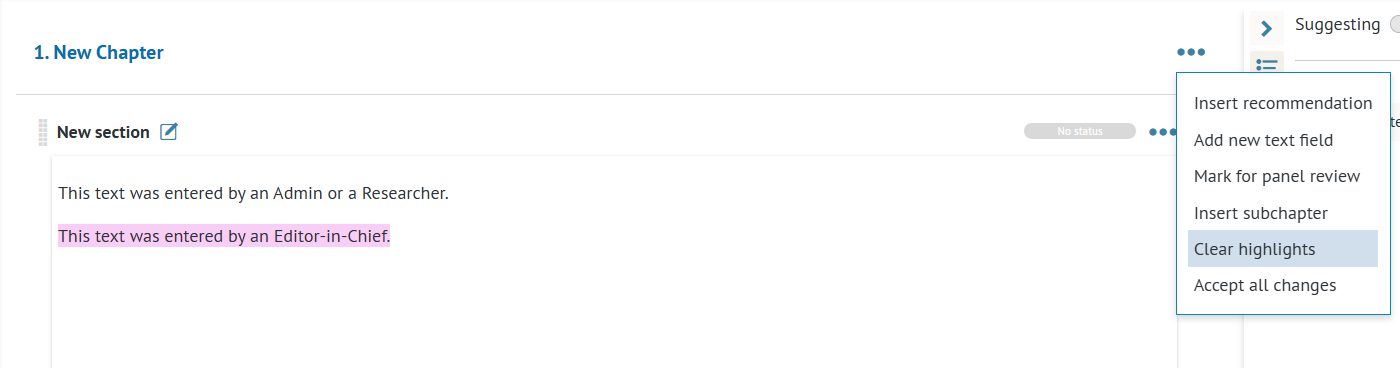
Note: Editor-in-Chief is a custom permission that needs to be enabled on demand by the GRADEpro Team.2.1.3 Panel Reviewer
A panel reviewer can only edit the document in suggestion mode. All their suggestions must be accepted by an Admin, Researcher or an Editor-in-Chief.
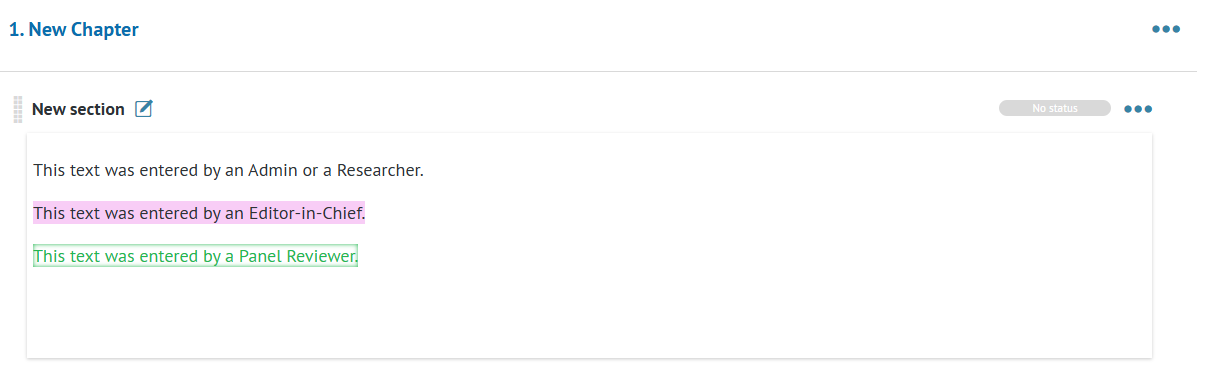
Note: Panel Reviewer is a custom permission that needs to be enabled on demand by the GRADEpro Team.2.2 Commenting
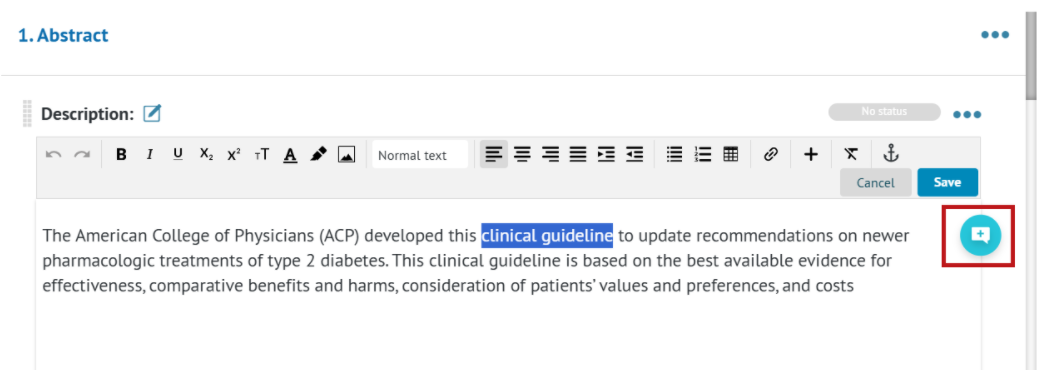
Any text in the guideline document can be marked and then commented using the icon on the right hand side.
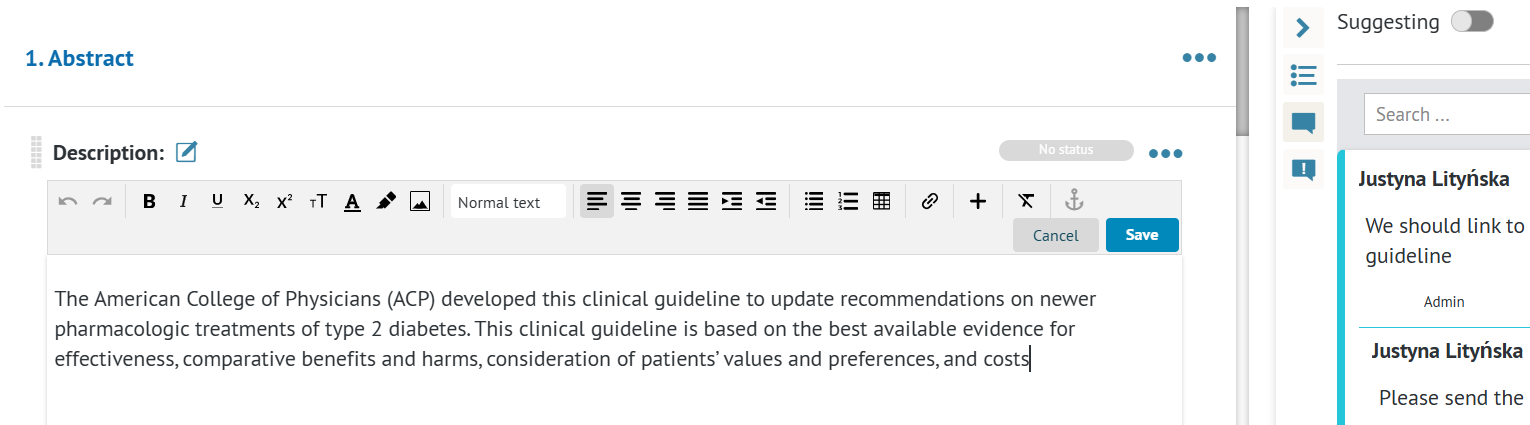
Comments are available in the same side panel as the chapters list, upon clicking on the comment icon there. When you click on the comment, it is made more prominent, and the section it refers to is scrolled to and highlighted. Comments
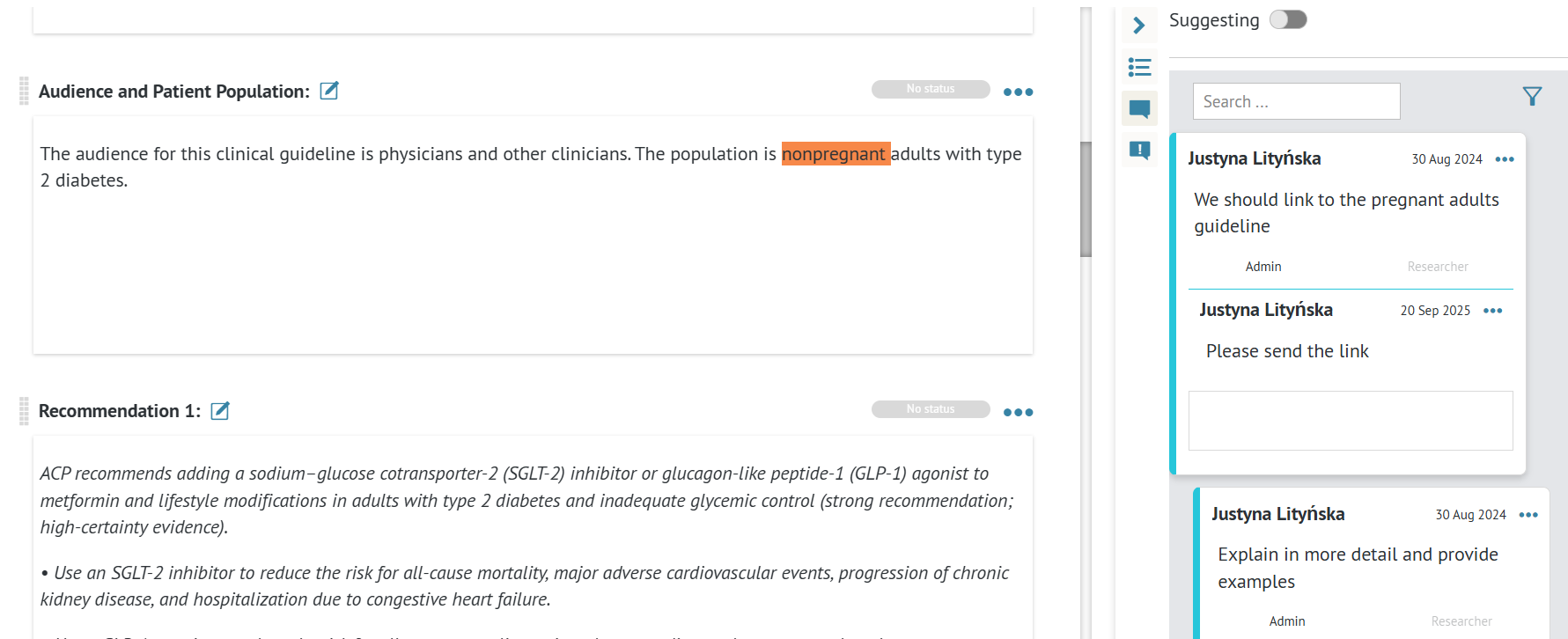
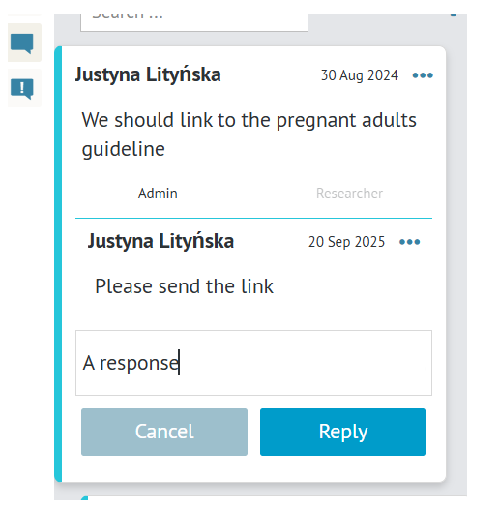
Comments allow for discussion and responding. Comment author is always listed, together with the date the comment was posted.
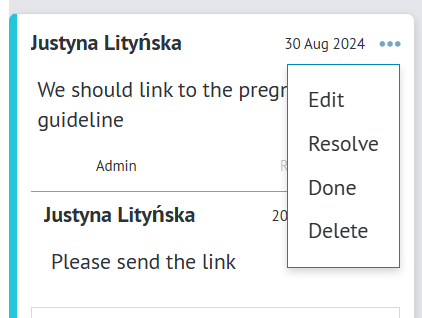
Comments can be edited, marked as resolved, or deleted using the three-dot-menu.
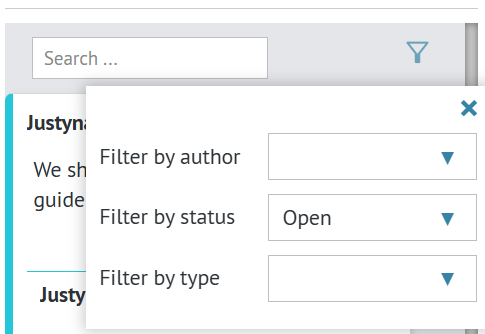
It is also possible to search for comments or filter them by author, status, and type (the project role they are addressed for).
2.2.1 Role-based commenting
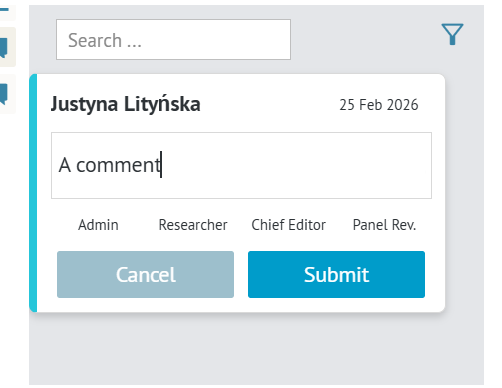
To prevent an overload of information, it is possible to select the recipients of the comment by selecting roles at the bottom of the comment window. The highlighted roles will be able to see the comment. By default Admins see all the comments. It is also possible to define custom settings, e.g. any Panel Reviewer comment is by design directed at Editor-in-chief.
2.3 Suggestion mode
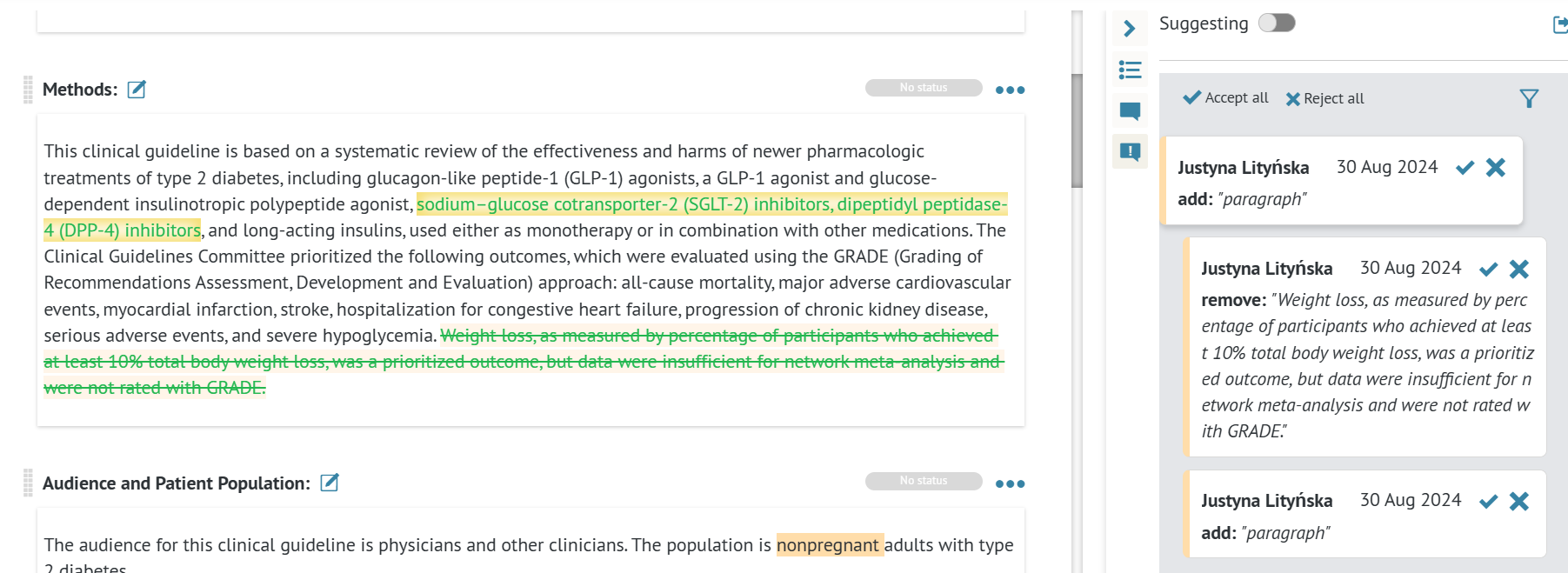
While Suggestion mode is enforced for Panel Reviewers, any project member can enable it during editing the document, for example if they are not yet sure of the changes implemented.
Similarly to comments, all the suggestions are available in the side panel, with their authors and timestamps provided. They can be accepted or rejected, either in bulk or one by one. They can also be filtered by author.
3. Publication
The guideline document can be published in three ways:
3.1 Exporting a Word document
The guideline document can be exported to Word (.docx) file.
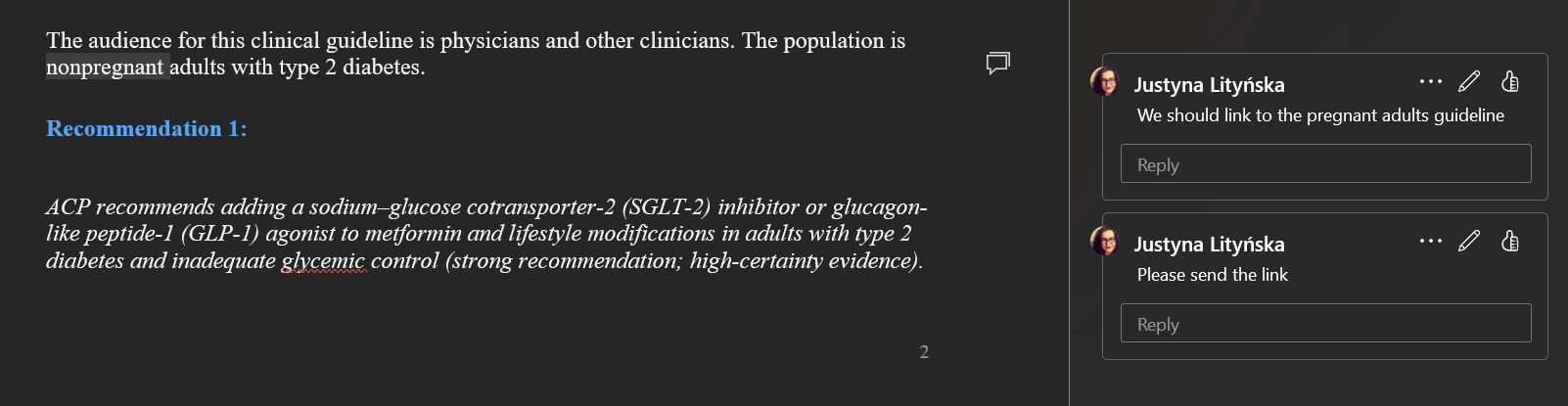
 The export retains the comments from GRADEpro
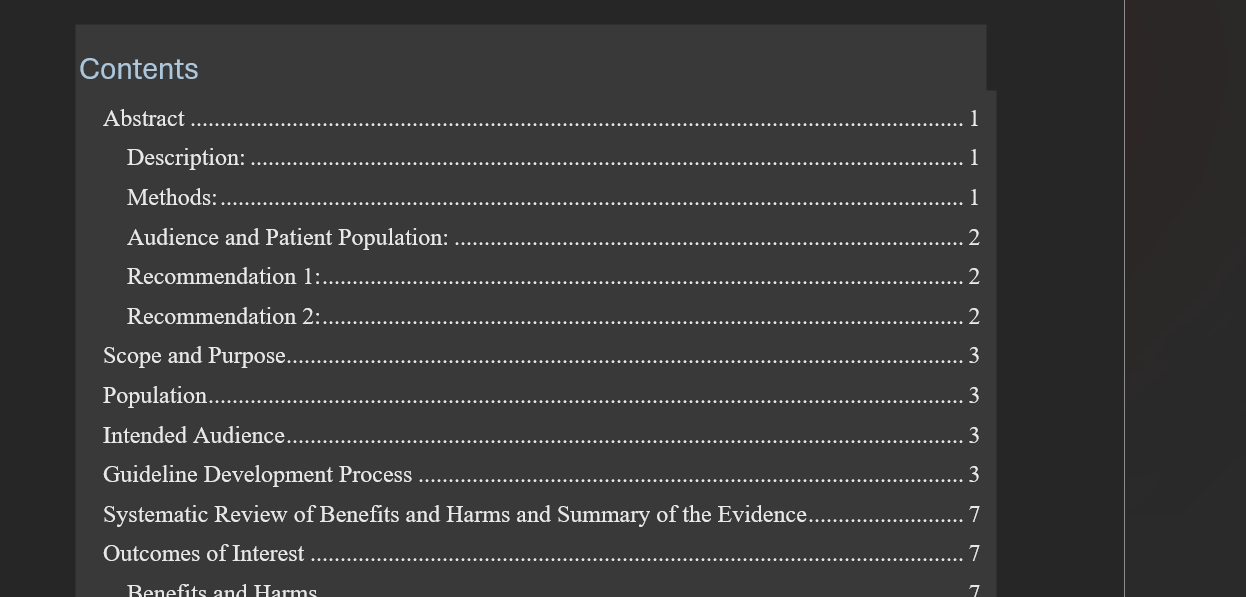
 The chapters and subchapter's titles' formatting is also preserved, so if you use the Table of Contents option in your text editor, it will also be rendered correctly.
3.2 Exporting to a publication platform
If, as a part of your subcription, you purchase a publication platform solution, you can publish the guideline document online in a digital format.
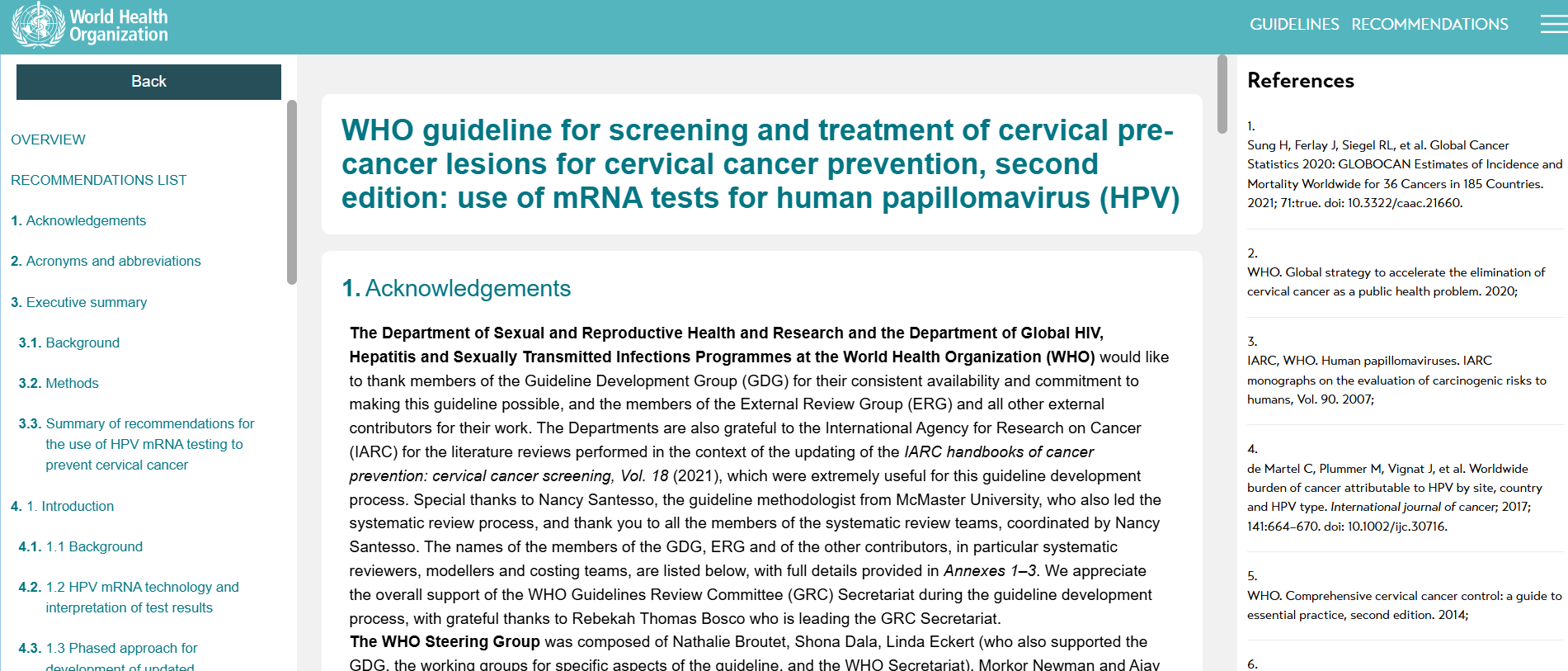
The document is then presented with the table of contents to the left, and references to the right.
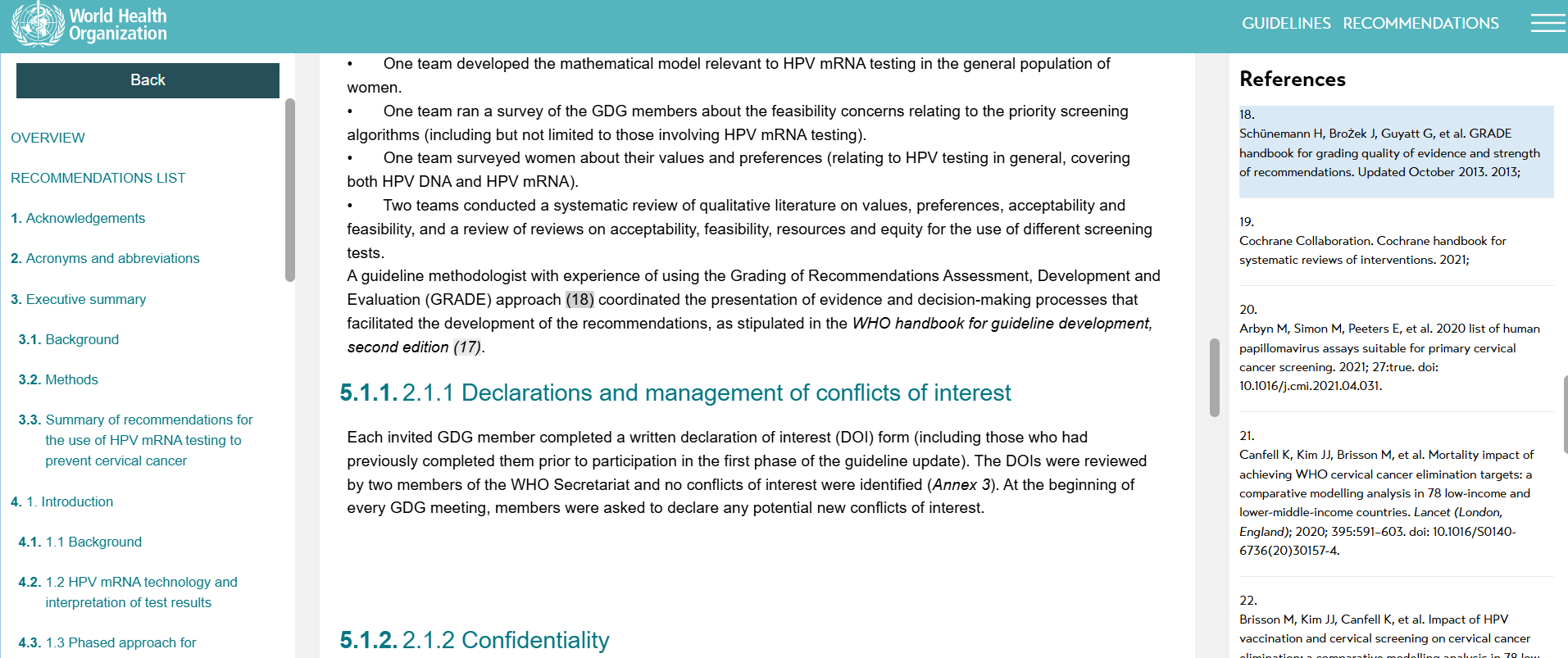
Upon clicking on a reference, user is moved to the relevant part of the document.
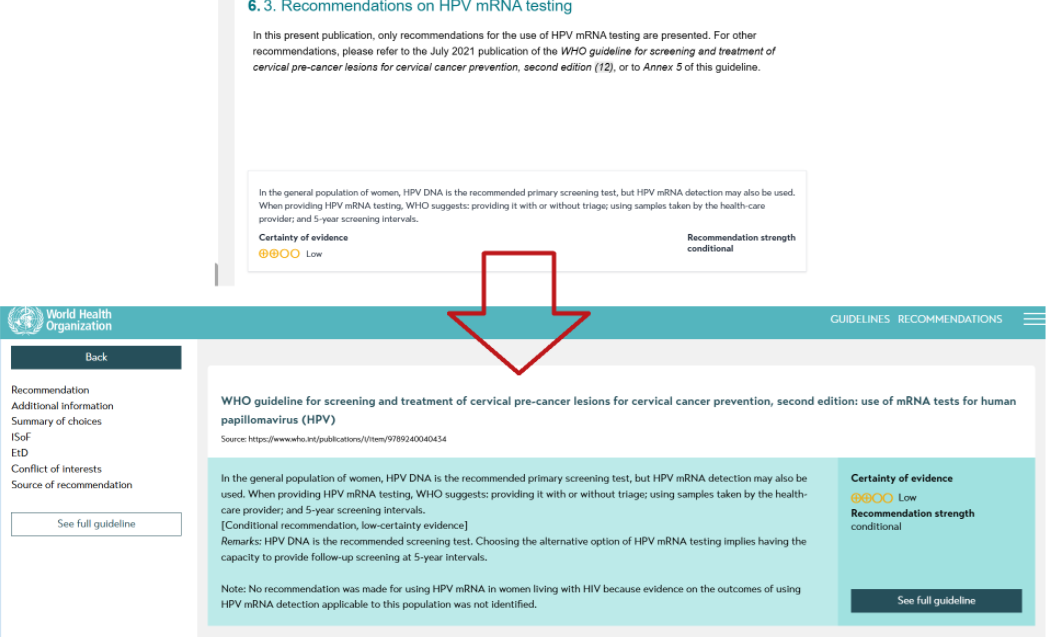
If a recommendation has been embedded, it can be opened for a full view, including the evidence table and other additional details.
3.2 Exporting through API
With the use of API, the content of your guideline document can be transported to an existing website of your organisation and presented there together with the rest of your materials. Such solutions need to be discussed with our technical team during the process of securing a subscription.
RELATED ARTICLES
Was this article helpful?
That’s Great!
Thank you for your feedback
Sorry! We couldn't be helpful
Thank you for your feedback
Feedback sent
We appreciate your effort and will try to fix the article