TABLE OF CONTENTS

Here you can learn more about adolopment feature in GRADEpro and its domain background.
1. Introduction
Adolopment (adoption, adaptation, and de novo development) is an approach to the contextualization of guidelines that allows for adoption, adaptation, or de novo creation of recommendations from an existing trustworthy guideline to national, local, or other levels.
The Adolopment approach utilizes Evidence to Decision (EtD) frameworks, a systematic and transparent approach to making well-informed healthcare choices.
2. GRADEpro Adolopment Feature
GRADEpro allows you to create adolopment versions of existing projects. The PICO questions selected for the adolopment process are copied to a new project. The evidence/Summary of Findings tables remain unchanged. In the Evidence to Decision tables, each field is paired with an adolopment field - a space where the adopted or adapted content can be entered based on the original content. The original content, on the other hand, is blocked, so it is not edited by mistake.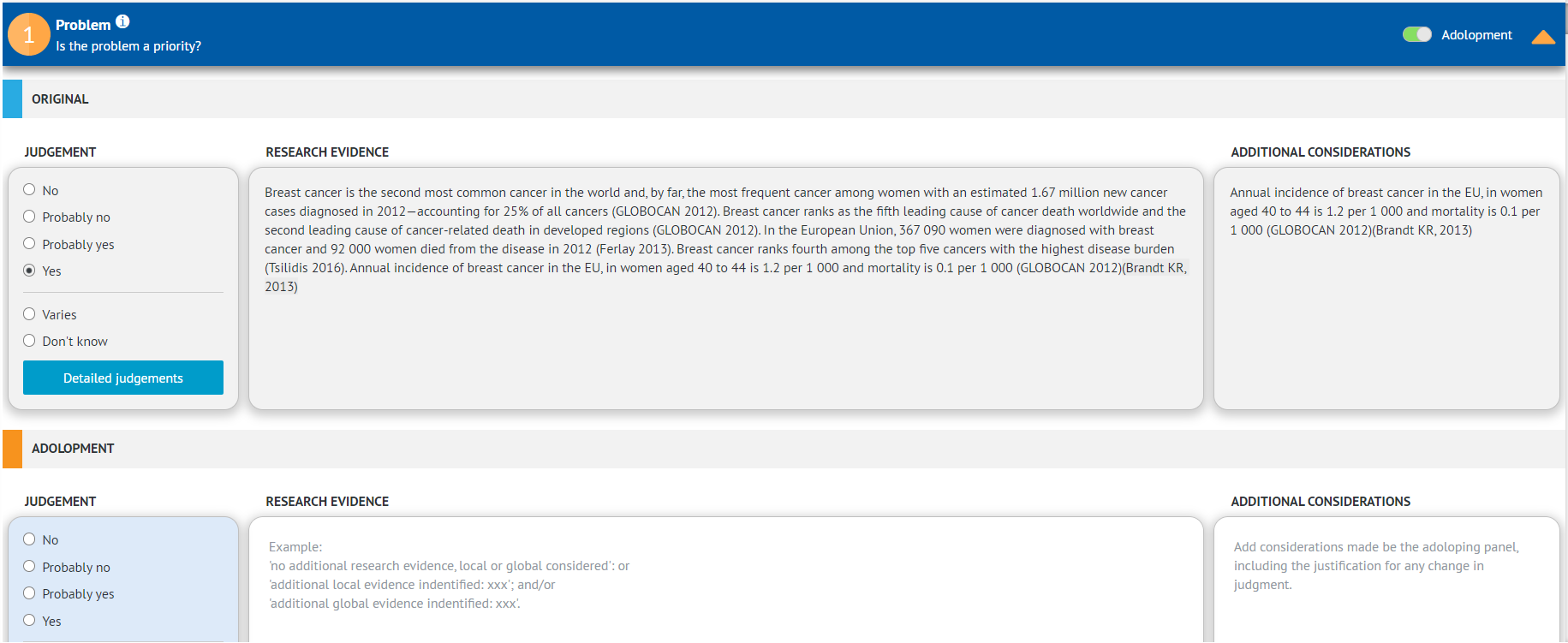
2.1 What is required for an adolopment?
To use the Adolopment option in GRADEpro, you need the following:
- a Team or an Enterprise subscription, as this feature is not available for free users
- authors' consent -> If you didn't author the project, you need to obtain permission to use it first
- a project that you want to adolop -> you need to have access to the project you want to adolop. If the project was originally created in GRADEpro (and you share proof of the authors' consent to use it with us), we can easily create a copy of the original project for you. If the project was not originally created in GRADEpro, it will need to be extracted into GRADEpro first by your team. If you are unsure whether or not there is a GRADEpro project matching a published guideline or a recommendation, please contact the original authors to confirm.
- it is not necessary, however, since the only content subject to adolopment is the Evidence to Decision table, then it is advisable to make sure that the project you want to adolop does have the EtDs completed and filled in
2.2 How to create an adolopment
Remark: In case of Team subscriptions, our Support Team will prepare the adolopment project according to your instructions and share it with you.
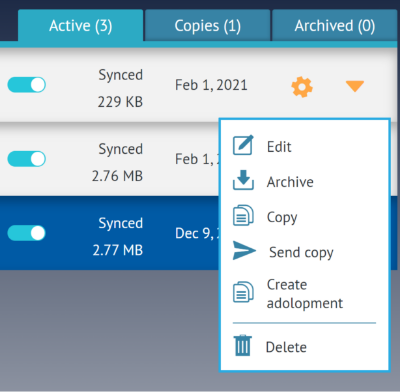
To create a new adolopment, you have to first go to the project list and click on the cog wheel icon next to the project you want to adapt. You will see the adolopment option on the list.
You will see a new window with a brief explanation of the Adolopment module and a list of the PICO questions in the project.
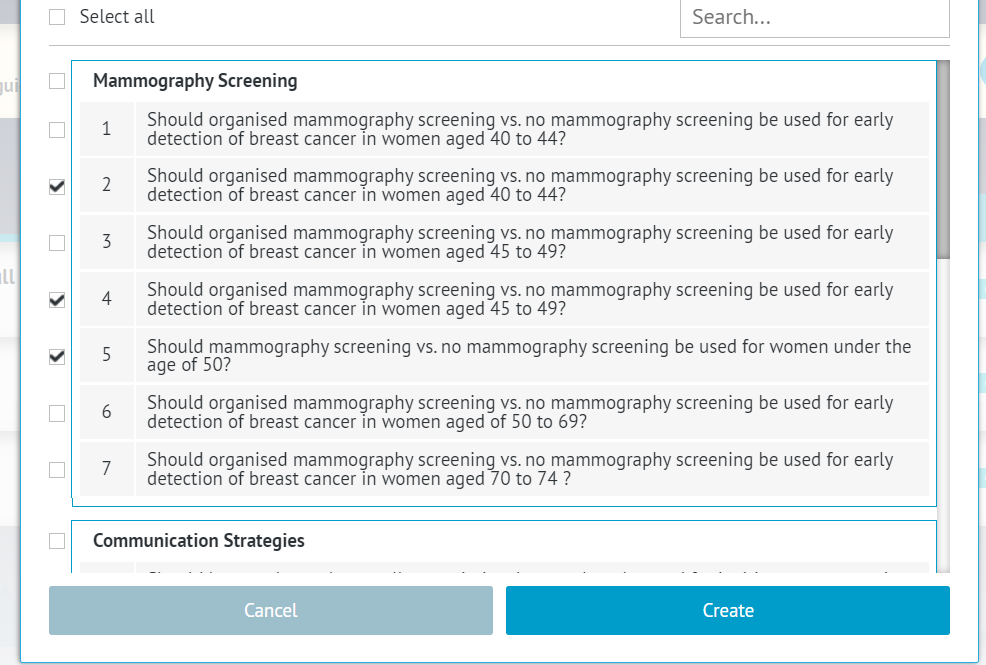
You can choose one or more PICO questions (recommendations) for your adolopment.
Tip: Please choose carefully - if you forget to include a question, it will be impossible to add it to an existing adolopment project.
If a question is inactive for selection, it means there is no Evidence to Decision table in this question, and it cannot be adoloped.
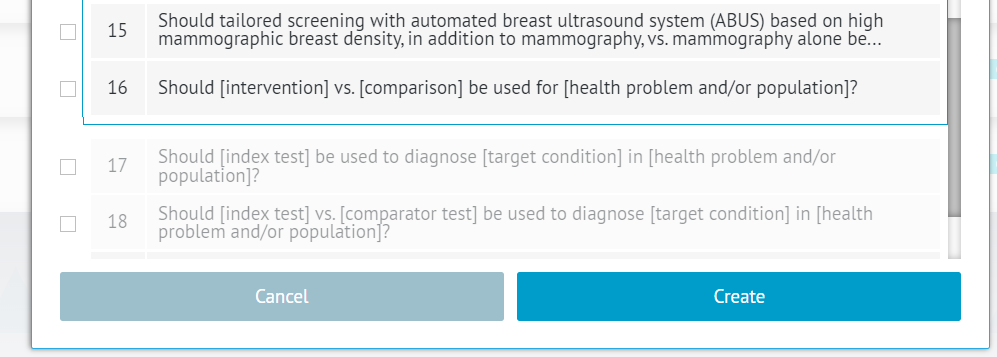
Once you have chosen the questions, please click the “Create” button and wait for the system to process.
Once it’s done, you will see a new project on the list, with the (Adolopment) in front of the name.
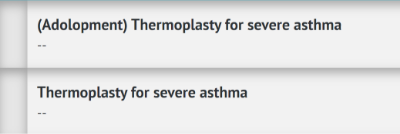
You can rename the project if needed.
When you enter the project, you will see the list of PICO questions you selected.
3. How does it work
Most of the adolopment project is identical to regular one. You can manage the team, add references, send PanelVoice, et cetera.
In the evidence table, the content will be copied from the original project, but you can freely edit it, delete data, or add new rows.
The section where adolopment is different from a regular project is the Recommendations table or Evidence to Decision table.
There, next to each section, you will see the “Adolopment” slider
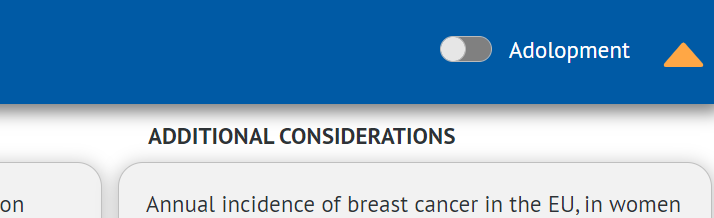
If you believe this section applies to your new version of the recommendation and it does not need to be changed, you can leave the toggle off. This way, the original content for this criterion will be used for your version as well.
If you want to introduce some changes or comments, you can turn the toggle on.
Once you do, you will see a copy of the section below, entitled “Adolopment”
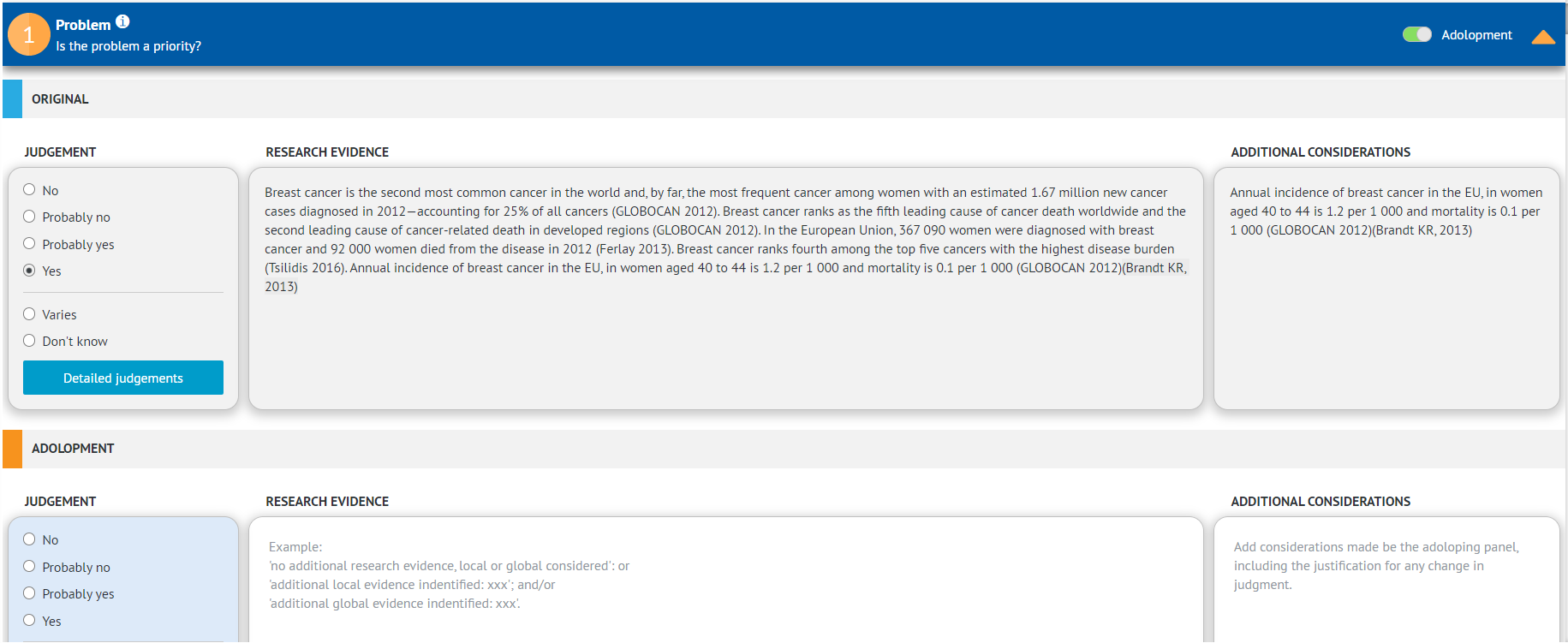
There you will be able to enter new content, issue a new judgement, or both.
This applies to all the subsections of the EtD table, the type of recommendations, and the conclusions.
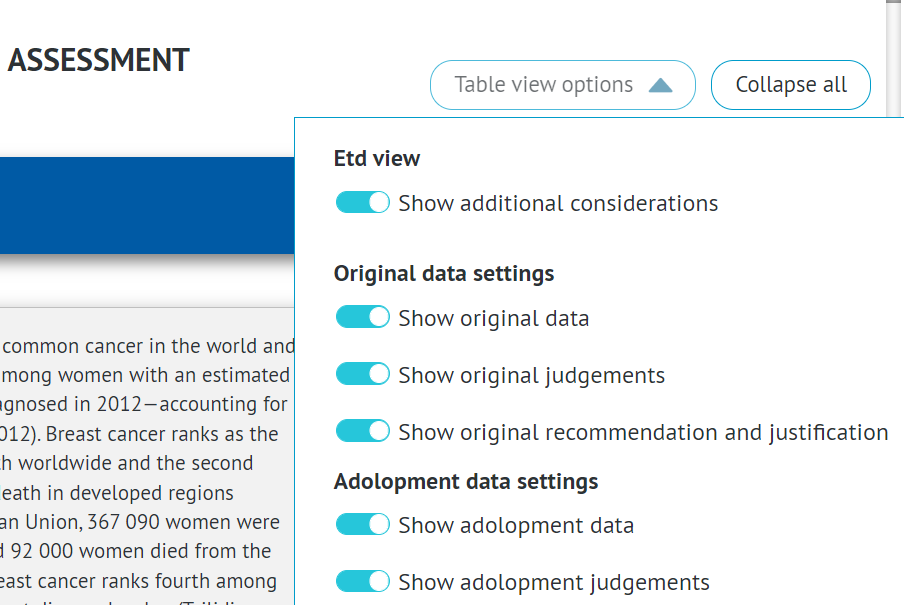
When presenting the filled-in table, you will have the freedom to choose which parts should remain visible. To do that, please use the “Table view options” button in the top right corner of the website.
RELATED ARTICLES
Was this article helpful?
That’s Great!
Thank you for your feedback
Sorry! We couldn't be helpful
Thank you for your feedback
Feedback sent
We appreciate your effort and will try to fix the article