TABLE OF CONTENTS

1. PICO questions in GRADEpro
In GRADEpro, PICO questions (or just questions) are a basic unit of a project (a guideline). It is by adding questions that you add content into a project (evidence tables, Evidence to decision tables, et cetera). A question is equivalent to a single recommendation (although, of course, not every question needs to contain a recommendation).
Questions are added and managed in the Comparisons module, which is the default module of a project - it is the first screen you see when you enter a project.
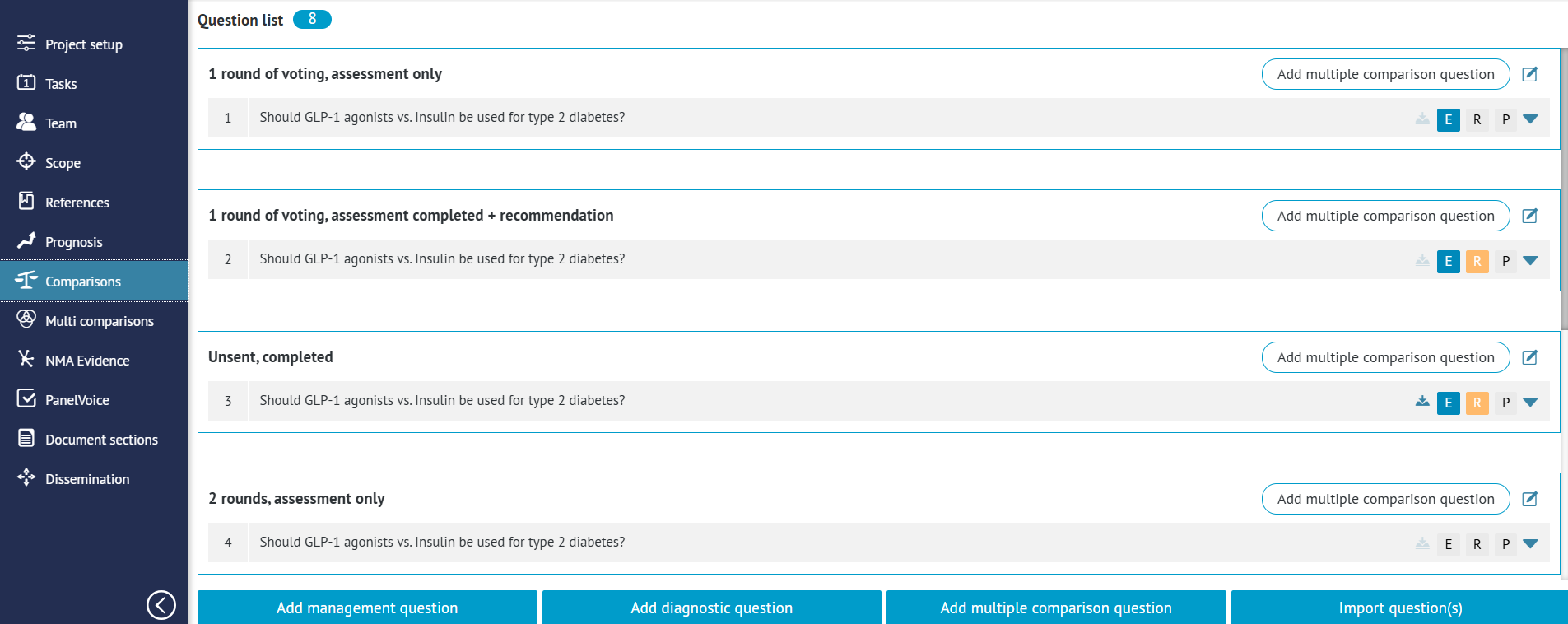
GRADEpro offers three types of questions (and, therefore, three types of evidence to assess and make decisions on):
- management - those questions assess two interventions to compare which one is better
- diagnostic - those questions assess one or two diagnostic tests to determine if they are optimal for detecting a particular health state
- multiple intervention - those questions allow for comparison of multiple interventions simultaneously (typically, those questions are informed by evidence coming from a Network Meta-analysis)
The types of questions (and evidence tables available for them) are described in detail in a separate article.
2. What can be found inside a PICO question?
Each PICO question contains three tabs:
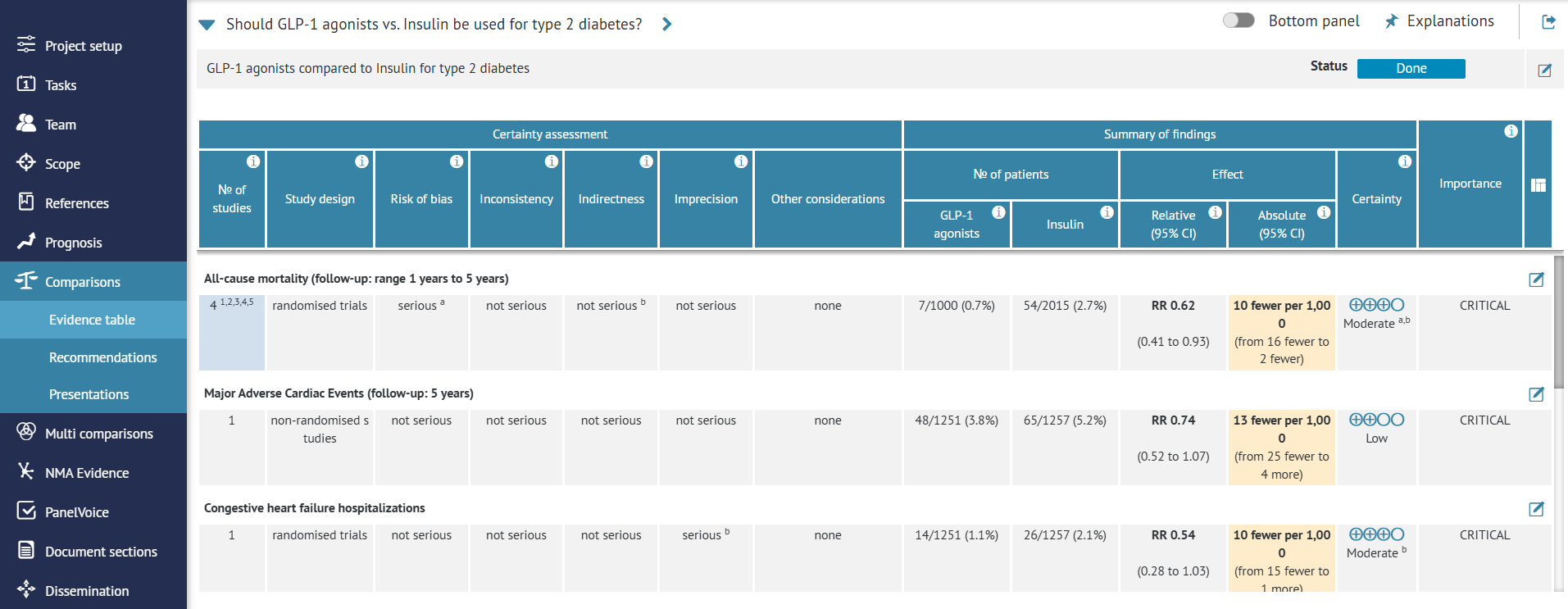
Evidence table, where the results of a systematic review can be summarised in a management or a diagnostic table. Additionally, GRADE certainty assessment can be performed here.
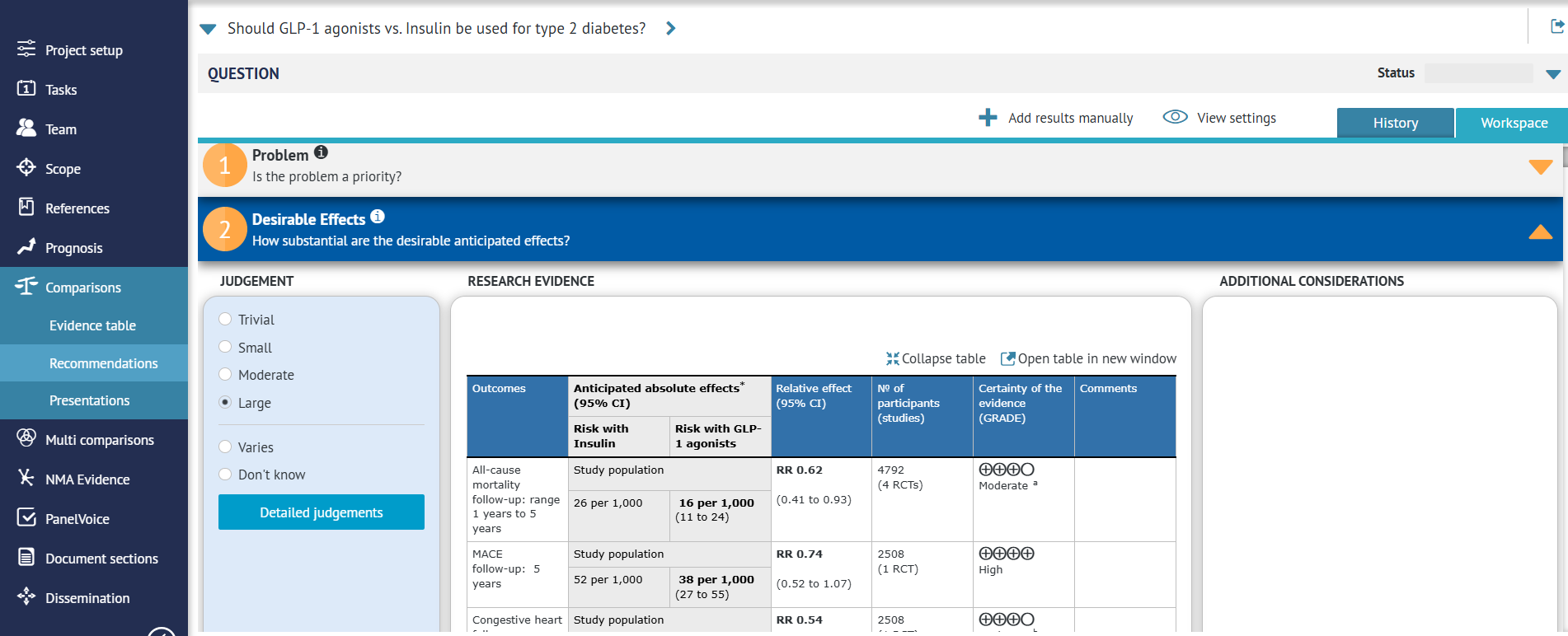
Recommendations, where Evidence to Decision framework can be found (EtD also have different formats depending on question type). EtD can be used for developing a recommendation based on the evidence from the table and other important aspects.
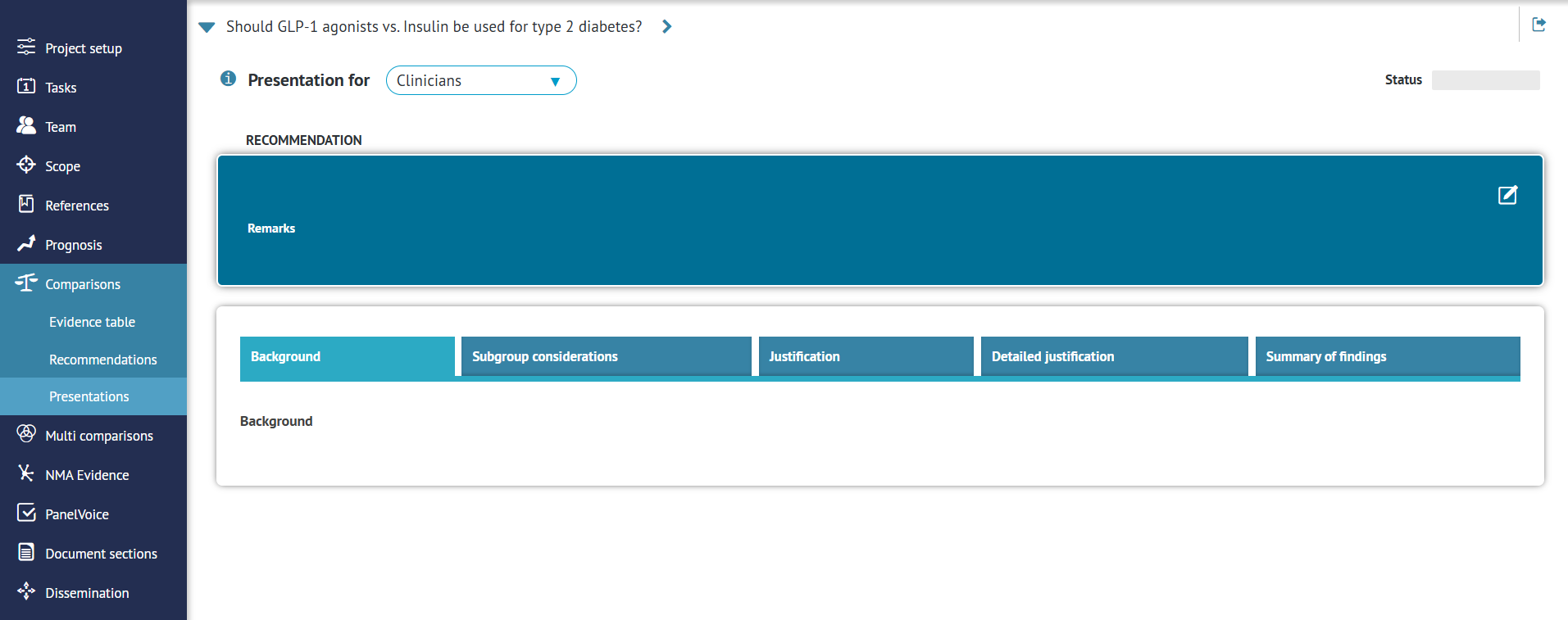
Presentations, where various templates are available that can then be used for the dissemination of recommendations, either in GRADEpro's Database of EtD's and Guidelines or in other ways.
3. Organising questions
Questions can be organised in groups. A new group can be added either by clicking on the option at the bottom of the questions list or by dragging a question there.

Once a group is created, it can be edited using the icon on the right-hand side.

This allows for renaming or deleting a group. Deleting a group doesn't delete questions - they just return to the ungroupped list.

Questions can be moved between groups and the ungroupped list by dragging and dropping.
RELATED ARTICLES
Was this article helpful?
That’s Great!
Thank you for your feedback
Sorry! We couldn't be helpful
Thank you for your feedback
Feedback sent
We appreciate your effort and will try to fix the article