TABLE OF CONTENTS

If you are enlisted in a project as a Panel Member here is what you can expect in the PanelVoice process.
1. Panel Voice link
When you are a member of the experts' panel, you will receive surveys to vote on various aspects of the recommendation.
It arrives as an email message similar to the one shown below:
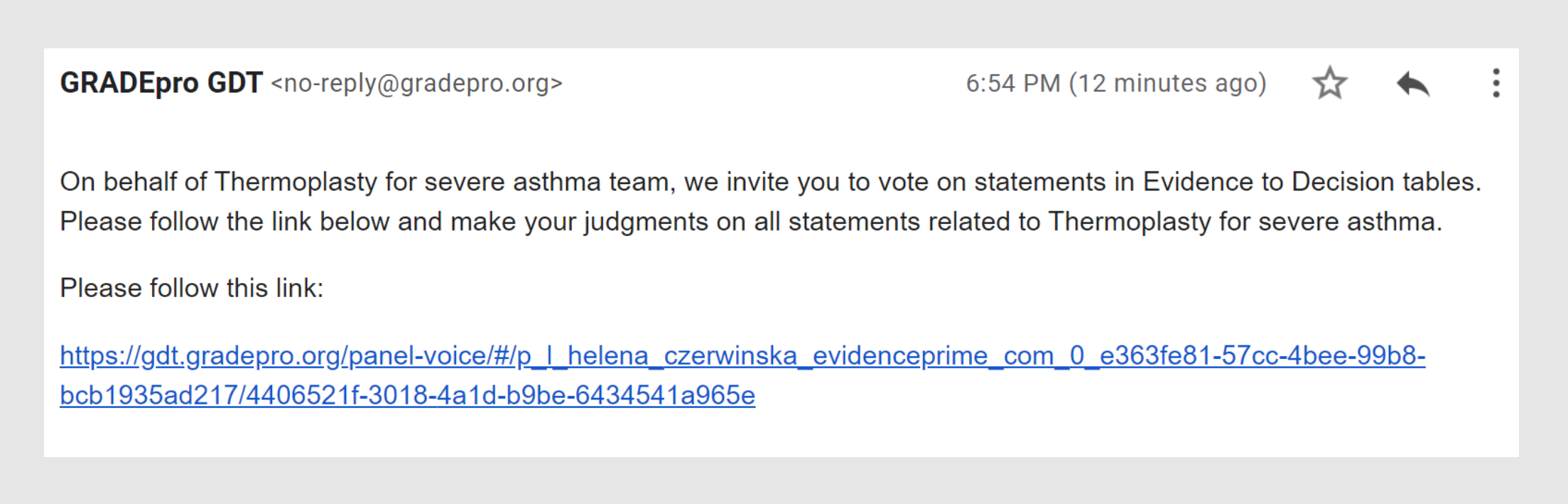
If a guideline manager says that you were sent a link, but you cannot find it, you may
- check your mailbox SPAM folder
- search for emails sent from no-reply@gradepro.org address and include [GRADEPro] Panel Voice in the title
- check with the guideline manager if a correct email address was used to add you to the project
If none of the above solutions help, please contact our Support Team at support@gradepro.org
2. Panel Member dashboard
When you open the link, you find yourself in your personal Panel Member Dashboard:
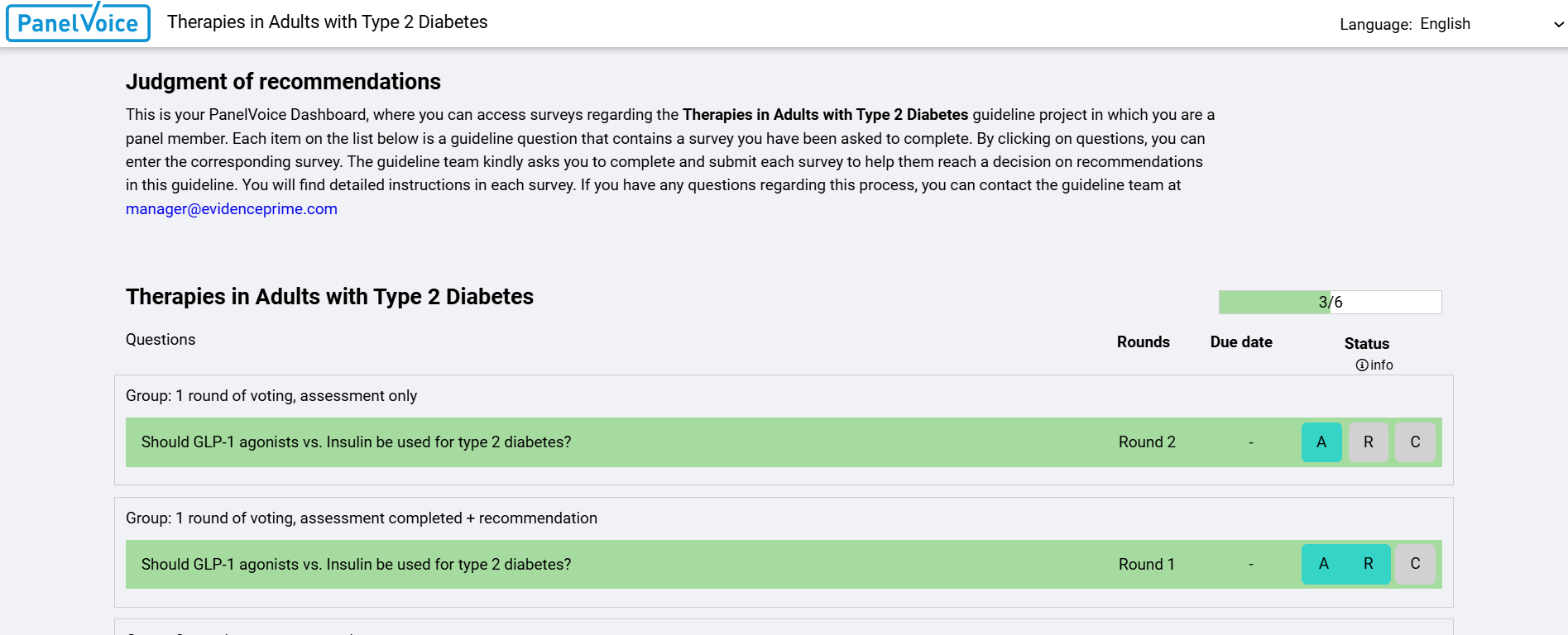 All the surveys from this particular project will be available at this link. While you will be notified of each new survey via email, you can also bookmark the link to have it easily available and check intermittently whether any new surveys appear.
At the top you can see brief instructions on how to vote. Also, a contact email address will be displayed, which you can contact in case of questions (this will be an email address of someone from the project team).
Next, on the right hand side, you can see your progress bar, which shows how many surveys have been sent and how many you completed. The progress is also indicated by colour - the surveys you already completed will be marked in green.
Note: Remember that the colour of the surveys may change over time - if you respond to a survey it will turn green, but if it is subsequently resent for another round of voting, it will turn blank again and you will need to review it again and resubmit your answers.If the guideline managers decided to group guideline questions, you will also see them grouped.
Next to each question you will see which round of voting is currently active (as a survey may be voted on many times).
If a due date has been set, it will also be displayed.
Finally, coloured boxes will indicate, which of the three parts of Evidence to Decision framework have been sent for voting:
- Assessment - 12 criteria which GRADE Working Group defined as crucial in assessing recommendation options. Each criterion is a question that should be answered with a judgement, for example "How large are the benefits of the intervention?"
- Recommendation - in this part the strength of recommendation (whether it's strong or conditional) and its direction (whether it favours intervention or the comparison) is decided on
- Conclusions - this section holds the final text of recommendation, which may be accompanied by additional considerations, such as a justification for the recommendation, or how its implementation may vary between subgroups.
3. Filling out a survey
To fill out a survey, you simply need to click on it.
The survey itself reflects the Evidence to Decision framework.
The assessment part has a form of a table, where each criterion is presented as a table. Next to the criterion name you can see the guiding question, that should be answered based on evidence presented. Results and data are presented in the "Research evidence" column, either described narratively, or presented through tables or infographics. Additional considerations may be presented too.
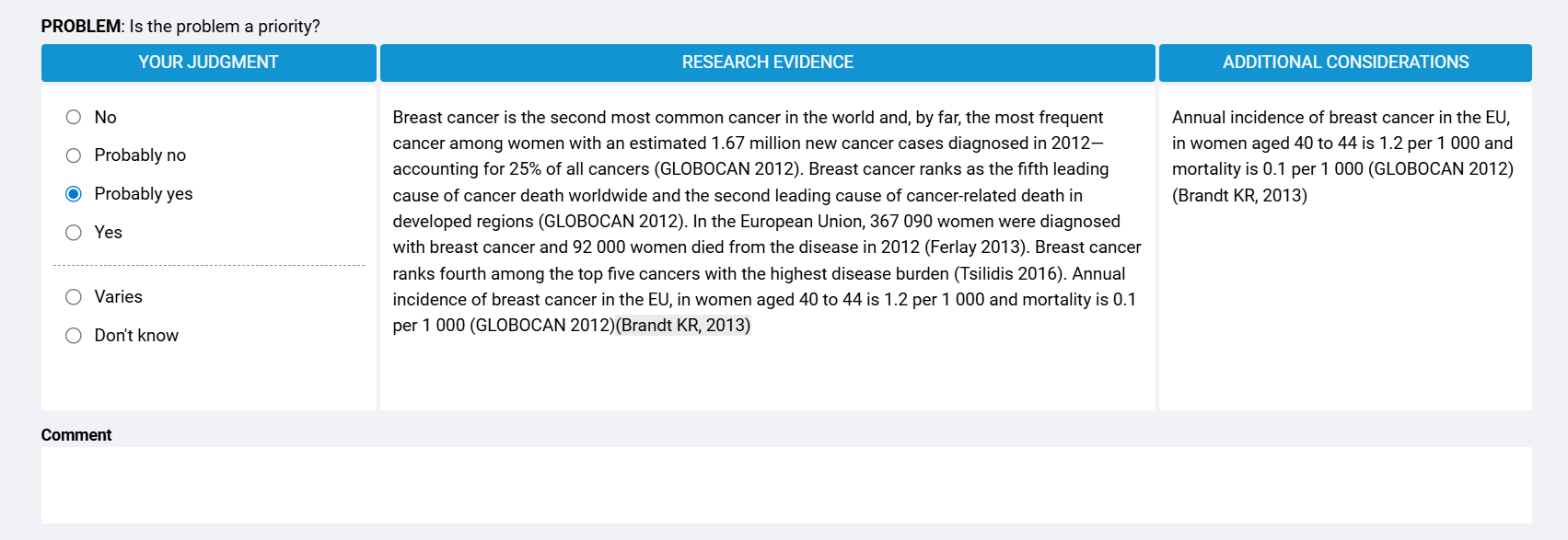 You judge them by clicking on appropriate answers on the left hand side. Additionally, you can add a comment.
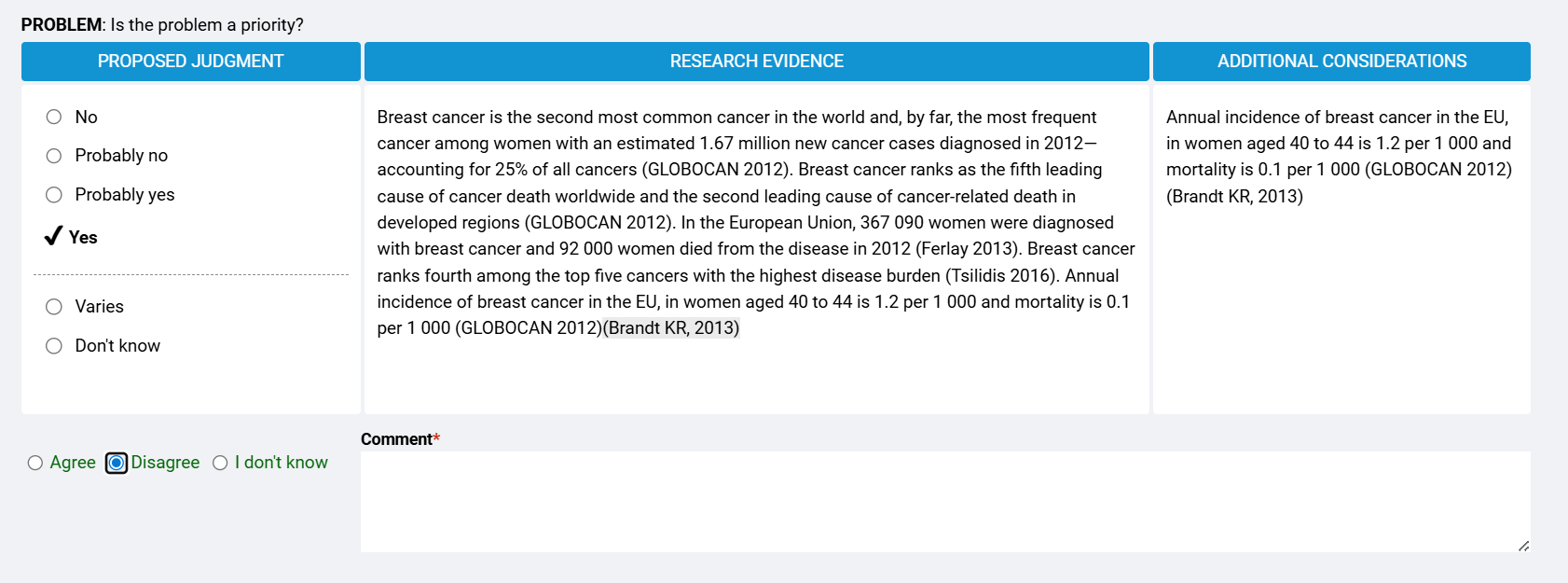
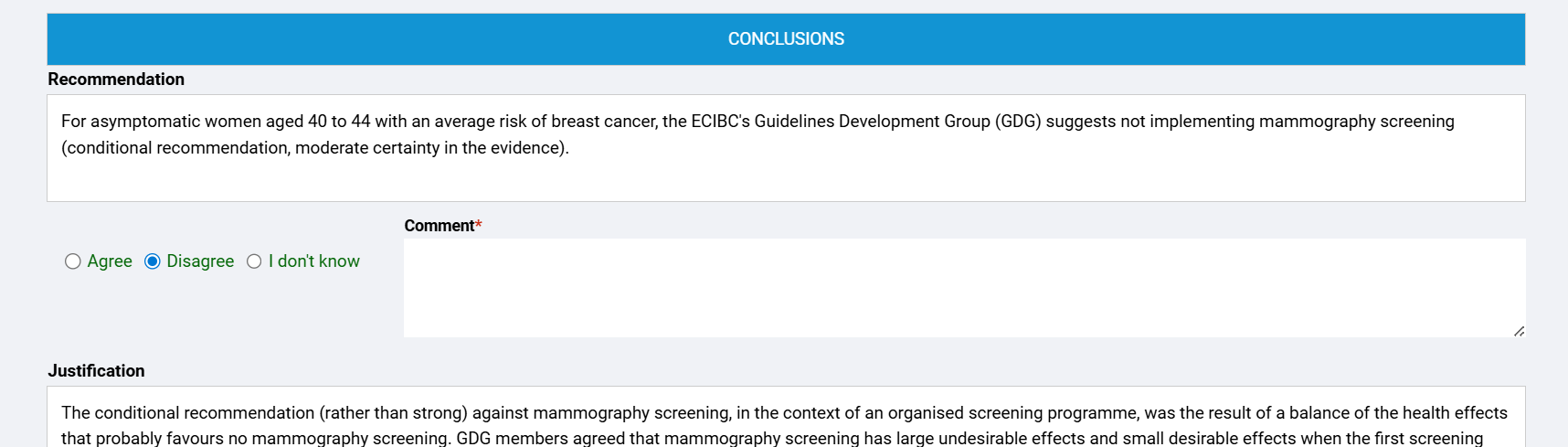
In some cases the answers can be predefined, where you simply state whether or not you agree with the judgement. If you disagree, the comment field becomes compulsory, as you must indicate why you disagree.
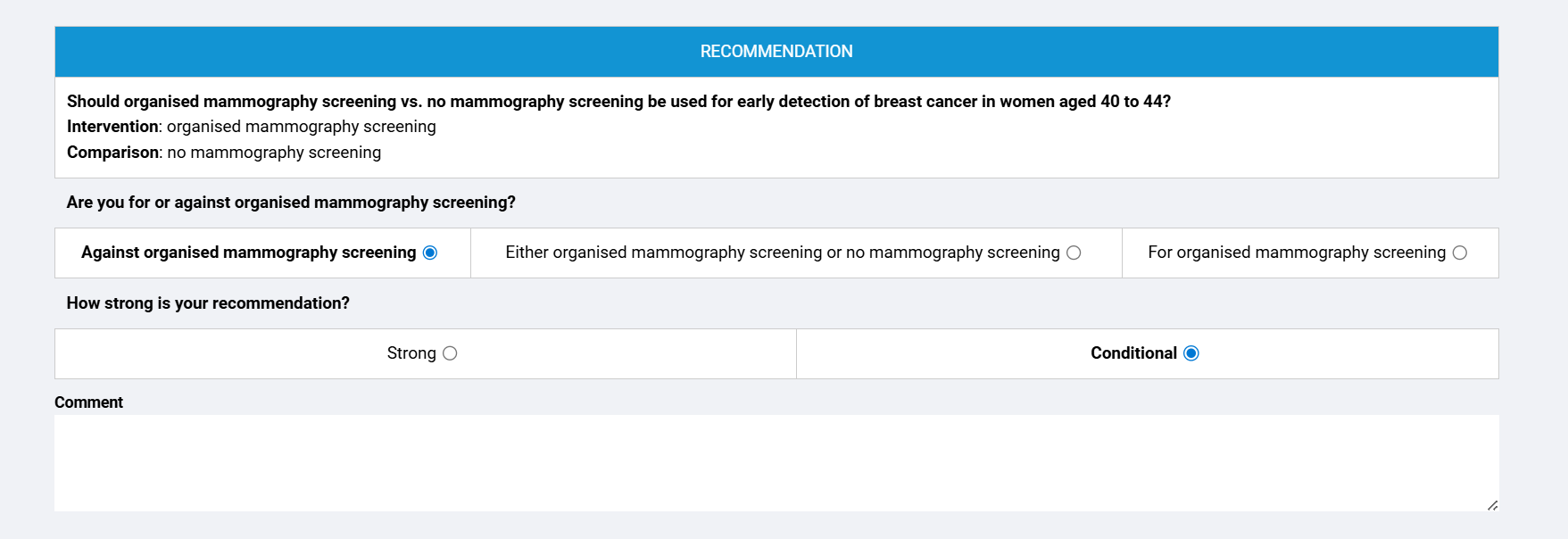
When voting on recommendation, you can mark its strength and direction.
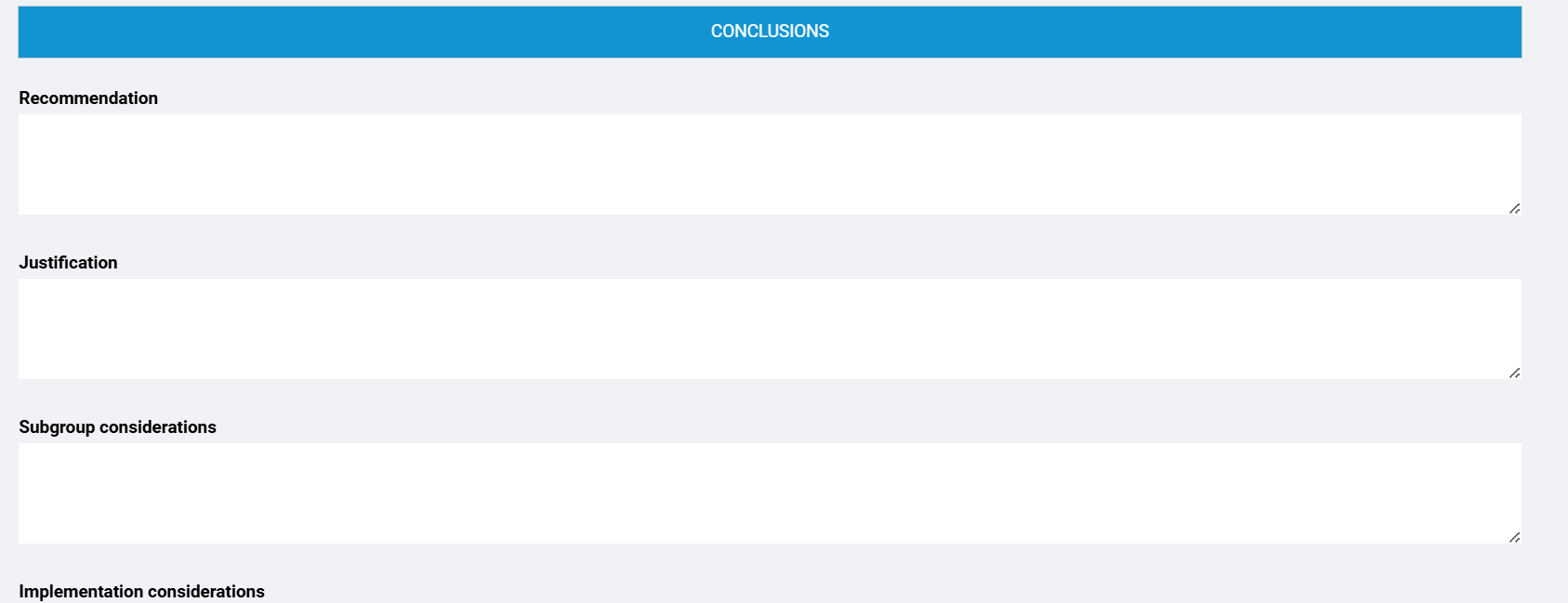
Since the conclusions part is just text fields, then dependng on the settings choseb by guideline manager you can either suggest your own content
or agree/disagree on suggested content:
 For the guideline manager to see the results, you must submit the survey using the button at the bottom.

RELATED ARTICLES
Was this article helpful?
That’s Great!
Thank you for your feedback
Sorry! We couldn't be helpful
Thank you for your feedback
Feedback sent
We appreciate your effort and will try to fix the article