TABLE OF CONTENTS
- 1. Searching and sorting questions
- 2. Questions list
- 3. Responses tracking
- 4. Due date
- 5. Status
- 6. Actions

Here you can learn how the PanlVoice dashboard is built and what actions you can perform from there. If you seek step-by-step instructions on how to send a PanelVoice survey, you can find it in another article.
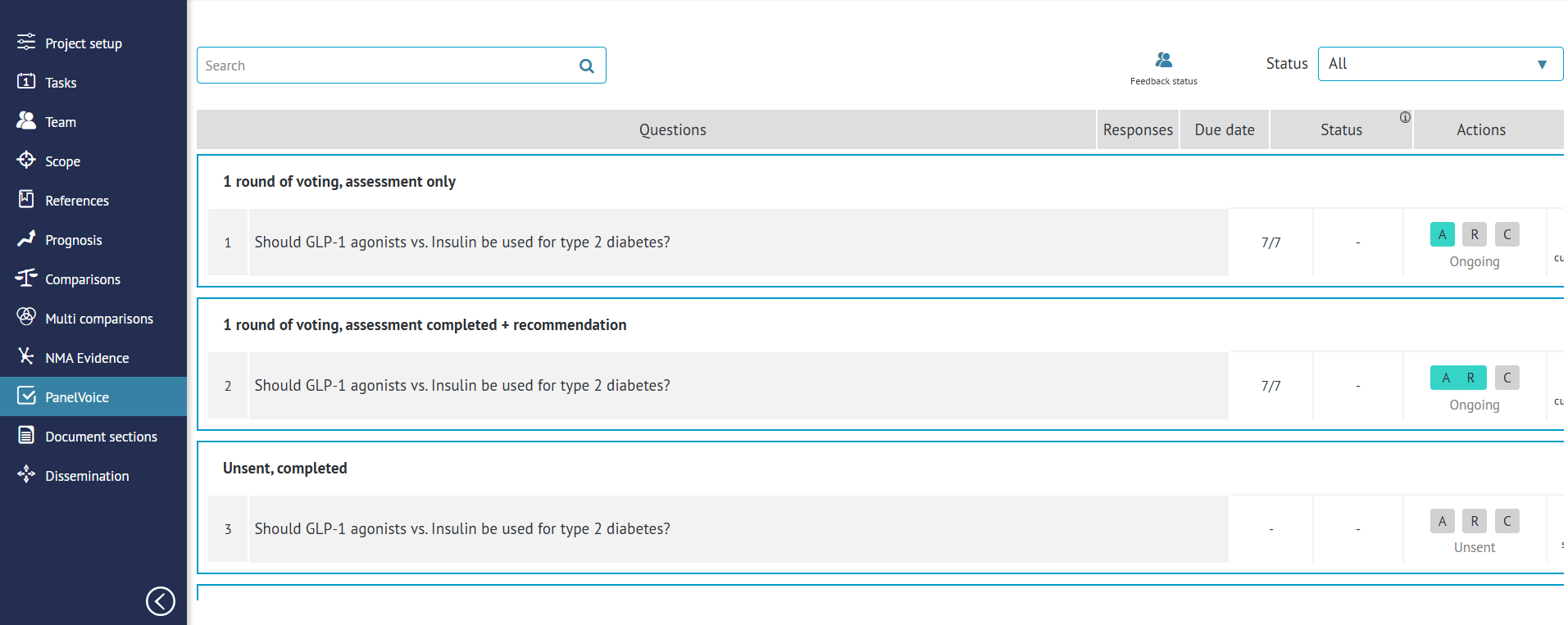
You can access the Dashboard through the project menu on the left-hand side of your project.
1. Searching and sorting questions
A guideline project can have multiple questions, which may be difficult to manage. That is why at the top of the PanelVoice dashboard you have options to either search for particular questions or filter questions by the status. We will describe statuses further in the article.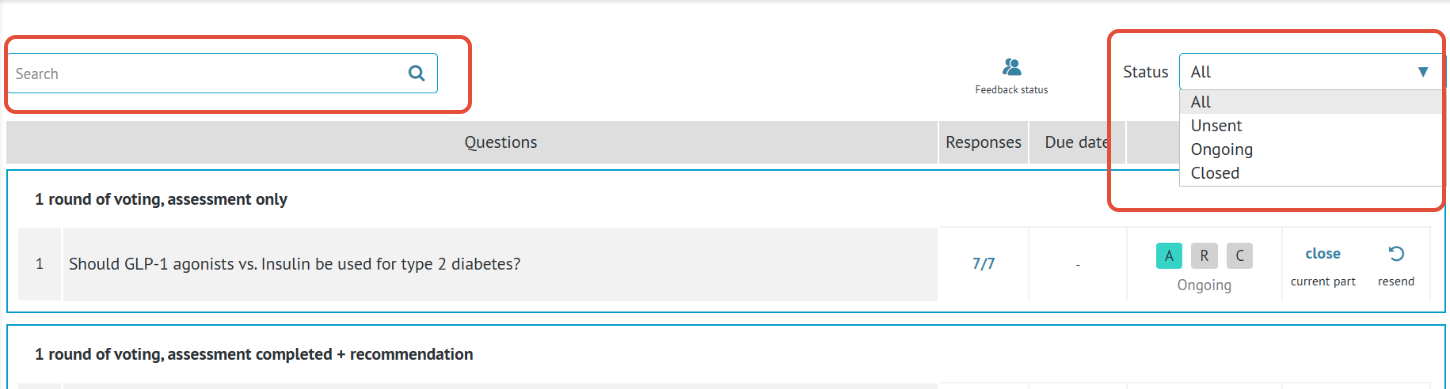
2. Questions list
In PanelVoice, you are sending Evidence to Decision tables to a panel of experts for voting. Since in GRADEpro an EtD is a part of a PICO question, what you see on the list in the PanelVoice module are all questions from the project, same as they are presented in the Comparisons module. If the questions are collected in groups, they will be presented in the PanelVoice module the same way.
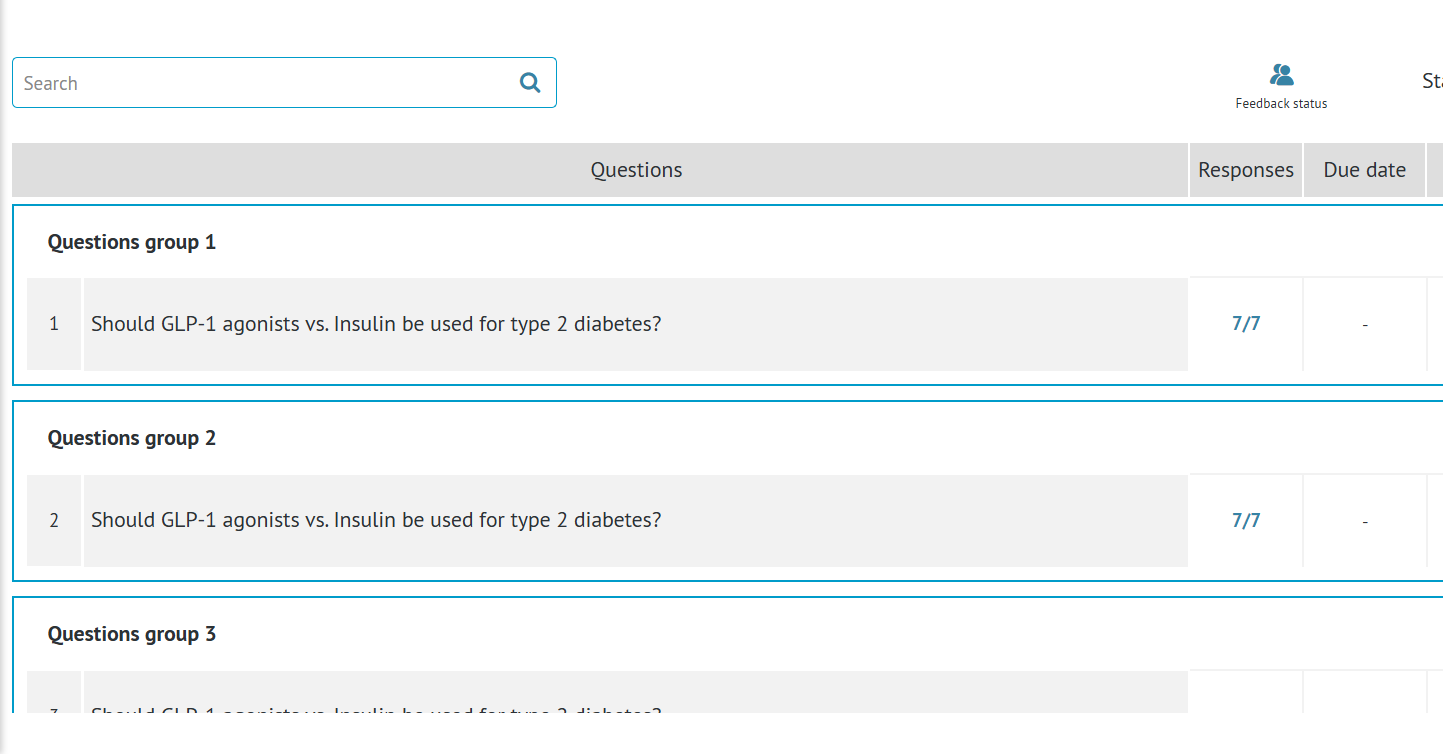
Note: Multiple intervention questions as well as ungrouped questions will be presented at the end.3. Responses tracking
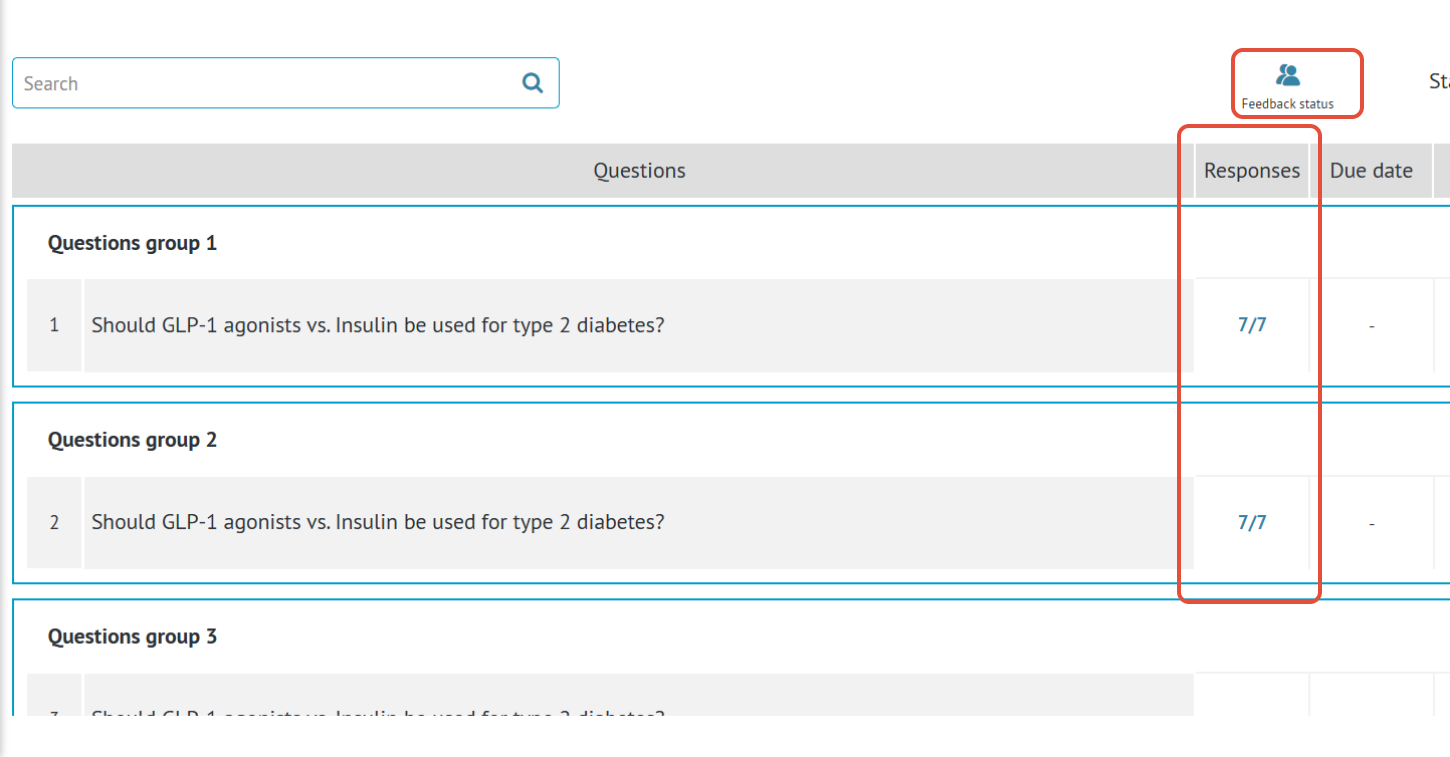
In the Responses column, you can see how many panelists received the survey (if it was sent) and how many of them provided the answers. Additionally, at the top, you can preview the Feedback status for all questions collectively.
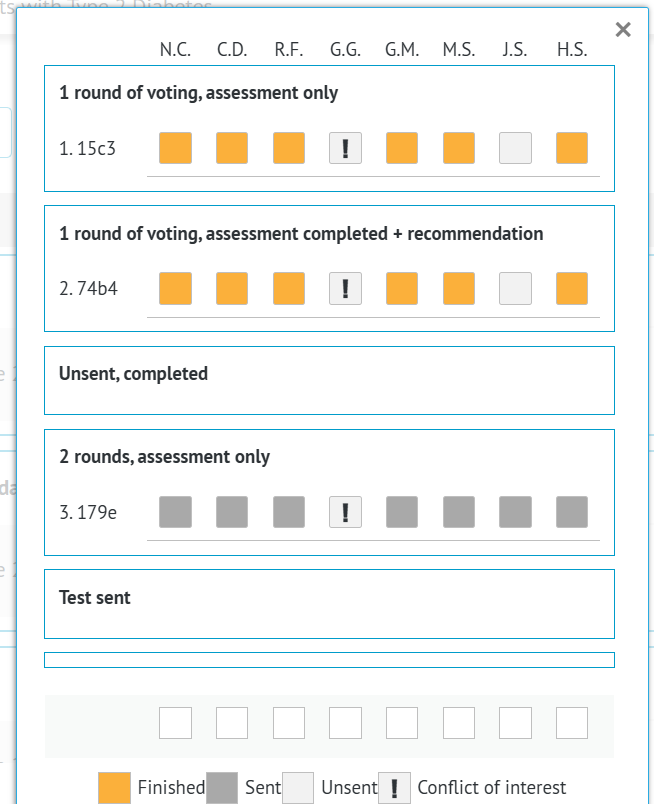
The overall status is presented as a table, where each column is a panel member (displayed as their initials) and each row is a question from the list. Coloured boxes show, whether a person received a survey, responded or if they are in conflict with particular question.
In cases when some of the panel members have not yet responded, you have the option to send them a reminder.
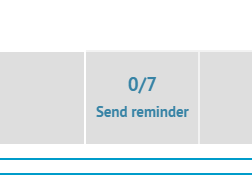
Important: If you want the members to provide their missing responses, always use the Send reminder option and NOT the "Resend" option. Resending sends another iteration of voting, automatically closing the previous one. This option is described in detail further in this article.4. Due date
In the next column you can see due date if it was set. The date serves as an orientational deadline for Panel Members, however it is not a blocker - a response can be delivered also past the due date (provided you did not close the voting). When the due date is past, it will be displayed in red.
5. Status
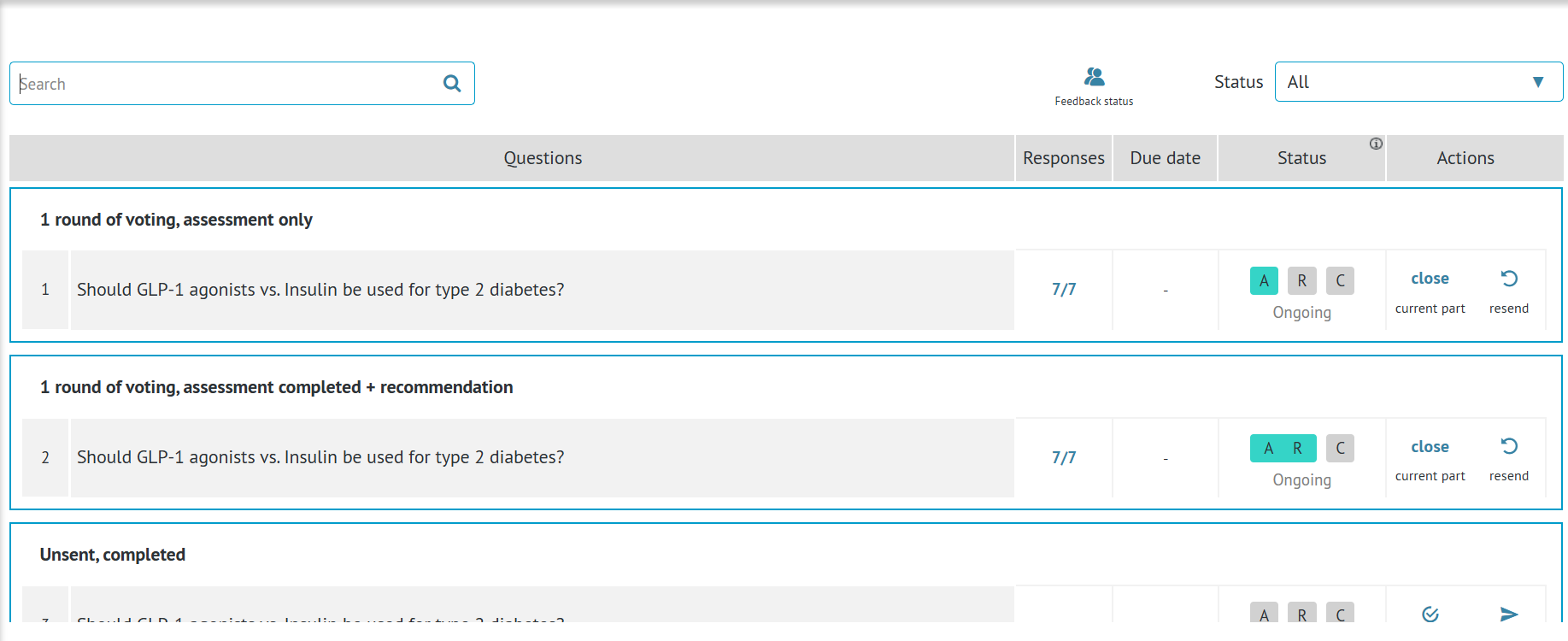
The status column presents the status of each part of PanelVoice survey. In PanelVoice, you are sending Evidence to Decision tables to a panel of experts for voting, and each part of the EtD can be sent separately.
The letters in the Status column stand for different sections of the EtD table:
- A: Assessment (the 12 criteria of the EtD)
- R: Type of Recommendation (Strong/conditional, for/against)
- C: Conclusions (Text of recommendation + additional considerations)
You can learn more about parts of the EtD in this article.
Colour coding is used to mark the status of each section:
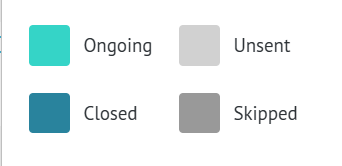
- Unsent sections are marked in light grey.
- Skipped sections are marked in dark grey.
- Ongoing sections are marked in turquoise.
- Closed sections are marked in dark blue.
Unsent means the section wasn't yet sent for PanelVoice.
If you send one section without sending the section that comes before, the section that comes before will be marked as skipped. For example, you might decide to skip the Assessment section if your panel has already reviewed that part of the EtD table and developed consensus judgements during an in-person meeting or teleconference. You can manually mark the panel’s judgments in the Assessment section of the EtD table, and you share the remaining sections via PanelVoice.
Ongoing means the section was sent for voting and the voting is still open.
Closed means the voting for that question has been closed. Closing a voting is irreversible.
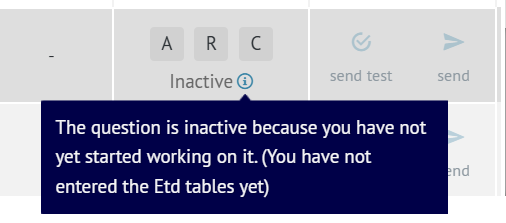
Additionally, a question can be marked as Inactive. This means an EtD has not yet been completed in that question.
6. Actions
The final column is actions that you can perform on particular questions. There are four actions available depending on the status of the question.
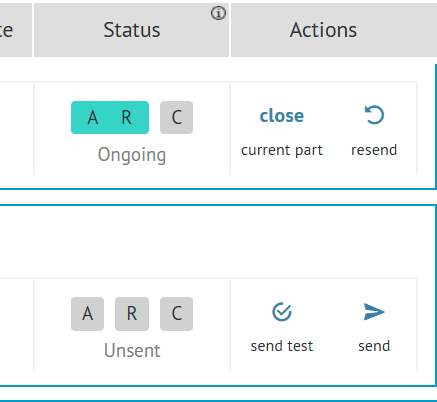
If a question has not been sent yet, you can send test. That means sending an inactive (voting is impossible) survey to selected members of the guideline project. Only comment option will be available for them. This serves the purpose of "testing" or reviewing the content of the EtD before it is sent to the Panel for official voting.
If you are ready to send a question for voting, you can use the send option. You will then undergo a four-step process of sending a PanelVoice survey, which is described in detail here.
If a question or its parts was sent already, you can resend. This opens a new batch of voting (the previous answers, if there were any, are moved to the history tab of the EtD. This option can be used e.g. if you want to repeat voting after new evidence appears or after more discussion was had by the panel.
Last but not least, you can close the ongoing voting. Closing is irreversible. It can be done either when you sent only the first part(s) of the EtD, but that voting is already completed and you want to move to the next part(s),, or when you sent all the parts simultaneously and you want to now close the voting so that no new answers can be sent by the Panel Members.
RELATED ARTICLES
Was this article helpful?
That’s Great!
Thank you for your feedback
Sorry! We couldn't be helpful
Thank you for your feedback
Feedback sent
We appreciate your effort and will try to fix the article