TABLE OF CONTENTS
- 1. Before you start
- 2. How to start
- 2. Step 1 - Choose EtD sections
- 3. Step 2 - Select questions
- 4. Step 3 - Compose message
- 5. Step 4 - Select participants
- 6. Sending reminders
- 7. Adding voters to an ongoing survey
- 8. Multiple rounds of voting
- 9. Closing voting

1. Before you start
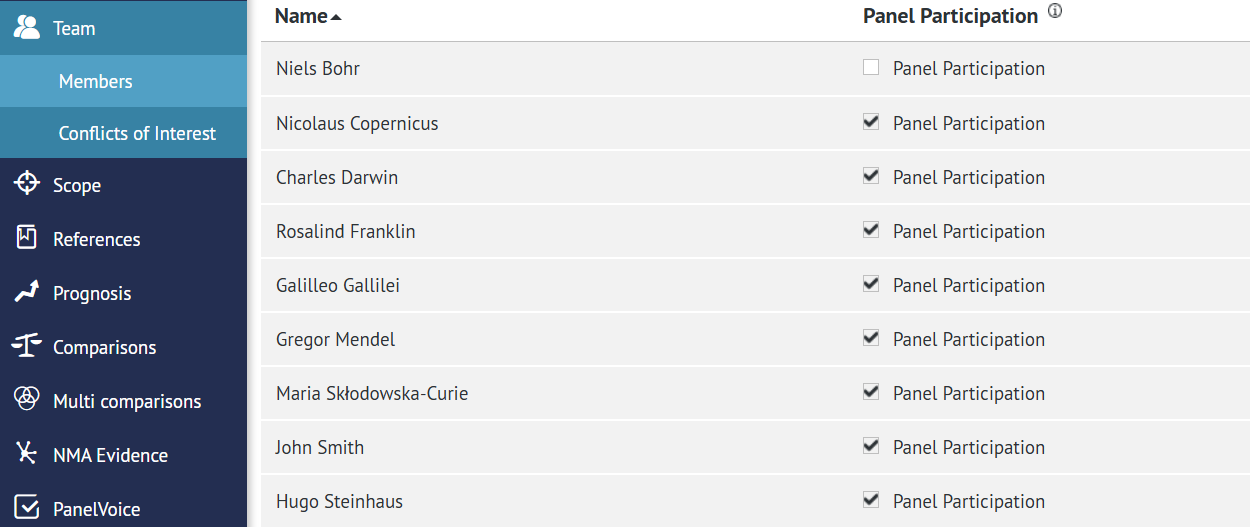
PanelVoice surveys are only sent to people who are marked as Panel Participants in the project Team. You can learn how to add Panel Members to a project in a separate article.
2. How to start
PanelVoice surveys are sent from within the PanelVoice module of GRADEpro. The module is available only in paid subscriptions, and its structure is described in detail here.
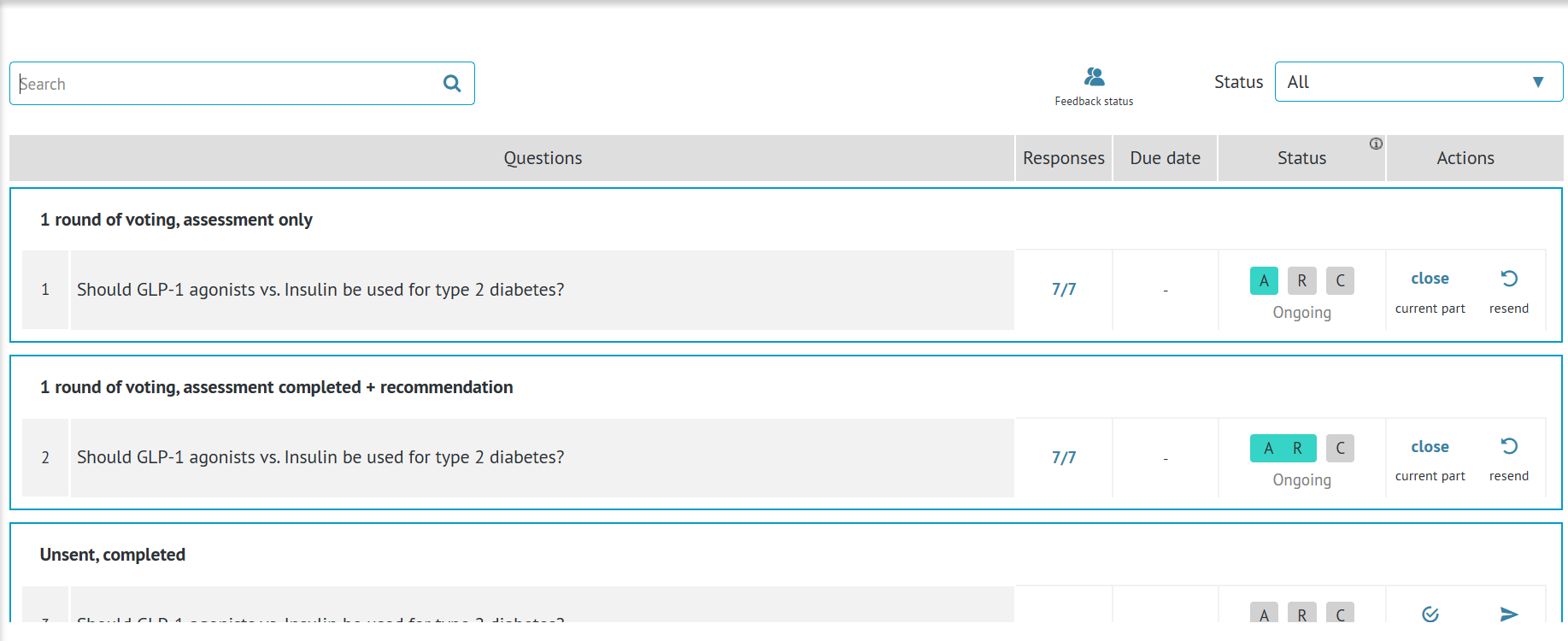
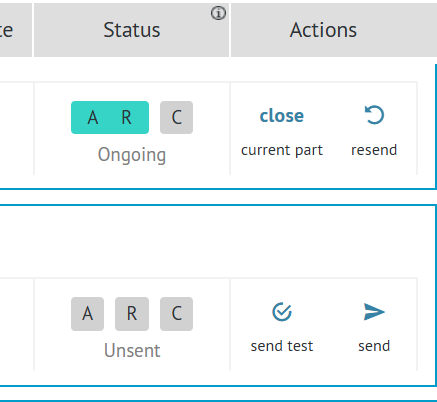
To send (or resend) a survey, you need to click on the button next to the question.
2. Step 1 - Choose EtD sections
PanelVoice surveys are used to share sections of an EtD table with a panel of experts. You can learn more about EtD and its parts in a separate article.
The first step of sending a PanelVoice survey is deciding which sections are to be shared and what voting options the panelists should have.
The decision on which sections to share is up to you and depends on your process. You can share sections one by one, consecutively. You can share all of the sections simultaneously. You can also skip sections.
You must send at least one section. To select a section, click on the checkbox next to it.
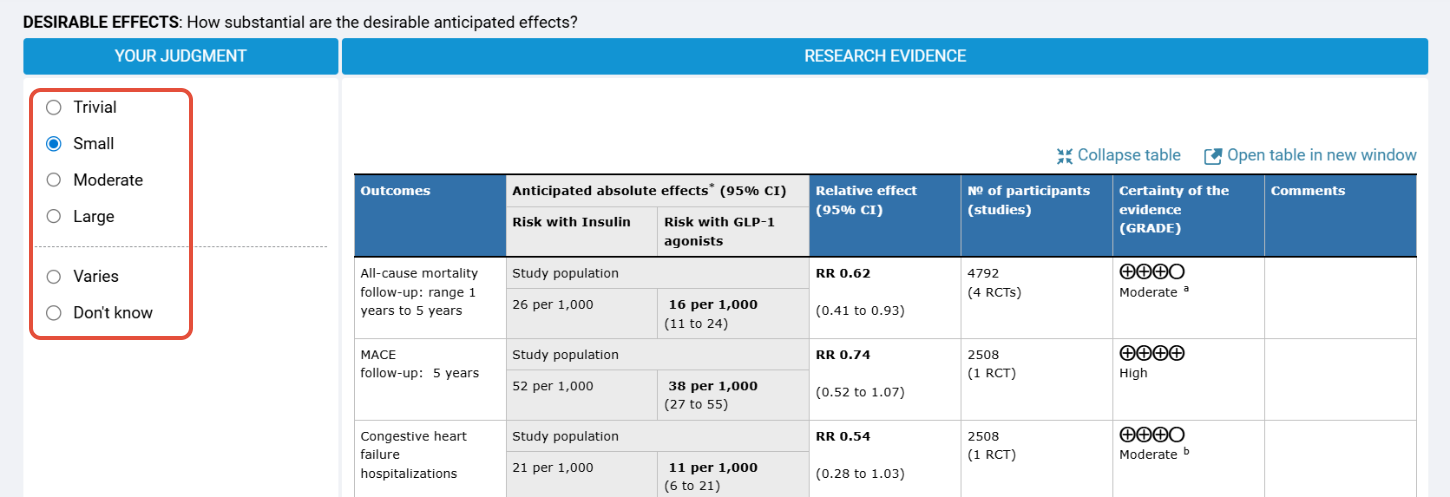
The other option to decide on at this stage is whether or not to include preselected judgements.
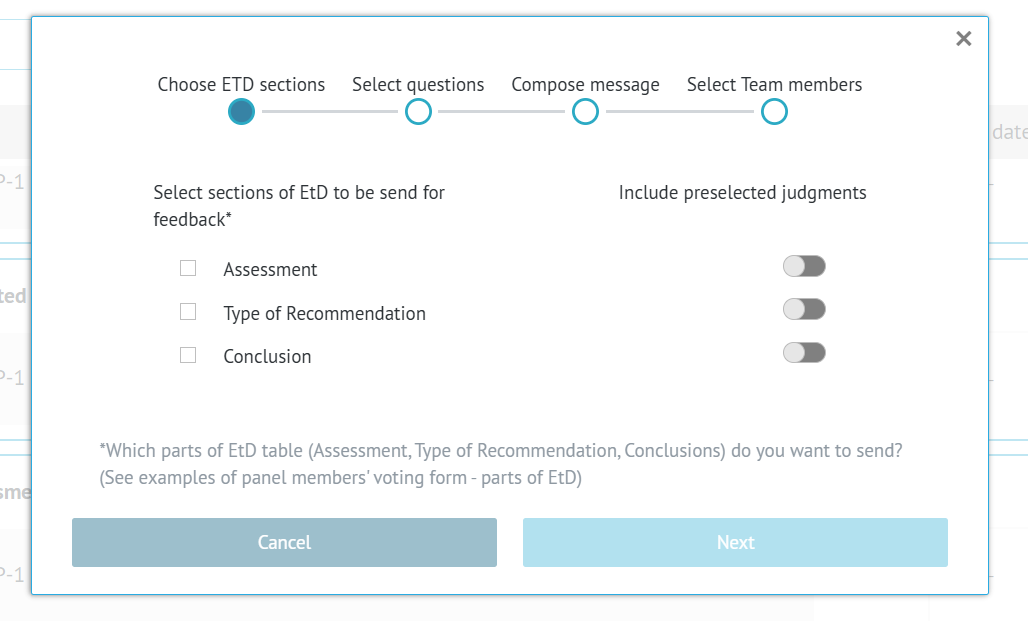
Without preselected judgements, Panel Members can mark any of the judgements for the Etd criteria in the survey they receive.
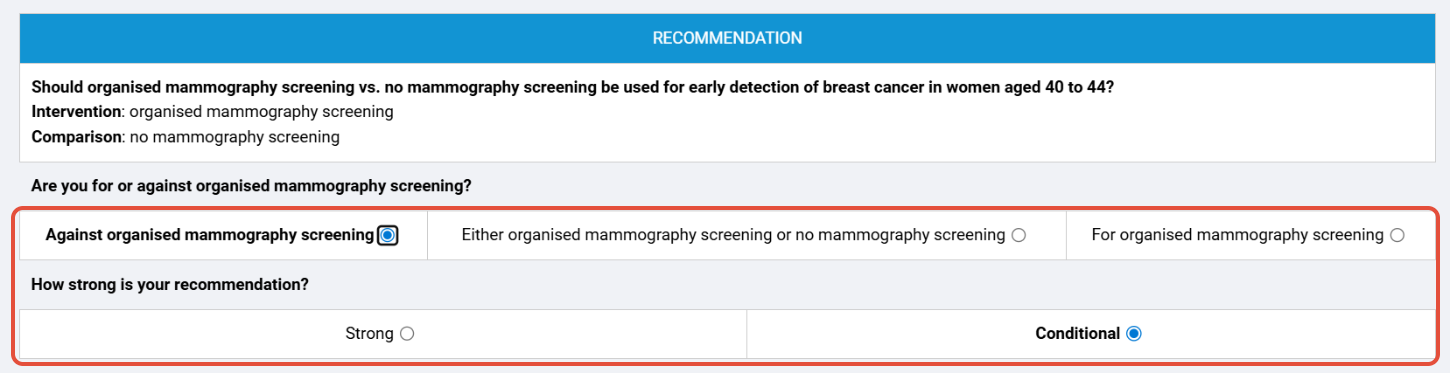
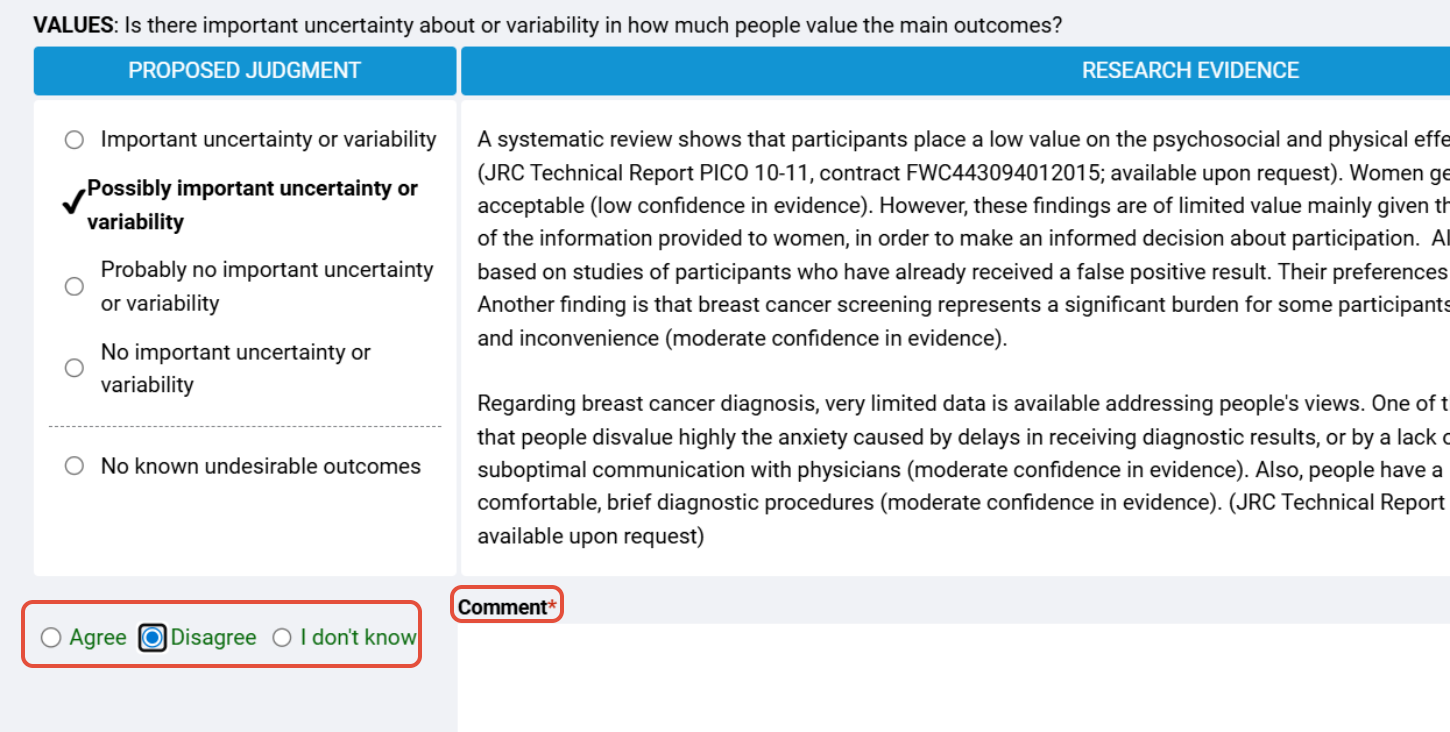
With preselected judgements enabled, you provide panelists with a suggested judgement. They only have the option to Agree, Disagree, or mark that they Don't know. If they disagree, the comment field becomes compulsory, so that they must provide a reason for their disagreement.
Note: For the preselected judgements to work, the judgements must be marked in the EtD you are sending for voting. If the EtD judgements are not marked, the panel members will be able to vote on any judgement, even if the preselected judgement option is used.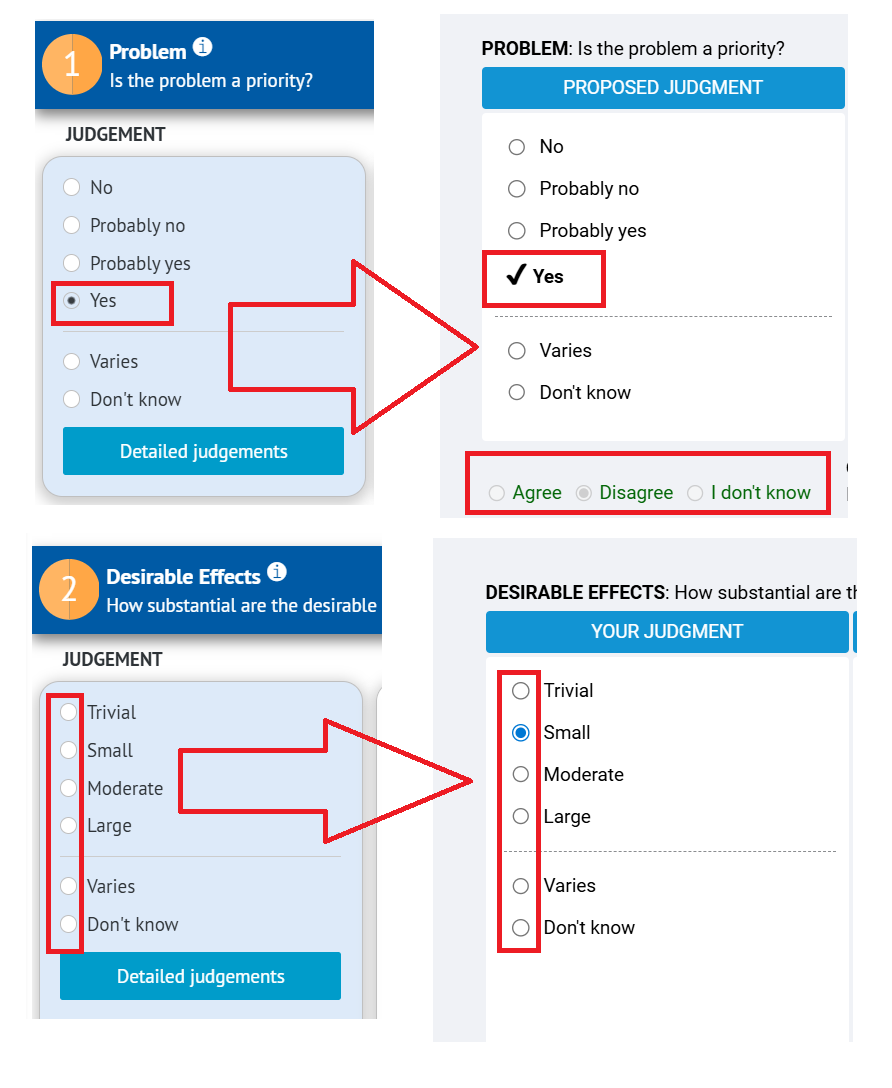
How you combine sections and judgements settings is up to you. However, below we list a few examples of workflows shared with us by various teams using GRADEpro and PanelVoice:
- You can use PanelVoice to gauge panel's opinions before the meeting. For this, you can send just the Assessment part, without preselected judgements. The survey results will tell you which criteria the panel agrees on (and will take little to discuss during the meeting), and which criteria the panelist split on (which might mean prolonged discussion.
- You can use PanelVoice to confirm panel's decisions after the meeting. For this purpose, you send all the parts that were discussed during the meeting, be it just the Assessment or the entire EtD, with preselected judgements marked according to the meeting discussion. This way you can record panel's final opinions for the future.
- If a panel is already accustomed to EtD framework and PanelVoice feature, later in the process PanelVoice surveys may even replace a meeting altogether. For those cases, you can send the entire EtD without preselected judgements and then, if needed, resend it with preselected judgements.
- As certainty of evidence criteria are based on specific GRADE rules, some panels treat them as not subject for voting. CoE criteria judgements are marked in the EtD, while other criteria are left unjudged. Then the Assessment part is sent to the panel with preselected judgements on. This way panel members can mark any judgements for most criteria, but in case of CoE criteria they can only agree/disagree/mark that they don't know.
3. Step 2 - Select questions
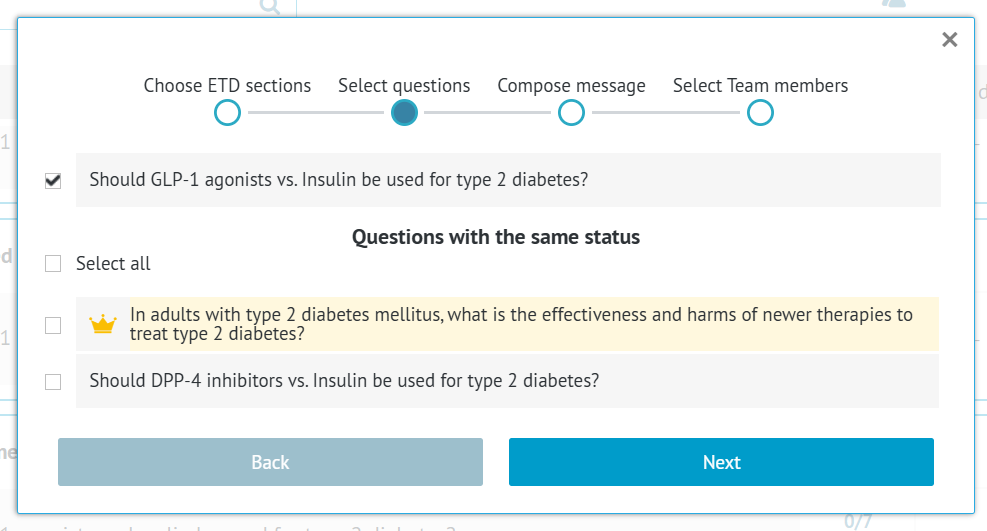
You can send multiple questions simultaneously. During the second step, you can mark the other questions you want to send apart the first one. The same settings as you used in Step 1 will be applied.
The questions you may add are only those with the same status. This means they have the same history as the first question you selected. If that question has not been sent before, you will only be able to add other questions that have not been sent before. If it has already been sent twice, only the questions that also have been sent twice will be listed.
4. Step 3 - Compose message
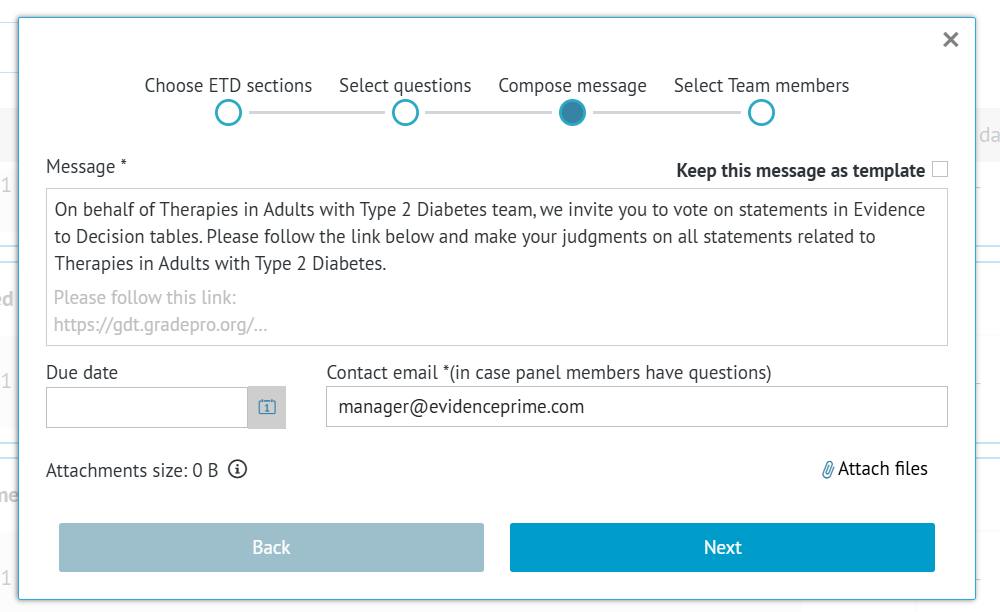
In the third step you can compose the message, that will accompany the personal link that each Panel Member will receive via email.
The message starts in generic content, which names the guideline project title and briefly describes the voting. You can edit the message. That new, edited message can be kept as a template using the checkbox in the top right corner. Only one template can be kept at a time, so any new template will overwrite the previous one. The templates are also project-specific, so they will not transfer to other guideline projects in GRADEpro.
As the link is personalised for each panel member, it cannot be edited.
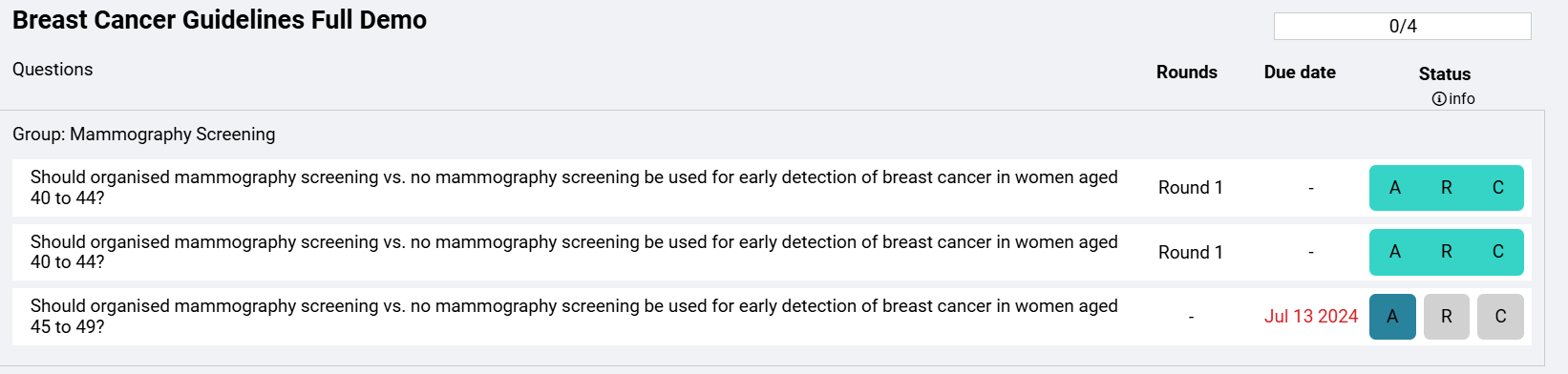
You can set a due date, but it is not compulsory. The date will only serve as guidance for the panel members - they will still be able to send their decisions after the date is past (unless you close the voting). After the date is past, Panel Members will see it in red.
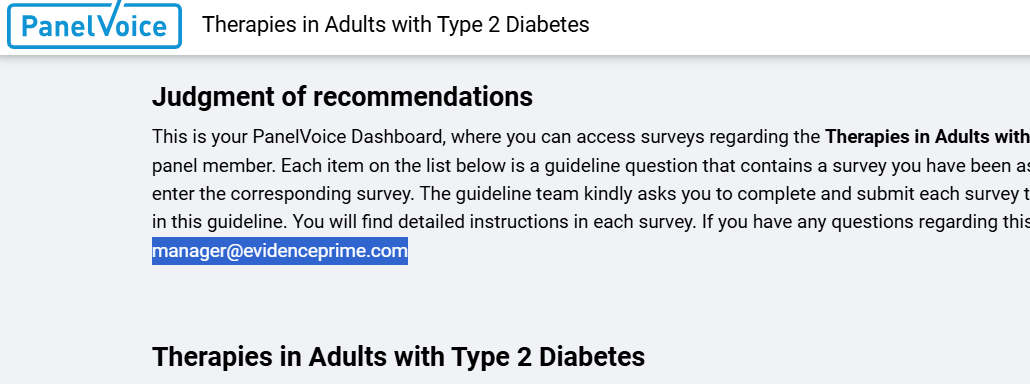
The contact email is compulsory. It is the email that the panel members will see in their voting instructions to reach out to in case of questions. Also, if they respond to the email with link they receive, that response will also be forwarded to that email address.
Finally, you can attach files up to 10 MB.
5. Step 4 - Select participants
The last step is to select the recipients of the survey. You will see all the people who are marked as Panel Members in the project Team. If someone is missing from the list, they must first be added in the Team.
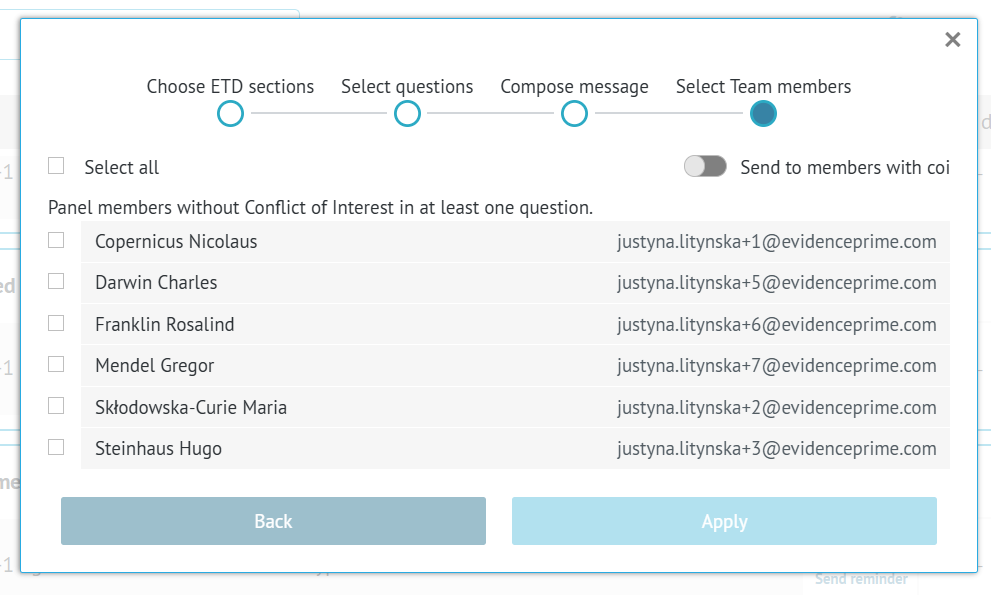
If someone has been found in conflict with that particular question, they will be automatically excluded from the team. If you want to preview those names, you can use the toggle in the top right corner.
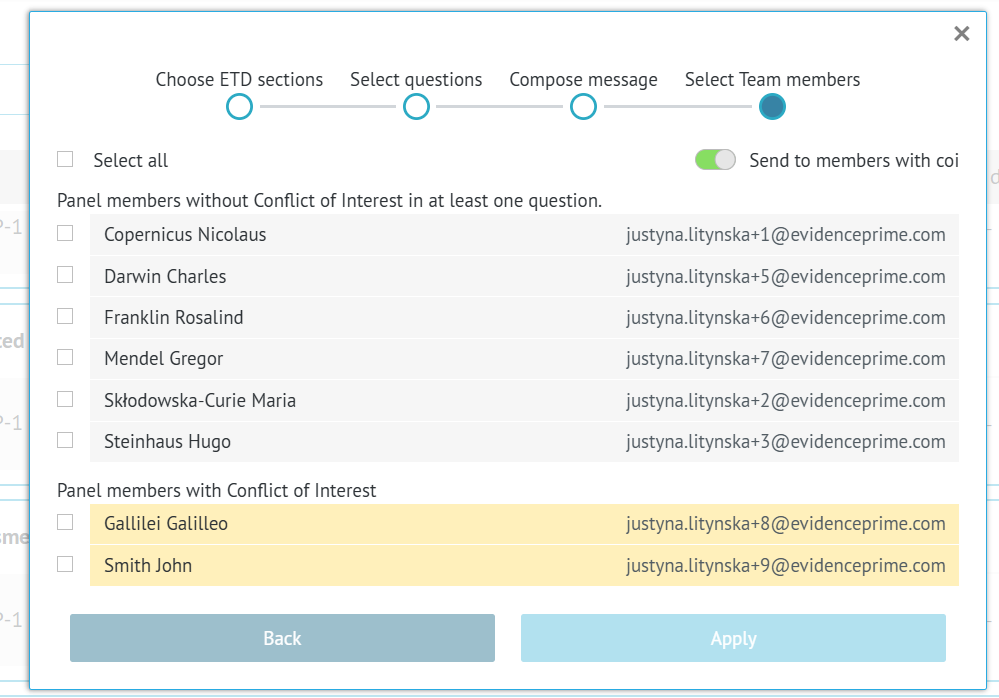
To send the survey you just need to mark appropriate team members and click apply.
Note: For you to see the results, the panelist must submit the full survey. Results don't appear in GRADEpro as panelists mark them in their surveys, only once they submit.6. Sending reminders
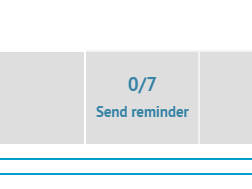
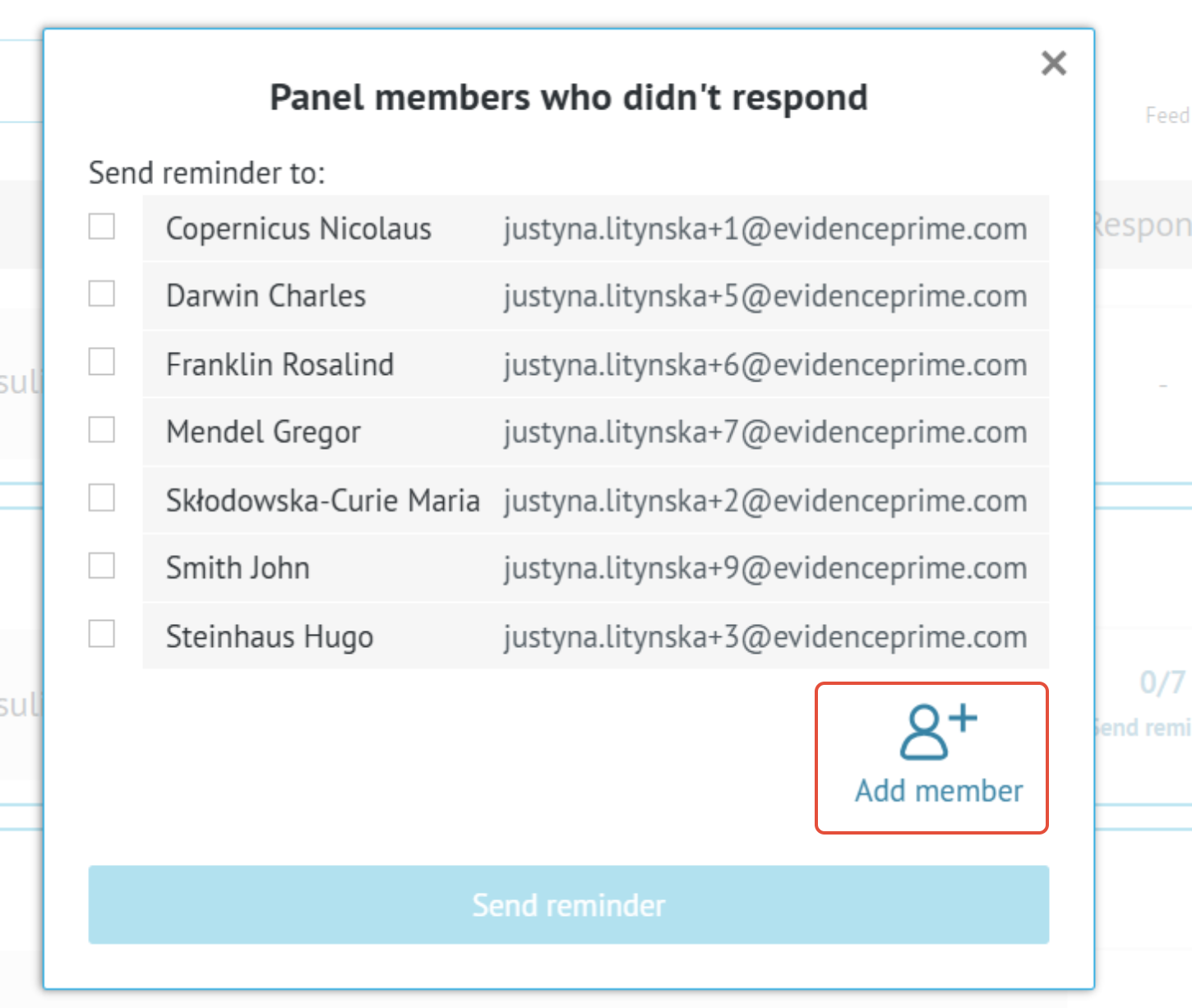
Once a survey is sent, you can see the response rate next to it. Unless all participants responded, you will see the option to Send reminders. To remind people of the voting please use this option and not resend option as resending opens a new round of voting.
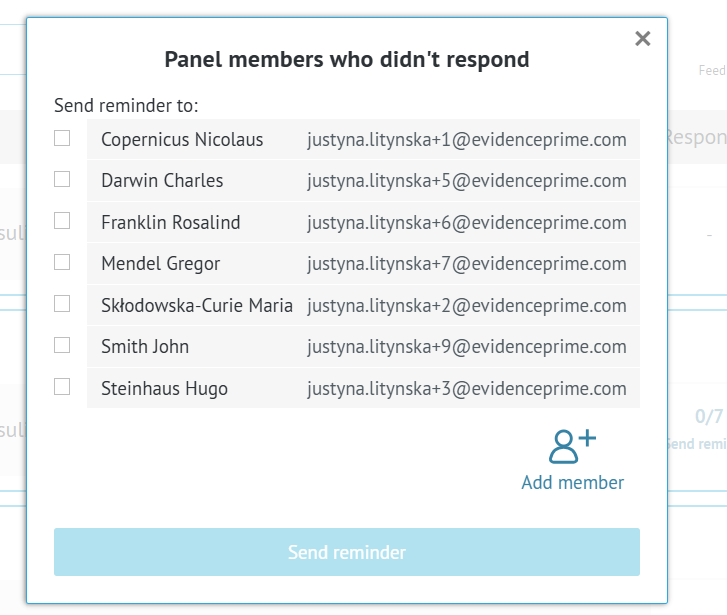
You will be shown the list of all unresponsive members and you can choose who to alert.
7. Adding voters to an ongoing survey
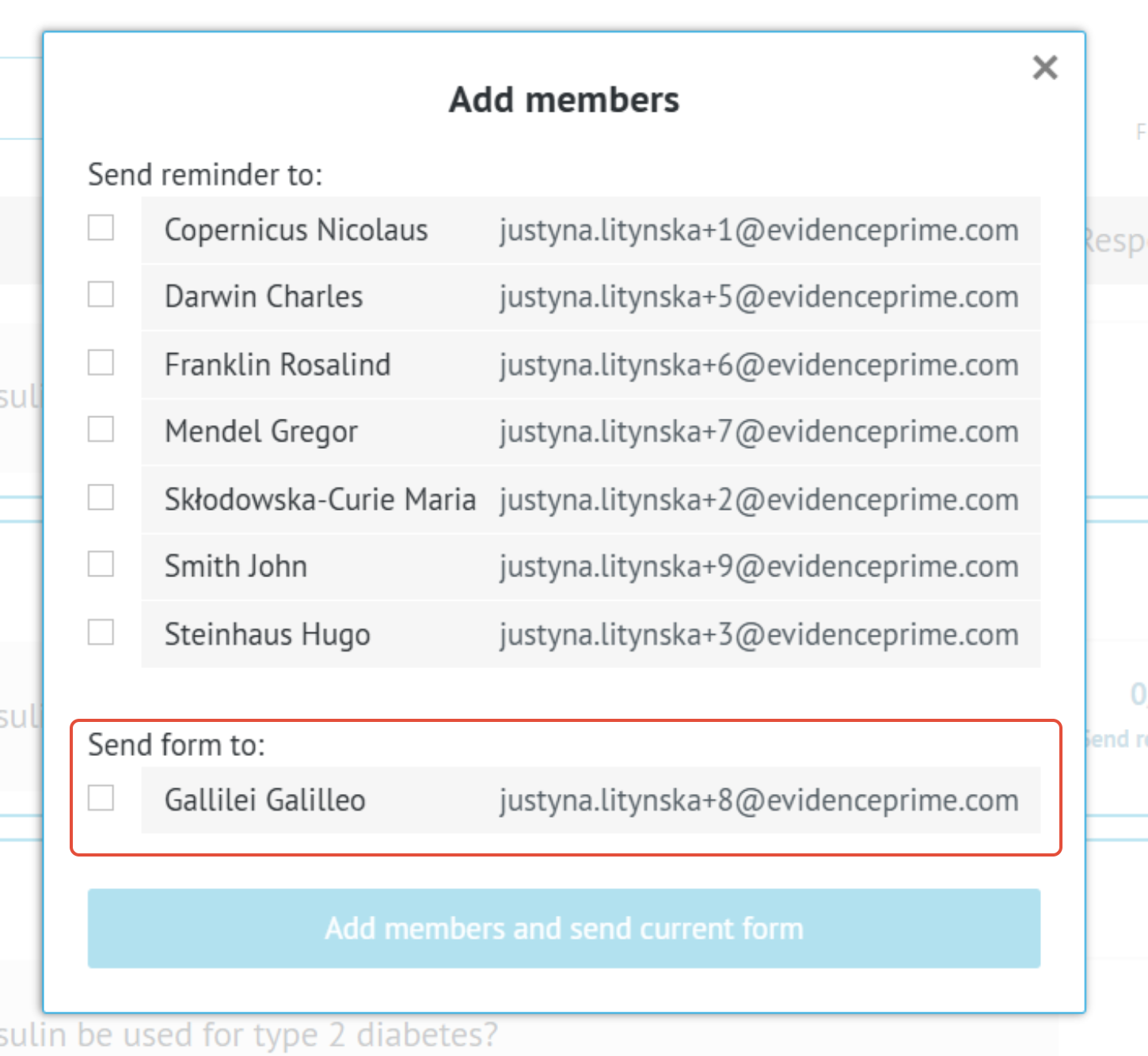
If a member joined the project during an ongoing survey (and they were added as a Panel Member in the project Team), you can add them to the ongoing voting, using the Send reminder option shown above. You will see the Add member option.
Once used, it will show the list of members who have not received this particular survey yet. You can add those people to the voting.
8. Multiple rounds of voting
Sometimes it is necessary to vote again on a particular PanelVoice survey. This can be done many times, until you are satisfied with the final results.
8.1 Sending a new round of voting
Sending a new round of voting is done in the same steps as sening a survery for the first time, with a few differences.
When you resend a survey, you cannot change the EtD sections being sent. You can change the preselected judgements settings.
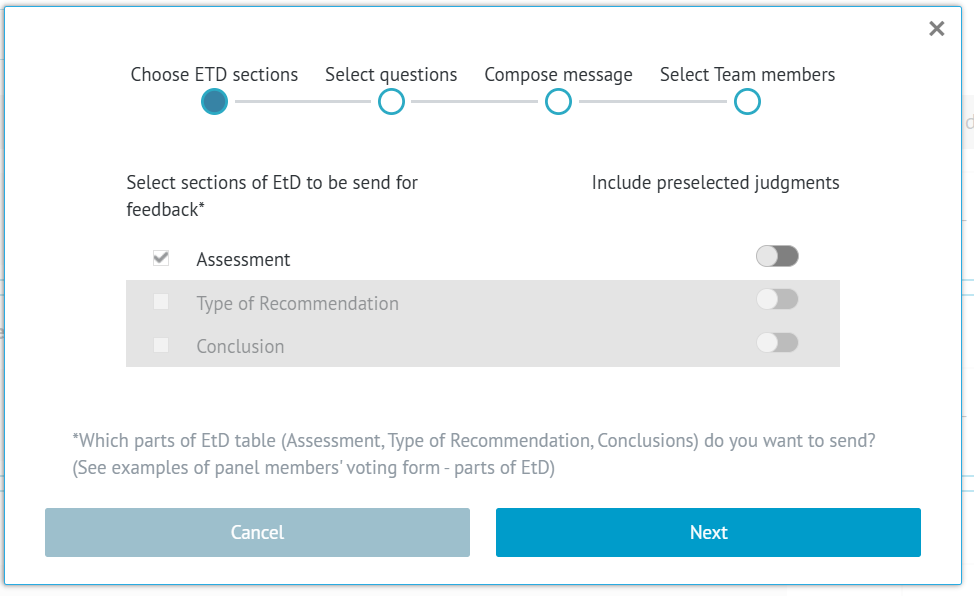 Also, when you select recipients, the recipients of the previous round of voting will be automatically marked. You can however check or uncheck recipients if needed.
8.2 Editing EtD before sending a new round of voting
You may choose to edit EtD content before resending survey, be it for introducing new data or to correct some typos or errors.
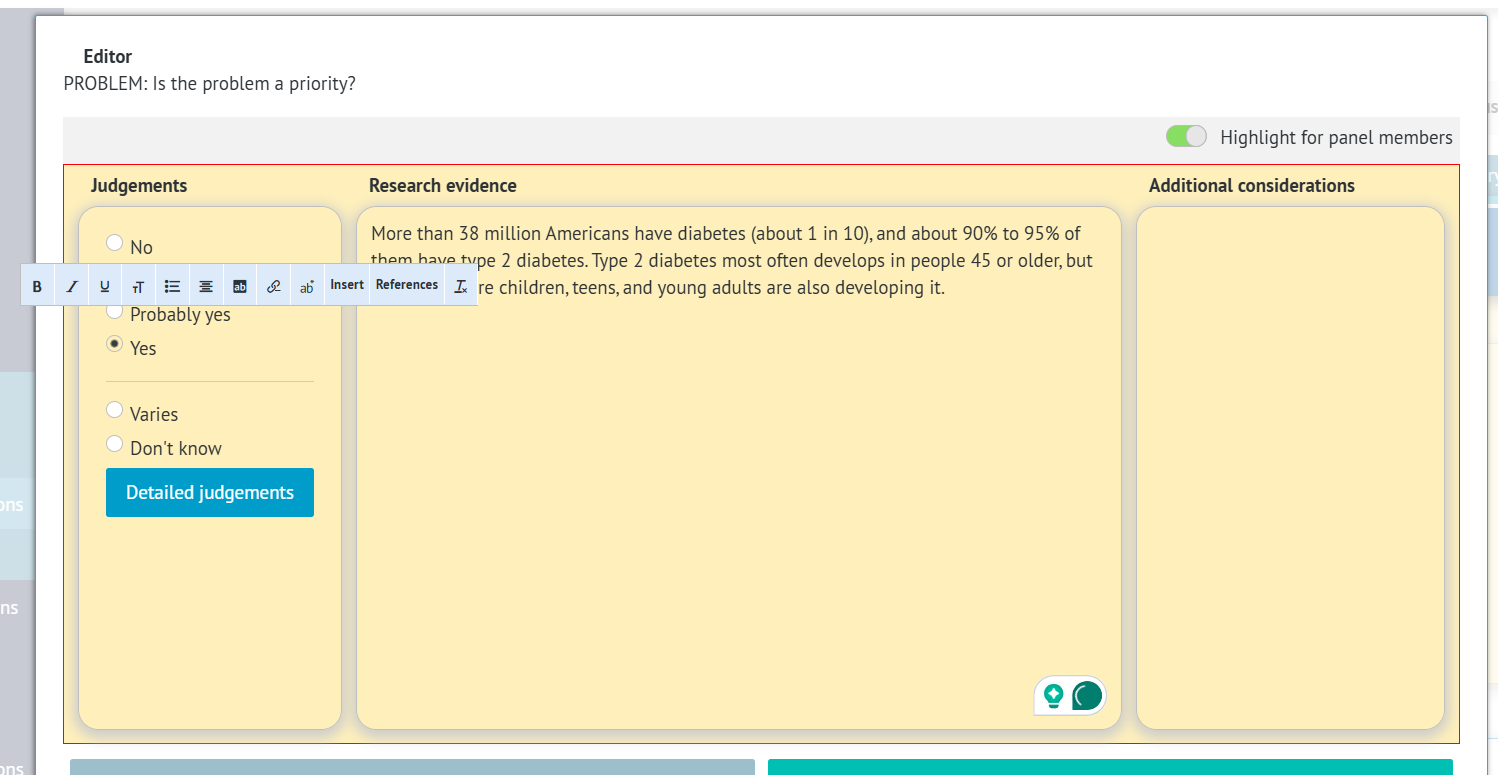
When you edit EtD for an ongoing voting, a separate editor window opens and once edits are implemented, the criterion is automatically highlighted for panelists. This way, when the survey is resent to them, they clearly see where changes were applied and their previous voting is reset (otherwise, if no changes are implemented, previous votes are kept, which can be changed by panelists if needed). If the change is simple, e.g. just correcting a typo, you can untoggle the highlight so as not to draw panelists' attention unnecessarily.
8.3 What happens with the results from the previous round of voting
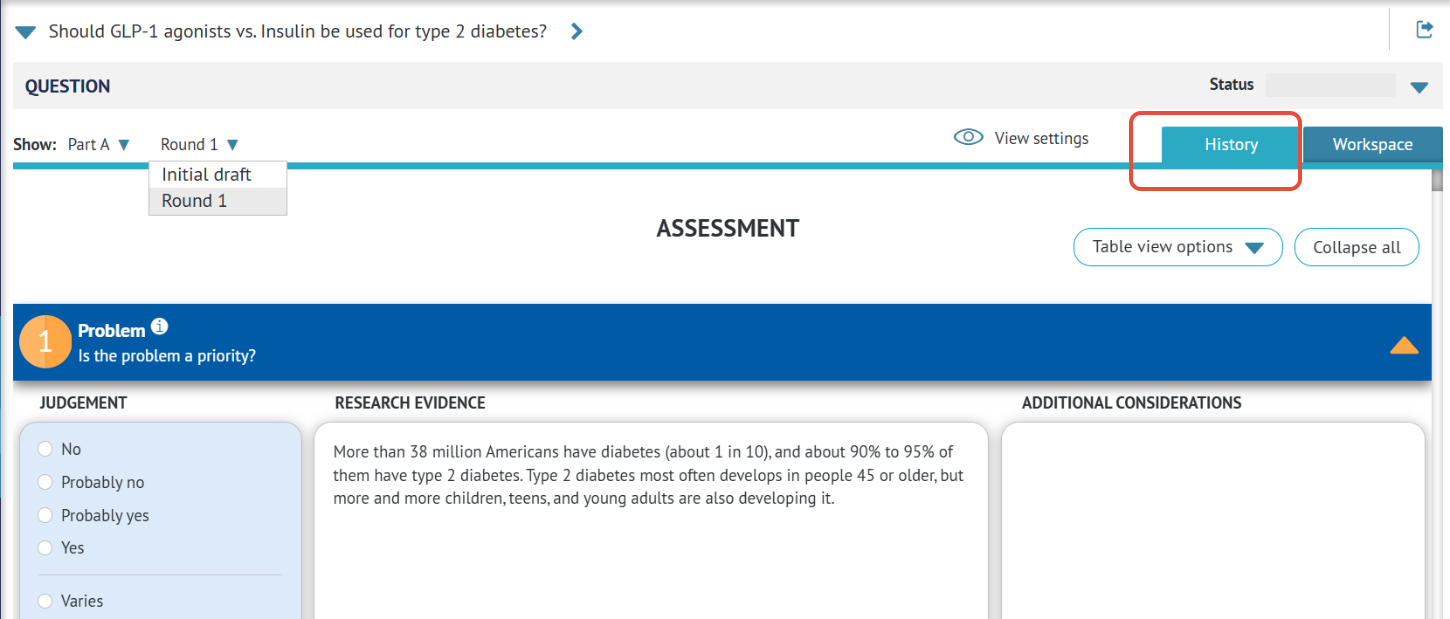
The results of PanelVoice are displayed below each criterion of the EtD (you can read more about the results here). However, those are only the results from the most recent round of voting. If a new round is opened, the results from the previous round are moved to the History tab of the EtD.
9. Closing voting
If you sent only the first part(s) of the EtD and want to move to the next ones or if you want to stop the panelists from adding more votes, you can do it by closing the voting. Closing is irreversible and should only be done when you are certain no new votes need to be accepted in this voting.
RELATED ARTICLES
Was this article helpful?
That’s Great!
Thank you for your feedback
Sorry! We couldn't be helpful
Thank you for your feedback
Feedback sent
We appreciate your effort and will try to fix the article