TABLE OF CONTENTS
- 1. Introduction
- 2. Exporting evidence/summary of findings tables
- 3. Exporting Evidence to Decision tables

1. Introduction
All evidence tables, summary of findings tables, and Evidence to Decision tables can be exported in various formats so that you can present them outside of GRADEpro. This option is always marked with an export icon, usually located in the top right corner of your screen.
Below you can read more about the exact mechanisms of exporting particular types of tables.
2. Exporting evidence/summary of
findings tables
You will see a new window when using the export option for evidence tables. 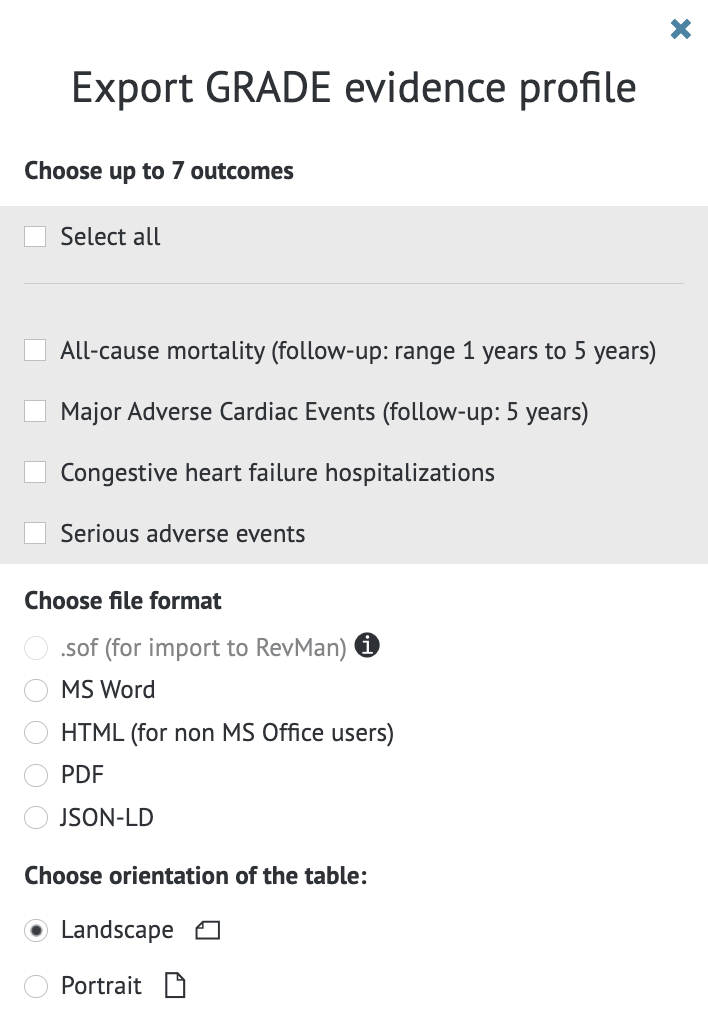
With checkboxes, you can choose which outcomes should appear in the table. Selecting more than seven outcomes is not recommended, but it is possible. You can use the “Select all” button to export the whole table.
Then you have to choose the file format. The available formats are
- .sof - to use this format, the table has to be in the Summary of Findings display
- MS Word
- HTML - if you want to additionally edit the table but don’t possess MS office, you can copy the content of the HTML file and paste it into your text editor
Then you can also choose the orientation of the table - landscape or portrait (horizontal or vertical).
Once you mark the desired options, you can click on the “Download” button, and you will download the table.
2.1 Exporting Interactive Summary of Findings
You can also export the Interactive Summary of Findings (iSoF) table in a form of a public link to insert it into the manuscript.
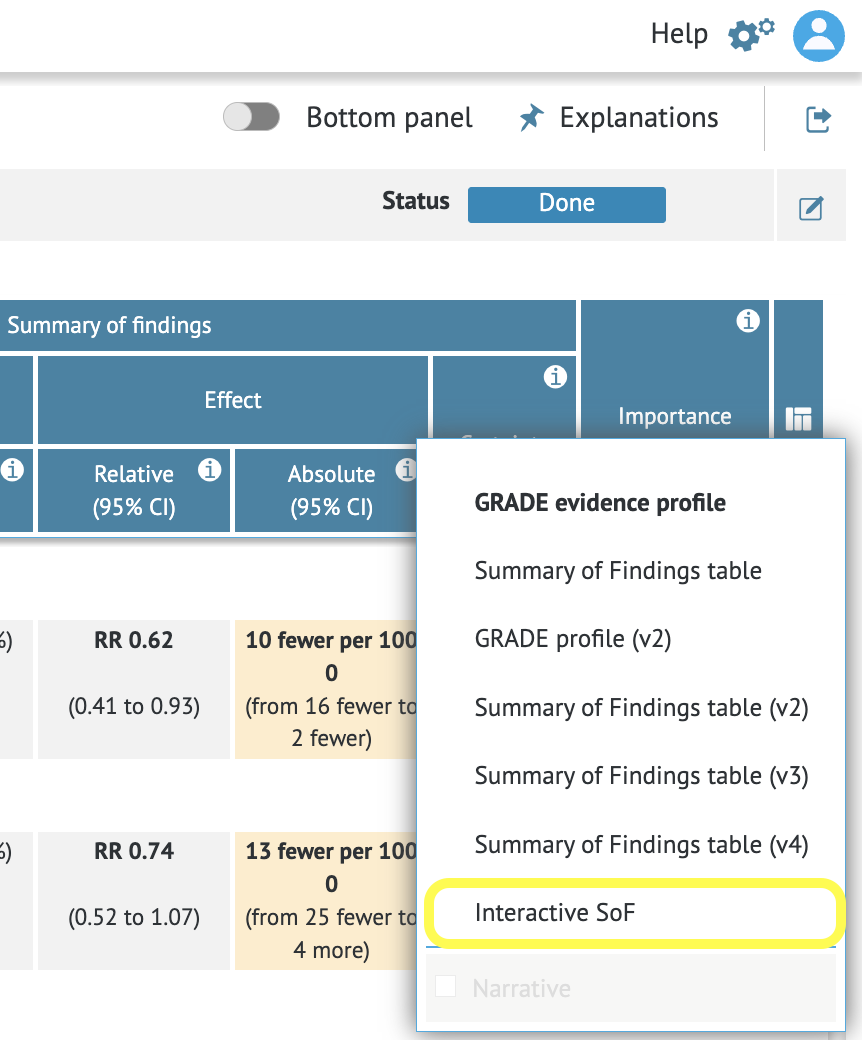
Firstly you need to move your table into iSoF view using the icon on the right hand side of the table header.
 Then you need to use the export option in the top right corner of the website.
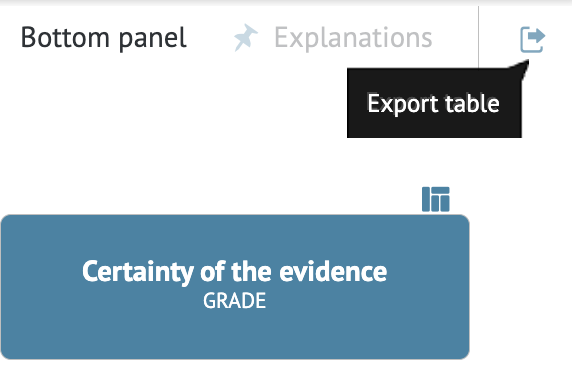 and select "External link":
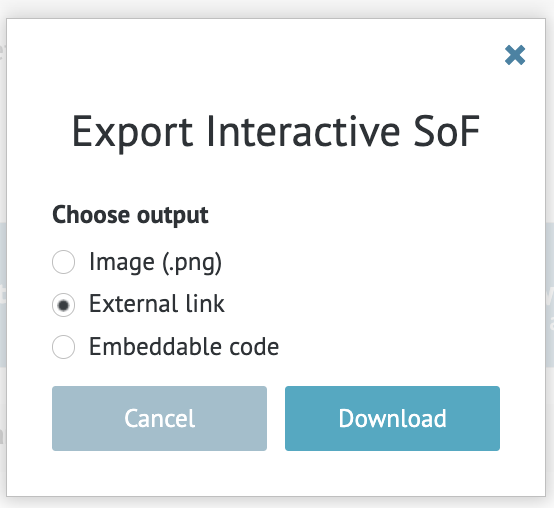
Your interactive Summary of Findings (iSoF) table will be exported to a separate tab page with a public link that can be copied by you and inserted into the manuscript or sent to other collaborators.
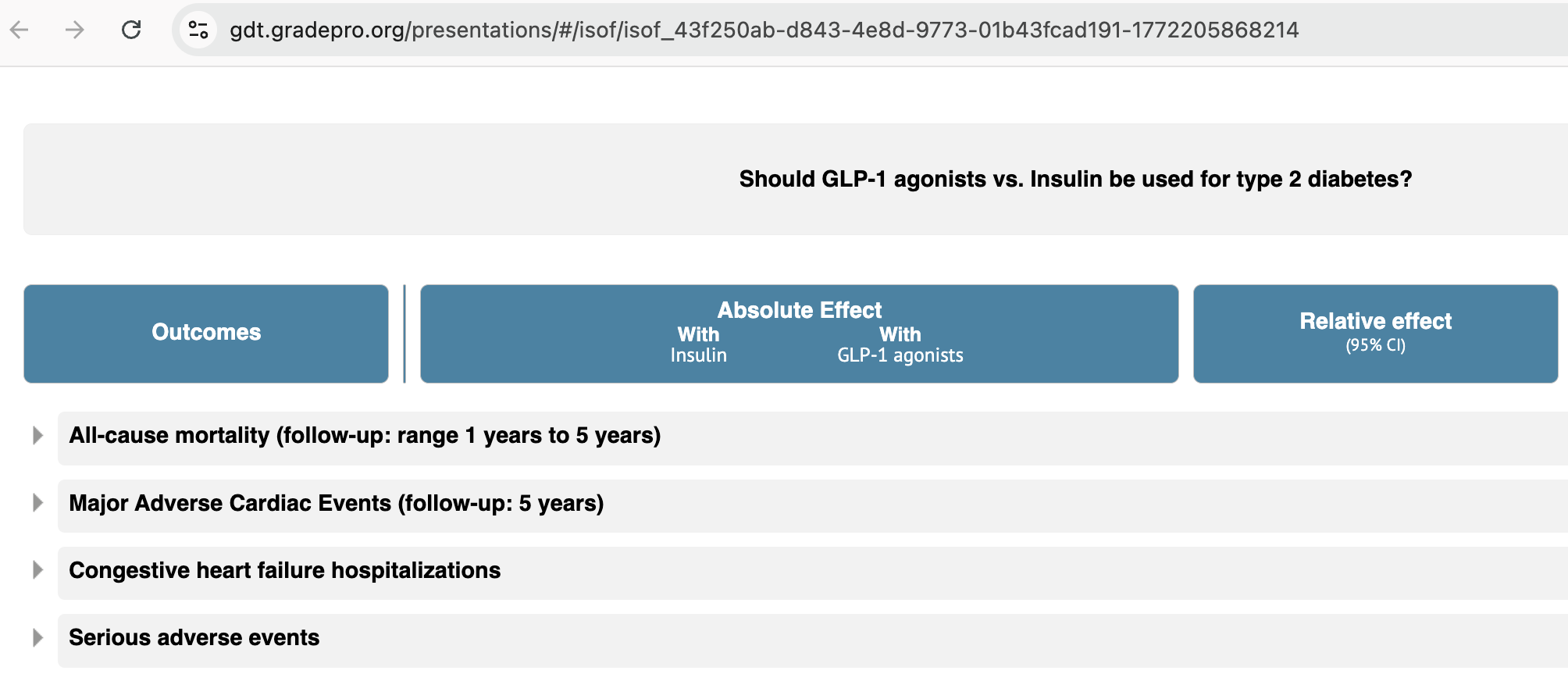
Tip: Please make sure to copy the final link in full that can be used to share publicly.
3. Exporting Evidence to Decision tables
You will see a new window when using the export option for Evidence to Decision tables.
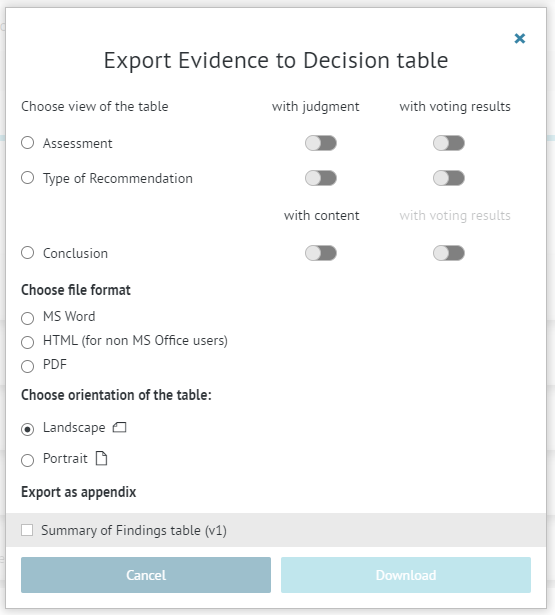
You will be able to select the following:
- which section(s) of the EtD that you want to export
- whether you want to export EtD, including the judgement for particular criteria
- whether you want to export EtD, including the voting results for particular criteria (if you used PanelVoice)
Then you have to choose the file format. The available formats are
- MS Word
- HTML - if you want to additionally edit the table but don’t possess MS office, you can copy the content of the HTML file and paste it into your text editor
Then you can also choose the orientation of the table - landscape or portrait (horizontal or vertical).
If an evidence table has been inserted into any section of the EtD, you can export it as an appendix so that it is available in a better resolution.
Once you mark the desired options, you can click on the “Download” button, and you will download the table.
RELATED ARTICLES
Was this article helpful?
That’s Great!
Thank you for your feedback
Sorry! We couldn't be helpful
Thank you for your feedback
Feedback sent
We appreciate your effort and will try to fix the article