TABLE OF CONTENTS
- 1. Introduction
- 2. The Organisation Panel
- 3. Accessing the Organisation Panel
- 4. The Organisation Admin
- 5. Data Security
- 6. Project Management
- 7. Adding new members and admins

1. Introduction
Organisations or organisation workspaces are a structure in GRADEpro that allows users to collaborate more effectively, benefit from additional GRADEpro functionalities (purchased by their organisation), and keep the data secure within their selected group of members.
You can think of an organisation as a closed and controlled work environment within GRADEpro.
Every organisation has its administrator, administration panel, and progress tracking in its projects. If your project has a large number of PICO questions or if you are managing multiple projects simultaneously, you may need ways of tracking the progress in order to quickly assess the stage of work you are at.
You can track progress within a single project and in the whole workspace with the use of the Organisation Panel.
Note: Organisation Panel can only be accessed and managed by an Organisation Admin. For Team subscriptions, Organisation Admin is always GRADEpro Support Team. For Enterprise subscriptions, Organisation admin(s) can be appointed from among team members.
2. The Organisation Panel
The Organisation Panel is a dedicated website that helps Organisation Admin to perform high-level project management tasks and control access to their GRADEpro organization.
The organisation panel brings the possibility to review the most crucial data without accessing the project in GRADEpro software. This opens new possibilities for communication between various roles in a guideline group.
People like Panel Chairs are able to preview the recommendation framework (EtD) data straight from the Organisation Panel (read-only mode) and send comments to project leads, who prepare the data for panel meetings (e.g., research evidence) in GRADEpro.
3. Accessing the Organisation Panel
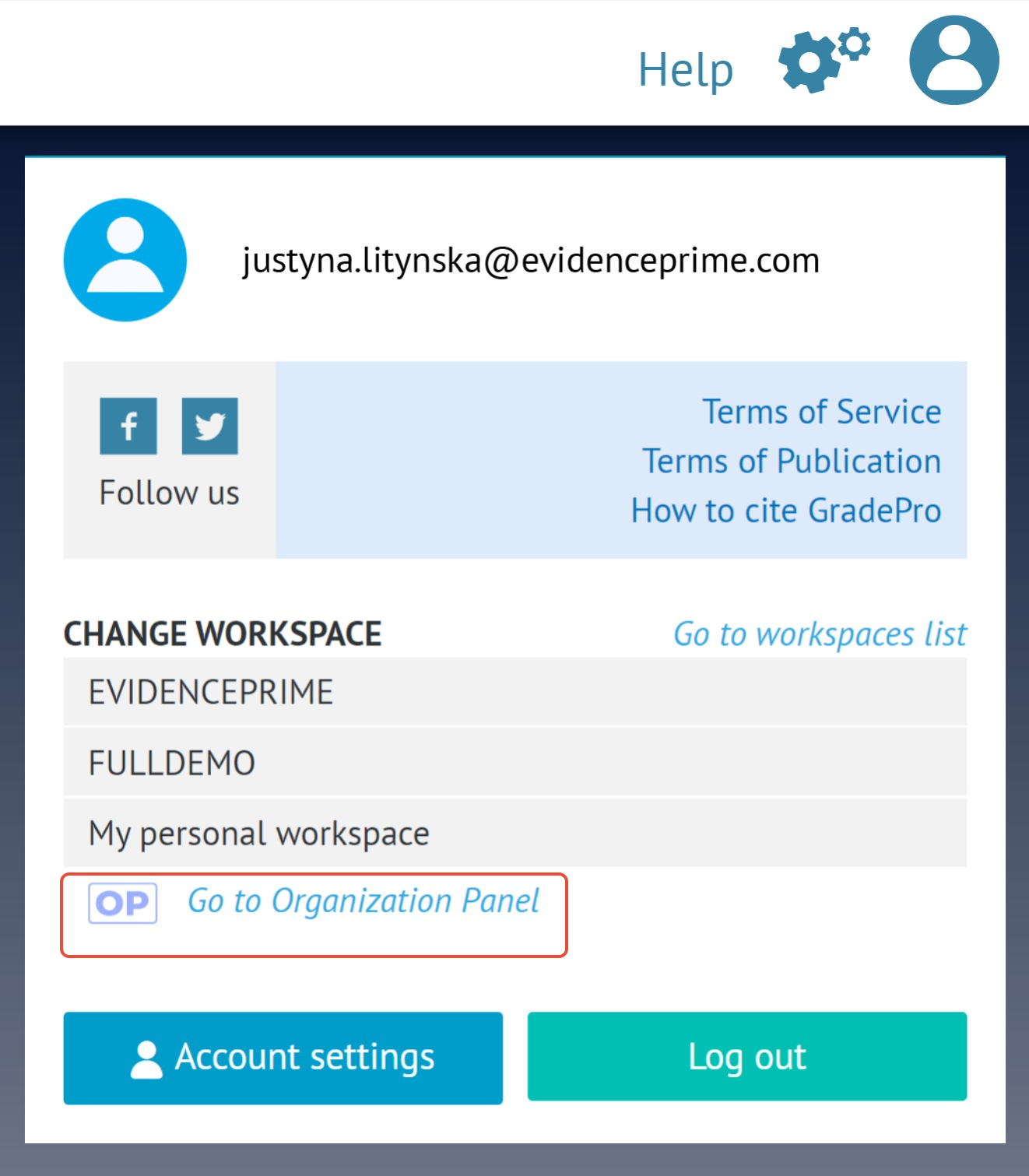
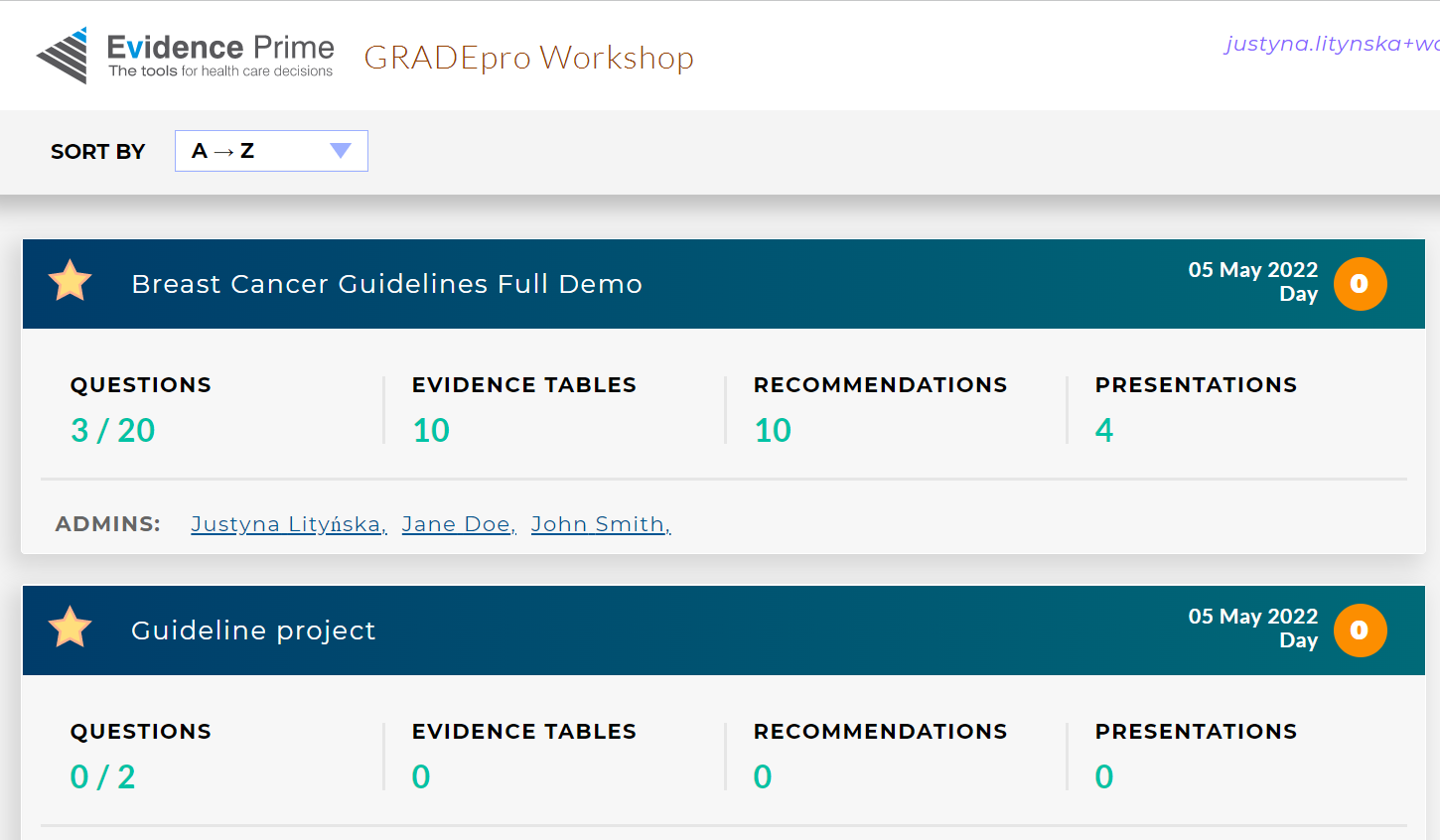
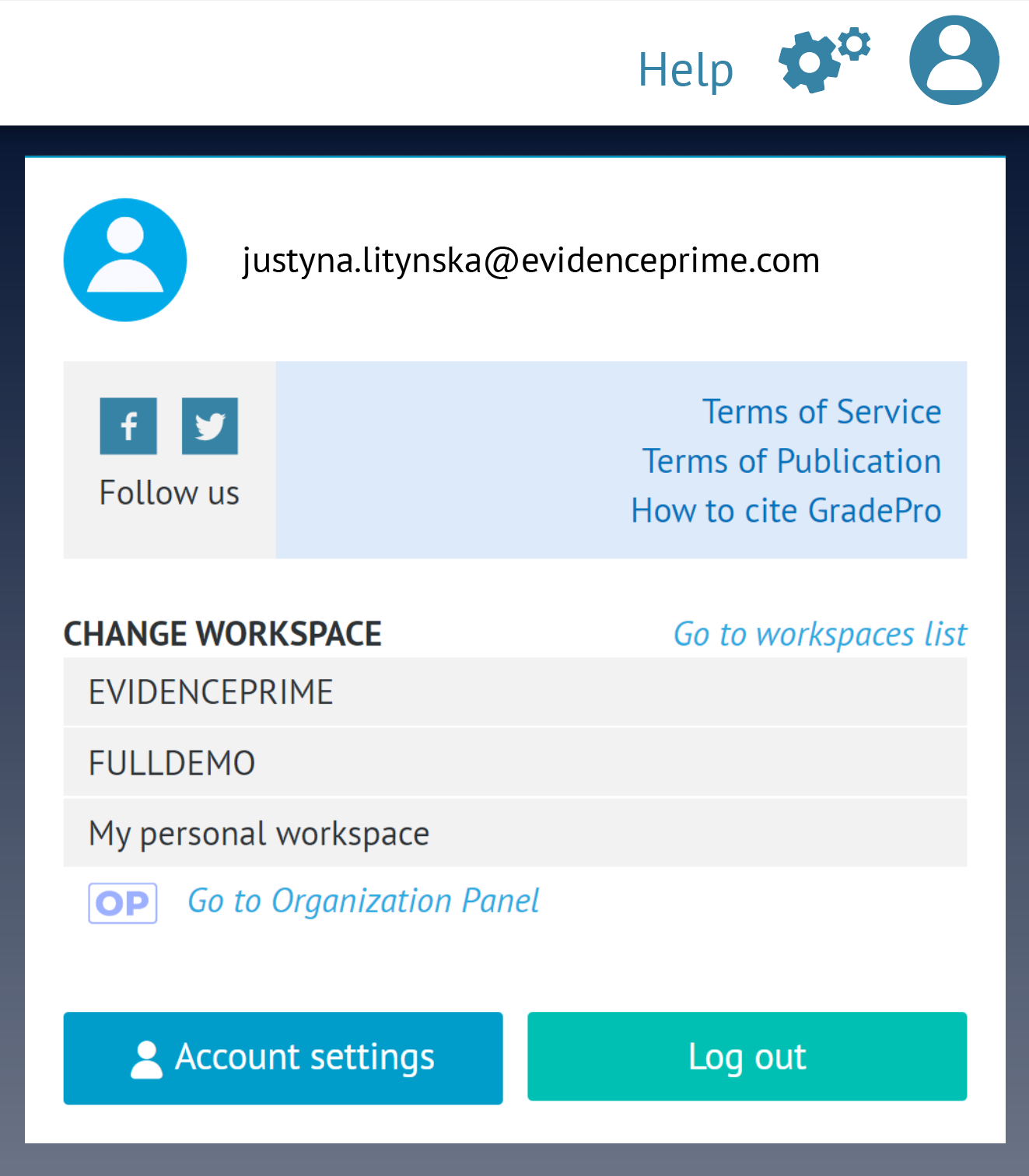
The Organisation Panel can be entered through a button in the user menu in the top right corner of GRADEpro.
4. The Organisation Admin
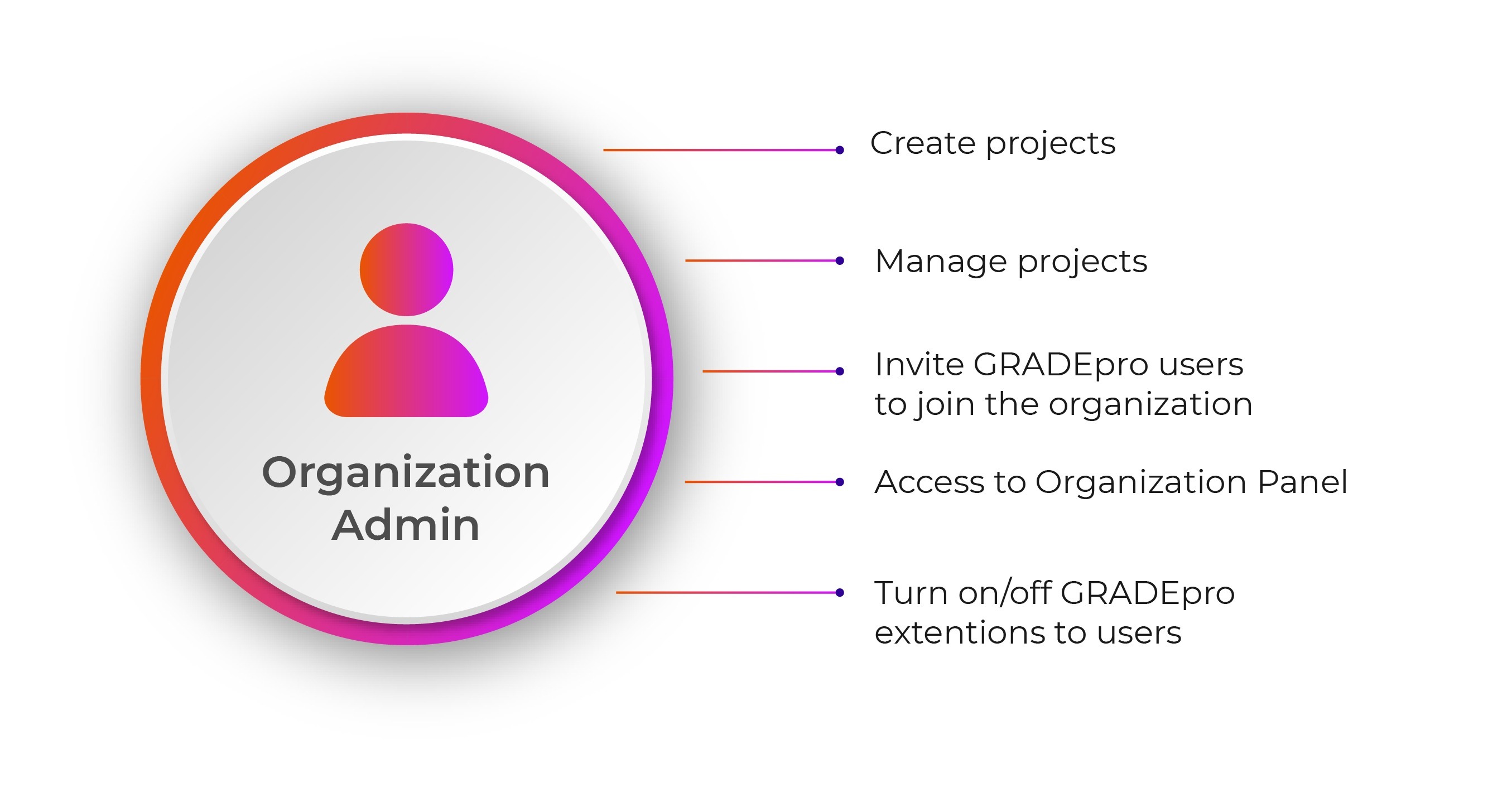
When we create an organisation, you are able to choose a person (or persons) who will be responsible for its management in the GRADEpro system. We call this person an “Organisation Admin”.
Remember: Please note that in case of the Team subscriptions the Organisation Admin role is restricted to the GRADEpro Support team in terms of creating new projects and adding new members to the workspace.They are responsible, e.g., for creating guideline projects for your group/s and inviting collaborators (like editors, methodologists, systematic reviewers, and guideline panel members) to projects.
If an organisation does multiple projects, the organisation admin chooses who will become the leader of each separate project.
Organisation Admin can but doesn’t have to be involved in every guideline done in your organisation. It’s up to you whether your organisation admin will just manage the process or will also be involved in everyday guideline work.
5. Data Security
Organisations give an extra layer of control over the data. The organisation admin keeps track of users who are able to access data in the guideline project (only organisation members can be invited to the organization project).
Additionally, project copies can be sent outside of the organisation only by the organization admin. Those limitations provide an additional level of data security for groups that want to make sure only a defined group of users has access to the data before publication.
6. Project Management
Organisation admin has access to various statistics showing the progress of a GRADEpro project. The team (performing evidence synthesis and recommendation development) is able to report the progress of work on each clinical question and mark the progress in various parts of particular questions
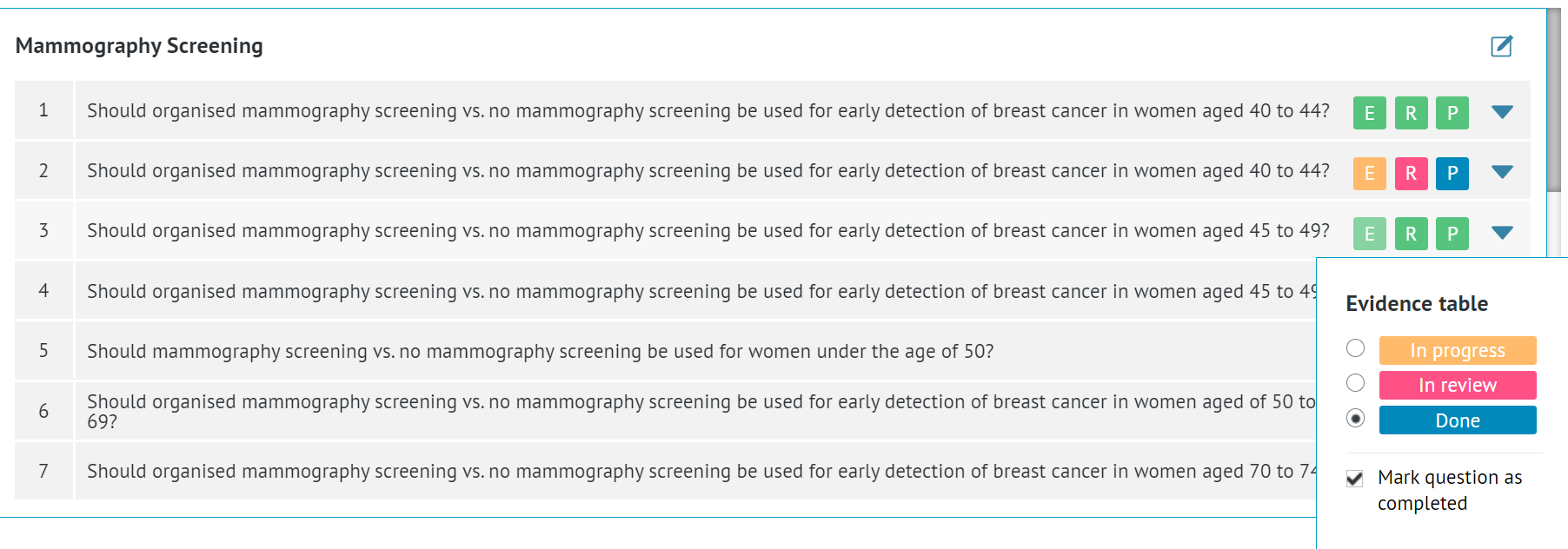
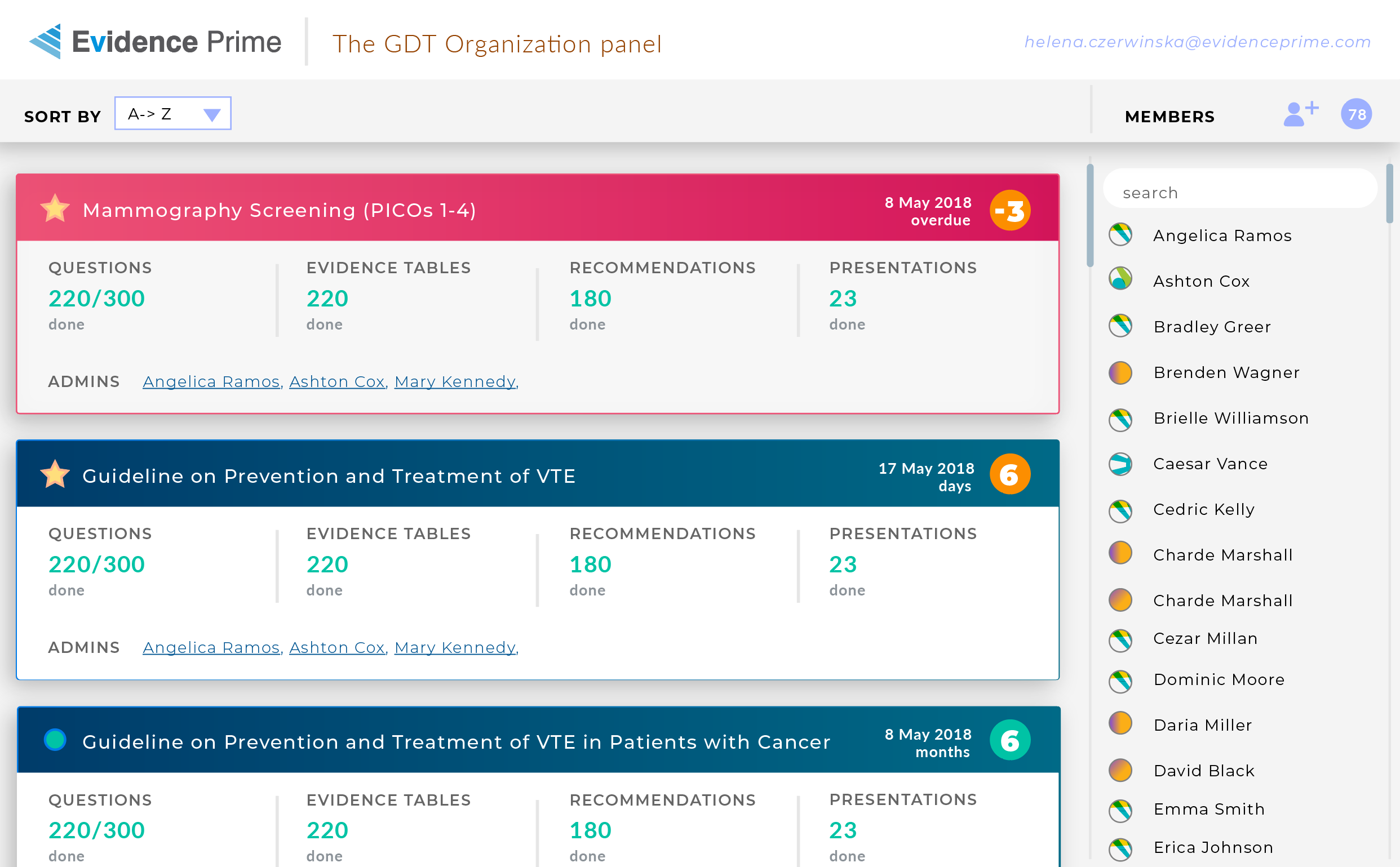
This way, the Organization Admin is able to track the progress of multiple projects simultaneously: on a high level but also drill down to see details of individual questions. In project details, the admin can check the progress of each PICO question. To enter project details, it's enough to click on its name.
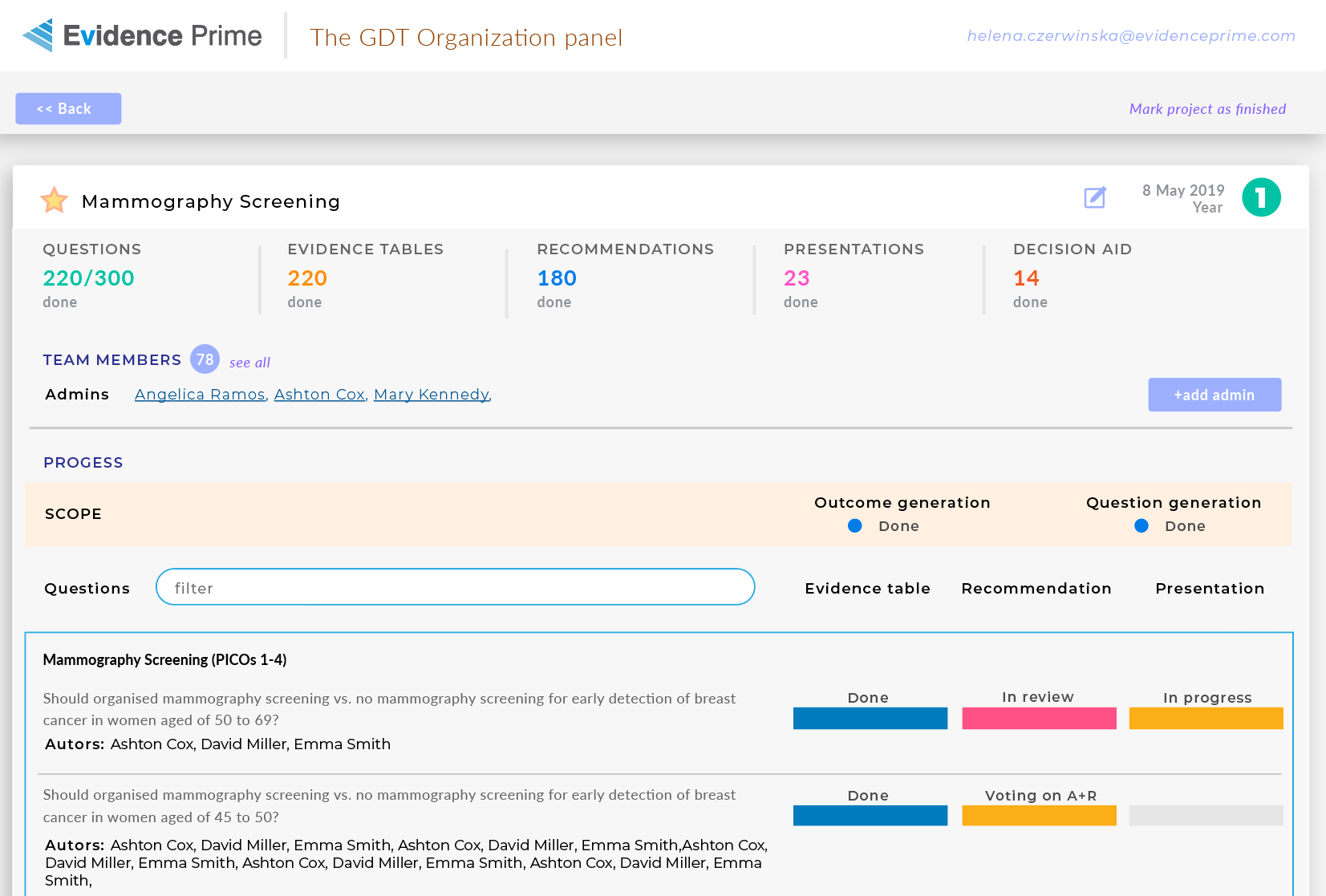
In the organisation panel, the Organisation Admin can also preview the list of all the projects within the organisation, as well as the progress.
7. Adding new members and admins
To be able to add new members to the workspace you need to be an Organisation Admin.
You can give them admin rights when you add them to the organisation, but you can also promote an existing organisation member to become an admin.
To do that, you need to enter the Organisation Panel, accessible through the user menu in the top right corner of GRADEpro.
There you will see all the projects within this workspace as well as its members.
To promote a member to an admin, you need to click on that person's name.
You will then see the panel of that person.
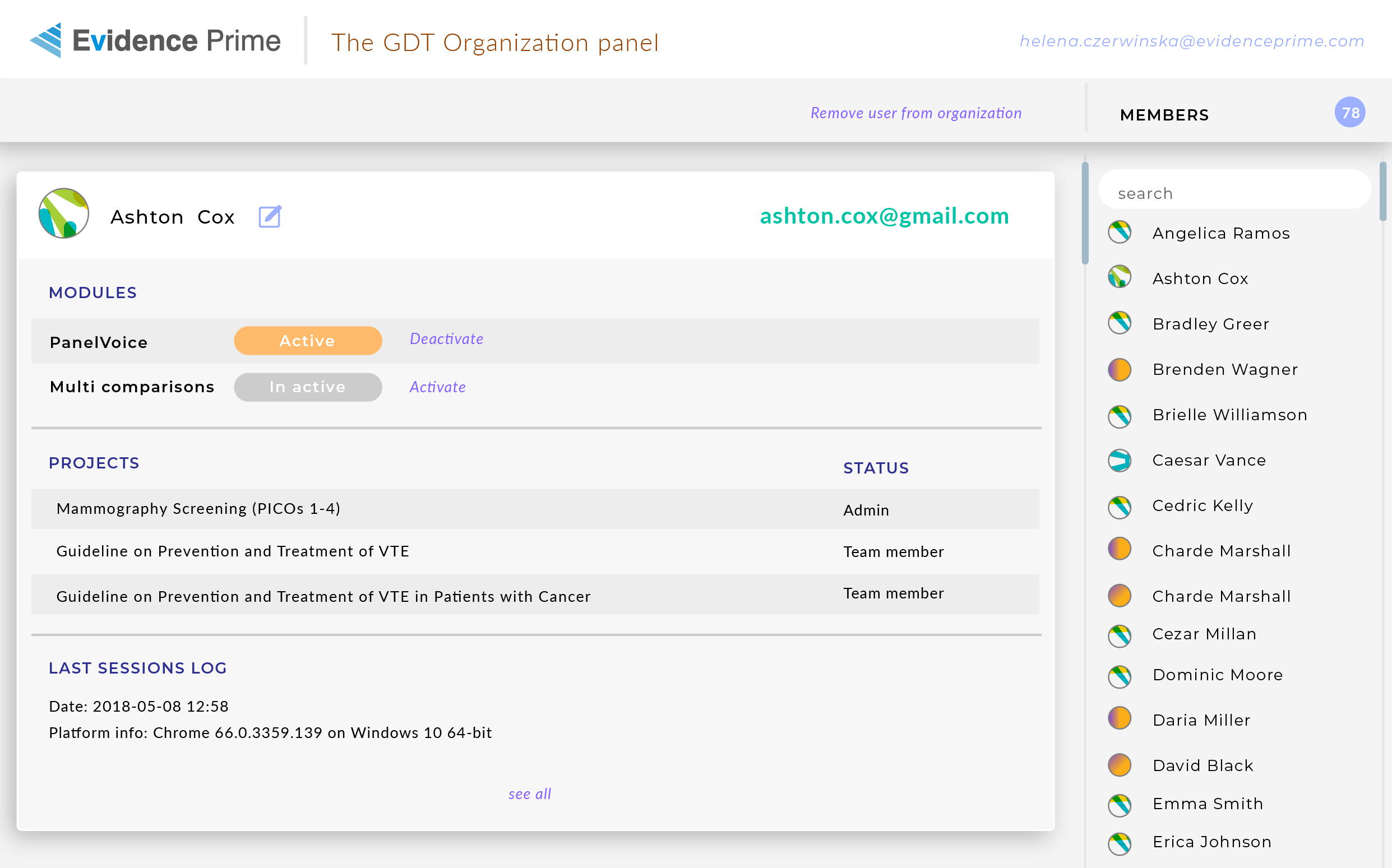
Please use the Edit icon next to their name.
You will see a window.
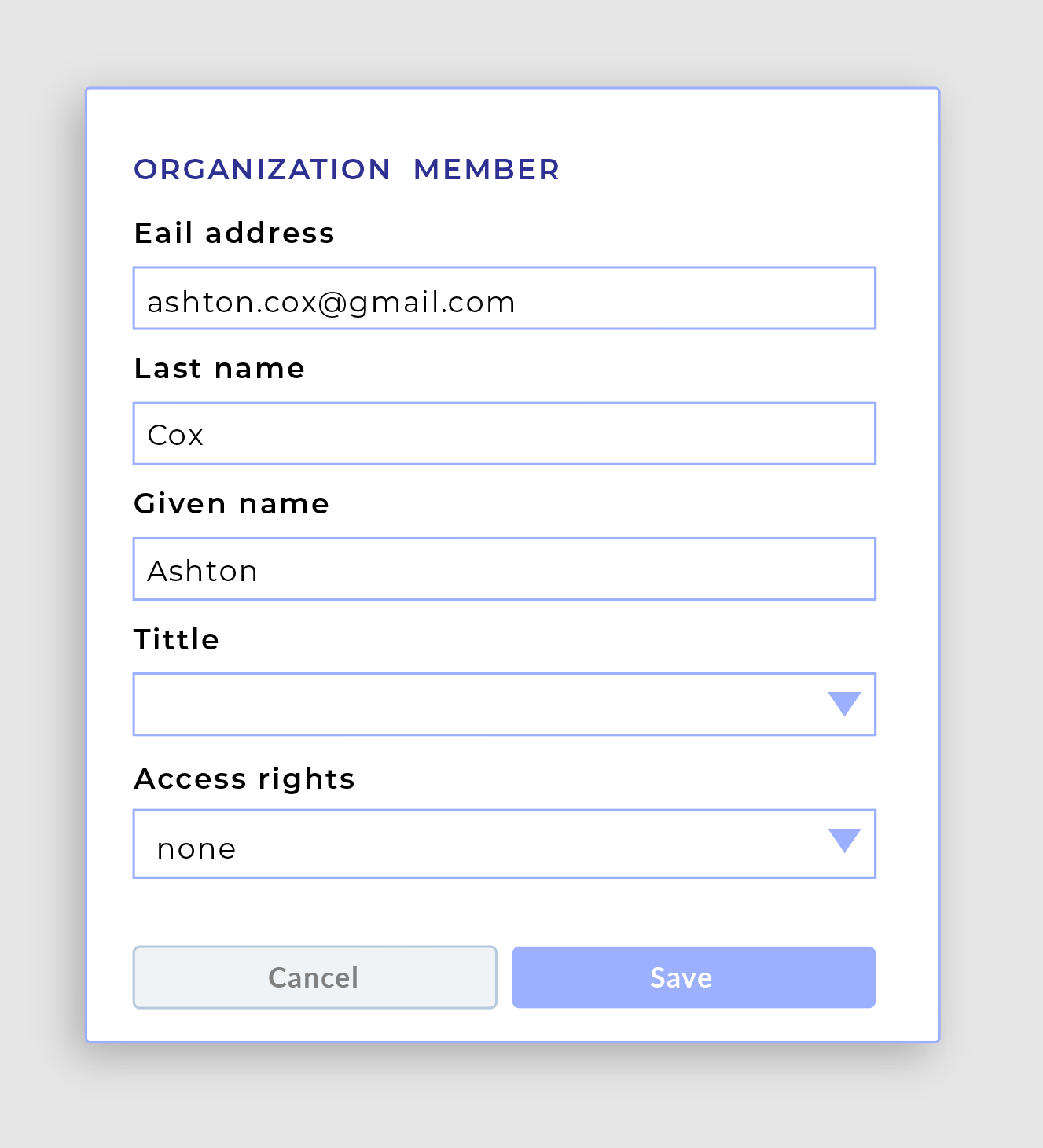
As this user is a regular member of the organisation, their access rights are set to None.
To promote them to an admin, you must choose the Organisation admin option and then save.
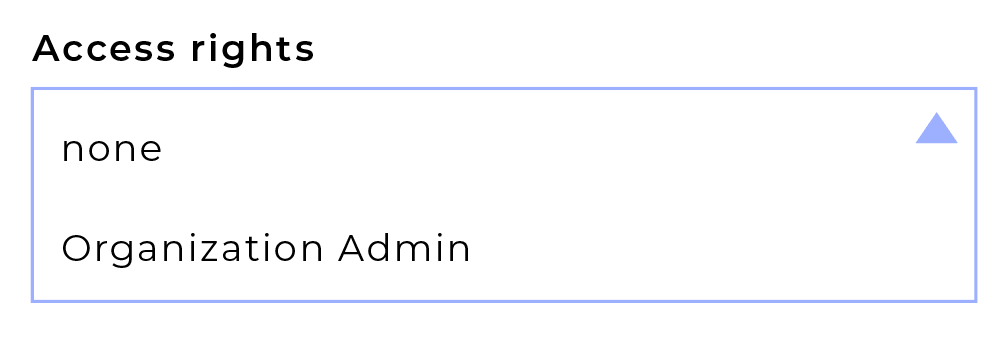
Please note that the user will not receive any notification of that. Once they log in to GRADEpro next time or refresh, they will have the new access rights.This way, you can also remove admin rights from a person or edit their name and surname.
RELATED ARTICLES
Was this article helpful?
That’s Great!
Thank you for your feedback
Sorry! We couldn't be helpful
Thank you for your feedback
Feedback sent
We appreciate your effort and will try to fix the article