TABLE OF CONTENTS

How you can keep track of your project progress.
1. Introduction
Restriction: This article refers only to the projects within Team or Enterprise licences.If your project has a large number of PICO questions or if you are managing multiple projects simultaneously, you may need ways of tracking the progress in order to quickly assess the stage of work you are at.
You can track progress within a single project and in the whole workspace with the use of the Organisation Panel.
2. Tracking progress in a project
In each organisation project, on the right-hand side of the questions, there are three boxes.
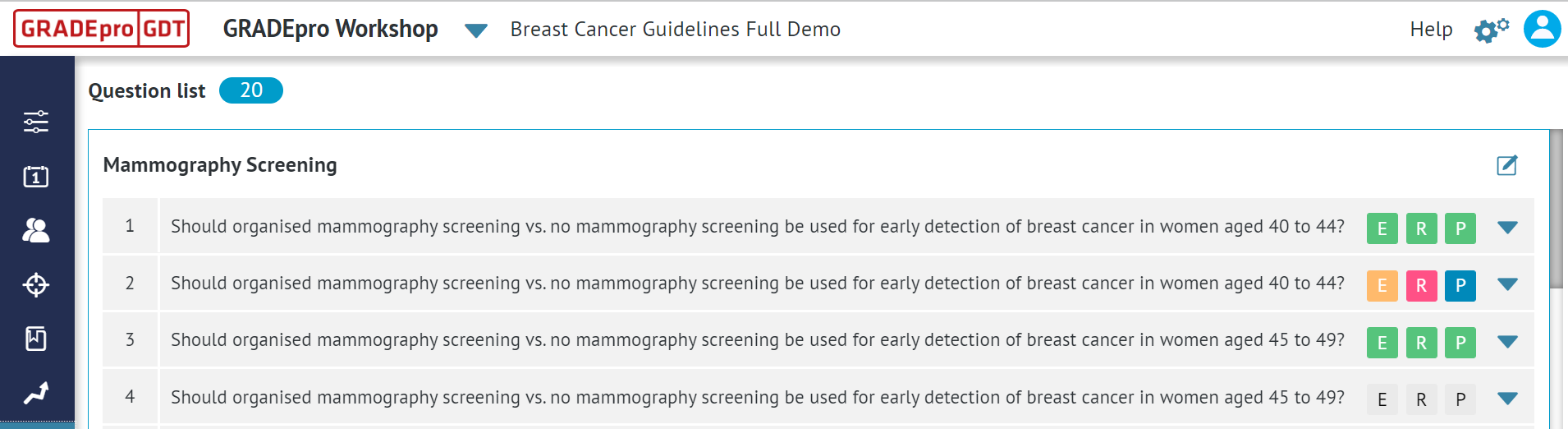
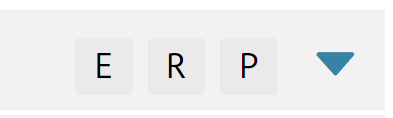
E stands for evidence table, R for recommendation (EtD table), and P for presentation.
To mark any of the three boxes, you simply need to click on it. The question completion box is available then, too.
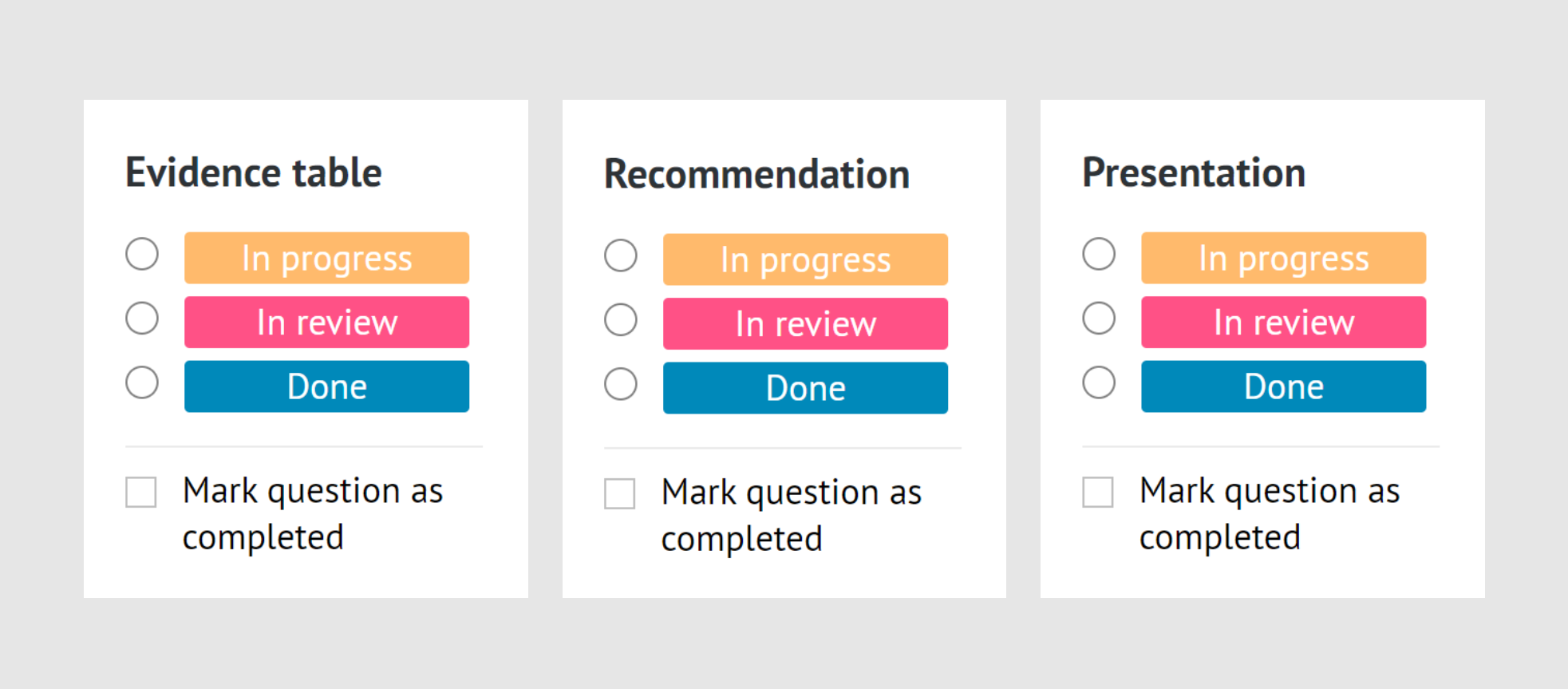
Those labels are meant for the purpose of tracking the progress of the project.
They can be marked in various ways.
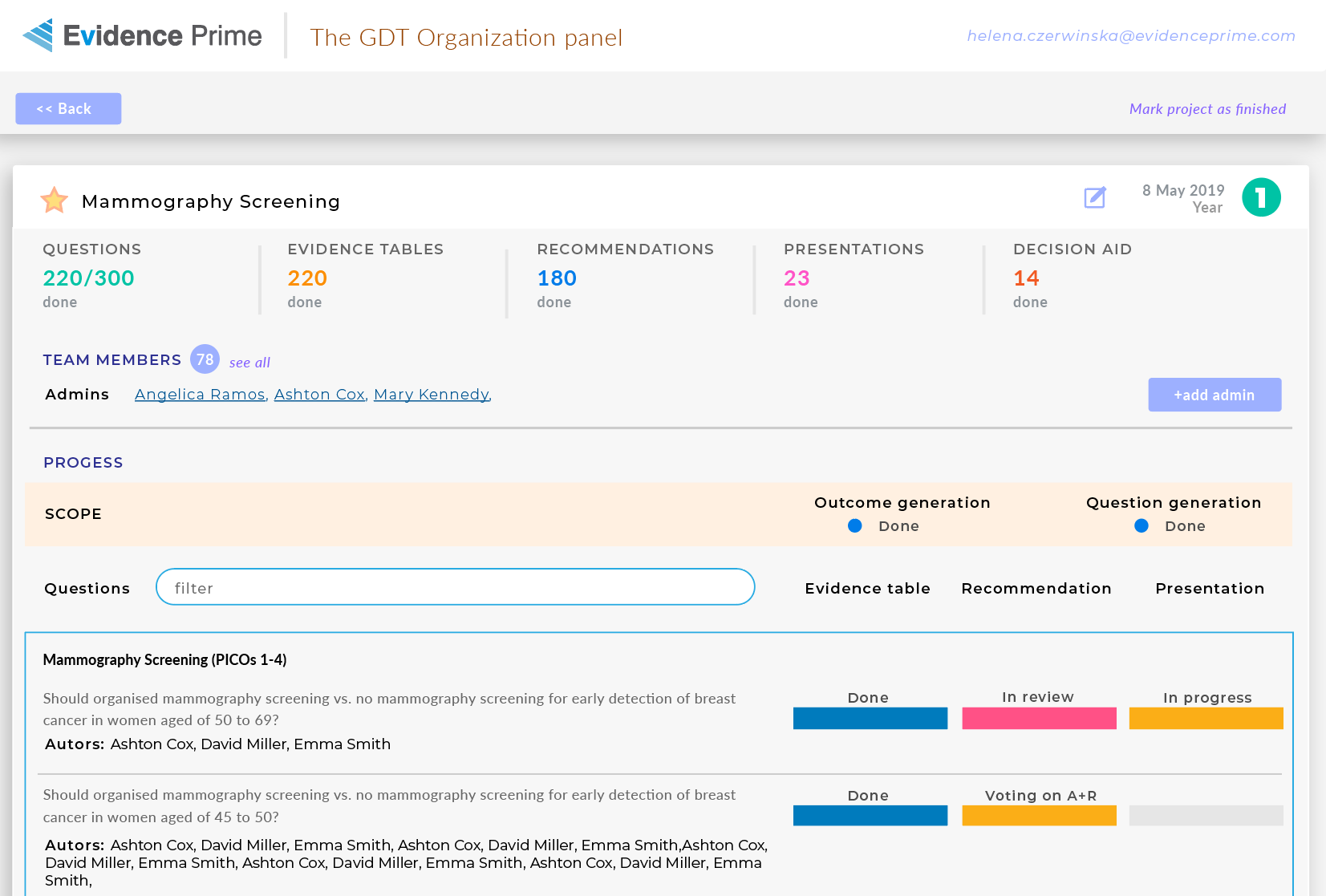
- In progress means that the work has already begun, but not all the details have been filled in.
- In review suggests that although the data have been filled in, they need to be assessed yet.
- Done means that this part has been completed.
- Mark question as completed highlights all boxes
Each label marks the boxes in a corresponding colour.
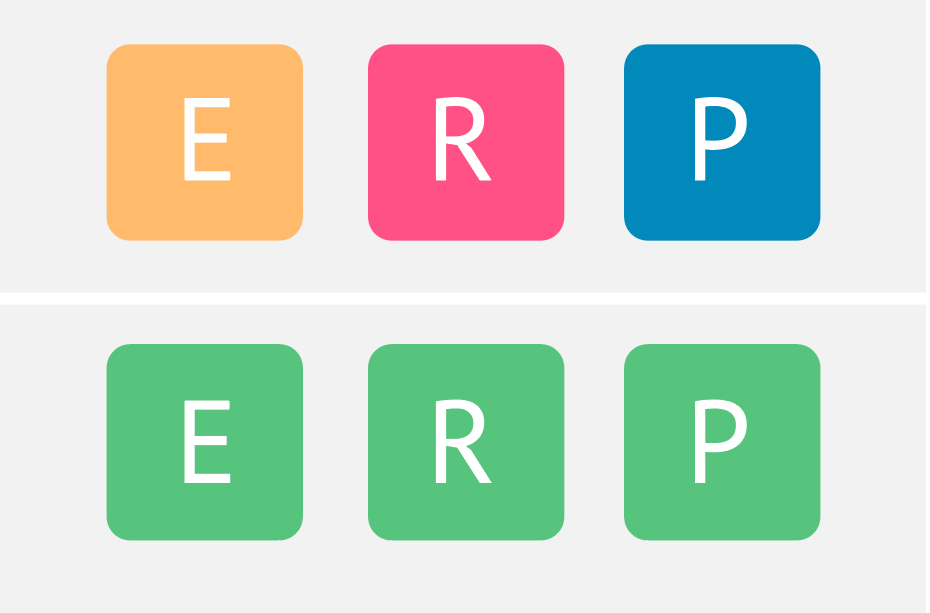
Those labels allow for a quick assessment of the project's progress by looking at the colour-coded boxes.
The labels are also reflected in the Organisation panel, which is described in detail below.
3. Tracking progress in the organisation panel
Organisation admin has access to various statistics showing the progress of a GRADEpro project. The team (performing evidence synthesis and recommendation development) is able to report the progress of work on each clinical question by using the labels described above.
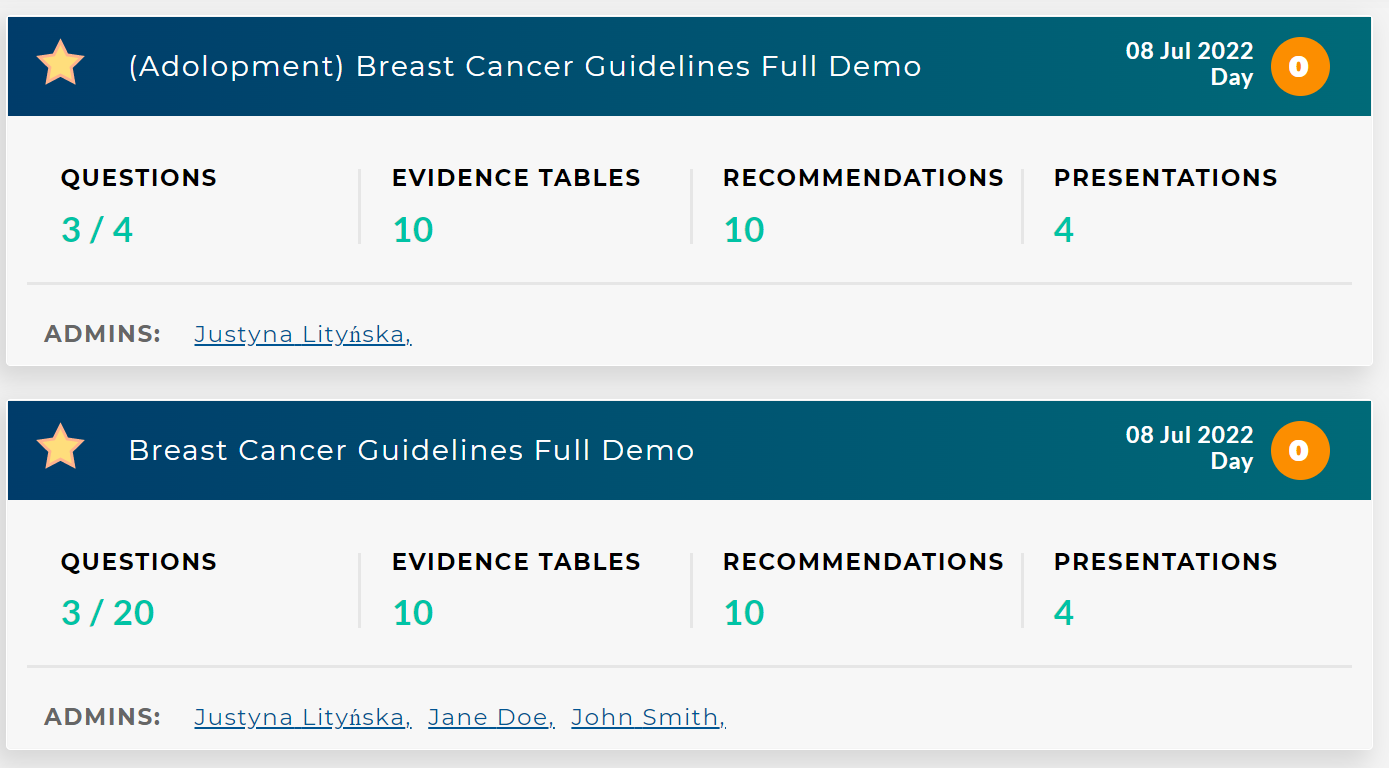
This way, the Organization Admin is able to track the progress of multiple projects simultaneously - check the number of questions in a project, how many evidence tables, EtD tables, and presentations have been marked as done and how many questions have been marked as completed.
In project details, the admin can check the progress of each PICO question. To enter project details, it's enough to click on its name.
RELATED ARTICLES
Was this article helpful?
That’s Great!
Thank you for your feedback
Sorry! We couldn't be helpful
Thank you for your feedback
Feedback sent
We appreciate your effort and will try to fix the article